|
|
Register your Mobile Tracker Device with MAP using Sample Apps
Create Asset Configuration
Creating an asset configuration allows you to enable any of the tracking features of the mobile tracker device being used, such as location tracking, geofencing, start and stop alerts, etc. In this step, the configuration is created and stored in MAP associated with the asset object. The configuration will be sent to the mobile tracker device as part of the Start Tracking step.
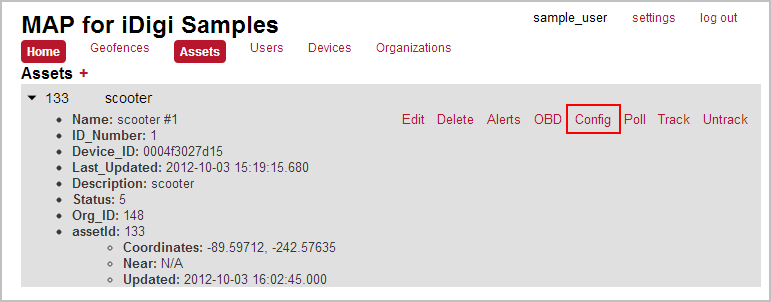
- Configuration of an asset is done within the asset object itself. If you have not done so already, click the > symbol (as described in the Create an Asset section) to expand the asset's contents.
- With the asset's contents expanded; click the Config menu.
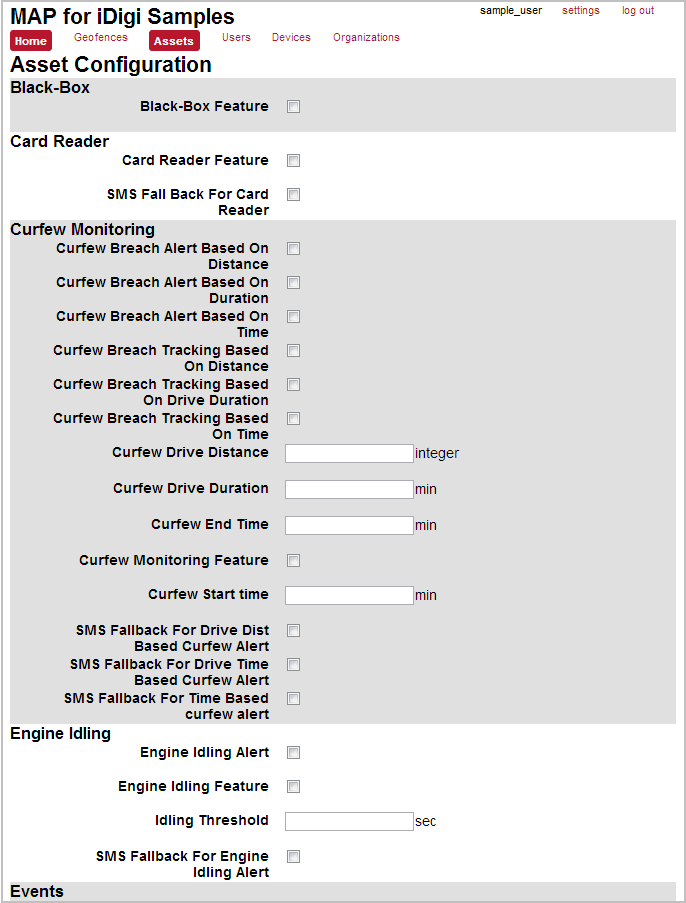
- The Asset Configuration dialog will be displayed (as shown below). This dialog displays the various configuration options you can assign to your asset including tracking features such as location tracking, geofencing, start and stop alerts, etc.
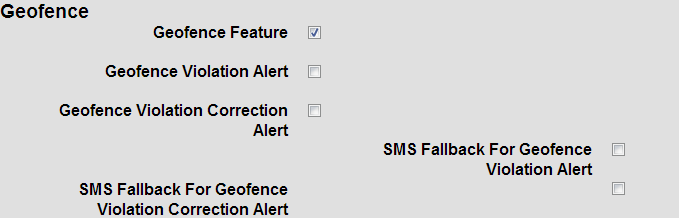
- Within the dialog, locate the Geofence configuration section. Within this section, configure the following settings:
- Select the Geofence Feature checkbox.
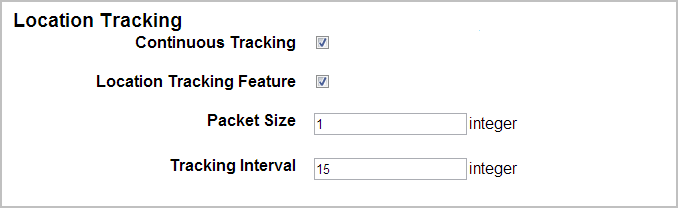
- Within the dialog, locate the Location Tracking configuration section. Within this section, configure the following settings:
- Select the Continuous Tracking checkbox.
- Select the Location Tracking Feature checkbox.
- Enter 1 into the the Packet Size field.
- Enter 15 into the Tracking Interval field.
- When finished, click the Save button
 (located at the bottom of the Asset Configuration dialog) to save your asset configuration. (located at the bottom of the Asset Configuration dialog) to save your asset configuration.
You've completed the process of creating an asset configuration. Proceed to the Start Tracking section where you will send the asset configuration you just created out to the mobile tracker device and enable the features specified in this configuration.
Back to Step 3 | Move to Start Tracking
|