Add your device to Device Cloud
Device Cloud allows you to securely manage the devices in your device inventory. You can add a device to your Device Cloud inventory at any time. To do so:
- Log in to your Device Cloud account if you haven't already. Once logged in, open the Devices page by selecting the Devices menu from within the Device Manager tab.

- Click the Add Devices button from the toolbar to register a new device.

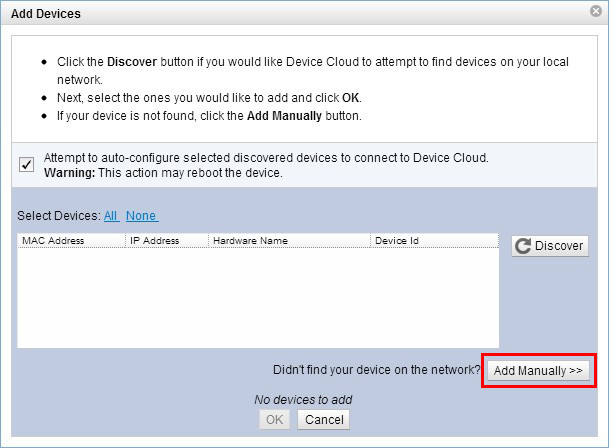
- Since the Kinetis device is connected via a USB cable, it needs to be added to your device inventory manually. Click the Add Manually>> button to begin adding your device manually.
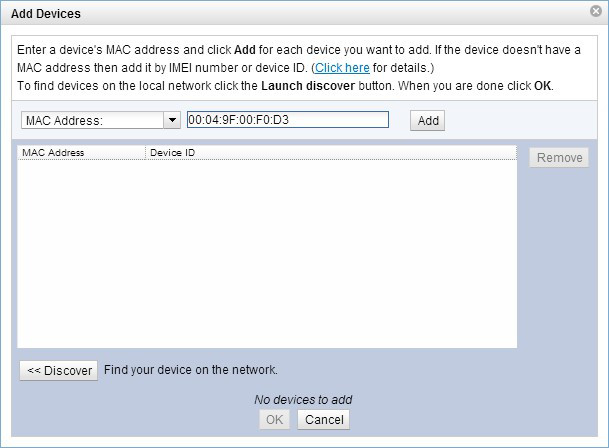
- Using the drop-down menu select the MAC Address: option then enter your device's MAC address into the field using the following format: XX:XX:XX:XX:XX:XX.
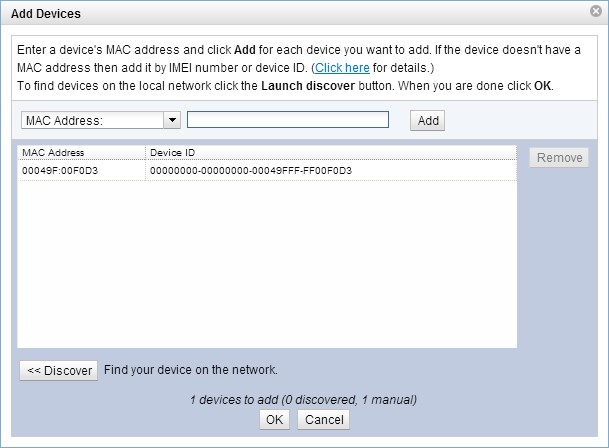
- Once your MAC address has been entered click Add; your device will appear within the window. Click OK to exit the Add Devices applet. This will register the device to your Device Cloud account.
- Device Cloud will add the device to your inventory of devices.
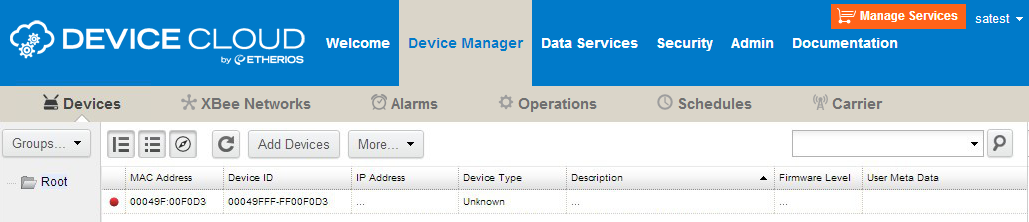
You've completed the Device Cloud setup process.