The RCI service is an optional feature for Cloud Connector applications that allows for remote configuration, control and information exchange between a device and Device Cloud.
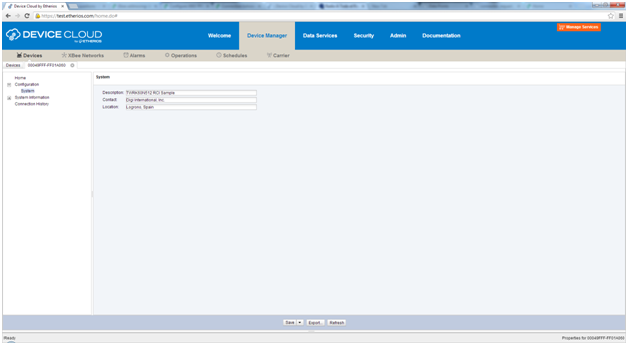
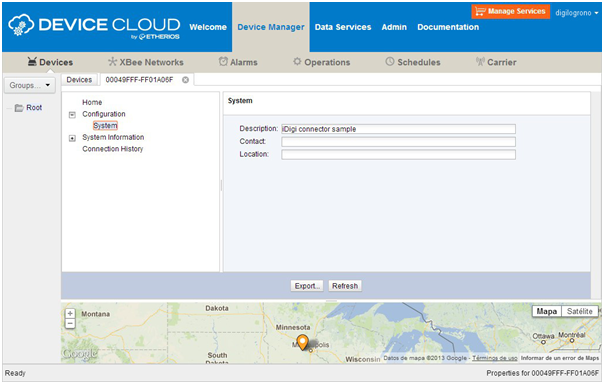
Your device's information is easily accessible and graphically represented within Device Manager in order to facilitate remote inspection and modification. To view your device's configuration settings simply open the device's Properties page by double-clicking on your device within the Device list. From the device's Properties page you can review or change your device's configuration settings remotely.
To enable the RCI service you must:
To enable this service, the following macro must be defined at connector_config.h:
#define CONNECTOR_RCI_SERVICE
The CONNECTOR_RCI_MAXIMUM_CONTENT_LENGTH macro must also be declared with the maximum content length (in bytes) of an element’s value. This macro is used in buffer allocation so you should reduce this value to reduce RAM usage:
#define CONNECTOR_RCI_MAXIMUM_CONTENT_LENGTH 256
The remote configuration file, config.rci, defines the data to be represented and accessed through Device Cloud. This file can be located anywhere in your PC, either inside or outside the project.
The configuration definition inside config.rci has to be provided using a specific syntax; using some keywords to define a group of settings or state information, errors, setting types, etc.
The sample project called basic_rci contains an example of the config.rci file.
globalerror load_fail "Load fail"
globalerror save_fail "Save fail"
globalerror memory_fail "Insufficient memory"
# Device info that shows up in device summary
# Device Manager queries this system setting to display the information in root folder
group setting system "System"
element description "Description" type string max 63
element contact "Contact" type string max 63
element location "Location" type string max 63
error invalid_length "Invalid Length"
# Device Cloud password
# Device Manager uses this devicesecurity setting for password authentication
# Note, as with all password, password type is a write-only field
# group setting devicesecurity "iDigi device security"
# element identityVerificationForm "Connection security" type enum
# value simple "No connection security"
# value password "Connection is password authenticated"
# element password "iDigi device connection password" type password max 133
# Device location
# State configuration for GPS
# Must setup the following group for Latitude and Longitude to be shown in Device Manager.
group state gps_stats "GPS"
element latitude "Latitude" type string access read_only
element longitude "Longitude" type string access read_only
Once config.rci is defined, you have to run the ConfigGenerator.jar tool to upload the device descriptor to Device Cloud (so it knows which remote configuration interfaces your device supports). A header file named remote_config.h is generated and must be included in your project.
This header file contains the callbacks that you have to implement in your application. Within the provided example, these callbacks are implemented in the remote_config_cb.c source file.
When Device Cloud sends an RCI request to the device, the app_remote_config_handler() is called with the following request ID:
The application callbacks to be performed (depending on the request) should be provided in the code.
Cloud Connector for Kinetis includes a sample meant to show you how to perform a remote configuration of the device through Device Cloud using the RCI service: Basic Remote Configuration RCI.
To execute this tool you need to have Java Runtime Environment installed on your PC.
To run it, open a Windows Command Line and navigate to [Etherios_Cloud_Connector_Installation_Path]\Tools\ and execute the application as follows:
java -jar ConfigGenerator.jar [-help] [-verbose] [-nodesc] [-vendor] [-path] [-url] <"username"[:"password"]> <device_type> <firmware_version> <input_config_file>
NOTE: username, password, vendor_id, device_type, and firmware_version are used for accessing your Device Cloud account and uploading device configuration information (descriptors) for your device.
java -jar ConfigGenerator.jar username:password "MQX 4.0 on Kinetis" 1.0.0.0 config.rci
To verify that everything is properly configured, start by reviewing the sample configuration:
To see how the Basic Remote Configuration RCI sample works (basic_rci example), build the project (learn how to do build a project in CodeWarrior or IAR) and then launch it (via CodeWarrior or IAR).
Once the project has been launched, you can review the device's configuration within Device Cloud. To do so:
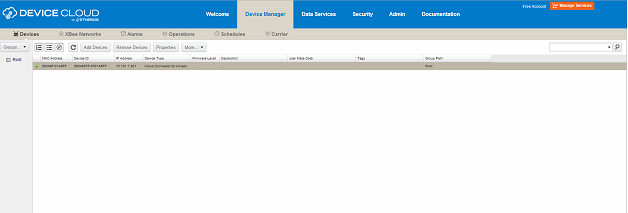
Open the Devices page by selecting the Devices menu within the Device Manager tab. Your device will appear as connected within the Device list.

|
A device establishes a TCP connection to Device Cloud over TCP port 3197, so that port must be open for outbound traffic. |
Navigate to Configuration > System from the menu displayed. Your device's system configuration information will be displayed within the page. You can modify these settings as needed, making sure to click the Save button to save your changes.