
In the previous section of this guide we made use of the precompiled binaries provided with the Cloud Connector example.
In this section we will edit and recompile the examples. However, you must follow the steps described in the Providing µC/OS core components source code from Micriµm section before proceeding with the steps below.
|
|
A default installation path of C:\Program Files\Etherios\Cloud Connector\Kits\Kinetis is assumed. If you installed the product in a different location, replace the installation path in the following steps with your specific installation path. It is also assumed that you are using TWR-K60N512. If you are using TWR-K53N512 change it where necessary. |
Before modifying an example, it is recommended that you clone its folder to avoid overriding the original code. To do so:
To import your project:

|
Optionally, you can drag a .ewp file from Windows Explorer and drop it into IAR’s Projects list. This will allow you to have more than one project per workspace. |
The project will appear within the Workspace view. Expand it to see its contents and open the connector_config.h file in the Sources folder:

Uncomment the following lines and replace their definition values with your device's MAC address and your Device Cloud account parameters:
#define CONNECTOR_MAC_ADDRESS "00:00:00:00:00:00"
#define CONNECTOR_VENDOR_ID 0x00000000
#define CONNECTOR_CLOUD_URL "login.etherios.com"
Your device's MAC address (highlighted in the image below) can be found on the bottom of the TWR-SER board:
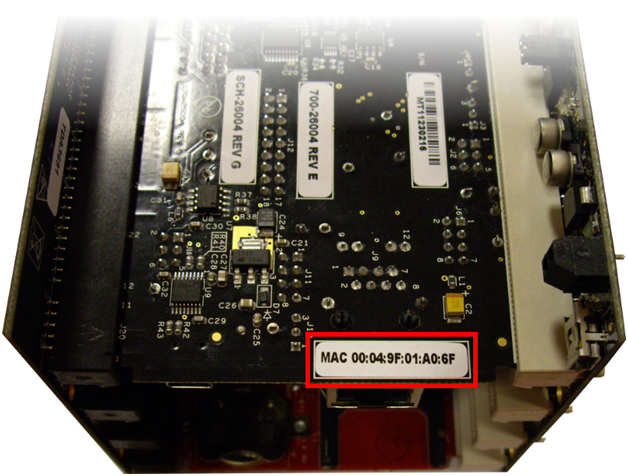
You should have obtained a Vendor ID previously. You can locate your unique Vendor ID number by logging in to your Device Cloud account and selecting the Admin tab. Your Vendor ID will be displayed within the Vendor Information section of the My Account page.
Your Device Cloud URL depends on which cloud your account belongs to. When you created your Device Cloud account you selected between Device Cloud US and Device Cloud Europe.
|
|
By default, examples use DHCP to obtain their IP address. If you want to modify this behavior to use a static IP, refer to Configuring a µC/OS Project. |
When finished, save and close connector_config.h.
Open the application.c file and locate the following line within the code:
static char buffer[] = "Etherios Cloud Connector Device application data. Count xxxx.\n";
size_t const bytes_copied = snprintf(buffer, buf_size, "Etherios Cloud Connector Device application data. Count %d.\n", count);
Replace with the following:
static char buffer[] = "Hello Device Cloud! Count xxxx.\n";
size_t const bytes_copied = snprintf(buffer, buf_size, "Hello Device Cloud! Count %d.\n", count);
The text has been changed to "Hello Device Cloud! Count <counter>", where <counter> is an incremental number representing the number of times the button has been pushed.
To change the file name and path of the file to be sent to Device Cloud, locate the following line:
ret = connector_send_data("test/test.txt", &ecc_data, NULL);
Replace with the following:
ret = connector_send_data("Hello.txt", &ecc_data, NULL);
With this change the text file will be uploaded to the root of the device's data storage with Hello.txt as the file name.
When finished, click the Save button of the main toolbar to save your changes.
Now you're ready to build the project. Click on the Workspace combo box and select the Flash build configuration:
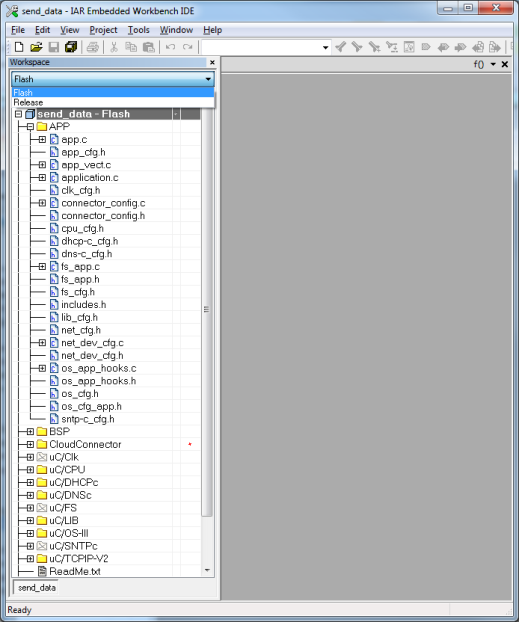
Click on the  icon and wait until the build process finishes; if you configured everything correctly you should not get any errors. Optionally, you can right-click the project and select Make rather than clicking the icon.
To run the project select Project > Download > Download active application.
Wait until the download finishes and check the console output to verify that the download was successful.
Reset the tower board so the application starts.
Next you will test your application.