
For a first evaluation of Cloud Connector for Kinetis over µC/OS, we'll skip the steps described in See "Providing µC/OS core components source code from Micriµm" and we'll make use of the recompiled binaries that Digi provides for each Cloud Connector example.
|
|
A default installation path of C:\Program Files\Etherios\Cloud Connector\Kits\Kinetis is assumed. If you installed the product in a different location, replace the installation path in the following steps with your specific installation path. It is also assumed that you are using TWR-K60N512. If you are using TWR-K53N512 change it where necessary. |
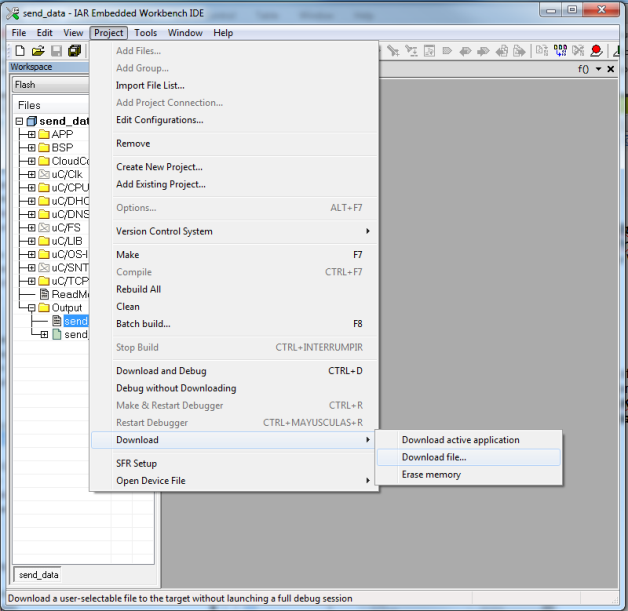
To import your project:

|
Optionally, you can drag a .ewp file from Windows Explorer and drop it into IAR’s Projects list. This will allow you to have more than one project per workspace. |
To test the application you will need some type of Serial terminal software (use any of your choice). Configure the following settings:
The port number must be the one that corresponds with your device's RS232 DB9 connector located at TWR-SER as default I/O channel.
|
|
Precompiled applications use DHCP to obtain their network configuration. Also, a device establishes a TCP connection to Device Cloud over TCP port 3197, so that port must be open for outbound traffic. |
Precompiled applications were built without customization of some required parameters in the example's connector_config.h (see Configuring a µC/OS Project). Therefore, during application boot, you will be asked for:
ap_read_mac_addr: Type desired MAC address in AA:BB:CC:DD:EE:FF format:
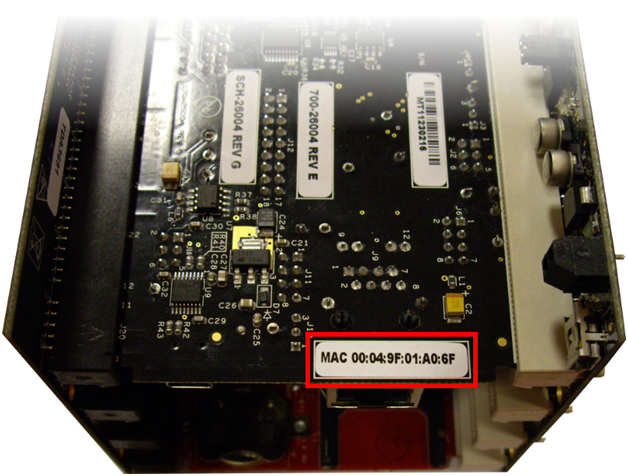
00:04:9F:01:A0:6Fapp_read_mac_addr: device_mac_addr: 00:04:9F:01:A0:6F
Starting the interface device...Ok.
Configuring IP Address in DHCP Mode...
Initialize DHCP client...Ok
Starting DHCP client...Ok
Processing...
DHCP address configured
DHCP IP Address = 10.101.1.202
DNS server = 10.49.8.62
link_state=Up
Calling Cloud Connector application_start
application_start: calling connector_config
app_config_vendor_id: Type desired device_vendor_id in 0xAABBCCDD format:
0x12345678app_config_vendor_id: device_vendor_id: 0x12345678
app_config_device_cloud_url: Type desired connector_cloud_url:
login.etherios.comapp_config_device_cloud_url: connector_cloud_url: login.etherios.com
application_start: calling connector_start
Cloud Connector v2.0.0.0
Your device's MAC address (highlighted in the image below) can be found on the bottom of the TWR-SER board:
You should have obtained a Vendor ID previously. You can locate your unique Vendor ID number by logging in to your Device Cloud account and selecting the Admin tab. Your Vendor ID will be displayed within the Vendor Information section of the My Account page.
Your Device Cloud URL depends on which cloud your account belongs to. When you created your Device Cloud account you selected between Device Cloud US and Device Cloud Europe.
To test your application, follow these steps.