
To test the application you will need some type of Serial terminal software (use any of your choice). Configure the following settings:
The port number must be the one that corresponds with your device's default serial output. All µC/OS projects use the RS232 DB9 connector located at TWR-SER as default I/O channel, and it is recommended that you set this port as the default option when you build MQX libraries.
To upload a text file to Device Cloud, press the SW1 of your device:
[5] Sending data to the Etherios Device Cloud using connector_send_data...
[5] Hello Device Cloud! Count 0.
[6] Send completed
|
|
A device establishes a TCP connection to Device Cloud over TCP port 3197, so that port must be open for outbound traffic. |
To verify that the file was uploaded properly, log in to your Device Cloud account. Once logged in, open the Files page by selecting the Data Services tab. Your device's containing stored data will be displayed within the page. Locate your device in the list and double-click on it to access its data:
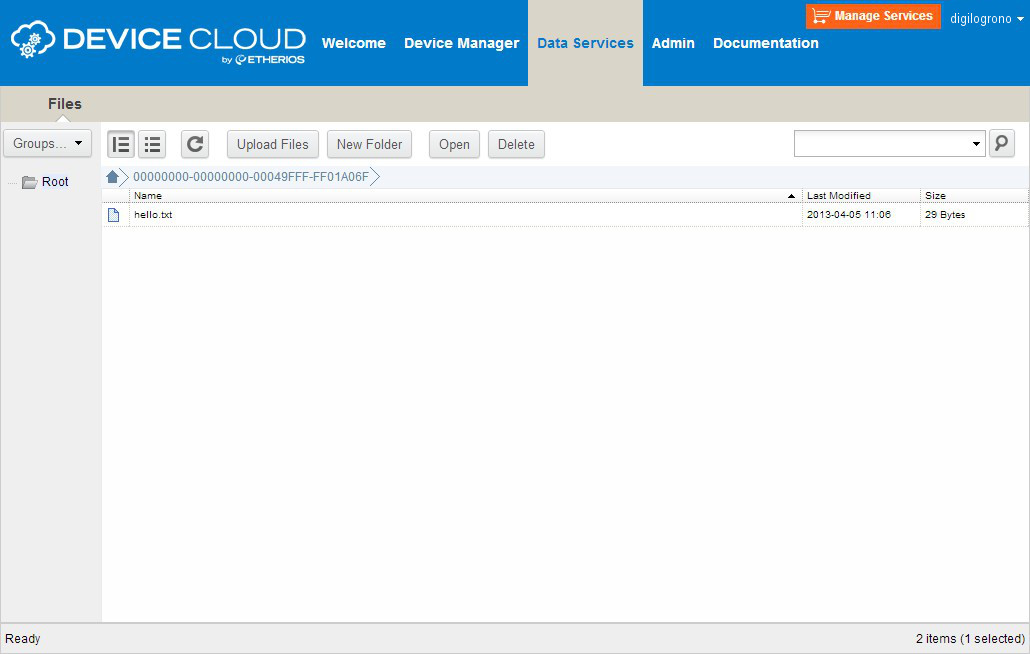
The device will contain a file with the name used in the application, hello.txt. Double-click this file to open it; the file contains the text written in the application:
Hello Device Cloud! Count 0.