Building a project
First you must select the build configuration:
- For MQX Projects: There are two different build configurations per Tower Kit. One links against Debug libraries and does not use any code optimization, and the other against Release libraries and optimizes the code as much as possible (size optimization by default, consult CodeWarrior’s help to learn how to customize the build process).
There is an extra build configuration, twrk60n512_FirmwareUpdate, this configuration is used to add full firmware update support to TWRK60N512 boards. To learn more about this feature, see the Firmware update chapter.
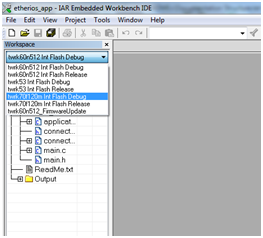
Changing the build configuration can be done by clicking on the Workspace’s combo box:
- For µC/OS-III Projects: Make sure you have followed the steps described in Providing Micriµm Sources before you continue.
There are two different build configurations per project, one links against Debug libraries and does not use any code optimization and the other against Release libraries and optimizes the code as much as possible (size optimization by default, consult IAR’s help to learn how to customize the build process).
Changing the build configuration can be done by clicking on the Workspace’s combo box:

Build your project by clicking on the  icon and wait until the build process finishes. If you configured everything correctly you should not get any errors.
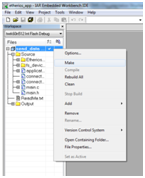
Optionally, you can right-click the project and select Make rather than clicking the icon.
Once the build succeeds, you can proceed by debugging the project or launching it.