Build MQX Libraries

If you have not previously ran MQX 4.0 for your Tower Kit, you will need to build it for both the Release and Debug configurations. If you have already done this, skip this section and proceed with Configuring an MQX Project.

CodeWarrior 10.x

  1. On a clean workspace, select File > Import….
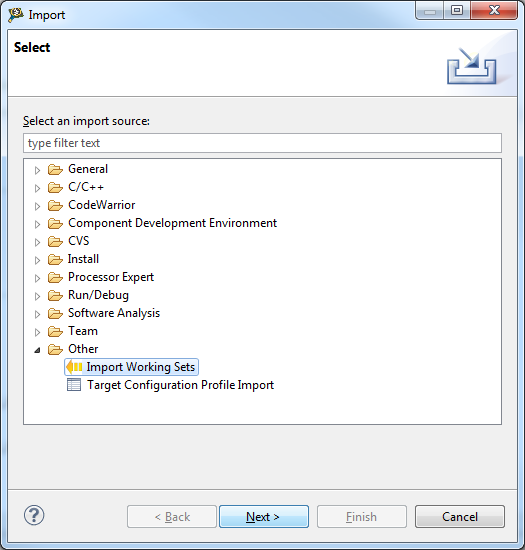
  2. In the pop-up menu, select Other > Import Working Sets and click the Next button.
  3. On the next page, click the Browse… button and navigate to the following location:
    _YOUR_MQX_INSTALLATION_PATH_\config\_YOUR_TOWER_KIT_\cw10
    where _YOUR_MQX_INSTALLATION_PATH_ is the location where you installed MQX 4.0 and _YOUR_TOWER_KIT_ is your Tower Kit's name.
    For example, to build the libraries for a TWRK60N512, the path would be “C:\Freescale\Freescale_MQX_4_0\config\twrk60n512\cw10” assuming the default MQX 4.0 installation path.
  4. Select the .wsd file that you will find in this path (for example, twrk60n512.wsd).
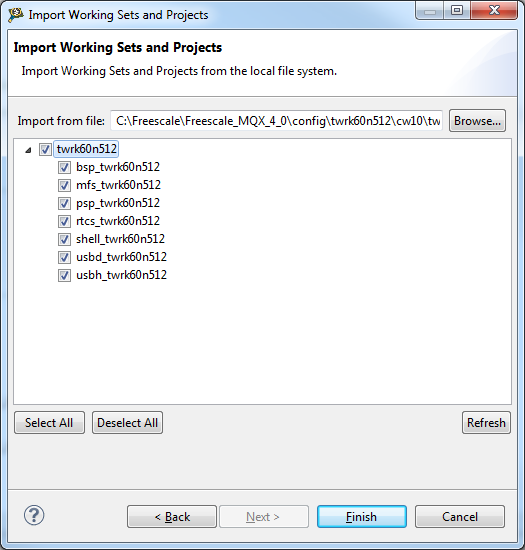
  5. Click the Finish button; the import process will begin. The import process may take a while to complete, please be patient.
    Optionally, before proceeding to build all configurations, you might want to modify the BSP and PSP’s user_config.h header file.
    For example, to support the full Firmware Update feature in TWRK60N512 you have to modify the following line:
    #define BSPCFG_ENABLE_FLASHX                      0
    Replacing it with the following:
    #define BSPCFG_ENABLE_FLASHX                      1
    Also, you can change other MQX parameters within this file, such as the default I/O Channel for the Serial Console:
    #define BSP_DEFAULT_IO_CHANNEL                    "ttyd:"
    The above line will configure the BSP of TWRK60N512 to use the DB9 connector in TWR-SER instead of the default USB Serial Port. For TWRK53N512 the TWR-SER is also "ttyd:" and for TWRK70F120M it is "ttyc:".

    Warning It is recommended thta you configure the default IO channel to be the TWR-SER DB9 connector.
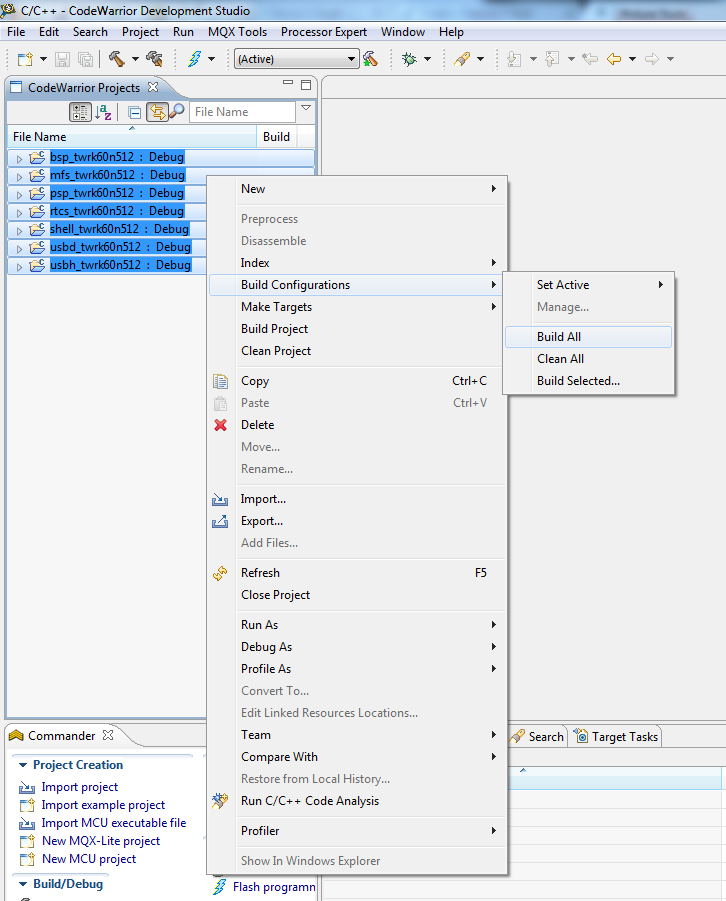
  6. Once you have configured your module’s libraries, select all the projects in the Project list. Right-click and select Build Configurations > Build All.

IAR Embedded Workbench 6.x

  1. Open the IAR Embedded Workbench.
  2. Within the Workbench navigate to File > Open > Workspace....
  3. In the dialog, navigate to the following path:
     _YOUR_MQX_INSTALLATION_PATH_\config\_YOUR_TOWER_KIT_\iar
    where _YOUR_MQX_INSTALLATION_PATH_ is the location where you installed MQX 4.0 and _YOUR_TOWER_KIT_ is your Tower Kit's name.
    For example, to build the libraries for a TWRK60N512, the path would be “C:\Freescale\Freescale_MQX_4_0\config\twrk60n512\iar” assuming the default MQX 4.0 installation path.
  4. Select the build_libs.eww file that you will find in that path.
  5. Optionally, before proceeding to build all configurations, you might want to modify the BSP and PSP’s user_config.h header file.
    For example, to support the full Firmware Update feature in TWRK60N512 you have to modify the following line:
    #define BSPCFG_ENABLE_FLASHX                      0
    Replacing it with the following:
    #define BSPCFG_ENABLE_FLASHX                      1
    Also, you can change other MQX parameters within this file, such as the default I/O Channel for the Serial Console:
    #define BSP_DEFAULT_IO_CHANNEL                    "ttyd:"
    The above line will configure the BSP of TWRK60N512 to use the DB9 connector in TWR-SER instead of the default USB Serial Port. For TWRK53N512 the TWR-SER is also "ttyd:" and for TWRK70F120M it is "ttyc:".
    WarningIt is recommended that you configure the default IO channel to be the TWR-SER DB9 connector.
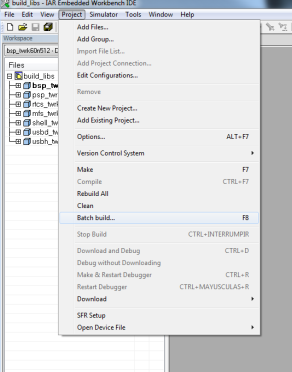
  6. Once you have configured your module’s libraries, select Project > Batch Build….
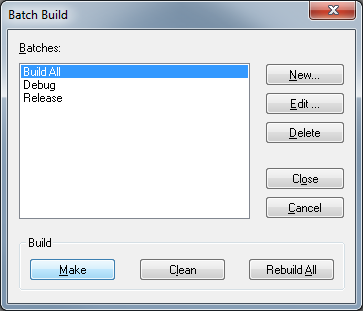
  7. Select Build All and then click the Make button. The build process may take a while to complete so please be patient.