File system support
File system support is an optional feature that allows Device Cloud to remotely interact with a file system. This enables Device Cloud to read from and write to a file and list directory entries. In MQX, file system hooks are implemented using MFS file system which is only compatible with FAT16-formatted devices. A different file system library can be implemented by rewriting the existing hooks.
To test this feature, the following macro must be defined in connector_config.h:
#define CONNECTOR_FILE_SYSTEM
Also, one and only one of the following macros must be defined in the same file:
#define FILE_SYSTEM_USB
Or
#define FILE_SYSTEM_SDCARD
To enable SD Card or USB stick support, these macros will create a task that is auto-started by MQX on init. These tasks were taken from MQX 4.0 - MFS “sdcard” and “mfs_usb” examples and slightly modified to pass the device’s file descriptors and names in a global variable of FILESYSTEM_INFO_STRUCT type.
Maximum path length must be defined using the following macro (change it to save RAM):
#define CONNECTOR_FILE_SYSTEM_MAX_PATH_LENGTH 256
To test this feature you will need an SD Card or a USB stick that has been FAT16 formatted. If you are using a USB stick, it must be attached to the TWR-SER Mini USB connector. You may need a Mini USB to USB adapter for this.

|
There is a known limitation on some hardware revisions of TWRK60N512. It is recommended that you insert the SD Card with write protection enabled before launching the application.
Also, the following line should be uncommented in connector_config.h so the application will ignore SD Card write-protection:
#define APPLICATION_IGNORE_SDCARD_PROTECTION
From TWR-K60N512-UM.pdf:
On Rev D TWR-K60N512 boards, there is an erratum that sends a reset to the Ethernet PHY on the TWR-SER when inserting an SD Card. This will cause a loss of communication with the web server. To get around this erratum, you need to switch on Write Protect on the SD card, and insert it before the board boots up. Earlier boards do not have this issue.
|
Once the connector_config.h file is modified perform the following steps:
- Build the example and launch it.
- Insert the device and log in to your Device Cloud account.
- Open your device's Properties page by locating it from the Device list and double-clicking on it.
- Within the device's Properties page there should be a File Management option. Click to select this option and you will see a list of files similar to the following:
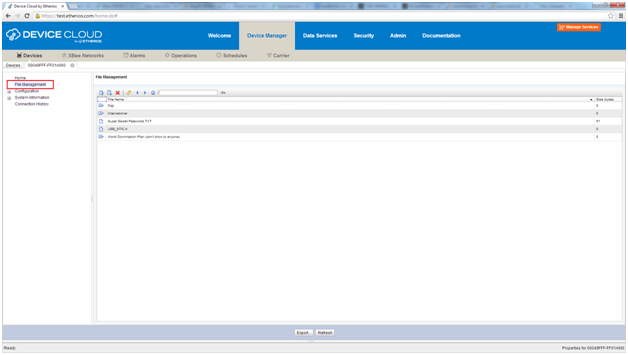
- You can browse through your files, upload new files, download existing files, and delete unwanted files. To test full support, refer to Device Cloud’s user documentation where you can also find examples on how to use Web Services.