Connect with SSL/TLS
Cloud Connector for Kinetis supports both secure and non-secure connections through sockets. To enable the SSL/TLS connection, define the following macro within connector_config.h:
#define CONNECTOR_USE_SSL
#define USE_SSL
#define FREESCALE_MQX
The provided examples make use of CyaSSL, an embedded SSL programming library used to connect securely to Device Cloud. However, other options can be used by implementing the network’s hooks to use a different SSL library.
The CyaSSL library is not included, but can be downloaded for free from its official website. Once you build it for your module, you must add the unzipped folder path to your project's include path and the generated binary library cyassl.a to your linker input.

|
A device establishes an SSL/TLS connection to Device Cloud over TCP port 3199, so that port must be open for outbound traffic. |
Adding CyaSSL support to a CodeWariror 10.x project
This guide assumes that you have already built the library for your Tower Module in the CodeWarrior IDE. To add the CyaSSL library paths to a project, follow these steps:
- Right-click your project in the CodeWarrior Projects view and select Properties.
- In the dialog, go to C/C++ General > Paths and Symbols.
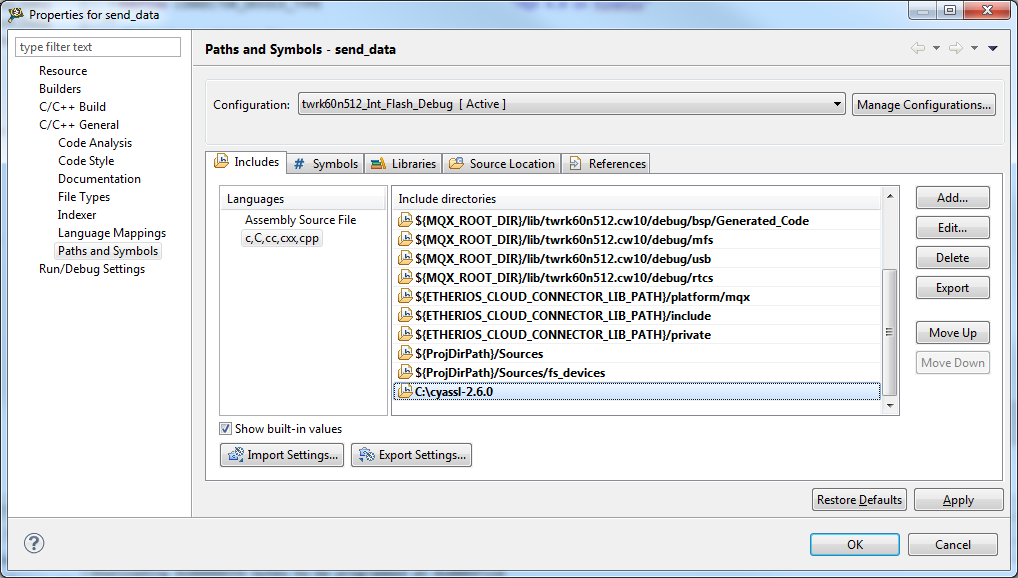
- In the Includes tab, select the c, C, cc, cxx, cpp language and then click the Add... button. Click the File System... button and in the dialog browse to the folder where you unzipped the downloaded CyaSSL code, this guide assumes that path to be C:\cyassl-2.6.0.
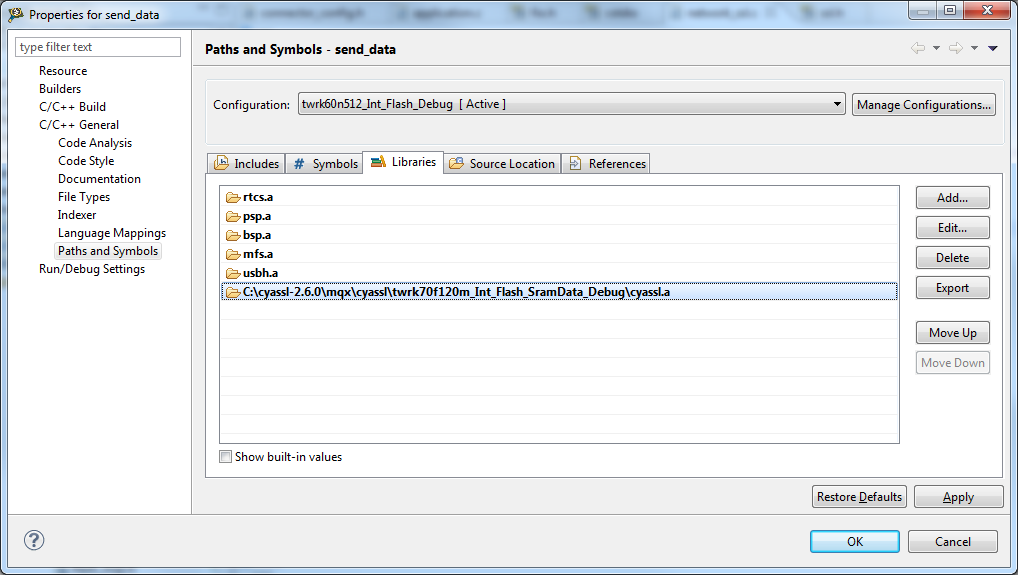
- Select the Libraries tab and then click the Add... button. In the dialog displayed click on File System... and browse to the folder where you built CyaSSL; select the cyassl.a file (for example: C:\cyassl-2.6.0\mqx\cyassl\twrk70f120m_Int_Flash_SramData_Debug\cyassl.a).
- Click OK. If you are asked to update the configuration click on Yes; now you are ready to include SSL support.
Adding CyaSSL support to an IAR Embedded Workbench 6.5 project
This guide assumes that you have already built the library for your Tower Module in the IAR Embedded Workbench IDE. To add the paths to a project, follow these steps:
- Right-click your project in the Workspace list and click on Options.
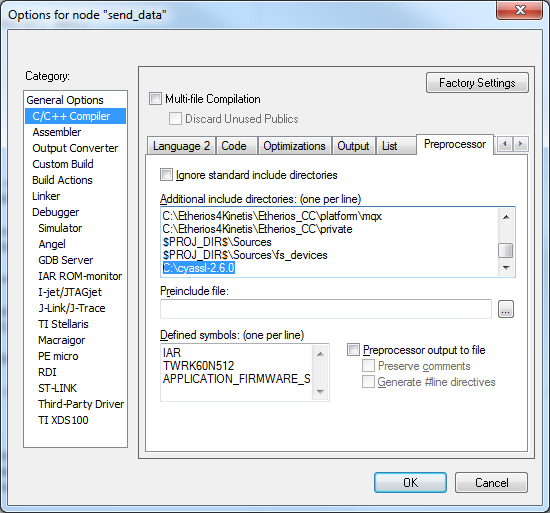
- Select the C/C++ Compiler category and then click on the Preprocessor tab.
- Within the Additional include directories field add the path to the folder where you unzipped the downloaded CyaSSL code, this guide assumes that path to be C:\cyassl-2.6.0.
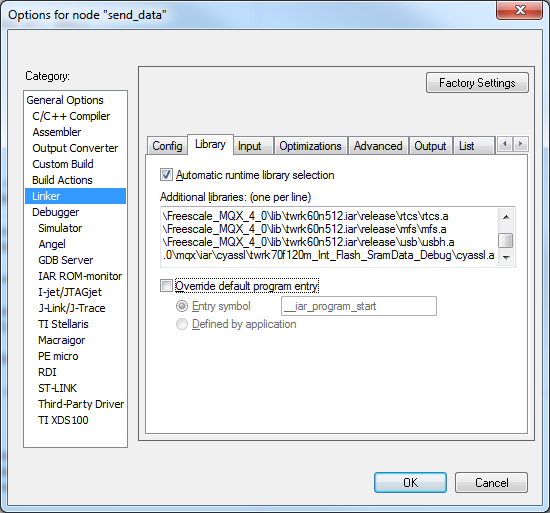
- In the same dialog, select the to Linker category and then click on the Library tab.
- Within the Additional libraries field add the path to the cyassl.a library file you built; for example C:\cyassl-2.6.0\mqx\iar\cyassl\twrk70f120m_Int_Flash_SramData_Debug\cyassl.a).
- Click OK, you are ready include SSL support.