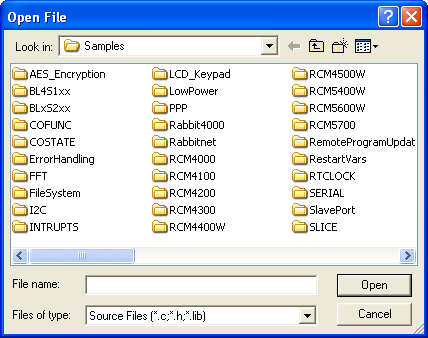
Sample programs are provided in the Dynamic C Samples folder, which is in the root directory where Dynamic C was installed. The Samples folder contains many subfolders, as shown in Figure 3.1. Sample programs are provided in source code format. You can open the source code file in Dynamic C and read the comment block at the top of the sample program for a description of its purpose and other details. Comments are also provided throughout the source code. This documentation, provided by the software engineers, is a rich source of information.
Figure 3.1 Screenshot of Samples Folder
The subfolders contain sample programs that illustrate the use of the various Dynamic C libraries. For example, the subfolders “Cofunc” and “Costate” have sample programs illustrating the use of COFUNC.LIB and COSTATE.LIB, libraries that support cooperative multitasking using Dynamic C language extensions. Besides its subfolders, the Samples folder also contains some sample programs to demonstrate various aspects of Dynamic C. For example, the sample program Pong.c demonstrates output to the Stdio window.
In the rest of this chapter we examine three sample programs in some detail.
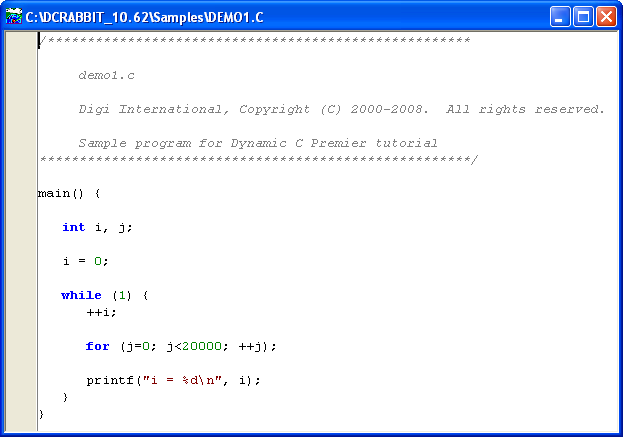
This sample program will be used to illustrate some of the functions of Dynamic C. Open the file Samples/DEMO1.C using the File menu or the keyboard shortcut <Ctrl+O>. The program will appear in a window, as shown in Figure 3.2 (minus some comments). Use the mouse to place the cursor on the function name printf in the program and press <Ctrl+H>. This brings up a Function Description window for printf(). You can do this with all functions in the Dynamic C libraries, including libraries you write yourself.
Figure 3.2 Sample Program DEMO1.C

To run DEMO1.C compile it using the Compile menu, and then run it by selecting “Run” in the Run menu. (The keyboard shortcut <F9> will compile and run the program. You may also use the green triangle toolbar button as a substitute for <F9>.)
The value of the counter should be printed repeatedly to the Stdio window if everything went well. If this doesn’t work, review the following points:
The target should be ready, indicated by the message “BIOS successfully compiled...” If you did not receive this message or you get a communication error, recompile the BIOS by pressing <Ctrl+Y> or select “Reset Target / Compile BIOS” from the Compile menu.
A message reports “No Rabbit Processor Detected” in cases where the wall transformer is not connected or not plugged in.
The programming cable must be connected to the controller. (The colored wire on the programming cable is closest to pin 1 on the programming header on the controller). The other end of the programming cable must be connected to the PC serial port. The COM port specified in the Communications dialog box must be the same as the one the programming cable is connected to. (The Communications dialog box is accessed via the Communications tab of the Options | Project Options menu.)
To check if you have the correct serial port, press <Ctrl+Y>. If the “BIOS successfully compiled …” message does not display, choose a different serial port in the Communications dialog box until you find the serial port you are plugged into. Don’t change anything in this menu except the COM number. The baud rate should be 115,200 bps and the stop bits should be 1.

To experiment with single stepping, we will first compile DEMO1.C to the target without running it. This can be done by clicking the compile button on the task bar. This is the same as pressing F5. Both of this actions will compile according to the setting of “Default Compile Mode.” (See “Default Compile Mode” in Chapter 16, for how to set this parameter.) Alternatively you may select Compile | Compile to Target from the main menu.

After the program compiles a highlighted character (green) will appear at the first executable statement of the program. Press the <F8> key to single step (or use the toolbar button). Each time the <F8> key is pressed, the cursor will advance one statement. When you get to the statement: for(j=0, j< ... , it becomes impractical to single step further because you would have to press <F8> thousands of times. We will use this statement to illustrate watch expressions.

Watch expressions may only be added, deleted or updated in run mode. To add a watch expression click on the toolbar button pictured here, or press <Ctrl+W> or choose “Add Watch” from the Inspect menu. The Add Watch Expression popup box will appear. Type the lower case letter “j” and click on either “Add” or “OK.” The former keeps the popup box open, the latter closes it. Either way the Watches window appears. This is where information on watch expressions will be displayed. Now continue single stepping. Each time you do, the watch expression (j) will be evaluated and printed in the Watches window. Note how the value of “j” advances when the statement j++ is executed.
Move the cursor to the start of the statement:
for (j=0; j<20000; j++);
To set a breakpoint on this statement, press <F2> or select “Toggle Breakpoint” from the Run menu. A red highlight appears on the first character of the statement. To get the program running at full speed, press <F9>. The program will advance until it hits the breakpoint. The breakpoint will start flashing both red and green colors.
To remove the breakpoint, press <F2> or select “Toggle Breakpoint” on the Run menu. To continue program execution, press <F9>. You will see the value of “i” displayed in the Stdio window repeatedly until program execution is halted.
You can set breakpoints while the program is running by positioning the cursor to a statement and using the <F2> key. If the execution thread hits the breakpoint, a breakpoint will take place. You can toggle the breakpoint with the <F2> key and continue execution with the <F9> key.
You can also set breakpoints while in edit mode. Breakpoint information is not only retained when going back and forth from edit mode to debug mode, it is stored when a file is closed and restored when the file is re-opened.
Press <F4>to put Dynamic C into edit mode. Use the “Save as” choice on the File menu to save the file with a new name so as not to change the original demo program. Save the file as MYTEST.C. Now change the number 20000 in the for statement to 10000. Then use the <F9> key to recompile and run the program. The counter displays twice as quickly as before because you reduced the value in the delay loop.
Go back to edit mode and open the program DEMO2.C. This program is the same as the first program, except that a variable k has been added along with a statement to increment “k” by the value of “i” each time around the endless loop. Compile and run DEMO2.C.
Press <Ctrl+W> to open the “Add Watch Expression” popup box.
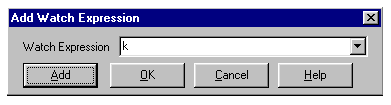
Type “k” in the text entry box, then click “OK” (or “Add”) to add the expression “k” to the top of the list of watch expressions. Now press <Ctrl+U>, the keyboard shortcut for updating the watch window. Each time you press <Ctrl+U>, you will see the current value of k.
Add another expression to the watch window:
k*5
Then press <Ctrl+U> several times to observe the watch expressions “k” and “k*5.”
The example below, sample program DEMO3.C, uses costatements. A costatement is a way to perform a sequence of operations that involve pauses or waits for some external event to take place.
Cooperative multitasking is a way to perform several different tasks at virtually the same time. An example would be to step a machine through a sequence of tasks and at the same time carry on a dialog with the operator via a keyboard interface. Each separate task voluntarily surrenders its compute time when it does not need to perform any more immediate activity. In preemptive multitasking control is forcibly removed from the task via an interrupt.
Dynamic C has language extensions to support both types of multitasking. For cooperative multitasking the language extensions are costatements and cofunctions. Preemptive multitasking is accomplished with slicing or by using the µC/OS-II real-time kernel. The µC/OS-II real-time kernel is included with Dynamic C starting with Dynamic C version 10.21. The other multitasking software has always shipped with all versions of Dynamic C.
Unlike preemptive multitasking, in cooperative multitasking variables can be shared between different tasks without taking elaborate precautions. Cooperative multitasking also takes advantage of the natural delays that occur in most tasks to more efficiently use the available processor time.
The DEMO3.C sample program has two independent tasks. The first task prints out a message to Stdio once per second. The second task watches to see if the keyboard has been pressed and prints the entered key.
|
main() { // First task will print the seconds elapsed. (2) costate { // Second task will check if any keys have been pressed. costate { |
The numbers in the left margin are reference indicators and not part of the code. Load and run the program. The elapsed time is printed to the Stdio window once per second. Push several keys and note how they are reported.
The elapsed time message is printed by the costatement starting at the line marked (2). Costatements need to be executed regularly, often at least every 25 ms. To accomplish this, the costatements are enclosed in a while loop. The while loop starts at (1) and ends at (6). The statement at (3) waits for a time delay, in this case 1000 ms (one second). The costatement executes each pass through the while loop. When a waitfor condition is encountered the first time, the current value of MS_TIMER is saved and then on each subsequent pass the saved value is compared to the current value. If a waitfor condition is not encountered, then a jump is made to the end of the costatement (4), and on the next pass of the loop, when the execution thread reaches the beginning of the costatement, execution passes directly to the waitfor statement. Once 1000 ms has passed, the statement after the waitfor is executed. A costatement can wait for a long period of time, but not use a lot of execution time. Each costatement is a little program with its own statement pointer that advances in response to conditions. On each pass through the while loop as few as one statement in the costatement executes, starting at the current position of the costatement’s statement pointer. Consult Chapter 5 for more details.
The second costatement in the program checks to see if an alpha-numeric key has been pressed and, if one has, prints out that key. The abort statement is illustrated at (5). If the abort statement is executed, the internal statement pointer is set back to the first statement in the costatement, and a jump is made to the closing brace of the costatement.
Observe the value of secs while the program is running.To illustrate the use of snooping, use the watch window to observe secs while the program is running. Add the variable secs to the list of watch expressions, then press <Ctrl+U> repeatedly to observe as secs increases.
This chapter provided a quick look at the interface of Dynamic C and some of the powerful options available for embedded systems programming. The following several paragraphs are a summary of what we’ve discussed.
Development Functions
When you load a program it appears in an editor window. You compile by clicking Compile on the task bar or from the Compile menu. The program is compiled into machine language and downloaded to the target over the serial port. The execution proceeds to the first statement of main, where it pauses, waiting to run. Press <F9> or select “Run” on the Run menu. If want to compile and run the program with one keystroke, use <F9>, the run command; if the program is not already compiled, the run command compiles it.
Single Stepping
This is done with the F8 key. The F7 key can also be used for single stepping. If the F7 key is used, then descent into functions will take place. With F8 the function is executed at full speed when the statement that calls it is stepped over.
Setting Breakpoints
The F2 key is used to toggle a breakpoint at the cursor position. Breakpoints can be toggled while in run mode, either while stopped at a breakpoint or when the program is running at full speed. Breakpoints can also be set in edit mode and retained when changing modes or closing the file.
Watch Expressions
A watch expression is a C expression that is evaluated on command in the Watches window. An expression is basically any type of C statement that can include operators, variables, structures and function calls, but not statements that require multiple lines such as for or switch. You can have a list of watch expressions in the Watches window. If you are single stepping, then they are all evaluated on each step. You can also command the watch expressions to be evaluated by using the <Ctrl+U> command. When a watch expression is evaluated at a breakpoint, it is evaluated as if the statement was at the beginning of the function where you are single stepping.
Costatements
A costatement is a Dynamic C extension that allows cooperative multitasking to be programmed by the user. Keywords, like abort and waitfor, are available to control multitasking operation from within costatements.