Phantom port removal on Windows 2000
NOTE: This is a known issues reported in Microsoft
Q271523 which states that when you remove or reinstall a multiport serial
adapter,
the COM port numbers are locked in the registry and not released for reuse so on
a reinstall, the next available COM number will be used rather then starting at
a lower com port i.e.COM3.
To resolve phantom com ports, you will need to hack out the COM port numbers
using the following procedure:
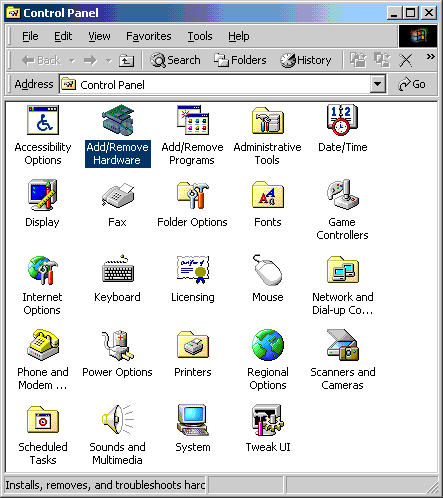
1. Open Start>Settings>Control Panel>Add New Hardware. Double-click Add New Hardware.
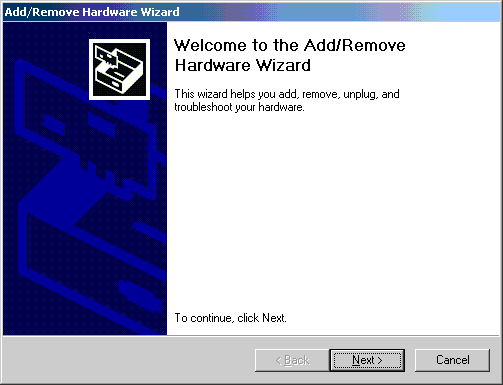
2. Click Next.
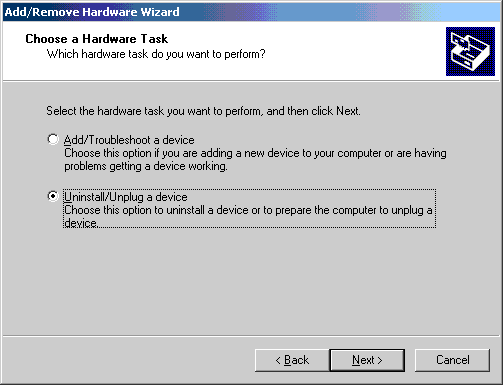
3. Select the Uninstall/Unplug a device radio button. Click Next.
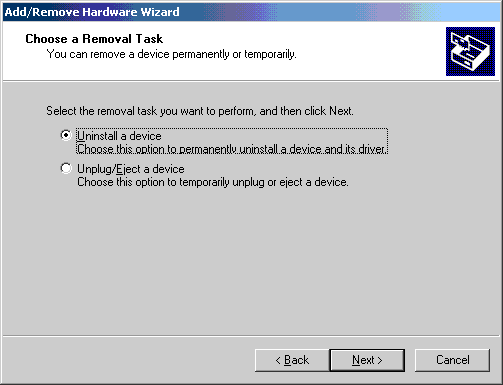
4. Select the Uninstall a device radio button. Click Next.
5. Select the Show hidden devices check box. Select any Digi Adapter that is present. Click Next. Repeat steps 1-7 until all Digi adapters (or ports) have been removed.
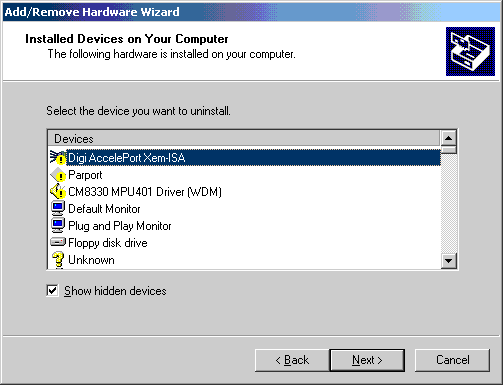
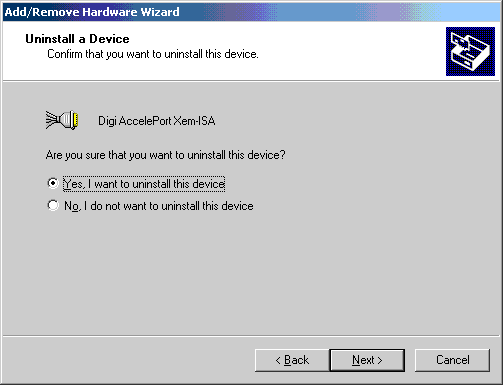
6. Select the Yes, I want to uninstall this device radio button. Click Next.
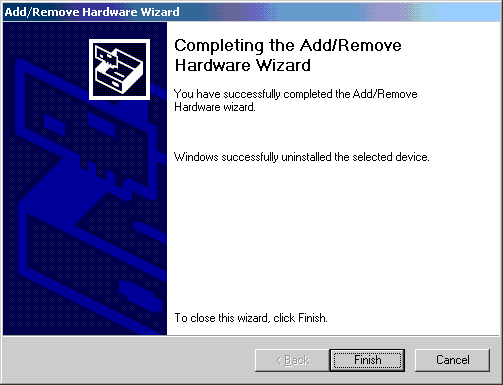
7. Click Finish.
**Digi recommends you back up your registry before doing any editing. Caution: Careless editing in the Registry may have disastrous results and could require a complete reinstall of the WINDOWS NT operating system. Digi assumes no responsibility for any problems ensuing from improper editing of the registry.**
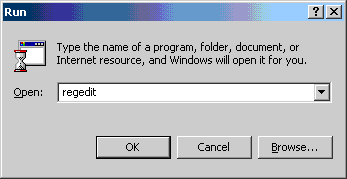
8. Open Start>Run. Type regedit. Click Ok.
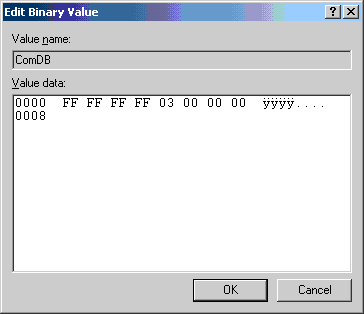
9. Open HKEY_LOCAL_MACHINE\SYSTEM\CurrentControlSet\Control\COM Name Arbiter. There should be a value called ComDB, Type REG_BINARY in this key. If you have phantom ports, it should look somewhat like below with "ff ff ff ff ff...03" for the data. Double click on ComDB.
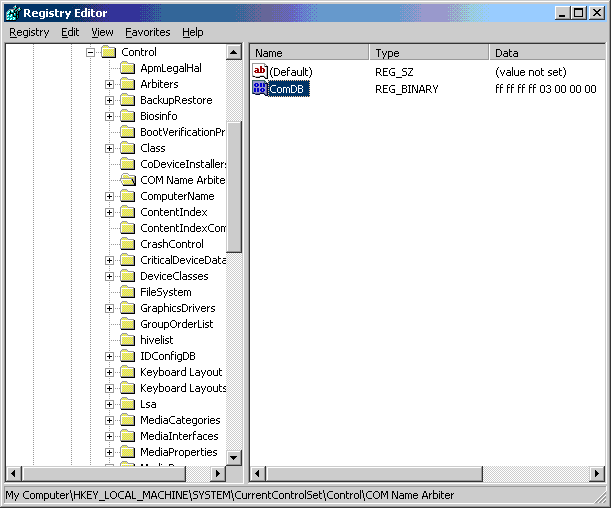
10. You will need to delete the ffs and leave the 03 at the beginning.
Before editing:
After editing:
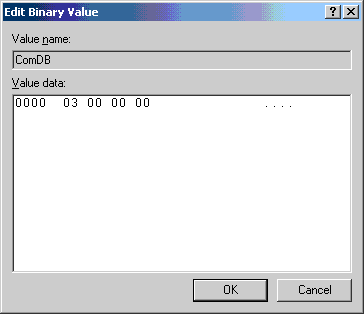
11. Reboot the machine and you should be able to use the comports that were lost.