


| Products | |
| |
|
| • | device servers |
| • | terminal servers |
| • | console management |
| • | USB |
| • | async |
Installation Guide: PC/X and Classic ISA cards in Windows 2000
**This document is provided solely as a service to Digi customers. Digi does not provide support for this product in this operating system. This driver is provided by Microsoft, if you experience problems with the driver, please contact Microsoft.**
1. Open Start>Settings>Control Panel>Add New Hardware. Double click Add New Hardware.
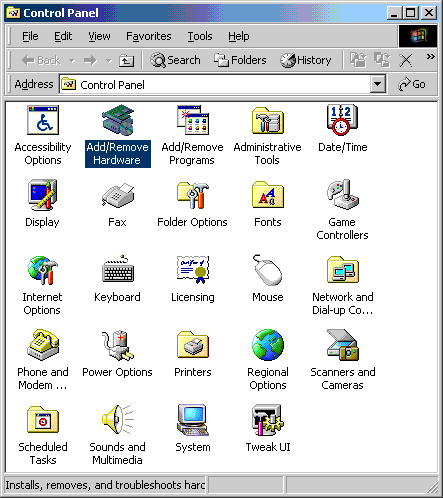
2. Click Next.

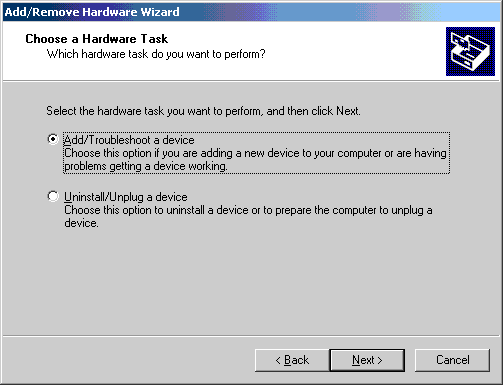
3. Select the "Add/Troubleshoot a device" radio button. Click Next.
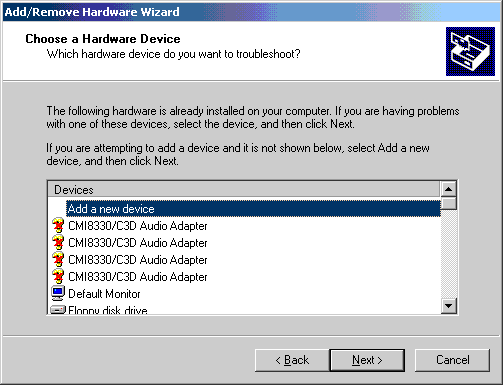
4. Windows 2000 will do a quick scan for PNP hardware, after it's done Select "Add a new device". Click Next.
5. Click the "No, I want to select the hardware from a list" radio button. Click Next.

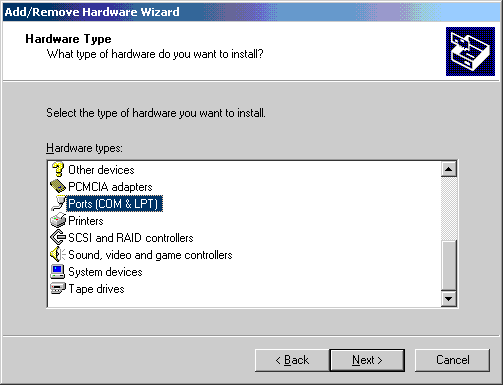
6. Select "Ports (COM & LPT)". Click Next.
7. Select Manufacturers: "(Standard port types) and Models: "Communications Port". Click Next.
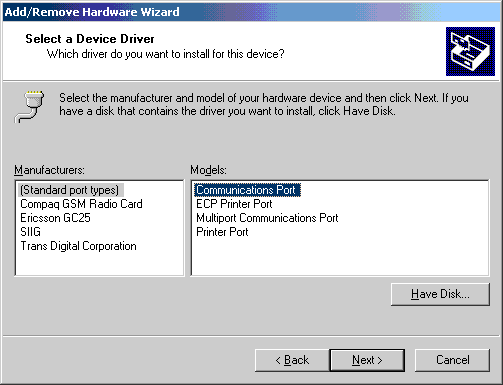
8. A message box will pop up. Click OK.

9. Select "Basic configuration 0008" from the drop down box. Double click on "Input/Output Range".
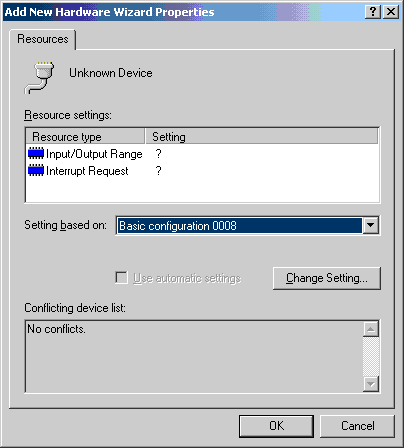
10. This is where you will input the IO address the port is set to use. This is done with the DOS CFG.exe utility for the Classic card and the dip switches for the PC/X cards. THE DRIVER WILL NOT WORK IF THESE RANGES ARE NOT SET TO WHAT THE BOARD IS PHYSICALLY SET TO USE Press OK, when you have entered the proper I/O address for the Com port.
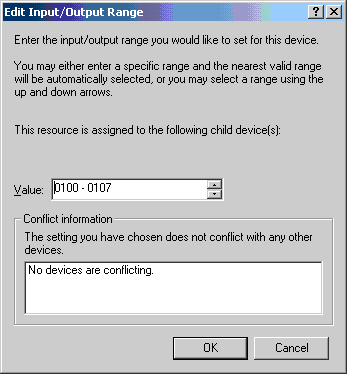
11. Double-click on "Interrupt Request".
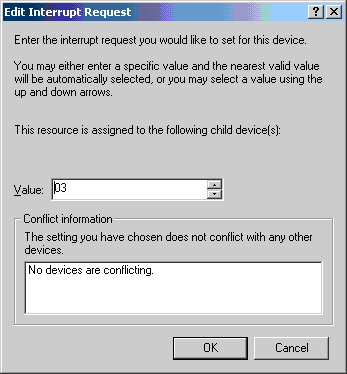
12. Select the Interrupt Request the board is physically set to
use. This is done with the DOS CFG.exe utility for the Classic card and
the jumpers for the PC/X card. THE DRIVER WILL NOT WORK IF THIS VALUE
IS NOT SET TO WHAT THE BOARD IS PHYSICALLY SET TO USE Click OK, when
you have entered the proper IRQ.
NOTE: IN SYSTEMS WITH A PNP BIOS MAKE SURE THE
IRQ CONFIGURED FOR THE CLASSIC/PCX BOARD IS RESERVED FOR LEGACY ISA, THIS IS
USUALLY FOUND IN THE PLUG AND PLAY/PCI PORTION OF YOUR BIOS, SEE YOU MOTHERBOARD
MANUAL FOR DETAILS**
13. Click Next.
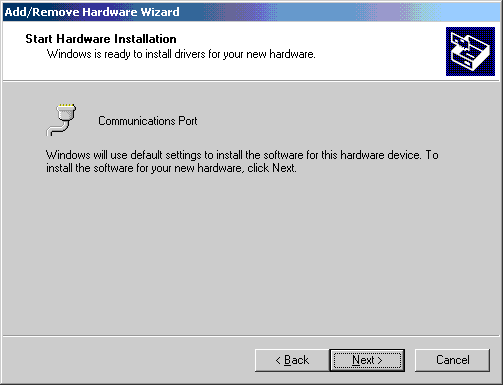
14. Click Finish.
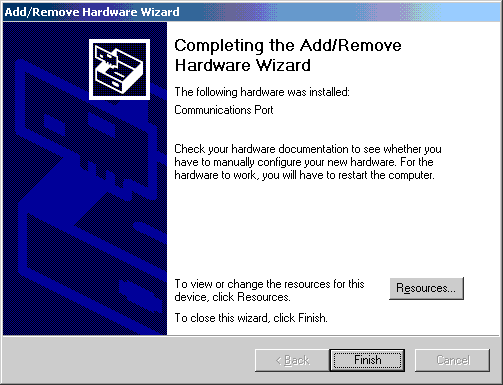
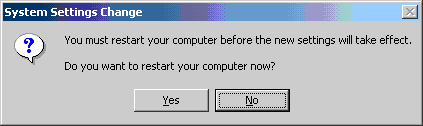
15. Windows 2000 will now ask you to restart. Click No. You will need to add Com port for each port on your Digi. If you have a 4 port board, you will need to repeat steps 1-14 4 times, etc. After you have finished adding all Com ports, reboot the machine.
16. See Testing the ports with Hyperterminal and a loopback to see if the driver is working properly.
(c) 2000 Digi International
Revised 3/14/2000: SB
