Product Requirements:
- PortServer
II
Procedure:
You will be using the CPCONF command to copy the PortServer’s configuration to a text file. This way you can save it for future reference and/or email it to Digi International Technical Support for troubleshooting if requested to do so by a technician.
1. To use CPCONF to copy the PortServer’s configuration to a
text file, you will need to telnet into the Digi PortServer product. To
initiate the
telnet connection from Windows NT & 9X go to
Start, Run (see Figure 1).
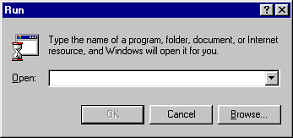
Figure 1
2. In the pop up window, type Telnet (see Figure 2) and
click OK.
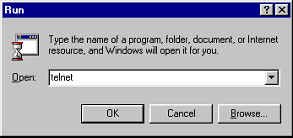
Figure 2
3. This will open the telnet application window (see Figure 3).
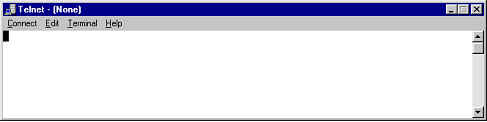
Figure 3
4. Go to the Connect menu option and select Remote System (see
Figure 4).
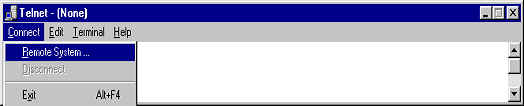
Figure 4
5. You should now see the following window (see Figure 5).
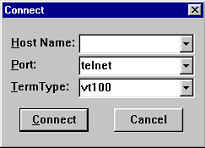
Figure 5
6. Enter the IP Address of the PortServer and click
Connect (see Figure 6).
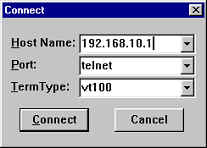
Figure 6
7. You will now get the PortServer's login prompt (see Figure
7). You will want to log in as root. The default password is dbps.
If you are logged in correctly, you will get the
#> command prompt. Type cpconf term, but DO NOT press
enter.
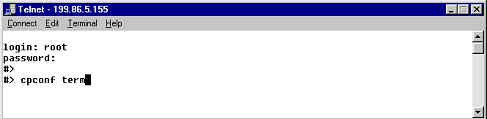
Figure 7
8. At this point go to the Terminal menu option and select Start
Logging (see Figure 8).
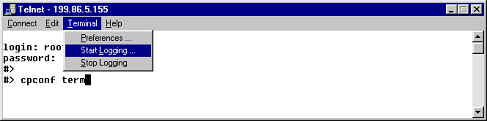
Figure 8
9. You will now be prompted to name the configuration file and
specify a location to save it (see Figure 9). Use a name that you will
remember and choose a location on the hard drive that you
will be able to easily locate (i.e. c:\PortServer),
Click Open.
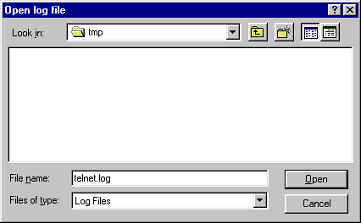
Figure 9
10. Now press the Enter key in the telnet session.
A great deal of data will scroll by, maybe too quickly to even read.
Do not worry,
the telnet log will capture all of the information.
When it is finished, again click on the Terminal menu option
and select Stop
Logging (see Figure 10).
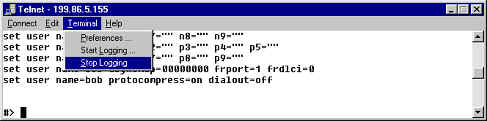
Figure 10
11. You should now be able to go to the location you saved the configuration
file and view it, edit it, or email it to Digi International Technical
Support if requested by a technician.