1. From the Start button go to Settings and select
Printers (see Figure 1).
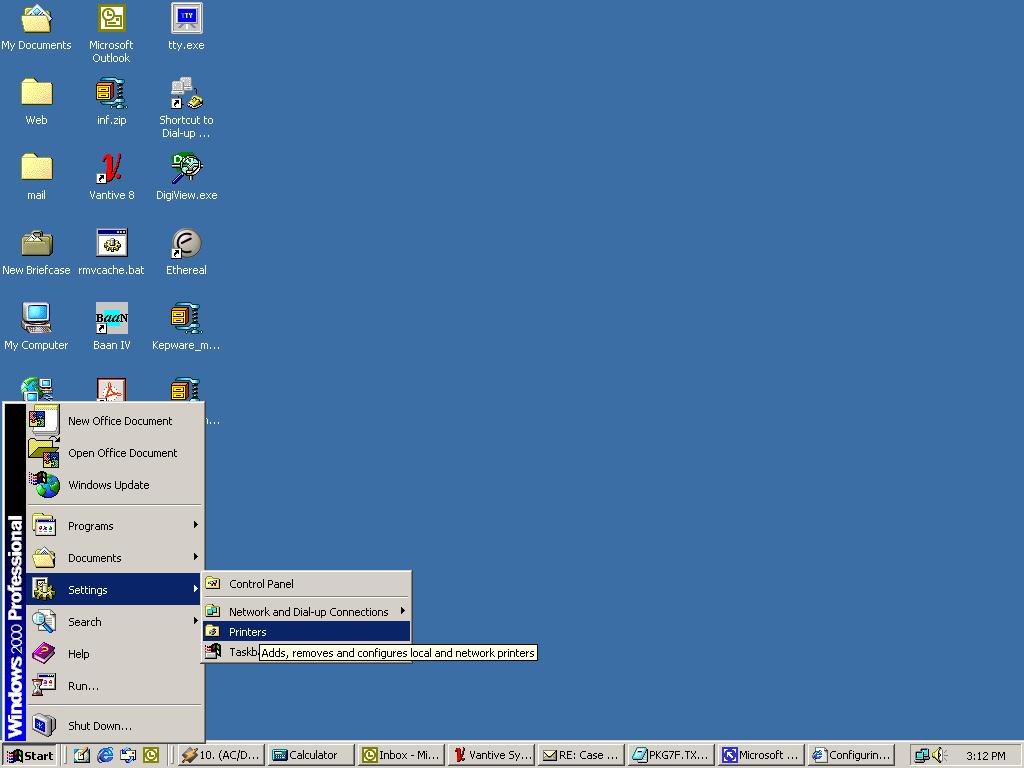
2. Double-click the Add New Printer Wizard.
3.
This will bring up the Welcome to the Add Printer Wizard screen (see Figure
2). Click Next.
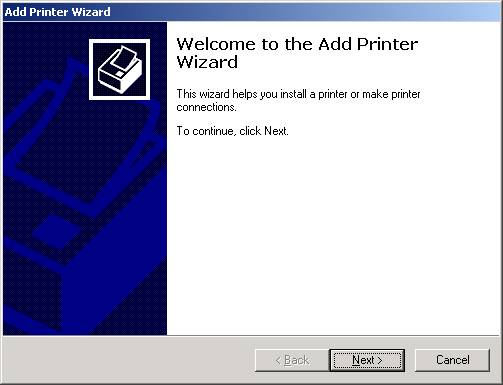
Figure 2
4.
Select the Local Printer option (see Figure 3). Click Next.
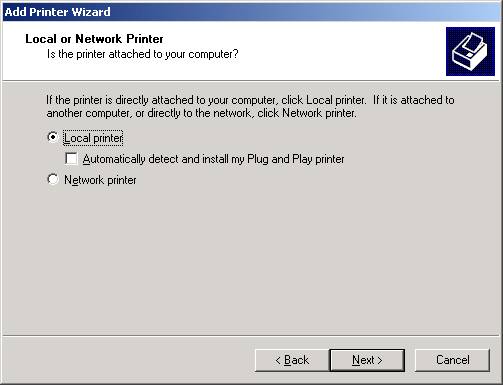
Figure 3
5.
Select the Create a New Port option and select LPR Port from the drop down box
(see Figure 4). Click Next.
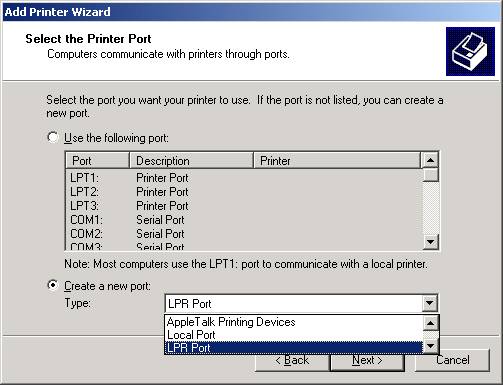
Figure 4
6.
Enter the IP Address or DNS Name of the
PortServer II. Enter the Print Queue Name, as defined in the Command
Reference Manual
See Chapter 5 for further details and
examples (see Figure 5). Click Ok.
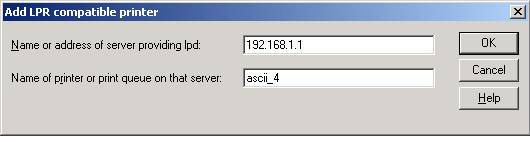
Figure 5
7.
Select the Manufacturer and Model of the Printer you are installing (see Figure
6). Click Next.
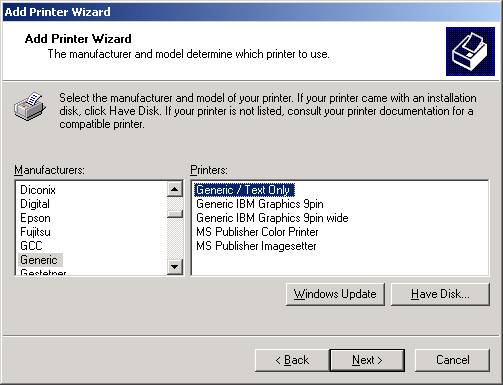
Figure 6
8.
Enter a name for the Printer and specify whether
this will be the default printer (see Figure 7). Click Next.
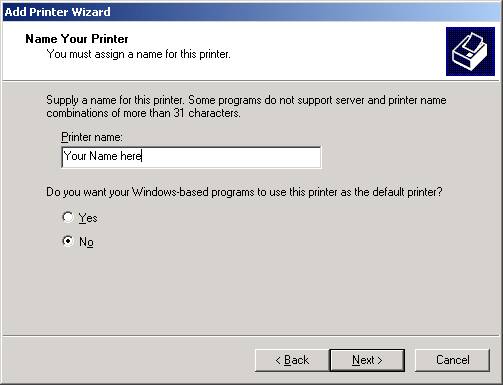
Figure 7
9. You will now have the option to share the printer (see Figure
8). Click Next.
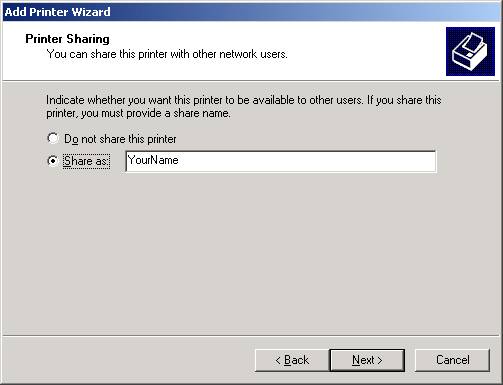
Figure 8
10. The printer will not be available until the server is rebooted. Select
No when asked to print a test page (see Figure 9).
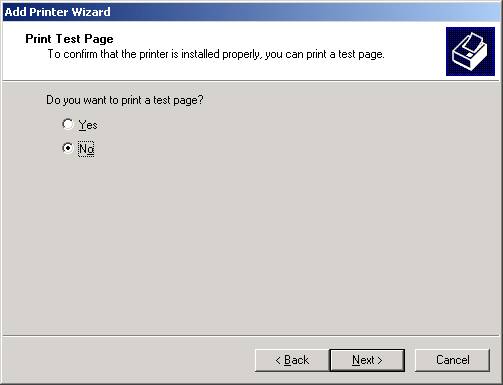
Figure 9
11.
To print a test page, reboot the Windows 2000 Server and then select the
option to Print Test Page from the properties of the newly
added printer (see Figure 10).
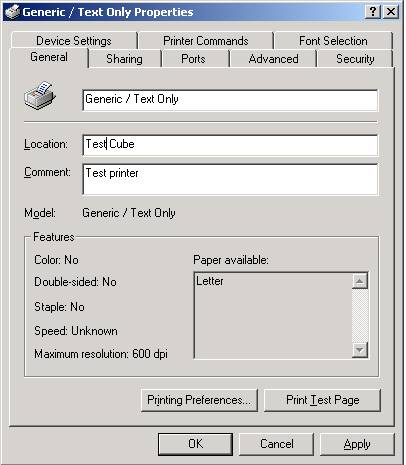
Figure 10