Sysinternal's PortMon is a Microsoft Windows application used to
monitor and analyze a system's serial and parallel port activity. When
you select a port to monitor, PortMon sends a request to its device
driver to monitor and display everything on that port to aid in troubleshooting
system and
application problems. If you are instructed to run a PortMon Trace
by a Technician, you can download it from: http://www.sysinternals.com/ntw2k/freeware/portmon.shtml
NOTE: PortMon is available in two versions, one which runs on
Windows NT, 2K, XP, and .NET, and the other which runs on Windows 95, 98, and
Me.
1. If you have PortMon downloaded, you simply need
to start it prior to starting your application.
2. When you execute PortMon, verify that you are connected to your
local Machine via the screen's title bar (see Figure 1).
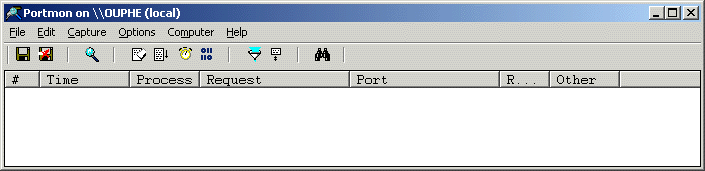
Figure 1 - PortMon is connected to local machine
3. If you are not connected, the screen's title bar will read "Portmon
- Not Connected" (see Figure 2).
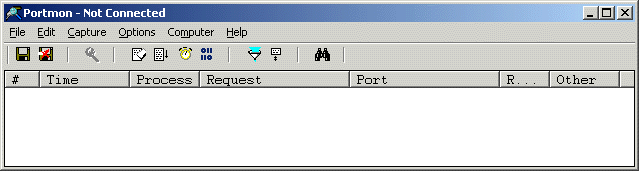
Figure 2 - PortMon is not connected to local machine
4. If PortMon isn't connected, choose Connect Local from the
Computer menu (see Figure 3).
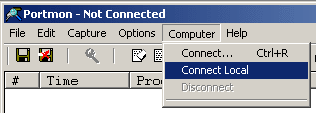
Figure 3 - Tell PortMon to connect to the local
machine.
5. Next, configure PortMon
to record more useful information. Begin by increasing the number of data
bytes PortMon records to its log file
by going to Edit, and selecting Max Output Bytes (see
Figure 4).
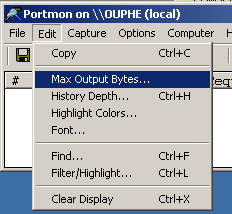
Figure 4
6. Increase the size of the bytes used for logging read/write data to 4096
(see Figure 5).
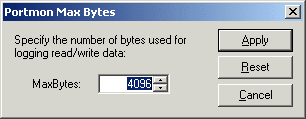
Figure 5
7. Under the Options Menu, verify
that Show Time and Show Hex are both checked, and that Clock Time is NOT
checked.
NOTE: The last three options Hide Toolbar, Auto
Scroll, and Always On Top do not influence the data recorded to the log file
(see Figure 6).
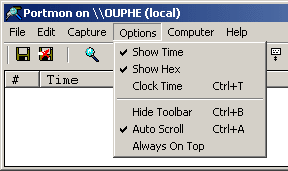
Figure 6
8. Lastly, verify
that the ports you want to monitor are selected. From the Capture Menu,
select Ports. Any port with a check next to it will be
monitored, others will not (see Figure 7).
NOTE: You may not be able to select a port if it
is currently in use by another application.
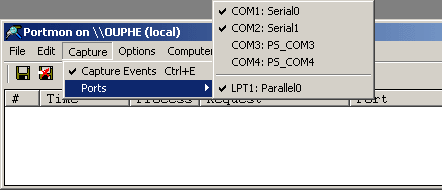
Figure 7
9. The log file
generated by PortMon is often referred to as a PortMon
trace. There are two ways to create a PortMon trace, although one
method
only captures about half the data that the other method
captures.
A. The
first method is to open PortMon, choose Log to File... from the File
menu, run your application, and then to turn off logging.
B. The second method is to open PortMon,
run your application, and then to choose Save As... from the File menu.
NOTE: The Save
As... feature only captures about
half the data that the Log to File
option so this is the preferred method (see Figure 8).
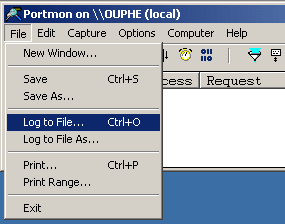
Figure 8
10. After you
choose Log to File, PortMon displays the Log-to-File Settings dialog box.
Press the button marked, "...", to select the name and
location of the log file (see Figure 9).
NOTE: You can leave Append unchecked and
Max Log Size at 0 (which means the log file size is unrestricted).
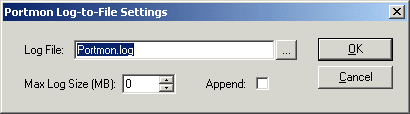
Figure 9
11. Finally, run your application as instructed by the
Technician after starting Portmon. PortMon
automatically displays the serial port activity as
it happens, as well as logs it to the file (see
Figure 10).
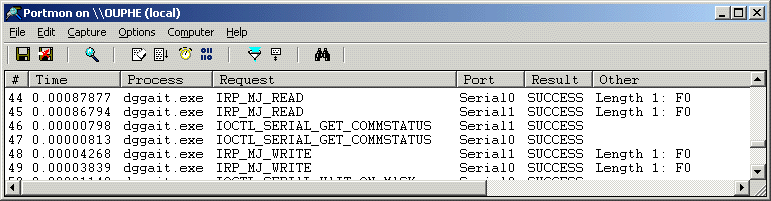
Figure 12
12. When you're done testing, turn off logging by choosing Log to File...
from the File menu. The menu item should already be checked, so
select it again to turn it off. PortMon
will stop logging to the file at this point, so you can examine the log file in
a text editor or you can forward
the file to a technician at Digi for
further analysis (see Figure 13).
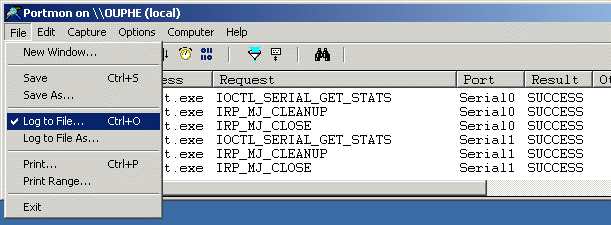
Figure 13