All documentation referenced in this document is available on the Digi Support web site at http://support.digi.com/support/manuals/dg1iarp/doia.index.html.
Reference Documents:
Prerequisites:
This document assumes that the DigiOne IA RealPort has been
configured with an IP Address and is accessible on the TCP/IP network.
In this scenario, the RealPort driver should also be installed.
If the RealPort driver has not been installed, it can be downloaded at www.digi.com
before continuing.
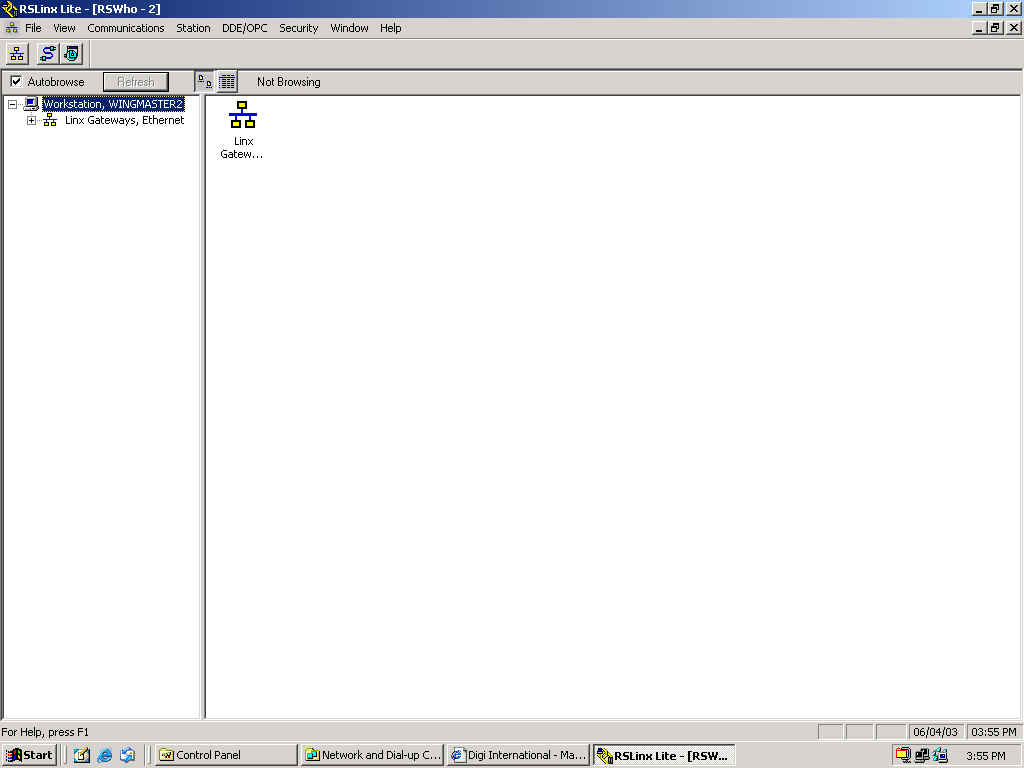
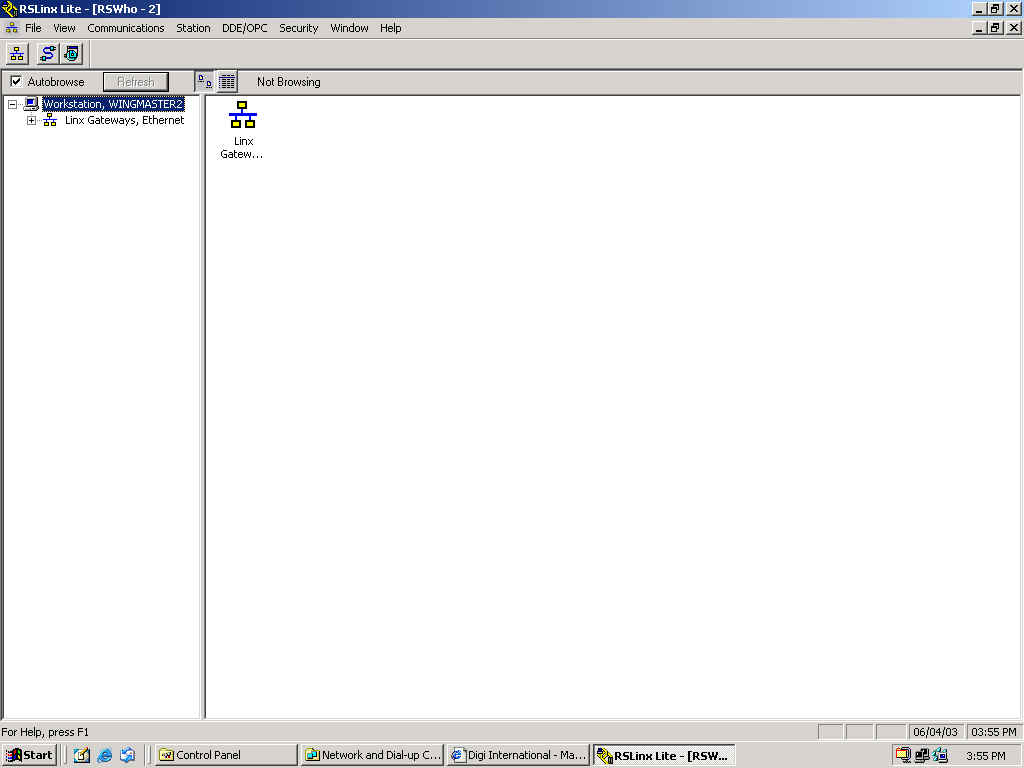
1. Launch
RSlinx.
2. From the Communications drop down
menu, select Configure Drivers.
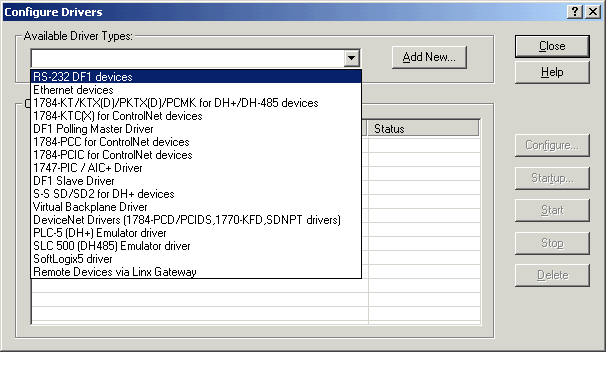
3. From the drop down list
of Available Driver Types, select RS232 DF1 devices and click Add
New…
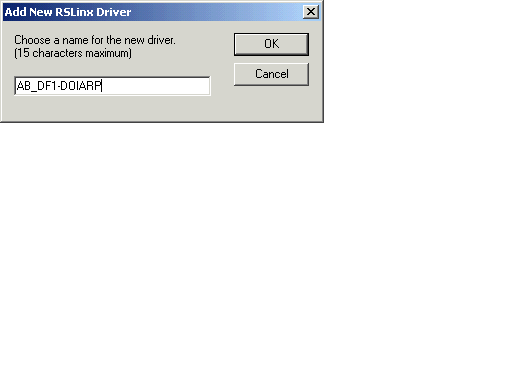
4. Provide a name for the new
driver. In the following example,
AB_DF1-DOIARP was used. Click OK
when finished.
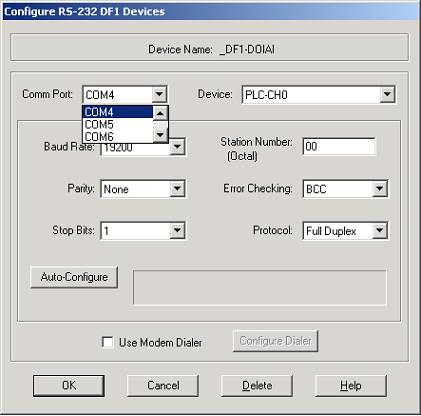
5. From the Comm Port drop down box select the
appropriate COM port.
NOTE: This is the COM port assigned to the Digi
One IA RealPort during the RealPort driver install.
In the following example, the Digi One IA RealPort was
assigned to COM4.
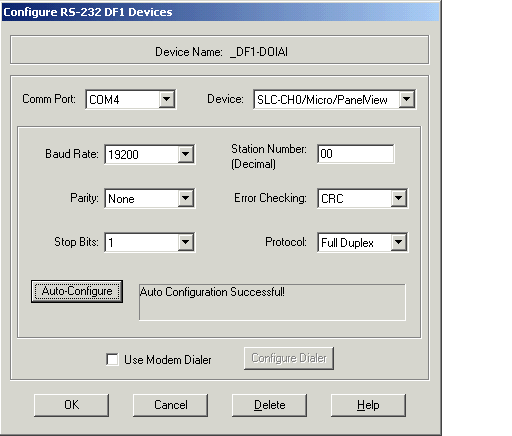
6. Click the Auto-Configure
button. If the DF1 device is
connected, this function should return with the
message Auto
Configure Successful! The
remaining configuration options in this dialog box should
automatically be
set for the device connected. Click
OK.
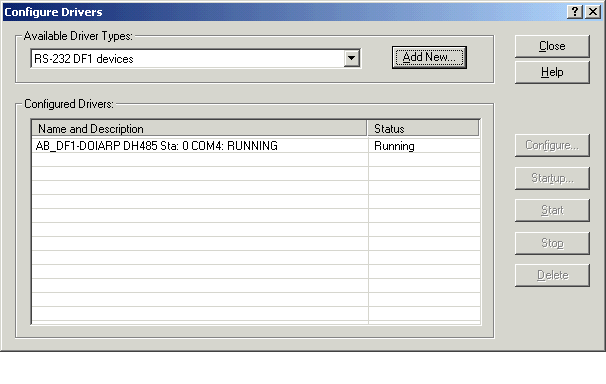
7. The driver configuration is now
complete. The screen shot below is
showing that the driver is running
successfully.
Click Close.
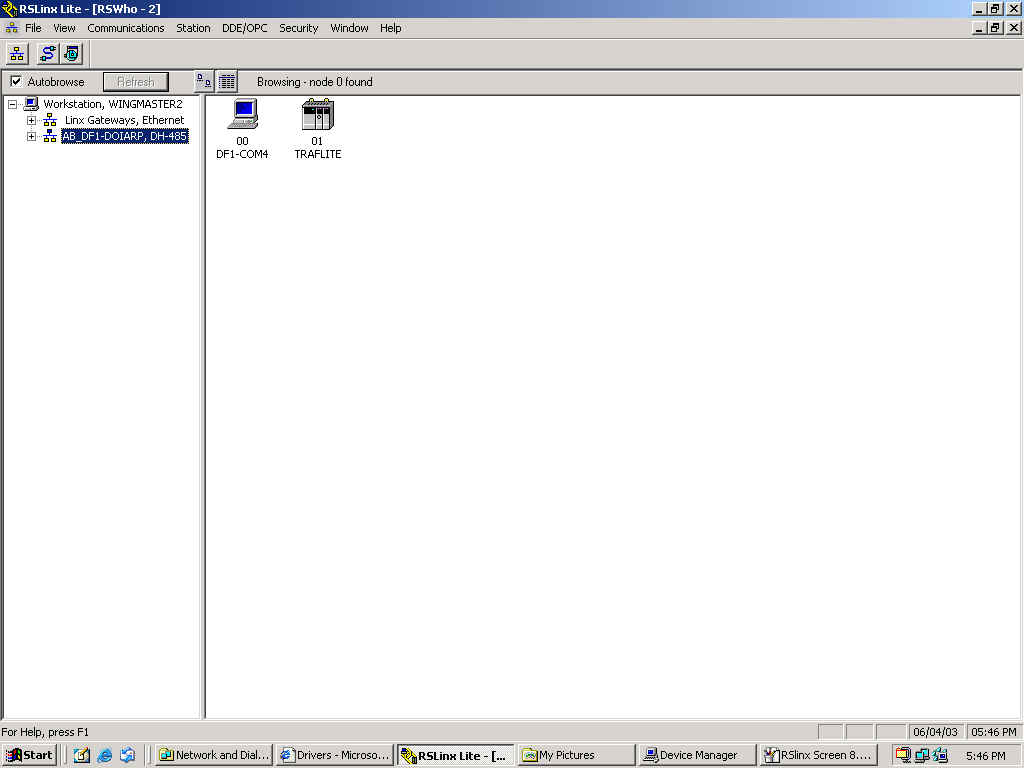
8. When back to the main RSLinx
setup page the newly installed and configured RS232 DF1 Driver
should indicate
that the attached DF1 device has been found.
You have now successfully
configured your
Digi One IA RealPort with RSLinx.