Setting up the Digi One Single Port TCP
Client
1. Plug in the Digi One Single Port power
supply.
2. Using a null modem serial cable with two
DB9 female ends, hook up the Digi One Single Port to one of your PC's standard
com ports.
3. Download TTY.EXE from the following
link: http://ftp.digi.com/support/utilities/win2k-xp/index.html
4. Execute TTY.EXE after downloading it (see
Figure 1).
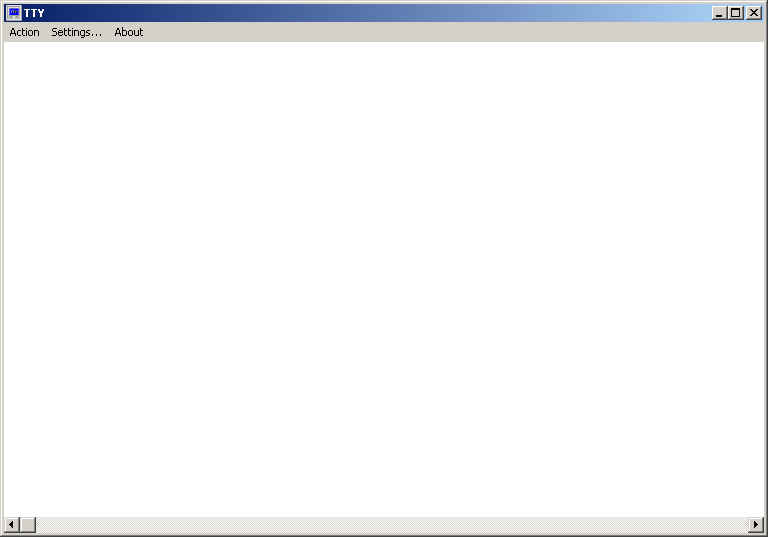
Figure 1
5. Click on Settings (see Figure 2).
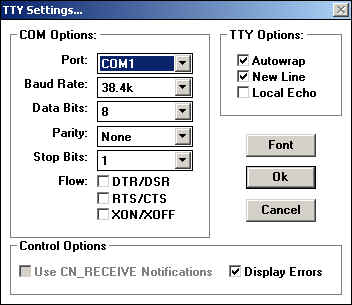
Figure 2
6. Select the standard com port you have your
TCP Server hooked up to (see Figure 3).
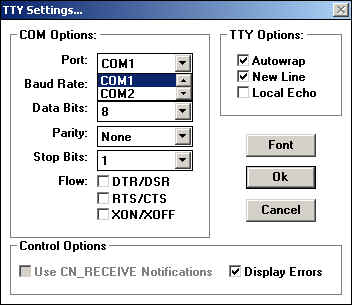
Figure 3
7. The COM Options should be set to 9600 baud,
8 data bits, 1 stop bit and No parity. Make sure to uncheck the flow
control options so none
are selected (see Figure 4). Click
OK.
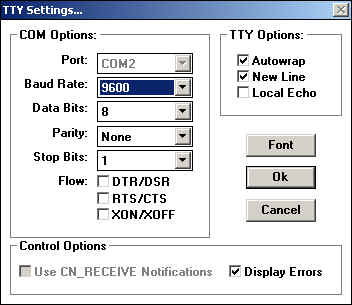
Figure 4
8. Go to Action and click Connect.
9. Power-cycle the Digi One Single Port.
Immediately hold down the Shift and press the "+" sign three times
while the diagnostics light is flashing
on the Digi One Single Port unit. You
should get the following prompt (see Figure 5).
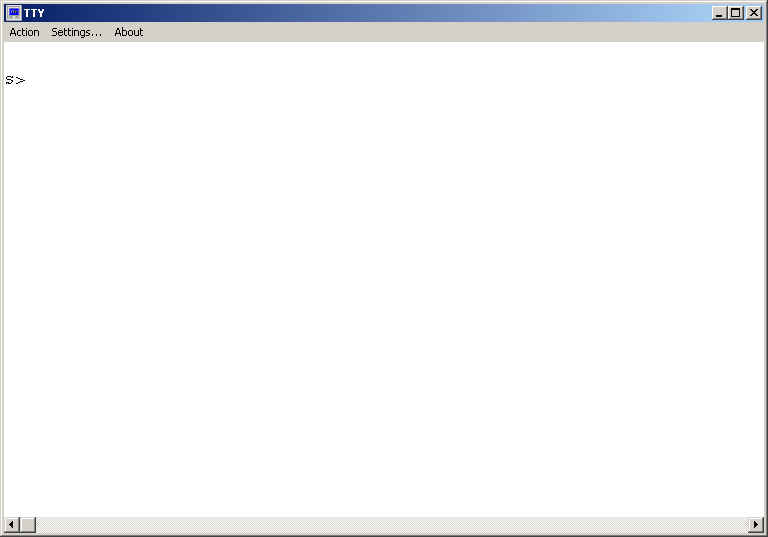
Figure
5
10. Using the conversion sheet or the Microsoft Scientific
Calculator, enter the port settings in
Hexadecimal format. You will have a 6 digit
number for Speed, Bits, Flow
Control, Parity, Stop, and Timeout (see Figure 6). Reference the worksheet
you received with the product
for instructions on how to enter the
information (Speed,Bits, Flow Control, Parity, Stop Bits and Timeout). For
example if you are using
9600, 8, No Flow Control, No Parity, 1 Stop
Bit and a 168ms Timeout, it would be entered as 530007. Press Enter when
finished.
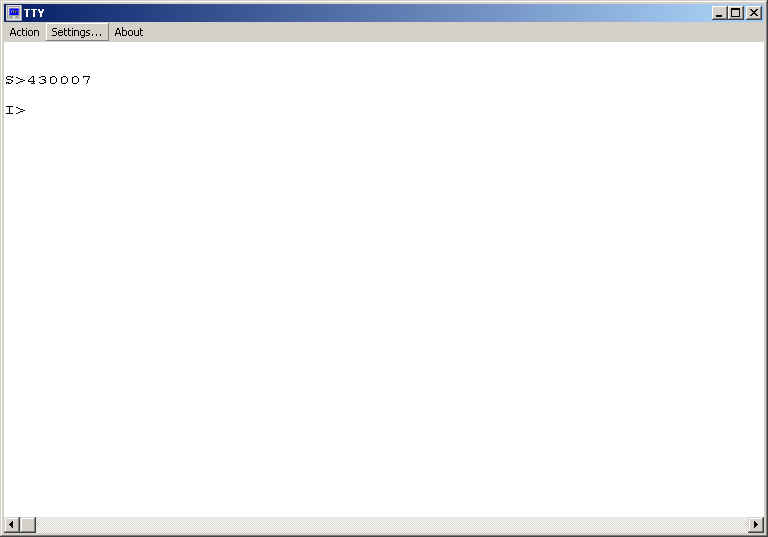
Figure 6
11. Now enter the IP Address in Hexadecimal format with no
dashes or spaces. For
example, 199 would be C7 (see Figure 7). Press Enter
when finished.
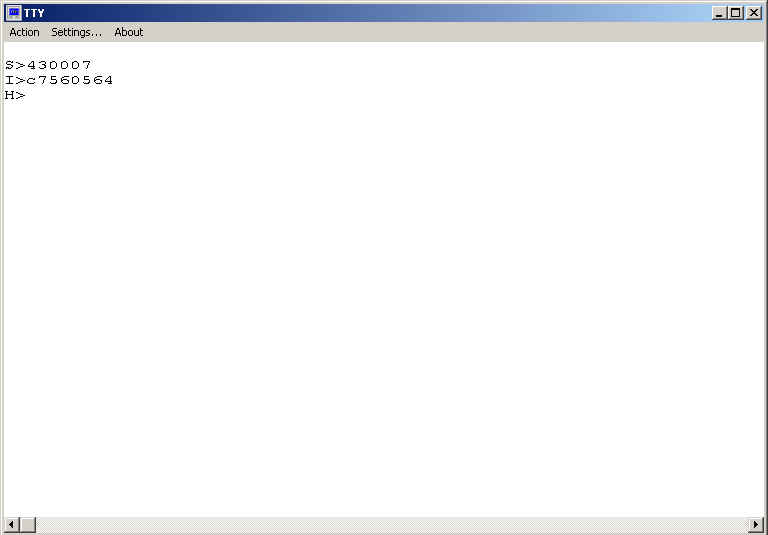
Figure 7
12. Now enter the Host IP Address. This is the
address you used when configuring the
TCP Server in hexadecimal (see Figure 8).
Press Enter when finished.
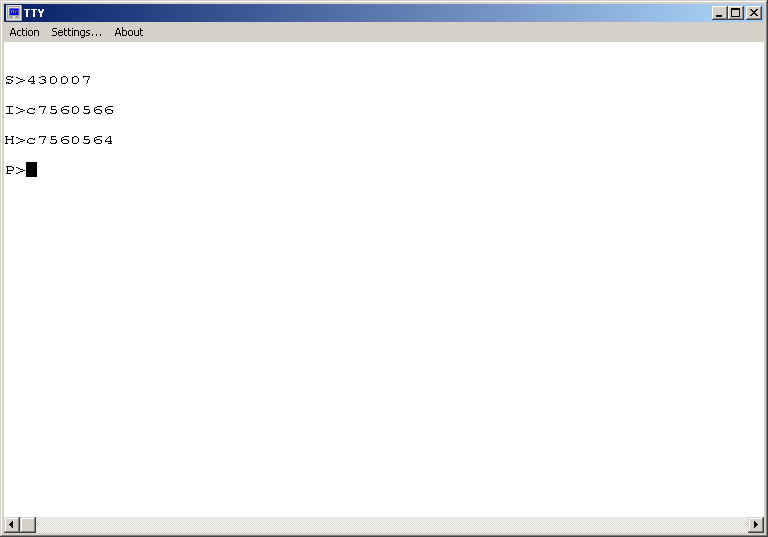
Figure 8
13. Enter the same TCP Port number in Hexadecimal that you configured on
the TCP Server. This is the port the TCP Server will be
listening on (see Figure 9). For
example, if you are listening on Port 2000, in Hexadecimal this would be
07d0. Press Enter
when
finished.
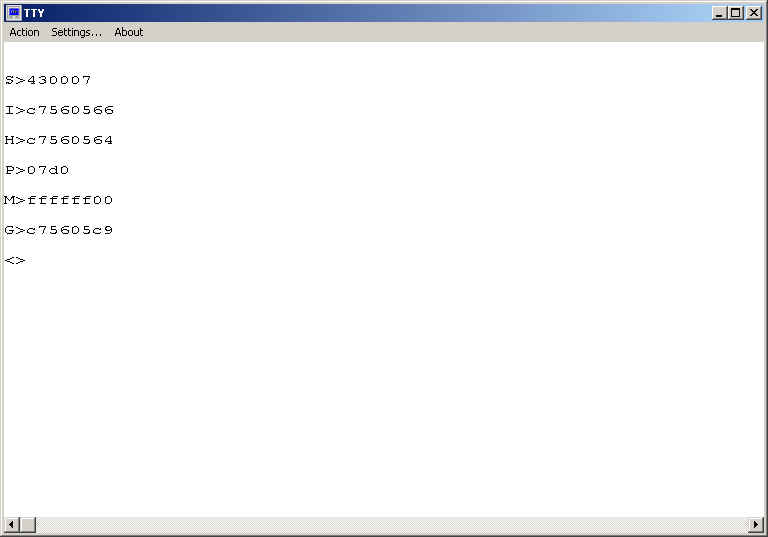
Figure 9
14. Now enter the Subnet Mask in Hexadecimal format with no
dashes or spaces. For
example, 255 would be ff. If your subnet
is 255.255.255.0 it would be ffffff00 in
hexadecimal (see Figure 10). Press Enter when finished.
Figure 10
15. Now enter the Gateway Address in Hexadecimal format with no
dashes or spaces. For
example, 199 would be c7 in hexadecimal
(see Figure 11). Press Enter when finished.
The Digi One Single Port will automatically reboot.
Figure 11
16. Your TCP Server has now been configured and you should be able to ping
it. If you receive an >ER message at any point, you have entered
an invalid number and will have to
power-cycle the Digi One Single Port and start all over with S>.


