Prerequisite:
This procedure assumes that you have already
configured the Digi Device Server/Terminal Server with an IP Address and that it
is accessible on the Network.
NOTE: For more information on RealPort go to: http://www.digi.com/applications/industrial%20automation/tutorials/realporttutrl.jsp
Procedure:
- Go to Control Panel and select the Add/Remove Hardware Wizard
(see Figure 1).
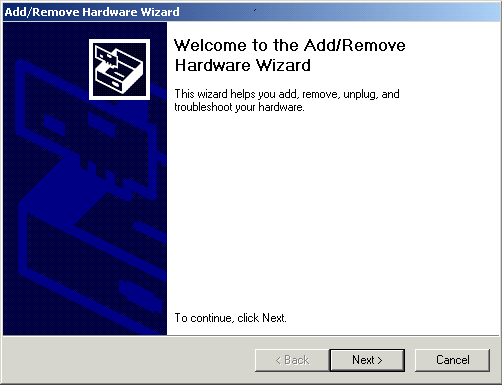
Figure 1 - Click Next.
- Select the option to Add/Troubleshoot a device (see Figure 2).
Click Next.
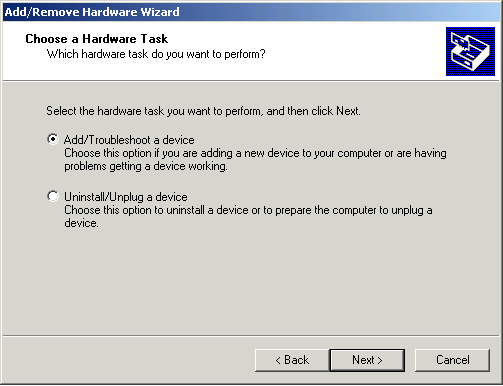
Figure 2
4. Select the option to Add a new device (see
Figure 3). Click Next.
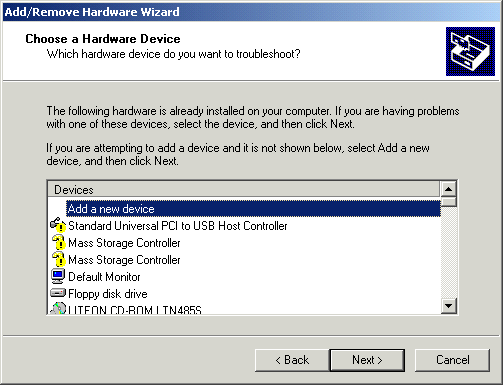
Figure 3
5. Select the option to
choose hardware from a list (see Figure 4). Click Next.
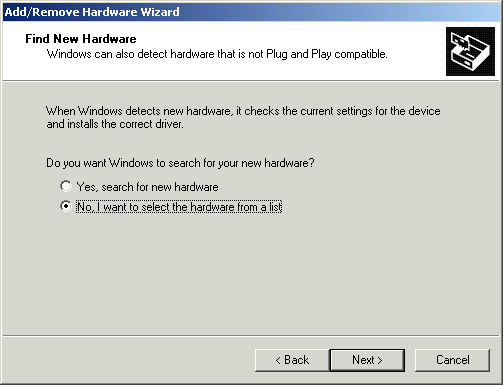
Figure 4
6. Select Multi-port Serial Adapter from
the list of Hardware Types (see Figure 5).
Click Next.
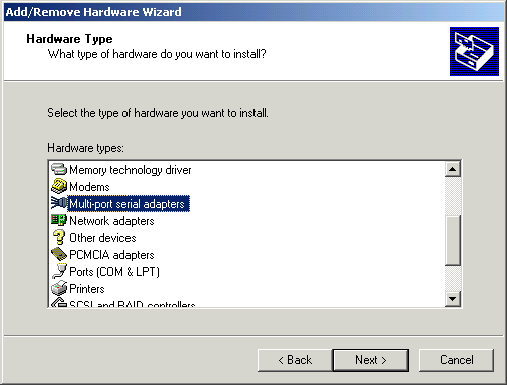
Figure 5
8. You can type in the
path to the driver or browse to the location you have
extracted it. You can select
either Digirp or Digirprt (see Figure 6) and select Open.
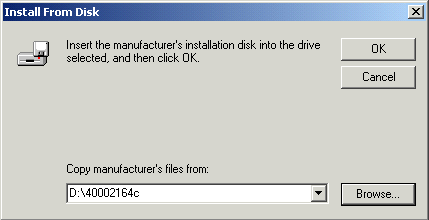
Figure 6
9. From the driver
listing, select your Digi Device Server/Terminal Server Model from the
list
(see Figure 7) and click Next.
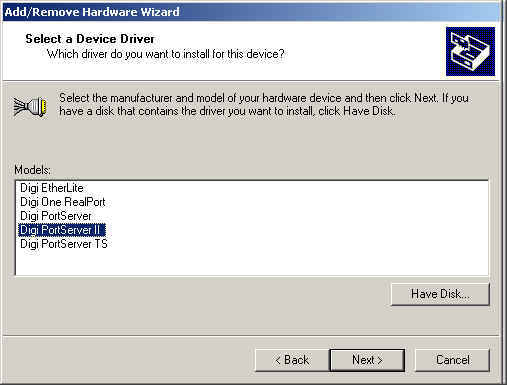
Figure 7
10. It will find the Digi Device
Server/Terminal Server on the nework (see
Figure 8). Click Next.
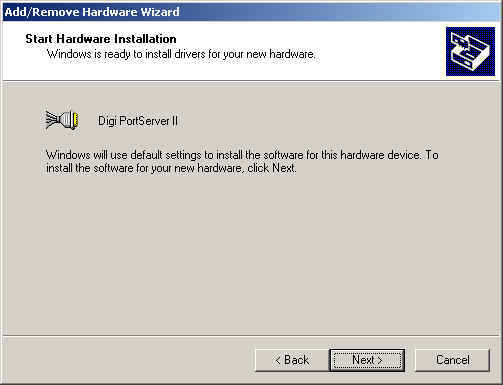
Figure 8
11. It will come back warning you
the driver is not digitally signed (see Figure 9). Click Yes.
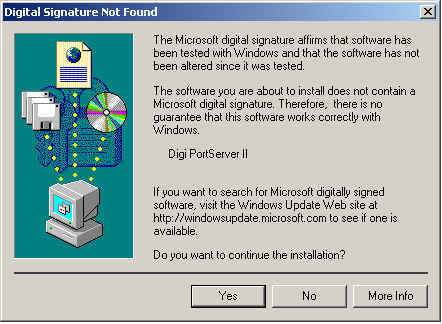
Figure 9
12. You will need to configure
an IP address for the Digi Device Server/Terminal Server
before loading the driver.
NOTE: If you
have not already done so, you will need to
hook up a terminal or PC, with
terminal emulation software, to the Terminal
Server Device and
configure this before the driver will be able to see the device.
See the manual for further instructions.
If you have already
configured the Digi
Device Server/Terminal
Server, enter the IP Address here.
NOTE:
Leave the TCP port set to 771
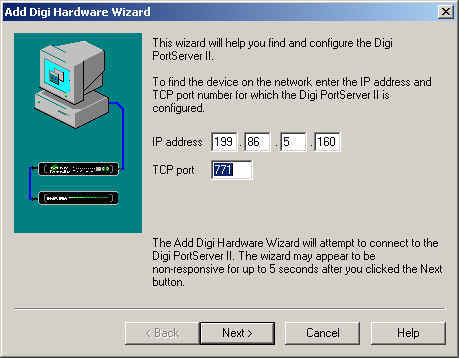
Figure 10
13. Give the Digi Device Server/Terminal Server device a name and
specify the number
of ports you want to add (see Figure 11).
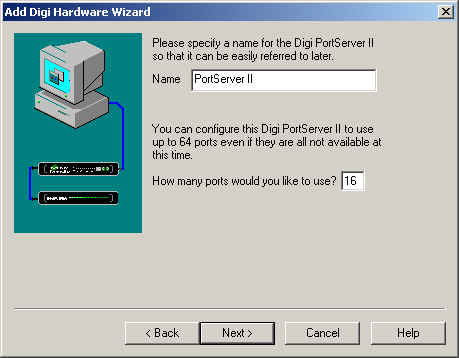
Figure 11
14. You should now get the configuration screen showing the com ports the
Digi Device
Server/Terminal Server device will be
assigned (see
Figure 12).
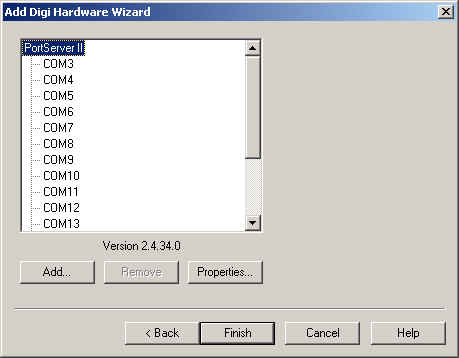
Figure 12
15. Click Finish.
16. Your Digi Device Server/Terminal Server should now show up under
Device Manger,
Multi-port Serial Adapters and the com ports added under Ports.