#>
set forward state=passive proxyarp=on

NOTE:
1. If you have changed many settings then our recommendation is to
start over by clearing the Portserver II.
To reset to factory defaults, log into the Portserver II and type
b a=e. This will reset all of the settings in the
Portserver II to factory defaults except for the IP address.
2. If you are not running the latest firmware revision for the PortServer II,
you may want to update this because if you have any problems, this will be the
first requirement by technical support.
PPP PortServer II Setup Example:
The setup below sets the Portserver II up for a PPP connection on port 9 with a user named user9.
1. Set up the IP address for the PortServer II
#> set conf ip=<ipaddress>
2. Set IP forwarding
#> set forward state=passive proxyarp=on
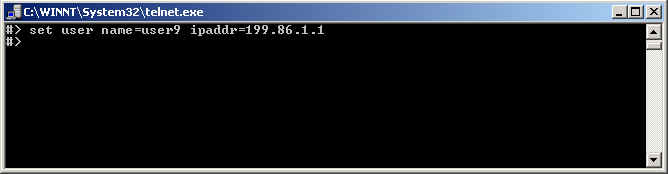
3. Skip the IP pool for now and set the port for a single IP
Address
#>
set user name=user9 ipaddr=<ipaddress>
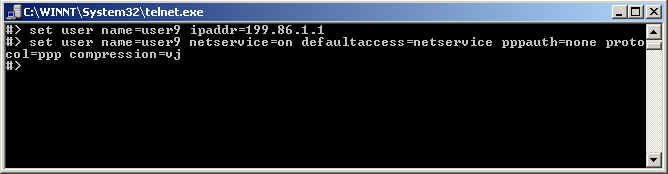
4. Set user parameters
#> set user name=user9 netservice=on defaultaccess=netservice
pppauth=none protocol=ppp compression=vj
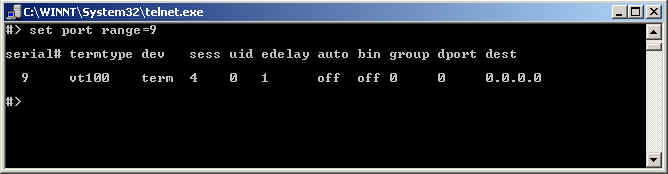
5. Set port parameters
#> set port range=9 dev=mio
  NOTE: To verify port settings
type #> set port range=9
6. Set flow control
#>
set flow range=9 ixon=off ixoff=off rts=on cts=on
7. Reboot the PortServer II
#> b a=r
NOTE: You should be able to leave the defaults for everything else.
Testing the Portserver II PPP Connection:
Try making a HyperTerminal connection first. Make sure the baud rates are set the same on the client and PortServer II.
Try making a DUN connection. Remember that the password is set the same
as the user name by default. Creating user9 with
#> set user name=user9
sets a password of user9.
If this is successful then add your IP pool.
Portserver II IP address pool setup example:
The example below sets up a pool of 8 sequential IP addresses.
set ippool count=8 ip=<IP address>
set user name=user9 ipaddr=ippool