What is Reverse Telnet/Console Management
Reverse Telnet means that instead of initiating a telnet session from the
Device/Terminal Server into the network, the session will be initiated from the
network into one of serial ports on the Digi Device.
One popular benefit of this feature is the ability to eliminate multiple
terminals that connect to various console ports by simply cabling each of the
console ports to the Digi Device.
Before starting the reverse telnet set-up, verify that the correct IP Address
Settings are configured and that you are running the latest firmware on the Digi
Device.
Procedure:
There are two ways to configure the serial port for use with terminals.
A. Web Interface - see section on Configuring Ports for Reverse Telnet/Console
Managment: Web Interface below.
B. Command Line - see section on Configuring Ports for Reverse Telnet/Console
Managment: Command Line below.
NOTE: The PortServer or PortServer II units are not supported by the Web
Interface and must be configured via the Command Line.
NOTE: For more information and advanced features related to Reverse
Telnet/Console Management see the product user/configuration manual.
Configuring Ports for Reverse Telnet/Console Managment: Web Interface
The Digi Device's serial ports must be configured properly
before they will support console management. To configure the serial ports
for console management, do the following:
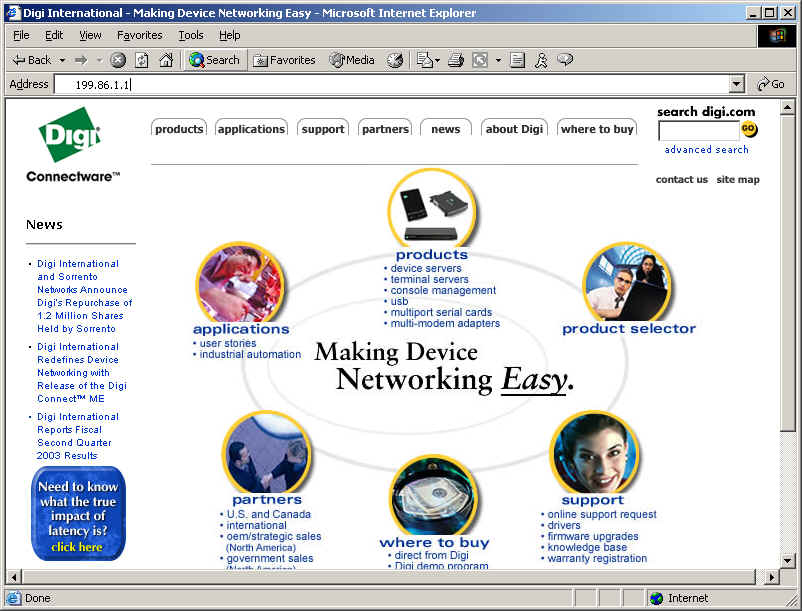
1. From
a web browser, enter the IP Address of the Digi Device and login root (default
password is dbps).
2.
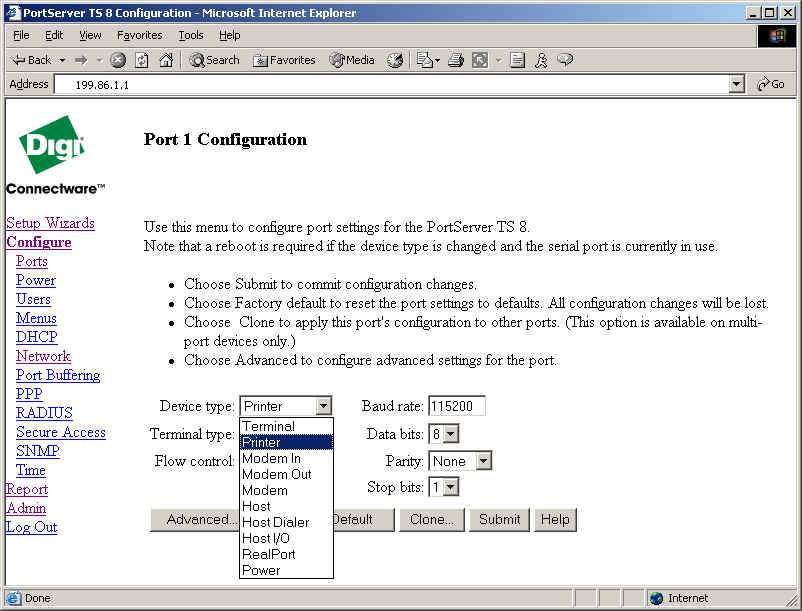
Make the
following changes from the Configure > Ports page.
A. For each port connected to a device that will be managed,
change the device type to Printer.
NOTE: The default
device type setting for all ports is Terminal.
3.
Make
sure that the serial port and the device connected to the serial port are using
the same flow control scheme and port parameters.
NOTE: The default settings are: software flow control, 9600
bps, 8 bits, None for parity and 1 stop bit.
Configuring Ports for Reverse Telnet/Console Managment: Command Line
This procedure assumes the following:
A. That you are logged in as root
B. That you know the attributes, such as baud rate, parity, etc. required for
use with the terminal that will be connected to this
port.
1.
Supply a set port command that specifies the following from the
command prompt:
#> set ports range=range dev=prn auto=off
NOTE: where range is a port or range of ports.
This is the optimal setting for a reverse telnet as it puts the port into a
"passive" mode, which
will allow a session of data to go in "reverse."
2.
Supply a set line command that specifies the following from the
command prompt:
#> set line range=range baud=bps csize=characters
parity=parity stopb=numbits
NOTE: The set line configuration must match the
settings of the attached terminal where:
a. range is a port or range of ports.
b. bps is the line speed.
c. characters is the character size.
d. parity is the parity scheme to use on this line.
e. num-bits is the number of stop bits to use.
3.
If your serial device is configured for hardware flow control, supply
a set flow command that specifies the following from the
command prompt:
#> set flow range=range ixoff=off ixon=off cts=on rts=on
NOTE: software flow control is the default, so a set
flow command is not required in that case.
NOTE: You may need to use additional set flow command fields,
depending on the flow control scheme required by your
serial device connected to the port. See the set flow
command in the Digi Device/Terminal Server Command Reference for more
information.
Accessing Attached Devices by
Using Telnet
Direct to a Port (Reverse Telnet):
Where Telnet is a direct connection to a device, reverse telnet
is a direct connection to a device’s serial port from the network. In
the example below, a user connects directly to serial port 8 on a Digi
Device. Reverse telnet uses a socket numbering scheme starting with 2000
plus the port number.
An example is: telnet
192.1.2.3 2008
Testing a Reverse Telnet Connection:
Digi ships a loopback plug with its products. This plug will look like
a telephone jack, without any cable coming out of it. Insert the loopback
plug into the port you want to test.
Connect to the ports using one of the following standards:
2001 - 2099 Telnet Connect socket numbers. An
example is: telnet 192.1.2.3 2008 (for port 8 using ASCII data)
2101 - 2199 Raw Connect socket numbers. An
example is: telnet 192.1.2.3 2108 (for port 8 using RAW data)
When you get connected, you probably won’t see anything, although it's
possible you would see a "Digi International PortServer" header along
with the word "Connected."
With the loopback plug in the port, when you type some characters on your
keyboard they should see them display on your screen. This is an
indication that everything is working correctly. You should not be able to
connect your device and reverse telnet/console manage it. If you are not,
you would want to verify the cabling from the Digi Device's serial port to the
console port of your connecting device. Make sure that the cable you are using
is a crossover cable. Refer to the link below for appropriate cabling
pin-outs.
http://support.digi.com/support/techsupport/hardware/portserver/common/cables/
Connect your cable, and make sure your devices "console" port is
enabled for login. When you connect to the port again and press Enter, you
should get a login prompt from the attached device, whether it be a Sun Sparc
server, a Cisco router, or any other serial device.