|
 |

|
| Technical
Support
Drivers Firmware Upgrades FAQs Product Documentation Cabling Support Tools Legacy Products About Digi Support Knowledge Base Online Support Request FTP Site Related Links Inside Out Networks |


Symptom:When running DGIPSERV.exe to update the Firmware on an EtherLite, after power cycling the EtherLite (when prompted), it says that it is starting to update the firmware, but just sits there. Cause:Depending on how the EtherLite is connected to the network, we have confirmed: Solution:To upgrade the firmware first: Download 40002241_B.zip, VERLOG.exe and BOOTPS.exe from the following location: http://ftp.digi.com/support/utilities/sts_els/
and extract it. Run BOOTPS.exe. When you start it up, it will say waiting for BOOTP requests. When you power
cycle the EtherLite it should tell you the MAC Address. If you aren't getting a MAC Address back OR it doesn't match that of the
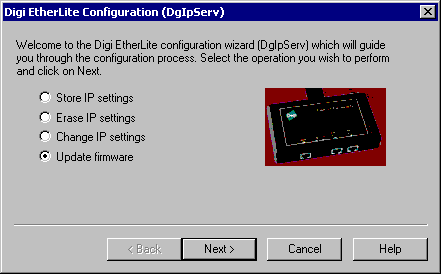
EtherLite, the firmware upgrade will not take. Digi EtherLite RealPort Firmware Upgrade 1. Run DgIpServ and select Store IP Settings (see Figure 1).
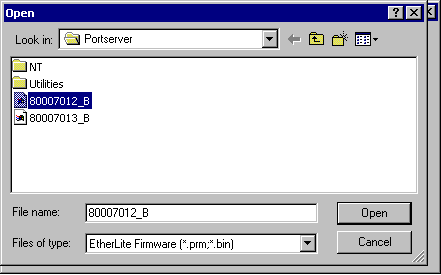
Click Next. 2. Locate the firmware file you downloaded and extracted.
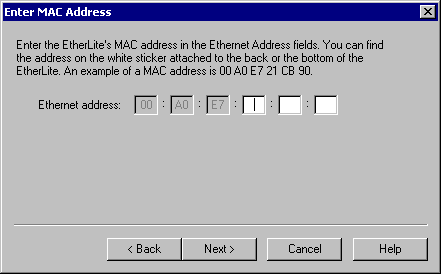
Highlight it and click Open (see Figure 2). 3. Enter the last 6 digits of the MAC Address. This will be on a
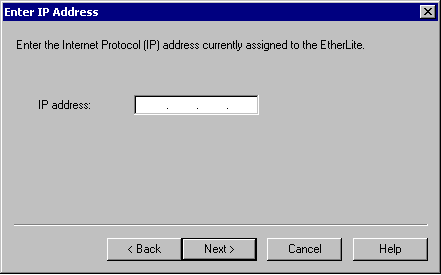
bar code sticker located on the EtherLite (see Figure 3). 4. Enter the IP Address you want to assign to the EtherLite (see Figure
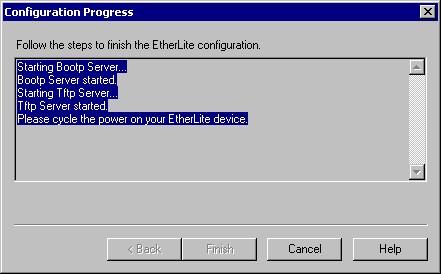
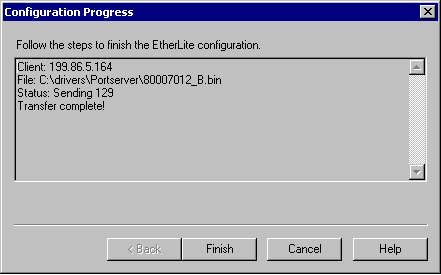
4). 5. Power cycle the EtherLite (see Figure 5). 6. You can run Verlog.exe to verify the version of the firmware has now been upgraded.
Related Information:
|