
![[Top]](../images/home.jpg)
![[Contents]](../images/contents.jpg)
![[Prev]](../images/previous.jpg)
![[Next]](../images/next.jpg)
![[Last]](../images/index.jpg)


Troubleshooting
Indicator lights
Lights (LEDs) on the MAX front and back panel indicate the status of the unit.
MAX front panel
Figure A-1 shows the LEDs on the front panel of the MAX:
Figure A-1. MAX front-panel LEDs
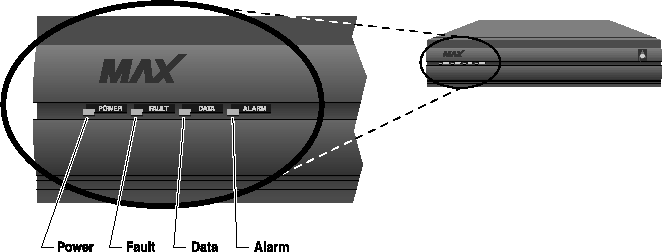
The front-panel LEDs indicate the status of the system, the PRI interface, and the data transfer in active sessions.
Table A-1 lists and describes each LED.
Figure A-2 shows the location of the LEDs on the front panel of the Redundant MAX.
Figure A-2. Location of LEDs on the Redundant MAX
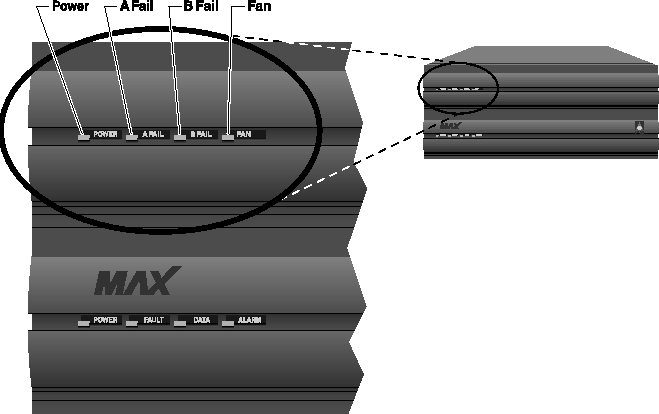
Table A-2 lists and describes each LED on the Redundant MAX.
MAX back panel
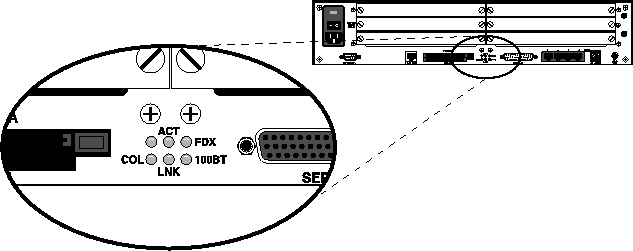
Figure A-3 shows the MAX back-panel LEDs, which display the status of the Ethernet interface:
Figure A-3. Ethernet interface LEDs on MAX back panel
Note: The Classic MAX back panel shows similar LEDs on the Ethernet expansion card if
one is installed. The Classic MAX has one LED for each possible Ethernet interface
(10Base-T, and COAX (10Base-2), which illuminate when the interface is in use. The ACT
and COL LEDs are the same as those on the MAX 6000 (Table A-3).
Table A-3 describes the Ethernet interface LEDs.
ISDN cause codes
ISDN cause codes are numerical diagnostic codes sent from an ISDN switch to a DTE. These codes provide an indication of why a call failed to be established or why a call terminated. The cause codes are part of the ISDN D-channel signaling communications supported by the Signaling System 7 supervisory network (WAN). When you dial an ISDN call from the MAX, the MAX reports the cause codes in the Message Log status menu. When the MAX clears the call, a cause code is reported even if inband signaling is in use. If the PRI or BRI switch type is 1TR6 (Germany), see Table A-5.
Table A-4 lists the numeric cause codes and provides a description of each.
Table A-4. ISDN cause codes
Code
|
Cause
|
|---|
|
0
|
Valid cause code not yet received
|
|
1
|
Unallocated (unassigned) number
|
|
2
|
No route to specified transit network (WAN)
|
|
3
|
No route to destination
|
|
4
|
Send special information tone
|
|
5
|
Misdialed trunk prefix
|
|
6
|
Channel unacceptable
|
|
7
|
Call awarded and being delivered in an established channel
|
|
8
|
Prefix 0 dialed but not allowed
|
|
9
|
Prefix 1 dialed but not allowed
|
|
10
|
Prefix 1 dialed but not required
|
|
11
|
More digits received than allowed, but the call is proceeding
|
|
16
|
Normal clearing
|
|
17
|
User busy
|
|
18
|
No user responding
|
|
19
|
No answer from user (user alerted)
|
|
21
|
Call rejected
|
|
22
|
Number changed
|
|
23
|
Reverse charging rejected
|
|
24
|
Call suspended
|
|
25
|
Call resumed
|
|
26
|
Nonselected user clearing
|
|
27
|
Destination out of order
|
|
28
|
Invalid number format (incomplete number)
|
|
29
|
Facility rejected
|
|
30
|
Response to STATUS ENQUIRY
|
|
31
|
Normal, unspecified
|
|
33
|
Circuit out of order
|
|
34
|
No circuit/channel available
|
|
35
|
Destination unattainable
|
|
37
|
Degraded service
|
|
38
|
Network (WAN) out of order
|
|
39
|
Transit delay range cannot be achieved
|
|
40
|
Throughput range cannot be achieved
|
|
41
|
Temporary failure
|
|
42
|
Switching equipment congestion
|
|
43
|
Access information discarded
|
|
44
|
Requested circuit channel not available
|
|
45
|
Pre-empted
|
|
46
|
Precedence call blocked
|
|
47
|
Resource unavailable, unspecified
|
|
49
|
Quality of service unavailable
|
|
50
|
Requested facility not subscribed
|
|
51
|
Reverse charging not allowed
|
|
52
|
Outgoing calls barred
|
|
53
|
Outgoing calls barred within Call User Group (CUG)
|
|
54
|
Incoming calls barred
|
|
55
|
Incoming calls barred within CUG
|
|
56
|
Call waiting not subscribed
|
|
57
|
Bearer capability not authorized
|
|
58
|
Bearer capability not presently available
|
|
63
|
Service or option not available, unspecified
|
|
65
|
Bearer service not implemented
|
|
66
|
Channel type not implemented
|
|
67
|
Transit network selection not implemented
|
|
68
|
Message not implemented
|
|
69
|
Requested facility not implemented
|
|
70
|
Only restricted digital information bearer capability is available
|
|
79
|
Service or option not implemented, unspecified
|
|
81
|
Invalid call reference value
|
|
82
|
Identified channel does not exist
|
|
83
|
A suspended call exists, but this call identity does not
|
|
84
|
Call identity in use
|
|
85
|
No call suspended
|
|
86
|
Call having the requested call identity has been cleared
|
|
87
|
Called user not member of CUG
|
|
88
|
Incompatible destination
|
|
89
|
Nonexistent abbreviated address entry
|
|
90
|
Destination address missing, and direct call not subscribed
|
|
91
|
Invalid transit network selection (national use)
|
|
92
|
Invalid facility parameter
|
|
93
|
Mandatory information element is missing
|
|
95
|
Invalid message, unspecified
|
|
96
|
Mandatory information element is missing
|
|
97
|
Message type nonexistent or not implemented
|
|
98
|
Message not compatible with call state, or message type nonexistent or not implemented
|
|
99
|
Information element nonexistent or not implemented
|
|
100
|
Invalid information element contents
|
|
101
|
Message not compatible with call state
|
|
102
|
Recovery on timer expiry
|
|
103
|
Parameter nonexistent or not implemented, passed on?
|
|
111
|
Protocol error, unspecified
|
|
127
|
Internetworking, unspecified
|
Table A-5. ISDN cause codes for 1TR6 switch type
1TR6 Code
|
Cause
|
|---|
|
1
|
Invalid call reference value.
|
|
3
|
Bearer service not implemented. (Service not available in the A-exchange or at another position in the network, or no application has been made for the specified service.)
|
|
7
|
Call identity does not exist. (Unknown call identity).
|
|
8
|
Call identity in use. (Call identity has already been assigned to a suspended link.)
|
|
10
|
No channel available. (No useful channel available on the subscriber access line-only local significance.)
|
|
16
|
Requested facility not implemented. (The specified FAC code is unknown in the A-exchange or at another point in the network.)
|
|
17
|
Request facility not subscribed. (Request facility rejected because the initiating or remote user does not have appropriate authorization.)
|
|
32
|
Outgoing calls barred. (Outgoing call not possible because of access restriction that has been installed.)
|
|
33
|
User access busy. (If the total made up of the number of free B channels and the number of calling procedures without any defined B channel is equal to four, any new incoming calls will be rejected from within the network. The calling party receives a DISC with a cause user access busy, which indicates the first busy instance, and a busy signal.)
|
|
34
|
Negative CUG comparison. (Link not possible because of negative CUG comparison.)
|
|
35
|
Nonexistent CUG. (This CUG does not exist.)
|
|
37
|
Communication as semipermanent link not permitted.
|
|
48 - 50
|
Not used. (Link not possible because, for example, RFNR check is negative.)
|
|
53
|
Destination not obtainable. (Link cannot be established in the network because of incorrect destination address, services, or facilities.)
|
|
56
|
Number changed. (Number of B-subscriber has changed.)
|
|
57
|
Out of order. (Remote TE not ready.)
|
|
58
|
No user responding. (No TE has responded to the incoming SETUP or call has been interrupted, absence assumed-expiry of call timeout T3AA.)
|
|
59
|
User busy. (B-subscriber busy)
|
|
61
|
Incoming calls barred. (B-subscriber has installed restrictions against incoming link, or the requested service, not supported by the B-subscriber)
|
|
62
|
Call rejected. (To A-subscriber: Link request actively rejected by B-subscriber, by sending a DISC in response to an incoming SETUP. To a TE during the phase in which an incoming call is being established: The call has already been accepted by another TE on the bus.)
|
|
89
|
Network congestion. (Bottleneck situation in the network; for example, all-trunks-busy, no conference set free.)
|
|
90
|
Remote user initiated. (Rejected or cleared down by remote user or exchange.)
|
|
112
|
Local procedure error. (In REL: Call cleared down as a result of local errors, for example, invalid messages or parameters, expiry of timeout. In SUS REJ: The link must not be suspended because another facility is already active. In RES REJ: No suspended call available. In FAC REJ: No further facility can be requested because one facility is already being processed, or the specified facility cannot be requested in the present call status.)
|
|
113
|
Remote procedure error. (Call cleared down because of error at remote end.)
|
|
114
|
Remote user suspended. (The call has been placed on hold or suspended, at the remote end.)
|
|
115
|
Remote user resumed. (Call at remote end is no longer on hold, suspended, or in the conference status.)
|
|
127
|
User Info discarded locally. (The USER INFO message is rejected locally. This cause is specified in the CON message.)
|
Table A-5 lists the cause codes for the 1TR6 switch type.
Common problems and their solutions
This section lists problems you might encounter and describes ways to resolve them. It categorizes common problems as general problems, configuration problems, hardware configuration problems, ISDN interface problems, and problems indicated by the LEDs.
General problems
Calls fail between AIM ports
The following first-level diagnostic commands can help in troubleshooting calls between AIM ports:
- For a local loopback toward an application at its AIM-port interface, use the Local LB command in the Port Diag menu.
- For a loopback toward an application at its remote-end AIM interface, use the DO Beg/End Rem LB command.
- For a channel-by-channel error measurement, use the DO Beg/End BERT command.
- To resynchronize a multichannel call, use the DO Resynchronize command.
To use a DO command, you must be in a profile or status window specific to an AIM port with a call online. For information about the Local LB command and about each DO command, see the MAX Reference Guide.
DO menus do not allow most operations
When the list of DO commands appears, many operations might not be not available if the right profile has not been selected. Because the MAX can manage a number of calls simultaneously, you might need to select a specific Connection profile, Port profile, or Call profile in order to see certain DO commands. For example, to dial from a Call profile or a Connection profile, you must move to the Call profile (Host/6 > Port N Menu > Directory) or the Connection profile and press Ctrl-D 1.
Note that you cannot dial if Operations=No for the control port. If a call is already active, DO 2 (Hang Up) appears instead of DO 1 (Dial). If the T1 or E1 line is not available, Trunk Down appears in the message log and you cannot dial.
POST takes more than 30 seconds to complete
In earlier versions of the software, the MAX downloaded the required code and immediately commenced with AT POST (which sends the string AT to each modem and waits for the modem to respond with "OK"). With the current software, the MAX downloads the modem code, waits for the modems to checksum the downloaded code, and then verifies that the checksum matches before continuing. If the checksum does not match, the MAX downloads the code again, up to two more times. If the checksum still does not match after three download attempts, the MAX fails the entire slot card.
This feature helps to reduce the POST failure rates for the 12MOD cards.The 12MOD digital modem slot card boots every time the MAX power-cycles, and requires boot-up configuration data from the MAX. If the first boot-up fails, the MAX makes two further attempts to download the code for the MAX unit's 12MOD digital 12-modem slot card.
Configuration problems
The most common problems result from improperly configured profiles.
The MAX cannot dial out on a T1 or E1 line
To verify that the configured profile is correctly configured:
- Make certain that you have entered the correct phone number to dial.
- Verify that the Data Svc parameter specifies a WAN service available on your line.
If you request a WAN service that is not available on your line, the WAN rejects your request to place a call.
- Check whether the channels using the requested WAN service are busy.
If these channels are busy, an outgoing call might be routed to channels for which you did not request the specified WAN service. Check the Data Svc, Call-by-Call, and PRI # Type parameter values in the profile.
- Determine whether you have correctly set the parameters controlling Dynamic Bandwidth Allocation.
For detailed information, see the Network Configuration Guide for your MAX.
Some channels do not connect
You might encounter a problem in which the Line Status menu shows that the MAX is calling multiple channels simultaneously, but only some of the channels connect. In this case, an international MAX placed the call, or the call was from the U.S. to another country. In some countries, setting the Parallel Dial parameter in the System profile to a value higher than 1 or 2 violates certain dialing rules, and only some of the channels can connect during call setup. Try reducing the Parallel Dial parameter value to 2. If the problem persists, try reducing it to 1.
Data is corrupted on some international calls
You might notice that the data appears to be corrupted on single- or multichannel calls dialed from the U.S. to another country. On some international calls, the data service per channel is not conveyed by the WAN to the MAX answering the call. You must therefore set Force 56=Yes in the Call profile. If you do not, the MAX incorrectly thinks that the call uses 64-Kbps channels.
Only the base channel connects
You might encounter a problem in which the first channel of an inverse multiplexing or MP+ call connects, but the call then clears or does not connect on the remaining channels.
The most common error in defining Line N profiles is specifying incorrect phone numbers. The MAX cannot successfully build inverse multiplexing or MP+ calls if the phone numbers in the Line N profile of the called unit are incorrect. The phone numbers that you specify in the Line N profile are the numbers local to your unit. Do not enter the phone numbers of the MAX you are calling. Enter those numbers in the Call profile, Destination profile, or Connection profile.
In addition, when you are using E1 or T1 lines, any phone numbers you specify must correspond to those channels within the circuit that are available for data transmission. For example, if channels 13-21 are allocated to a particular slot, you must specify the phone numbers for channels 13-21 in the Line N profile. Switched data channels do not have to be contiguous within the circuit.
No Channel Avail error message
If the error message No Channel Avail appears in the message log display when the MAX tries to place a call, check the Line N profile configuration. This message can also indicate that the lines' cables have been disconnected or were installed incorrectly.
Restored configuration has incorrect RADIUS parameters
On earlier RADIUS Servers, the submenu consisted of three clients (specific host addresses) and one Server Key for all three clients. If the MAX supports the new RADIUS Server, the restoration of the MAX configuration will cause a problem, because the new RADIUS Server allows up to nine addresses (host or net) and a Server Key for each address. When you restore configurations with the old Client Address list, the subnet mask assigned to the clients will be the default subnet mask of the address type given (for example, 128.50.1.1 will get a subnet mask of 16) and not the previous 32-bit (single host) address. In addition, the Server Key will not automatically be set. You must set the Server Key manually for each client in the RADIUS Server submenu.
Hardware configuration problems
If you cannot communicate with the MAX through the VT100 control terminal, you might have a problem with terminal configuration, the control port cable, or the MAX hardware.
Cannot access the VT100 interface
If no data is displayed on the VT100 interface, verify that the unit completes all of the Power-On Self Tests. Proceed as follows:
- Verify that the MAX and your terminal are set at the same speed.
- Locate the LED labeled Fault.
- Switch on the MAX.
The Fault LED should remain off except during the power-on self tests. If you are using the VT100 interface, press Ctrl-L to refresh the screen.
If the Fault LED remains on longer than a minute, there is a MAX hardware failure. A blinking Fault LED also indicates a hardware failure. Should these situations arise, contact Ascend Customer Service.
Fault LED is off but no menus are displayed
If the unit passed its Power-On Self Tests and you still cannot communicate with the VT100 interface, type Ctrl-L to refresh the screen. If you still do not see any data, check the cabling between the MAX and your terminal as follows:
- Check the pin-out carefully on the 9-pin cable.
The control terminal plugs into the HHT-VT100 cable or the 9-pin connector labeled Control on the back of the MAX. If you are connecting to an IBM PC-like 9-pin serial connector, a straight-through cable is appropriate. Otherwise, you might need a 9-to-25 pin conversion cable.
- Check the flow control settings on your VT100 terminal.
If you are not communicating at all with the MAX, see whether you can establish communication after you have turned off all transmit and receive flow control at your terminal or terminal emulator.
- Determine whether you need a null-modem cable converter.
Though generally not needed, occasionally a null-modem cable converter is required for a few of the large numbers of different cable and terminal configurations that are available.
Random characters appear in the VT100 interface
If random or illegible characters appear on your display, you probably have a communications settings problem. Specify the following settings:
- 9600 bps data rate
- 8 data bits
- 1 stop bit
- No flow control
- No parity
If you have changed the data rate through the Port profile, make certain that your VT100 terminal matches that rate.
A Power-On Self Test fails
If the start-up display indicates a failure in any part of the POST, an internal hardware failure has occurred with the unit. In this case, contact Ascend Customer Service.
AIM-port interface problems
You can test the AIM port interface in one of two ways:
- A local loopback test
- Through true end-to-end communications
Many codecs or other AIM devices support some use of loopback. For example, when the MAX is in loopback mode and is connected to a codec, users see their own images through the codec. Likewise, most bridge/router devices recognize and report a diagnostic message when a packet is sent out and received by the same module. More often than not, the codec must be configured explicitly to accept the loopback from the communications device.
Local loopback testing is the best aid when troubleshooting the AIM-port interface (the interface between the codec and the MAX). All of the symptoms and operations described in this section assume you are working from the local loopback diagnostics menu. Unless otherwise specified, the AIM-port interfaces in this section can include the Ascend Remote Port Modules (RPMs).
The first and most critical aspect of the AIM port interface is the cable or cables connecting the codec to the MAX. If you are unsure about the cabling required, contact Ascend Customer Service.
The MAX reports data errors on all calls
Data errors on all calls can indicate that you have installed faulty host interface cables or cables not suited to the application. Information on host interface cabling requirements is found in the Hardware Installation Guide for your MAX.
Calls cannot be made, answered, or cleared using control leads
If you have purchased or built your own cables, verify that the pin-out is the same as the MAX pin-out for compatibility. The Hardware Installation Guide for your MAX lists the host interface pin-outs.
Frequently, a DB-25 breakout box is useful for monitoring control leads and for making quick changes to the cabling. However, because the host interface is running V.35 or RS-422 signal levels, you must verify that the breakout box is passive. That is, you must verify that the breakout box is not regenerating RS-232 level signals.
The codec indicates that there is no connection
The codec expects one or more of its control lines to be active. If no lines are active, toggle the various outputs available on the local loopback diagnostics menu. If there is still no connection, verify that you have installed the host cables correctly as described in the Hardware Installation Guide for your MAX. If the cabling is installed correctly, examine the host interface cable pin-outs as described in Hardware Installation Guide.
The codec does not receive data
If the codec does not receive data:
- Verify that the codec is configured to accept a loopback at the communications device. Frequently, a codec requires certain control lines to be active during data transfer. Therefore, you might want to toggle the various host interface output lines, especially Data Set to Ready (DSR) and Carrier Detect (CD), to ensure that they are active.
- If there is still no data transfer, your cable might not provide one or more control lines required by the host Refer to the your equipment documentation for a description of the pins that it requires to be active. The following control lines are generally the most important ones:
- Carrier Detect (CD)
- Clear To Send (CTS)
- Data Set Ready (DSR)
- If you are convinced that the control lines are in their correct states, but there is still no data transfer, you might have a clocking problem. The MAX provides both the transmit data clocks and the receive data clocks to your equipment through the host interface.The codec must be configured to accept the clocks from the MAX.
- Check your cable length.
If the cable length exceeds the recommended distances, you should be using terminal timing. Alternatively, you might need to install RPMs.
- Check the data rate.
You can adjust the data rate from the local loopback diagnostics menu by choosing the number of channels. Some applications cannot work above or below a certain data rate. For example, some high performance codecs cannot operate at data of rates less than 384 Kbps. In such cases, adjust the number of channels of data being looped back.
The codec cannot establish a call when Data Transmit Ready (DTR) is active
You might notice that the Port profile is set to establish calls when DTR is active, but the codec cannot establish a call. If the codec is going to originate the calls directly by using control-lead dialing, the call origination and clearing mechanisms must be configured for compatibility between the MAX and the codec. To verify a compatible configuration from the local loopback diagnostics menu:
- Disable each of the MAX output control lines except DSR.
To disable an output control line, toggle it to be Inactive (-). At this time, the codec should indicate that there is no connection.
- Request an outgoing call from your equipment and monitor the Port Leads status menu of the active ports in the call.
One or more of the control line inputs should become active and remain active for some period of time. If the DTR leads input do not change state, your cable is not properly configured. In this case, you must change the cable so that it routes the appropriate host output signal to the DTR input of the MAX. The MAX must use the DTR lead to establish outgoing calls.
- Once you have made any changes required for verifying that the DTR lead becomes active when the MAX requests the call, configure the Port profile to expect the DTR input.
In the Port profile, set Dial Call to DTR Active.
Calls initiated by control-lead toggling are cleared too soon
If the MAX clears a call initiated by control-lead toggling before it completely establishes the call, and the call is cleared almost immediately, the Port profile probably has a configuration error. To find the source of the problem, proceed as follows:
- While monitoring the Port Leads status menu of the AIM ports used in the call, place an outgoing call from the codec.
- Watch the DTR input carefully while the MAX is establishing the call.
If the DTR input becomes Active (+) and then thereafter returns to Inactive (-), the MAX is using DTR as a pulse to place the call. Make sure that the Clear parameter in the Port profile is not set to DTR Inactive. (Set Clear to DTR Inactive only when the application maintains DTR positive during the call.)
- While your equipment is still dialing the call, toggle the value of the CD output signal to indicate to your equipment that the call completed. At this time, watch the control leads very carefully. Make certain that any control leads that toggle while the call is being established are not used in the Clear parameter to clear the call. This type of configuration error is the most likely cause of a call being cleared almost immediately.
The codec cannot clear a call
If a codec-initiated call cannot be cleared, the call cannot be cleared from the codec, the Port profile probably has a configuration error. To verify the source of the problem, proceed as follows:
- While monitoring the Port Leads status menu of the AIM ports used in the call, place an outgoing call from your equipment.
- Once the host has requested the outgoing call, toggle the CD output to Active (+). The codec should recognize that the call is online.
- Make a request to clear the call from the codec.
- Watch the control leads very carefully as one or more of the input control lines toggle. Generally, either DTR or RTS is the line that toggles. Record whether the control lead input goes to Active (+) or Inactive (-) when the call is cleared; then, check that the value of the Clear parameter in the Port profile matches the action that the codec takes when the call is cleared.
ISDN PRI and BRI interface problems
Problems sometimes encountered with ISDN PRI and BRI interfaces include calls not dialed or answered reliably, Net/BRI lines not dialing or answering calls, apparent logical-link failures, and WAN calling errors in netbound Net/BRI calls.
Calls are not dialed or answered reliably
If calls are not dialed or answered reliably:
- Check your cabling.
The first and most critical aspect of the interface is the physical cable connecting the MAX to the line or terminating equipment. Typically, WAN interface cabling problems appear immediately after installation. If you are unsure about the cabling required, contact Ascend Customer Service. The Hardware Installation Guide for your MAX describes the general PRI and BRI interface requirements and lists cabling pin-outs.
- If the cabling is not the problem and the MAX is a T1 unit, check that the value of the Buildout parameter or the Length parameter in the Line profile matches the actual distance in your configuration.
The MAX displays the Buildout parameter if its interface to the T1 line is equipped with an internal CSU. Its enumerated values can be 0 DB, 7.5 DB, 15 DB, and 22.5 DB. Contact your carrier representative to determine which value to choose.
If the line interface is not equipped with an internal CSU, the Length parameter is displayed. It can specify a cable length, of 1-133, 134-266, 267-399, 400-533, or 534-655 in feet, which should correspond to the distance between the MAX and the WAN interface equipment, typically a CSU or multiplexer.
Note: T1/PRI ports not equipped with internal CSUs require an external CSU or other
equipment approved for the metallic interface between the MAX and the WAN facility.
The Net/BRI lines do not dial or answer calls
Do not connect the MAX unit's Net/BRI ports directly to U-interface BRI lines. The MAX unit's Net/BRI ports require carrier-approved Network Terminating 1 (NT1) equipment between the MAX and BRI lines. Note that Net/BRI outbound calls require the use of trunk groups.
No Logical Link status
If you notice that the status of a Net/BRI line in the Line Status display is No Logical Link, you might or might not have a problem.
In some countries outside the U.S., it is common for no logical link to exist before the MAX places a call. In the U.S., when you first plug a line into the MAX or switch power on, the central office switch can take as long as 15 minutes to recognize that the line is now available. You might have to wait that long for the line state to change to Active (A). The physical link can exist without a logical link up on the line.
If you wait longer than 15 minutes and the line is still not available:
- Determine whether all the ISDN telephone cables are wired straight through.
If you are running multipoint (passive bus) on your switch, all of the ISDN telephone cables must be wired straight through. If any of the cables are wired to cross over, you will not be able to place calls.
- Verify that 100% termination is provided on each ISDN line.
- Determine whether you have correctly specified the Service Profile Identifiers (SPIDs) in the Line N profile for each line. If the SPIDs are not correctly specified, the line status might indicate No Logical Link. Check with your system manager or carrier representative to obtain the SPID or SPIDs for your line. To specify your SPIDs, use the Pri SPID and Sec SPID parameters in the Line N profile.
WAN calling errors occur in outbound Net/BRI calls
Should you encounter a problem in which the Call Status window immediately indicates a WAN calling error when the MAX places a call on a Net/BRI module. Proceed as follows:
- Check the value of the Data Svc parameter in the Call or Connection profile.
Try both the 64K and 56K options for Data Svc, to see whether using a different value solves the problem.
- Verify that you are using the correct dialing plan.
Depending on how the BRI lines are configured, you might need to type four, seven, or ten digits to communicate with the remote end.
Four-digit dialing involves the last four digits of your phone number. For example, if your phone number is (415) 555-9015, four-digit dialing requires that you enter only the last four digits: 9015. Seven-digit dialing specifies that you dial the digits 5559015, and ten-digit dialing requires 4155559015.
If you are sending the incorrect number of digits, the MAX cannot route the call. Ask your carrier representative for the correct dialing plan, or simply try all of the possibilities.
- Ask your carrier representative to verify explicitly that the line is capable of supporting the call types you are requesting.
ISDN PRI and BRI circuit-quality problems
Circuit-quality problems sometimes encountered on ISDN PRI and BRI lines include excessive data errors or handshaking on calls to AIM ports and scrambling of inbound data during AIM Static calls.
Excessive data errors on calls to AIM ports
If you encounter a problem where the MAX reports excessive data errors on some calls to AIM ports, run a Byte Error Rate Test (BERT), which counts data errors that occur on each channel during a call to a AIM port. The BERT checks the data integrity from the MAX at one end of the call to the MAX at the other end.
If you have verified that the MAX is correctly installed and configured, and you have previously placed calls without excessive errors, use the DO Beg/End BERT command to run the BERT. Do not clear the call before running the BERT. You can run a BERT only under the following conditions:
- A call is active.
- The Call Type parameter is set to AIM, FT1-B&O, or FT1-AIM.
- The Call Mgm parameter is set to Manual, Dynamic, or Delta.
You can also set the Auto BERT parameter in the Call profile to run an automatic BERT. If the BERT indicates very high errors on some of the channels, clear the call and redial. When redialed, the call might take a different path, correcting the excessive error problem.
Excessive handshaking on calls to AIM ports
Handshaking is a normal and momentary occurrence during call setup and when the MAX increases or decreases bandwidth. If there is trouble in the circuits that carry the call, frequent handshaking can occur. If the trouble is serious enough to degrade the quality of the call, the MAX disconnects. If handshaking is continuous for over a minute, the problem is probably not due to the quality of the line, and you should call Ascend Customer Service.
Inbound data is scrambled during an AIM Static call
Because an AIM Static call does not have a management channel, it is possible for data scrambling to occur because of WAN slips, a type of timing error. Slips are a very infrequent occurrence. If you encounter such problems, clear the call and redial.
Problems indicated by the LEDs
The LEDs can indicate that a secondary line is disabled, that the line is in a Red Alarm sate, or that the D channel is not communicating with the UAN
LEDs are not lit for the secondary E1 or T1 line
If no LEDs related to the secondary line are illuminated, the line is disabled in the Line N profile. You can enable the secondary line by modifying the Line N profile.
The E1 or T1 line is in a Red Alarm state
If the Alarm LED and the Line Status menu indicate that the line is in a Red Alarm state, the MAX cannot establish proper synchronization and frame alignment with the WAN. This behavior is normal for as long as 30 seconds after a PRI line is first plugged into the MAX.
If the Red Alarm condition persists for longer than 30 seconds:
- Check the value of the Framing Mode parameter in the Line N profile.
Change the value to the other available option and check to see whether the Red Alarm condition goes away within 30 seconds.
- If the Red Alarm state persists, check the cabling.
You might have a crossover cable installed when a straight-through cable is required, or vice versa. If the MAX is connected through bantam plugs, reverse the transmit and receive plugs. Then allow the MAX to attempt to establish synchronization for an additional 30 seconds.
- You can eliminate the cabling as a possible cause by replacing the connection with a loopback plug. The LS LED should go off immediately, followed by the RA LED in about 30 seconds.
A PRI line is in use and the Alarm LED blinks
A blinking Alarm LED means that the physical configuration of the E1 or T1 line is correct but the D channel is not communicating with the WAN. To resolve this problem:
- Verify with your carrier representative that the D channel is channel 16 (E1) or 24 (T1).
- If the D channel number is correct, check the value of the Line Encoding parameter in the Line profile. When B8ZS encoding is in use, a non-inverted D channel is established. If AMI encoding is selected, an inverted D channel is established. Check the line translations provided by your carrier representative and set the line encoding to match the inversion requirements.
- Determine whether your WAN interface or the MAX T1 unit is equipped with a CSU.
If the WAN interface or the MAX is not equipped with a CSU, the ALARM LED blinks. Check whether you have specified the proper Length or Buildout value in the Line profile.
- Check whether the D channel is in service.
If no equipment has been plugged into the line for a short period of time (five to ten minutes), the D channel is taken out of service. You might need to ask your carrier to put the D channel back into service.
Problems in accessing the WAN
Problems in accessing the WAN can include channels not being dialed or used and outgoing calls failing to connect.
Only some channels are dialed for AIM or BONDING calls
If the MAX dials only some of the channels when making an AIM or BONDING call, proceed as follows:
- Verify that there are enough channels enabled for switched services in the Line N profile to meet the requirements of the Parallel Dial parameter in the System profile.
Most WAN providers can place a limited number of simultaneous calls from a single E1 or T1 line. If more concurrent attempts are made than the WAN can support, the WAN applies a congestion tone (a fast busy signal).
- Try adding bandwidth once the call is up.
If you can add bandwidth, the solution is to adjust the Parallel Dial parameter in the System profile. A value of 5 works for almost all WAN providers, although some support substantially more. If adding bandwidth does not work, the problem is most likely within the individual channel translations. In this case, call your carrier representative.
The MAX never uses some channels
If the MAX never uses some channels, proceed as follows:
- If you are making AIM or BONDING calls, verify that the affected channels are enabled for switched services in the Line N profile.
- If you have an E1 unit, check whether it has been connected recently to a device that does not support the full 31 channels. If so, the switch might take the unused channels out of service. This situation can arise on either the local or the remote end.
- If you have a T1 unit, check whether it has been connected recently to a device that does not support the full 23 channels. If so, the switch might take the unused channels out of service. This situation can arise on either the local or the remote end.
- Verify that the channels enabled in your Line N profile correspond to the channels enabled in the circuit. If only some of the channels in the circuit are available for data calls, you must specifically enable those channels in your Line N profile.
- If you place a call and some channels are always skipped, call your carrier representative.
An outgoing call using inband signaling fails to connect to the remote end
If the T1 or E1 line is configured for inband signaling and outbound calls fail to connect:
- Make sure that your Line N profile is properly configured for wink-start or idle-start.
The Rob Ctl parameter in the Line N profile determines which of these call-control mechanisms the MAX uses. Check with your carrier representative to find out which inband signaling your line supports.
- If the Line N profile is configured correctly and you still cannot place an outgoing call, check the service state of the line.
Frequently, if a T1 or E1 line has been unplugged for an extended duration, the switched services available on the line are taken out of service. Once you install the MAX, you might need to ask your carrier representative to have the line reactivated. If this is the case, leave the MAX on all the time, even when you are not using it. Otherwise, you will have to call your carrier to reactivate the line each time the unit is switched off and on.
- Ask your carrier representative whether the line is configured for DTMF dialing. The line must support this type of dialing to recognize digits being dialed.
Incoming call routing problems
Routing problems occur when a call is connected to the answering MAX but cannot be routed to one of its slots.
Call status drops back to IDLE
You might notice that after the Call Status window reports ANSWERING and HANDSHAKING, it drops back to IDLE. This condition might not indicate a problem. It can indicate that the call was initially answered and that when its routing was checked, the target AIM port was busy or disabled. Handshaking does not occur on calls to the MAX unit's internal router, but calls can initially be answered and then quickly cleared during normal operation, such as during the receipt of an incorrect password.
Dual-port call status drops back to IDLE
If you are trying to make a dual-port call, and the Call Status menu reports ANSWERING and HANDSHAKING, and then drops back to IDLE, check the status of both ports specified in the Dual Ports, Port 1/2 Dual, Port 3/4 Dual, or Port 5/6 Dual parameter of the answering MAX. If either port in the pair is busy, the call cannot be routed to that pair.
AIM or BONDING call status drops back to IDLE
If you are trying to make an AIM or BONDING call, and the Call Status window reports ANSWERING and HANDSHAKING, then drops back to IDLE, check that the routing parameters are configured correctly. If they are not, an AIM, BONDING, or AIM/DBA call might be routed to a port that cannot support these types of calls.
Bridge/router problems
Problems with a bridge or router can include the uncertainty of link quality and the MAX hanging up after answering an IP call.
The link is of uncertain quality
When running File Transfer Protocol (FTP), the data transfer rate appears in bytes per second. Multiply this rate times 8 to get the bits per second. For example, suppose that you are connected to Detroit on a 56-Kbps B channel and that FTP indicates a 5.8 Kbyte/s data rate. In this case, the link is running at 5.8x8=46.8 Kbps, or approximately 83% efficiency. Many factors can affect efficiency, including the load on the FTP server, the round-trip delay, the overall traffic between endpoints, and the link quality.
You can check link quality in the WAN Stat status window, or by running a Ping between the same endpoints. Dropped packets hurt the link's efficiency, as does round-trip delay. Random round-trip delay indicates heavy traffic, a condition that also drops the efficiency of the link.
The MAX hangs up after answering an IP call
If the MAX hangs up after answering an IP call, proceed as follows:
- If you are running PPP, verify that you have entered the proper passwords.
- Verify that Auth is set to PAP or CHAP.
- If you are routing IP over PPP, verify that the calling device gives its IP address
Some calling devices supply their names, but not their IP addresses. However, you can derive an IP address if the calling device is listed in a local Connection profile or on a RADIUS authentication server. Try enabling PAP or CHAP for the Recv Auth parameter so that the MAX matches the caller's name to the Station parameter in a Connection profile and gets the corresponding LAN Adrs.
techpubs@ascend.com
Copyright © 1998, Ascend Communications, Inc. All rights
reserved.