
![[Top]](../images/home.jpg)
![[Contents]](../images/contents.jpg)
![[Prev]](../images/previous.jpg)
![[Next]](../images/next.jpg)
![[Last]](../images/index.jpg)


Configuring Packet Bridging
This chapter covers the following topics:
Introduction to Ascend bridging
This section provides an overview of packet bridging and explains how the MAX brings up a bridging connection.
Bridging is useful primarily to provide connectivity for protocols other than IP, IPX, and AppleTalk, although it can also be used for joining segments of an IP, IPX, or AppleTalk network. Because a bridging connection forwards packets at the hardware-address level (link layer), it does not distinguish between protocol types, and it requires no protocol-specific network configuration.
The most common uses of bridging in the MAX are to:
- Provide nonrouted protocol connectivity with another site.
- Link two sites so that their nodes appear to be on the same LAN.
- Support protocols, such as BOOTP, that depend on broadcasts to function.
Disadvantages of bridging
Bridges examine all packets on the LAN (in what is termed promiscuous mode), so they incur greater processor and memory overhead than routers. On heavily loaded networks, this increased overhead can result in slower performance.
Routers also have other advantages over bridging. Because they examine packets at the network layer (instead of the link layer), you can filter on logical addresses, providing enhanced security and control. In addition, routers support multiple transmission paths to a given destination, enhancing the reliability and performance of packet delivery.
Note: If you have a MAX running Multiband Simulation, disable bridging.
How the MAX initiates a bridged WAN connection
When you configure the MAX for bridging, it accepts all packets on the Ethernet and forwards only those that have one of the following:
- A physical address that is not on the local Ethernet segment (the segment to which the MAX connects).
- A broadcast address.
The important thing to remember about bridging connections is that they operate on physical and broadcast addresses, not on logical (network) addresses.
Physical addresses and the bridge table
A physical address is a unique, hardware-level address associated with a specific network controller. A device's physical address is also called its Media Access Control (MAC) address. On Ethernet, the physical address is a six-byte hexadecimal number assigned by the Ethernet hardware manufacturer. For example:
0000D801CFF2
If the MAX receives a packet whose destination MAC address is not on the local network, it first checks its internal bridge table. (For a description of the table, see Managing the bridge table.) If it finds the packet's destination MAC address in its bridge table, the MAX dials the connection and bridges the packet.
If the address is not specified in its bridge table, the MAX checks for active sessions that have bridging enabled. If there are one or more active bridging links, the MAX forwards the packet across all active sessions that have bridging enabled.
Broadcast addresses
Multiple nodes in a network recognize a broadcast address. For example, the Ethernet broadcast address at the physical level is:
FFFFFFFFFFFF
All devices on the same network receive all packets with that destination address. The MAX discards broadcast packets when you configure the MAX as a router only. When you configure the MAX as a bridge, it forwards packets with the broadcast destination address across all active sessions that have bridging enabled.
ARP broadcast packets that contain an IP address specified in the bridge table are a special case. For details, see Configuring proxy mode on the MAX.
Establishing a bridged connection
The MAX uses station names and passwords to sync up a bridging connection, as shown in Figure 6-1.
Figure 6-1. Negotiating a bridge connection (PPP encapsulation)
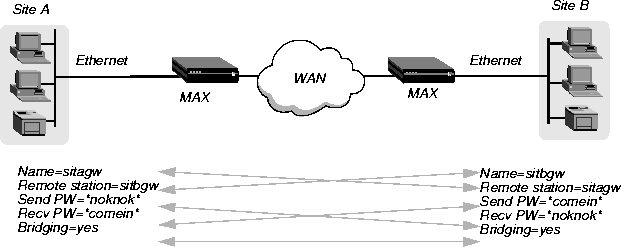
Note: The information exchange illustrated in Figure 6-1 differs slightly for Combinet
bridging, where the bridges' MAC addresses are exchanged instead of station names, and
passwords can be configured as optional. Otherwise, the way in which the MAX establishes a
Combinet bridge connection across the WAN is very similar to the PPP bridged connection in
Figure 6-1. For more information about Combinet, see Chapter 3, Configuring WAN Links.
The system name assigned to the MAX in the Name parameter of System > Sys Config must exactly match the device name specified in the Connection profile on the remote bridge, including case changes. Similarly, the name assigned to the remote bridge must exactly match the name specified in the Station parameter of that Connection profile, including case changes.
Note: The most common cause of trouble when initially setting up a PPP bridging connection
is specifying the wrong name for the MAX or the remote device. Errors often include not
specifying case changes or not entering a dash, space, or underscore.
Enabling bridging
The MAX has a systemwide bridging parameter that you must enable for any bridging connection to work. The Bridging parameter directs the MAX unit's Ethernet controller to run in promiscuous mode. In promiscuous mode, the Ethernet driver accepts all packets, regardless of address or packet type, and passes them up the protocol stack for a higher-layer decision on whether to route, bridge, or reject the packets. (Even if no packets are actually bridged, running in promiscuous mode incurs greater processor and memory overhead than the standard mode of operation for the Ethernet controller.)
You enable packet bridging by opening Ethernet > Mod Config and setting the Bridging parameter to Yes:
Ethernet
      Mod Config
            Bridging=Yes
Managing the bridge table
To forward bridged packets to the correct destination network, the MAX uses a bridge table that associates end nodes with particular connections. It builds this table dynamically (transparent bridging). It also incorporates the entries found in its Bridge Adrs profiles. Bridge Adrs profiles are analogous to static routes in a routing environment. You can define up to 99 destination nodes and their connection information in Bridge Adrs profiles.
As a transparent bridge (also termed a learning bridge, the MAX keeps track of the location of a particular address, and of the Connection profile that specifies the interface to which the packet should be forwarded. When forwarding a packet, the MAX logs the packet's source address and creates a bridge table that associates node addresses with a particular interface.
For example, Figure 6-2 shows the physical addresses of some nodes on the local Ethernet and at a remote site. The MAX at Site A has a bridge configuration.
Figure 6-2. How the MAX creates a bridging table
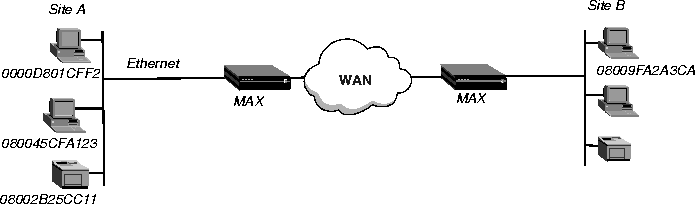
The MAX at Site A gradually learns addresses on both networks by looking at each packet's source address, and it develops a bridge table that includes the following entries:
0000D801CFF2              SITEA
080045CFA123              SITEA
08002B25CC11              SITEA
08009FA2A3CA              SITEB
Entries in the MAX unit's bridge table must be relearned within a fixed aging limit, or they are removed from the table.
Configuring bridged connections
Bridged connections require both Answer and Connection (or Name) profiles settings. They also require a method of recognizing when to dial the connection, which can be the dial-on-broadcast feature or a Bridge Adrs profile (Ethernet > Bridge Adrs). If a connection has an associated Bridge Adrs profile, it does not need dial-on-broadcast. You can define up to 100 Bridge Adrs profiles.
Following are the bridging parameters (shown with sample values):
Ethernet
      Answer
            PPP options...
                  Bridge=Yes
                  Recv Auth=Either
Ethernet
      Connections
            Station=farend
            Bridge=Yes
            Dial Brdcast=No
            IPX options...
                  NetWare t/o=N/A
                  Handle IPX=Client
Ethernet
      Names / Passwords
            Name=Brian
            Active=yes
            Recv PW=brianpw
Ethernet
      Bridge Adrs
            Enet Adrs=CFD012367
            Net Adrs=10.1.1.12
            Connection #=7
Understanding the bridging parameters
This section provides some background information about the bridging parameters. For discussion of IPX options, see IPX bridged configurations. For detailed information about other parameters, see the MAX Reference Guide.
Bridging in the Answer profile
Both the Bridge parameter and a form of password authentication must be enabled in order for the MAX to accept inbound bridged connections.
Note: Bridge = N/A in the Answer profile if the packet bridging has not already been enabled
in the Ethernet profile. (For more information, see Enabling bridging.)
Station name and password
Name and password authentication is required, as described in Establishing a bridged connection.
Bridging and dial broadcast in a Connection profile
In a Connection profile, a Yes setting for the Bridge parameter specifies that the connection bridges packets at the link level, provided that a method of bringing up the connection exists. Either the Connection profile must be specified in a static bridge table entry or Dial Brdcast must be turned on. (For more information, see Establishing a bridged connection.)
Names and passwords
The MAX uses station names and passwords to sync up a bridged connection. These can be provided in a Connection profile, a Name profile, or an external authentication profile.
Bridge Adrs parameters
If a Connection profile does not use dial broadcast, it must have a bridge table entry in order for the MAX to be able to bring up the connection on demand. The Bridge Adrs profile defines a bridge table entry by specifying an Ethernet address, a network address, and a connection number.
Ethernet address
Each bridge table entry specifies an Ethernet (node) address that is not on the local segment. For details about Ethernet addresses, see Physical addresses and the bridge table.
Network address
If you are bridging between two segments of the same IP network, you can use the Net Adrs parameter in a Bridge Adrs profile to enable the MAX to respond to ARP requests while bringing up the bridged connection. (For more information, see Configuring proxy mode on the MAX.)
Connection number
You associate Bridge Adrs profiles with one Connection profile, which the MAX uses to bring up the connection to the specified node address. You specify a Connection profile by the unique portion of its number in the Connections menu.
Example of a bridged connection
An AppleTalk connection at the link level requires a bridge at either end of the connection. This is unlike a dial-in connection using AppleTalk Remote Access (ARA) encapsulation, in which the MAX acts as an ARA server negotiating a session with ARA client software on the dial-in Macintosh.
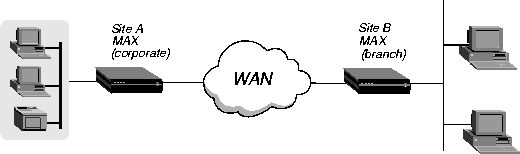
Figure 6-3 shows an example of a bridged connection between a branch office at Site B, which supports Macintosh systems and printers, and a corporate network at Site A. Both site A and Site B support CHAP and require passwords for entry.
Figure 6-3. An example of a connection bridging AppleTalk
The most common cause of trouble when initially setting up a bridged connection is specifying the wrong name for the MAX or the remote device. Errors often include not specifying case changes, or not entering a dash, space, or underscore. Make sure you type the name exactly as it appears in the remote device.
Note: In this example, Dial Brdcast is turned off in the Connection profiles and a Bridge Adrs
profile is specified. This is not required. If you prefer, however, you can turn on Dial Brdcast
and omit the Bridge Adrs profile.
To configure the Site A MAX for a bridged connection:
- If necessary, assign the MAX a station name in System > Sys Config. This example uses the name SITEAGW for the MAX.
- Turn on bridging and specify an authentication protocol in Ethernet > Answer > PPP Options:
Ethernet
      Answer
            PPP options...
                  Bridge=Yes
                  Recv Auth=Either
- Open Connection profile #5 and set the following parameters:
Ethernet
      Connections
            profile #5...
                  Station=SITEBGW
                  Active=Yes
                  Encaps=PPP
                  Bridge=Yes
                Dial Brdcast=No
Note: Dial Brdcast is not needed because of the Bridge Adrs profile configured next.
- Configure password authentication:
                  Encaps options...
                        Send Auth=CHAP
                        Recv PW=localpw
                        Send PW=remotepw
- Close Connection profile #5.
- Open Ethernet > Bridge Adrs.
- Specify a node's Ethernet address and IP address (if known) on the remote network:
Ethernet
      Bridge Adrs
            Enet Adrs=0080AD12CF9B
            Net Adrs=0.0.0.0
            Connection #=5
- Specify the number of the Connection profile to bring up a link to the remote network.
Ethernet
      Bridge Adrs
            Connection#=5 ...
- Close the Bridge Adrs profile.
To configure the Site B MAX unit for the bridged connection:
- If necessary, assign the remote MAX unit a station name in its System profile. This example uses the name SITEBGW for the remote unit.
- Turn on bridging and specify an authentication protocol in the Site B MAX unit's Answer profile. For example:
Ethernet
      Answer
            PPP options...
                  Bridge=Yes
                  Recv Auth=Either
- Open Connection profile #2 on the Site B MAX and set the following parameters:
Ethernet
      Connections
            profile #2...
                  Station=SITEAGW
                  Active=Yes
                  Encaps=PPP
                  Bridge=Yes
                  Dial Brdcast=No
Note: Dial Brdcast is not needed because of the Bridge Adrs profile, configured next.
- Configure password authentication. For example:
                  Encaps options...
                        Send Auth=CHAP
                        Recv PW=remotepw
                        Send PW=localpw
- Close Connection profile #2.
- Open a Bridge Adrs profile.
- Specify a node's Ethernet address and the IP address (if known) on the remote network and the number of the Connection profile to bring up a link to the remote network.
Ethernet
      Bridge Adrs
            Enet Adrs=0CFF1238FFFF
            Net Adrs=0.0.0.0
            Connection #=2
- Specify Ethernet Bridge Adrs Connection#=2.
- Close the Bridge Adrs profile.
IPX bridged configurations
For NetWare WANs in which NetWare servers reside only on one side of the connection, you can configure an IPX bridged connection. IPX bridging has special requirements for facilitating NetWare client-server logins across the WAN and for preventing IPX RIP and SAP broadcasts from keeping a bridged connection up indefinitely. These options vary, depending on whether the local network supports NetWare servers, NetWare clients, or both.
Understanding the IPX bridging parameters
This section focuses only on IPX issues. It does not describe the general bridging parameters explained earlier, although those parameters do apply to an IPX bridging connection.
Following are the related parameters (shown with sample settings):
Ethernet
      Mod Config
            Ether options...
                  IPX Frame=802.2
Ethernet
      Connections
            Route IPX=No
            IPX options...
                  Handle IPX=Client
                  NetWare t/o=N/A
IPX Frame
Set the Handle IPX parameter to N/A if an IPX frame type is not specified in the Ethernet profile. For more information about IPX frame types and how they affect routing and bridging connections, see Chapter 7, Configuring IPX Routing,
Route IPX
If you set Route IPX to Yes in the Connection profile, the System sets the Handle IPX parameter to N/A but acts as if the parameter is set to Server.
Handle IPX
Handle IPX can be set to Server (IPX server bridging) or Client (IPX client bridging).
Use IPX server bridging when the local Ethernet supports NetWare servers (or a combination of clients and servers) and the remote network supports NetWare clients only.
Use IPX client bridging when the local Ethernet supports NetWare clients but no servers. In an IPX client bridging configuration, you want the local clients to be able to bring up the WAN connection by querying (broadcasting) for a NetWare server on a remote network. You also want to filter IPX RIP and SAP updates, so the connections should not remain up permanently.
Note: If NetWare servers are supported on both sides of the WAN connection, Ascend
strongly recommends that you use an IPX routing configuration instead of bridging IPX. If you
bridge IPX in this type of environment, client-server logins are lost when the MAX brings
down an inactive WAN connection.
Netware T/O (watchdog spoofing)
NetWare servers send out NCP watchdog packets to monitor client connections. Only clients that respond to watchdog packets remain logged into the server.
In an IPX server bridging configuration, you want the MAX to respond to NCP watchdog requests on behalf of remote clients, but to bring down inactive connections whenever possible. In this situation, you should set the Netware T/O timer. The timer begins counting down as soon as the link goes down. When the timer expires, the MAX stops responding to watchdog packets and the client-server connections can be released by the server. If the WAN session reconnects before the end of the selected time, the timer resets.
Note: The MAX performs watchdog spoofing only for packets encapsulated in the IPX frame
type specified in the Ethernet profile. For example, if IPX Frame=802.3, only logins to servers
using that packet frame type are spoofed.
Example of an IPX client bridge (local clients)
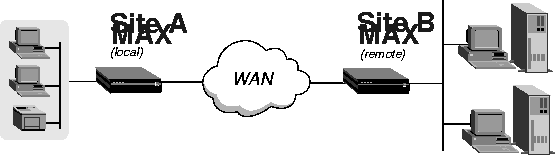
In this example, the local Ethernet supports NetWare clients, and the remote network supports both NetWare servers and clients, so the MAX requires IPX client bridging. When Handle IPX=Client, the MAX applies a data filter that discards RIP and SAP periodic broadcasts at its WAN interface, but forwards RIP and SAP queries. Therefore, local clients can locate a NetWare server across the WAN, but routine broadcasts do not keep the connection up unnecessarily.
Figure 6-4. An example of an IPX client bridged connection
To configure the Site A MAX in this example:
- If necessary, assign the MAX a station name in the System profile. This example uses the name SITEAGW for the MAX.
- Set the IPX frame type in the Ethernet profile. For example:
Ethernet
      Mod Config
            Ether options...
                  IPX Frame=802.3
- Enable bridging and specify an authentication protocol in the Answer profile. For example:
Ethernet
      Answer
            PPP options...
                  Bridge=Yes
                  Recv Auth=Either
- Open a Connection profile and set the following parameters:
Ethernet
      Connections
            Station=SITEBGW
            Active=Yes
            Encaps=PPP
            Route IPX=No
            Bridge=Yes
            Dial Brdcast=Yes
Note: Enable Dial Brdcast to allow service queries to bring up the connection.
- Configure password authentication. For example:
            Encaps options...
                  Send Auth=CHAP
                  Recv PW=localpw
                  Send PW=remotepw
- Specify IPX client bridging:
            IPX options...
                  Handle IPX=Client
- Close the Connection profile.
Example of an IPX server bridge (local servers)
In this example, the local network supports a combination of NetWare clients and servers, and the remote network supports clients only, so the MAX requires IPX server bridging. When Handle IPX=Server, the MAX applies a data filter that discards RIP and SAP broadcasts at its WAN interface, but forwards RIP and SAP queries. It also uses the value specified in the NetWare T/O parameter as the time limit for responding to NCP watchdog requests on behalf of clients on the other side of the bridge.
Figure 6-5. An example of an IPX server bridged connection
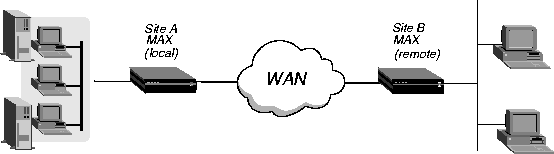
To configure the Site A MAX in this example:
- If necessary, assign the MAX a station name in the System profile. This example uses the name SITEAGW for the MAX.
- Set the IPX frame type in the Ethernet profile. For example:
Ethernet
      Mod Config
            Ether options...
                  IPX Frame=802.3
- Enable bridging and specify an authentication protocol in the Answer profile. For example:
Ethernet
      Answer
            PPP options...
                  Bridge=Yes
                  Recv Auth=Either
- Open a Connection profile and set the following parameters:
Ethernet
      Connections
            Station=SITEBGW
            Active=Yes
            Encaps=PPP
            Route IPX=No
            Bridge=Yes
            Dial Brdcast=Yes
- Configure password authentication. For example:
            Encaps options...
                  Send Auth=CHAP
                  Recv PW=localpw
                  Send PW=remotepw
- Specify IPX server bridging and configure the timer for watchdog spoofing.
            IPX options...
                  Handle IPX=Server
                  Netware T/O=30
- Close the Connection profile.
Configuring proxy mode on the MAX
If you are bridging between two segments of the same IP network, you can use the Net Address parameter in a Bridge Adrs profile to enable the MAX to respond to ARP requests while bringing up the bridged connection.
If an ARP packet contains an IP address that matches the Net Adrs parameter of a Bridge Adrs profile, the MAX responds to the ARP request with the Ethernet (physical) address specified in the Bridge Adrs profile, and brings up the specified connection. In effect, the MAX acts as a proxy for the node that actually has that address.
techpubs@ascend.com
Copyright © 1998, Ascend Communications, Inc. All rights
reserved.