
![[Top]](../images/home.jpg)
![[Contents]](../images/contents.jpg)
![[Prev]](../images/previous.jpg)
![[Next]](../images/next.jpg)
![[Last]](../images/index.jpg)


Defining Static Filters
Packet filters provide a means of filtering data as you defined the filter. Applying a data or call filter to the MAX activates the filter to examine packets. Three predefined filters are available with your MAX to serve as a foundation for the most basic protocols, IP Call, NetWare Call and AppleTalk Call.
Introduction to Ascend filters
A packet filter contains rules describing packets and actions to take upon those packets that match the description. After you apply a packet filter to an interface, the MAX monitors the data stream on that interface. Depending on how you define a filter, it can apply to inbound packets or outbound packets, or both. In addition, filter rules are flexible enough to specify taking an action (such as forward or drop) on those packets that match the rules, or all packets except those that match the rules.
Note: The MAX ships with three predefined filters. Many sites use these filters as is or add
rules pertinent to their networks. For more information, see Configuring predefined filters.
Packet filters and firewalls
The MAX supports the following types of static packet filters:
- Generic filters
- IP filters
- IPX filters
The MAX also supports dynamic firewalls.
Generic filters
Generic filters examine the byte- or bit-level contents of every packet, comparing specified bytes or bits with a value defined in the filter. On the basis of this comparison, they specify a forwarding action. To use generic filters effectively, you need to know the contents of certain bytes in the packets you wish to filter. Protocol specifications are usually the best source of such information.
IP filters
IP filters examine higher-level fields specific to IP packets. They focus on known fields in IP packets (for example, the source or destination address, or the protocol number). They operate on logical information that is relatively easy to obtain. IP filters can block Address Resolution Protocol (ARP) packets as well as IP packets.
IPX filters
IPX filters examine higher-level fields specific to IPX packets. They focus on known fields in IPX packets (for example, the source or destination address, or node, or socket numbers). Like IP filters, IPX filters operate on logical information that is relatively easy to obtain.
Dynamic firewalls
The MAX also supports SecureConnect, which provides dynamic firewalls. A firewall differs from a filter in that it alters its behavior as traffic passes through it, whereas a filter remains unchanged through its lifetime. Unlike a static packet filter which has a limited number of rules, a SecureConnect firewall's only limitation is router memory.
If your MAX unit has SecureConnect support installed, see the SecureConnect Manager's User's Guide for complete instructions about how to create and apply firewalls. You can refer to a SecureConnect firewall set up in SAM in a RADIUS user profile, so that the firewall is applied for the connection defined in the user profile. For more information, see the MAX RADIUS Configuration Guide.
Ways to apply packet filters to an interface
After you define a packet filter, you apply it to an interface to monitor packets crossing that interface. You can apply the filter as one of the following:
- A data filter, to define the packets that can or cannot cross the interface.
- A call filter, to define the packets that can or cannot bring up a connection or reset the idle timer for an established connection (WAN interfaces only).
Packets can pass through both a data filter and call filter on a WAN interface. If you specify both, the MAX applies the data filter first.
Data filters for dropping or forwarding certain packets
Data filters are commonly used for security, but they can apply to any purpose that requires the MAX to drop or forward only specific packets. For example, you can use data filters to drop packets addressed to particular hosts or to prevent broadcasts from going across the WAN. You can also use data filters to allow users to access only specific devices across the WAN.
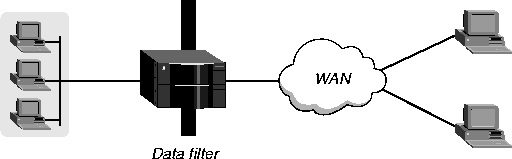
When you apply a data filter, its forwarding action (forward or drop) affects the actual data stream by preventing certain packets from reaching the Ethernet from the WAN, or vice versa. Data filters do not affect the idle timer, and a data filter applied to a Connection profile does not affect the answering process. In Figure 14-1, the vertical bar represents a barrier blocking specified packets.
Figure 14-1. Data filter
Call filters for managing connections
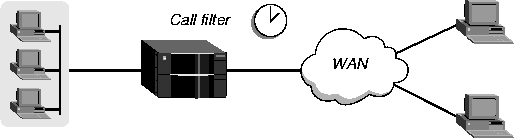
A call filter defines the packets that can or cannot bring up a connection or reset the idle timer for an established link. As shown in Figure 14-2, a call filter does not block the transmission of packets.
Call filters prevent unnecessary connections and help the MAX distinguish active traffic from noise. By default, any traffic to a remote site triggers a call, and any traffic across an active connection resets the connection's idle timer.
When you apply a call filter, its forwarding action does not affect the packets the MAX sends across an active connection. The forwarding action of a call filter determines whether or not a packet can either initiate a connection or reset a session's timer. When a session's idle timer expires, the session terminates. The default for the idle timer is 120 seconds, so if a connection is inactive for two minutes, the MAX terminates the connection.
Figure 14-2. Call filter
How packet filters work
This section provides an overview of packet filters and the processes they follow. For more details about a filter matching a value in a packet, see Defining packet filters.
A Filter profile can contain up to 12 input-filter rules and up to 12 output-filter rules. Each rule has its own forwarding action: forward or drop. At the first successful comparison between a filter and the packet being examined, the filtering process stops and the forwarding action in that rule is applied to the packet.
If no comparison succeeds, the packet does not match the filter. However, this does not mean that the MAX forwards the packet. When no filter is in use, the MAX forwards all packets, but applying a filter to an interface reverses this default. For security purposes, the MAX does not automatically forward nonmatching packets. It requires a rule that explicitly allows such packets to pass. (For an example of an input filter that forwards all packets that did not match a previous rule, see Defining a filter to prevent IP-address spoofing.)
Note: For a call filter to prevent an interface from remaining active unnecessarily, you must
define rules for both input and output packets. Otherwise, if you define only input rules, output
packets keep a connection active, or vice versa.
Generic filters
In a generic filter, all parameter settings in a rule work together to specify a location in a packet and a number to be compared to that location. The Compare parameter specifies whether a comparison succeeds when the contents of the packet equal the specified number or when they or do not equal that number.
IP filters
In an IP filter, a set of distinct comparisons are made in a defined order. When a comparison fails, the MAX applies the next comparison to the packet. When a comparison succeeds, the filtering process stops and the MAX applies the forwarding action in that rule to the packet. The IP filter tests proceed in the following order:
- Apply the Src Mask value to the Src Adrs value and compare the result to the source address of the packet. If they are not equal, the comparison fails.
- Apply the Dst Mask value to the Dst Adrs value and compare the result to the destination address in the packet. If they are not equal, the comparison fails.
- If the Protocol parameter is 0 (zero, which matches any protocol), the comparison succeeds. If it is nonzero and not equal to the protocol field in the packet, the comparison fails.
- If the Src Port Cmp parameter is not set to None, compare the value of the Src Port # parameter to the source port of the packet. If they do not match as specified in the Src-Port-Cmp parameter, the comparison fails.
- If the Dst Port Cmp parameter is not set to none, compare the value of the Dst Port# parameter to the destination port of the packet. If they do not match as specified in the Dst-Port-Cmp parameter, the comparison fails.
- If TCP Estab is set to Yes and the protocol number is 6, the comparison succeeds.
IPX filters
In an IPX filter, each rule includes a set of comparisons that are made in a defined order. When a comparison fails, the packet is allowed to go on to the next comparison. When a comparison succeeds, the filtering process stops and the forwarding action in the rule is applied to the packet. The IPX filter tests proceed in the following order:
- Compare the Src Adrs number to the source network number of the packet. If they are not equal, the comparison fails.
- Compare the Dst Adrs number to the destination network number in the packet. If they are not equal, the comparison fails.
- Compare the Src Adrs number to the source number of the packet. If they are not equal, the comparison fails.
- Compare the Dst Adrs number to the destination number in the packet. If they are not equal, the comparison fails.
- If the Src Port Cmp parameter is not set to None, compare the Src Port number to the source socket number of the packet. If they do not match as specified in the Src Port Cmp parameter, the comparison fails.
- If the Dst Port Cmp parameter is not set to None, compare the Dst Port number to the destination socket number of the packet. If they do not match as specified in the Dst Port Cmp parameter, the comparison fails.
Defining packet filters
Filter profiles provide parameters for defining affected packets. The parameters are the same for input or output filters. Following are the filter parameters (shown with sample settings):
Ethernet
    Filters
      any filter profile
            Name=filter-name
            Input filters...
                  In filter 01-12
                        Valid=Yes
                        Type=Generic
                        Generic...
                              Forward=No
                              Offset=14
                              Length=8
                              Mask=ffffffffffffffff
                              Value=aaaa0300000080f3
                              Compare=Equals
                              More=No
                        Ip...
                              Forward=No
                              Src Mask=255.255.255.192
                              Src Adrs=192.100.50.128
                              Dst Mask=0.0.0.0
                              Dst Adrs=0.0.0.0
                              Protocol=0
                              Src Port Cmp=None
                              Src Port #=N/A
                              Dst Port Cmp=None
                              Dst Port #=N/A
                              TCP Estab=N/A
                        Ipx...
                              Forward=No
                              Src Network Adrs=cfff0000
                              Dst Network Adrs=cf088888
                              Src Node Adrs=111222333
                              Dst Node Adrs=aaabbbccc
                              Src Socket Cmp=equal
                              Src Socket #=0451
                              Dst Socket Cmp=equal
                          Dst Socket #=0015
            Output filters...
                  Out filter 01-12
                        Valid=Yes
                        Type=Generic
                        Generic...
                              Forward=No
                              Offset=14
                              Length=8
                              Mask=ffffffffffffffff
                              Value=aaaa0300000080f3
                              Compare=Equals
                              More=No
                        Ip...
                              Forward=No
                              Src Mask=255.255.255.192
                              Src Adrs=192.100.50.128
                              Dst Mask=0.0.0.0
                              Dst Adrs=0.0.0.0
                              Protocol=0
                              Src Port Cmp=None
                              Src Port #=N/A
                              Dst Port Cmp=None
                              Dst Port #=N/A
                              TCP Estab=N/A
                        Ipx...
                              Forward=No
                              Src Network Adrs=cfff0000
                              Dst Network Adrs=cf088888
                              Src Node Adrs=111222333
                              Dst Node Adrs=aaabbbccc
                              Src Socket Cmp=equal
                              Src Socket #=0451
                              Dst Socket Cmp=equal
                          Dst Socket #=0015
This section provides some background information about configuring packet filters. For detailed information about each parameter, see the MAX Reference Guide. Note that the parameters for defining the actual packet conditions are identical for Input and Output filters.
Name of the Filter profile
Each filter must be assigned a name so it can be referenced from other profiles. The names of defined filters appear in the main Filters menu.
Input and output filters
Each filter can contain up to 12 input filters and output filters, each defined individually and applied in order (1-12) to the packet stream. The MAX applies input filters to inbound packets and output filters to outbound packets. The individual input and output filters are in the In Filter and Out FIlter subprofiles, respectively. In each individual filter, the Valid parameter enables or disables that filter. When you disable a filter, none of its parameters apply. (You cannot configure a filter until you enable it.)
Type of filter
Set Type to Generic or IP. Only the parameters in the corresponding subprofile (Generic or Ip) are applicable.
Generic filter parameters
Generic filters can affect any packet, regardless of its protocol type or header fields. Following are the parameters for generic filters (shown with sample settings):
                  Generic...
                        Forward=No
                        Offset=14
                        Length=8
                        Mask=ffffffffffffffff
                        Value=aaaa0300000080f3
                        Compare=Equals
                        More=No
This section provides some background information about how these parameters work together.
Forward
The Forward parameter specifies whether the MAX discards or forwards packets that match the filter specification. When no filters are in use, the MAX forwards all packets by default. When a filter is in use, the default, Forward=No, discards matching packets.
Offset
Offset specifies a byte-offset from the start of a frame to the start of the data to be tested. For example, with the following filter specification:
                  Generic...
                        Forward=No
                        Offset=2
                        Length=8
                        Mask=0F FF FF FF 00 00 00 F0
                        Value=07 FE 45 70 00 00 00 90
                        Compare=Equals
                        More=No
and the following packet contents:
2A 31 97 FE 45 70 12 22 33 99 B4 80 75
the first two byes in the packet (2A and 31) are ignored because of the two-byte offset.
Note: If the MAX links the current filter to the previous one (if More=Yes in the previous
filter), the offset starts at the endpoint of the previous segment.
Length
The Length parameter specifies the number of bytes to test in a frame, starting with the byte specified by the Offset parameter. For example, with the following specification:
                  Generic...
                        Forward=No
                        Offset=2
                        Length=8
                        Mask=0F FF FF FF 00 00 00 F0
                        Value=07 FE 45 70 00 00 00 90
                        Compare=Equals
                        More=No
and the following packet contents:
2A 31 97 FE 45 70 12 22 33 99 B4 80 75
the filter tests the value of bytes three (97) through ten (99).
The Mask parameter is a 8-bit mask to apply to the value specified by the Value parameter before the MAX compares it to the packet contents at the specified offset. You can set the parameter to specify exactly the bits you want to compare.
The MAX translates both the mask and the value specified by the Value parameter into binary format and then applies a logical AND to the results. Each binary 0 (zero) in the mask hides the bit in the corresponding position in the value. A mask of all ones (FF FF FF FF FF FF FF FF) masks no bits, so the full value must match the packet contents. For example, with this filter specification:
                  Generic...
                        Forward=No
                        Offset=2
                        Length=8
                        Mask=0F FF FF FF 00 00 00 F0
                        Value=07 FE 45 70 00 00 00 90
                        Compare=Equals
                        More=No
and the following packet contents:
2A 31 97 FE 45 70 12 22 33 99 B4 80 75
The MAX applies the mask and compares the data as follows:
Every bit specified by the Value parameter and not masked by the Mask setting matches the corresponding bit in the packet. Therefore, the MAX drops the packet, because the Forward parameter is set to No. The comparison works as follows:
- The MAX ignores 2A and 31 because of the two-byte offset.
- The 9 in the third byte is also ignored, because the mask has a 0 (zero) in its place. The 7 in the third byte matches the Value parameter's 7 for that byte.
- In the fourth byte, F and E match the fourth byte specified by the Value parameter.
- In the fifth byte, 4 and 5 match the fifth byte specified by the Value parameter.
- In the sixth byte, 7 and 0 match the sixth byte specified by the Value parameter.
- In the seventh (12), eighth (22) and ninth (33) bytes in the seventh, eighth and ninth bytes are ignored because the mask has zeroes in those places.
- In the tenth byte, 9 matches the Value parameter's 9 for that byte. The second 9 in the packet's tenth byte is ignored because the mask has a 0 (zero) in its place.
Value
The Value parameter specifies a hexadecimal number to be compared to the packet data identified by the Offset, Length, and Mask calculations.
Compare
The Compare parameter specifies the type of comparison to make between the specified value and the packet's contents. The choices are: less than, equal, greater than, or not equal.
More
The More parameter specifies whether the MAX applies the conditions specified in the next In Filter nn or Out Filter nn subprofile before determining whether the packet matches the filter. If More is set to Yes, the MAX links the current set of filter conditions to the one immediately following it, so the filter can examine multiple noncontiguous bytes within a packet before the forwarding decision is made. In effect, this parameter marries the current filter to the next one, so that the MAX applies the next filter before the MAX makes the forwarding decision. The match occurs only if both noncontiguous bytes contain the specified values. Note that the next set of conditions must be enabled, or the MAX ignores it.
IP filter parameters
IP filter parameters affect only IP and related packets. Following are the IP filter parameters (shown with sample settings):
                  Ip...
                        Forward=No
                        Src Mask=255.255.255.192
                        Src Adrs=192.100.50.128
                        Dst Mask=0.0.0.0
                        Dst Adrs=0.0.0.0
                        Protocol=0
                        Src Port Cmp=None
                        Src Port #=N/A
                        Dst Port Cmp=None
                        Dst Port #=N/A
                        TCP Estab=N/A
This section provides some background information about how these parameters work.
Forward
The Forward parameter specifies whether the MAX discards or forwards packets that match the filter specification. When no filters are in use, the MAX forwards all packets by default. When a filter is in use, the default setting discards matching packets.
Src Mask
The Src Mask parameter specifies a mask to apply to the Src Adrs value before comparing it to the source address in a packet. You can use it to mask out the host portion of an address, for example, or the host and subnet portion.
The MAX translates both the mask and the address into binary format and then uses a logical AND to apply the mask to the address. The mask hides the bits whose positions match those of the binary zeroes in the mask. A mask of all zeros (the default) masks all bits, so all source addresses match. A mask of all ones (255.255.255.255) masks no bits, so the full source address from a single host is compared to the Src Adrs value.
Src Adrs
The Src Adrs parameter specifies a source IP address. After you modify this value by applying the specified Src Mask, the MAX compares it to a packet's source address.
Dst Mask
The Dst Mask parameter specifies a mask to apply to the Dst Adrs value before comparing it to the destination address in a packet. You can use it to mask out the host portion of an address, for example, or the host and subnet portion. The MAX translates both the mask and the address into binary format and then uses a logical AND to apply the mask to the address. The mask hides the portion of the address that appears behind each binary 0 in the mask. A mask of all zeros (the default) masks all bits, so all destination addresses are matched. A mask of all ones (255.255.255.255) masks no bits, so the full destination address to a single host is compared to the Dst Adrs value.
Dst Adrs
The Dst Adrs parameter specifies a destination IP address. After modifying this value by applying the specified Dst Mask value, the MAX compares it to a packet's destination address.
Protocol
If you specify a protocol number, the MAX compares it to the protocol field in each packet. The default protocol number of zero matches all protocols. A list of common protocols appears below. For a complete list of protocol numbers, see "Well-Known Port Numbers" in RFC 1700, Assigned Numbers, by Reynolds, J. and Postel, J., October 1994.
- 1-ICMP
- 5-STREAM
- 8-EGP
- 6-TCP
- 9-Any private interior gateway protocol (such as Cisco's IGRP)
- 11-Network Voice Protocol
- 17-UDP
- 20-Host Monitoring Protocol
- 22-XNS IDP
- 27-Reliable Data Protocol
- 28-Internet Reliable Transport Protocol
- 29-ISO Transport Protocol Class 4
- 30-Bulk Data Transfer Protocol
- 61-Any Host Internal Protocol
- 89-OSPF
Src Port #
The Src Port # parameter specifies a value to compare with the source port number in a packet. The default setting (zero) indicates that the MAX disregards the source port in this filter. Port 25 is reserved for SMTP. This socket is dedicated to receiving mail messages. Port 20 is reserved for FTP data messages, port 21 for FTP control sessions, and port 23 for Telnet.
The Src Port Cmp parameter specifies the type of comparison to be made.
Dst Port #
The Dst Port # parameter specifies a value to compare with the destination port number in a packet. The default setting (zero) indicates that the MAX disregards the destination port in this filter. Port 25 is reserved for SMTP; that socket is dedicated to receiving mail messages. Port 20 is reserved for FTP data messages, port 21 for FTP control sessions, and port 23 for telnet.
The Dst Port Cmp parameter specifies the type of comparison to be made.
TCP Estab
If the Protocol parameter (which specifies the protocol number) has been set to 6 (TCP), you can set TCP Estab to restrict the filter to packets in an established TCP session. Otherwise, the parameter is not applicable.
Example filter specifications
This section shows some examples of generic and IP filter specifications.
Defining a filter to drop AppleTalk broadcasts
This example shows a generic filter whose purpose is to prevent local AppleTalk AEP and NBP traffic from going across the WAN. The filter is supposed to drop packets, so it will be applied as a data filter. The filter first defines packets that should be forwarded across the WAN: AppleTalk Address Resolution Protocol (AARP) packets, AppleTalk packets that are not addressed to the AppleTalk multicast address (for example, regular traffic related to an actual AppleTalk File Server connection), and all non-AppleTalk traffic. The filter then specifies that AppleTalk Echo Protocol (AEP) and Name Binding Protocol (NBP) packets should be dropped. To define this filter:
- Open a Filter profile and assign it a name. For example:
Ethernet
      Filters
        any filter profile
            Name=AppleTalk Broadcasts
- Open Output Filters > Out Filter 01.
- Set Valid to Yes and Type to Generic.
            Output filters...
                  Out filter 01
                        Valid=Yes
                        Type=Generic
- Open the Generic subprofile and set the following values:
                        Generic...
                              Forward=Yes
                              Offset=14
                              Length=8
                              Mask=FFFFFFFFFFFFFFFF
                              Value=FFFF0300000080F3
                              Compare=Equals
                              More=No
These settings define the bytes in AARP packets that contain the protocol type number (0x80F3). The Value setting specifies the same value (0x80F3), so AARP packets match these rules.
- Close this filter. Then open Out Filter 02, and set Valid to Yes and Type to Generic.
            Output filters...
                  Out filter 02
                        Valid=Yes
                        Type=Generic
- Open the Generic subprofile and set the following values:
                        Generic...
                        Forward=Yes
                              Offset=32
                              Length=6
                              Mask=FFFFFFFFFFFF0000
                              Value=090007FFFFFF0000
                              Compare=NotEquals
                              More=No
These settings specify the multicast address used by AppleTalk broadcasts. The MAX forwards any AppleTalk packet that does not match the specified values.
- Close this filter. Then open Out Filter 03, and set Valid to Yes and Type to Generic.
            Output filters...
                  Out filter 03
                        Valid=Yes
                        Type=Generic
- Open the Generic subprofile and set the following values :
                        Generic...
                              Forward=Yes
                              Offset=14
                              Length=8
                              Mask=FFFFFFFFFFFFFFFF
                              Value=AAAA03080007809b
                              Compare=NotEquals
                              More=No
These settings include the bytes in AppleTalk packets that specify the protocol type number (0x809B).These rules define non-AppleTalk traffic (packets that do not contain that value in the specified location). The MAX forwards non-AppleTalk outbound packets.
- Close this filter. Then open Out Filter 04, and set Valid to Yes and Type to Generic.
            Output filters...
                  Out filter 04
                        Valid=Yes
                        Type=Generic
- Open the Generic subprofile and set the following values:
                        Generic...
                              Forward=No
                              Offset=32
                              Length=3
                              Mask=FFFFFFFFFFFFFFFF
                              Value=0404040000000000
                              Compare=Equals
                              More=No
These settings specify AEP packets as described in, for example, Inside AppleTalk published by Addison Wesley, Inc.
- Close this filter. Then open Out Filter 05, and set Valid to Yes and Type to Generic.
            Output filters...
                  Out filter 05
                        Valid=Yes
                        Type=Generic
- Open the Generic subprofile and set the following values:
                        Generic...
                              Forward=No
                              Offset=32
                              Length=4
                              Mask=FF00FFF000000000
                              Value=0200022000000000
                              Compare=Equals
                              More=Yes
Notice that More=Yes, linking Out Filter 05 with the Out Filter 06. Together, these two Out filters specify NBP lookup packets with a wildcard entity name.
- Close this filter. Then open Out Filter 06, and set Valid to Yes and Type to Generic.
            Output filters...
                  Out filter 06
                        Valid=Yes
                        Type=Generic
- Open the Generic subprofile and set the following values:
                        Generic...
                              Forward=No
                              Offset=42
                              Length=2
                              Mask=FFFF000000000000
                              Value=013D000000000000
                              Compare=Equals
                              More=No
- Close this filter.
- Close the Filter profile.
Defining a filter to prevent IP-address spoofing
IP-address spoofing typically occurs when a remote device illegally acquires a local address and uses it to try to break through a firewall. This example shows a filter that prevents IP-address spoofing. The sample filter first defines input filters that drop packets whose source address is on the local IP network or is the loopback address (127.0.0.0). The third input filter accepts all remaining source addresses (by specifying a source address of (0.0.0.0) and forwards them to the local network.
Note: If you apply this filter to the Ethernet interface, the MAX drops IP packets it receives
from the local LAN, and therefore you cannot Telnet to the unit.
The filter then defines an output filter that defines the following rule: If an outbound packet has a source address on the local network, forward it. Otherwise, drop it. The MAX drops all outbound packets with a nonlocal source address. In this example, the filter uses a local IP network address of 192.100.50.128, with a subnet mask of 255.255.255.192. The following procedure defines the IP filter:
- Open a Filter profile and assign it a name. For example:
Ethernet
      any filter profile
            Filters
                Name=IP Spoofing
- Open Input Filters > In Filter 01.
- Set Valid to Yes and Type to IP:
            Input filters...
                  In filter 01
                        Valid=Yes
                        Type=IP
- Open the IP subprofile and set the following values:
                        Ip...
                              Forward=No
                              Src Mask=255.255.255.192
                              Src Adrs=192.100.50.128
                              Dst Mask=0.0.0.0
                              Dst Adrs=0.0.0.0
                              Protocol=0
                              Src Port Cmp=None
                              Src Port #=N/A
                              Dst Port Cmp=None
                              Dst Port #=N/A
                              TCP Estab=N/A
The Src Mask parameter specifies the mask for the local subnet. The Src Adrs parameter specifies the local IP address. If an incoming packet has the local address, the MAX does not forward it onto the Ethernet.
- Close this filter. Then open In Filter 02, and set Valid to Yes and Type to IP:
            Input filters...
                  In filter 02
                        Valid=Yes
                        Type=IP
- Open the IP subprofile and set the following values:
                        Ip...
                              Forward=No
                              Src Mask=255.0.0.0
                              Src Adrs=127.0.0.0
                              Dst Mask=0.0.0.0
                              Dst Adrs=0.0.0.0
                              Protocol=0
                              Src Port Cmp=None
                              Src Port #=N/A
                              Dst Port Cmp=None
                              Dst Port #=N/A
                              TCP Estab=N/A
These settings specify the loopback address in the Src Mask and Src Adrs fields. If an incoming packet has this address, the MAX does not forward it onto the Ethernet.
- Close this filter. Then open In filter 03, and set Valid to Yes and Type to IP:
            Input filters...
                  In filter 03
                        Valid=Yes
                        Type=IP
- Open the IP subprofile and set the following values:
                        Ip...
                              Forward=Yes
                              Src Mask=0.0.0.0
                              Src Adrs=0.0.0.0
                              Dst Mask=0.0.0.0
                              Dst Adrs=0.0.0.0
                              Protocol=0
                              Src Port Cmp=None
                              Src Port #=N/A
                              Dst Port Cmp=None
                              Dst Port #=N/A
                              TCP Estab=N/A
These settings specify every source address (0.0.0.0). The MAX forwards, onto the Ethernet, every incoming packet that has not been dropped by the preceding filter.
- Close this In Filter and the Input Filters subprofile. Then, open the Output Filters subprofile and select the first Out Filter in the list (01).
- Set Valid to Yes and Type to IP:
            Output filters...
                  Out filter 01
                        Valid=Yes
                        Type=IP
- Open the IP subprofile and set the following values:
                        Ip...
                              Forward=Yes
                              Src Mask=255.255.255.192
                              Src Adrs=192.100.40.128
                              Dst Mask=0.0.0.0
                              Dst Adrs=0.0.0.0
                              Protocol=0
                              Src Port Cmp=None
                              Src Port #=N/A
                              Dst Port Cmp=None
                              Dst Port #=N/A
                              TCP Estab=N/A
The Src Mask parameter specifies the mask for the local subnet. The Src Adrs parameter specifies the local IP address. If an outgoing packet has a local source address, the MAX forwards it.
- Close the Filter profile.
Defining a filter for more complex IP security issues
This example illustrates some of the issues you need to consider when writing your own IP filters. The sample filter presented here does not address the fine points of network security. You can use this example as a starting point and augment it to address your security requirements. For details, see the MAX Security Supplement.
In this example, the local network supports a Web server and the administrator needs to carry out the following tasks:
- Provide dial-in access to the server's IP address.
- Restrict dial-in traffic to all other hosts on the local network.
However, many local IP hosts need to dial out to the Internet and use IP-based applications such as Telnet or FTP. Therefore, their response packets need to be directed appropriately to the originating host. In this example, the Web server's IP address is 192.9.250.5. The filter will be applied in Connection profiles as a data filter.
The following procedure defines the filter:
- Open a Filter profile and assign it a name. For example:
Ethernet
      any filter profile
          Filters
                Name=Web Safe
- Open Input Filters > In Filter 01.
- Set Valid to Yes and Type to IP:
            Input filters...
                  In filter 01
                        Valid=Yes
                        Type=IP
- Open the IP subprofile and set the following values:
                        Ip...
                              Forward=Yes
                              Src Mask=0.0.0.0
                              Src Adrs==0.0.0.0
                              Dst Mask=255.255.255.255
                              Dst Adrs=192.9.250.5
                              Protocol=6
                              Src Port Cmp=None
                              Src Port #=N/A
                              Dst Port Cmp=Eql
                              Dst Port #=80
                              TCP Estab=No
This input filter specifies the Web server's IP address as the destination and sets IP forwarding to Yes. The MAX forwards all IP packets received with that destination address.
- Close this filter. Then open In Filter 02, and set Valid to Yes and Type to IP.
            Input filters...
                  In filter 02
                        Valid=Yes
                        Type=IP
- Open the IP subprofile and set the following values:
                        Ip...
                              Forward=Yes
                              Src Mask=0.0.0.0
                              Src Adrs=0.0.0.0
                              Dst Mask=0.0.0.0
                              Dst Adrs=0.0.0.0
                              Protocol=6
                              Src Port Cmp=None
                              Src Port #=N/A
                              Dst Port Cmp=Gtr
                              Dst Port #=1023
                              TCP Estab=No
These settings specify TCP packets (Protocol=6) from any address and to any address. The filter forwards them if the destination port number is higher than that of the source port. For example, Telnet requests go out on port 23, and responses come back on some random port above 1023. So, this filter defines packets coming back in response to a user's request to Telnet to a remote host.
- Close this filter. Then open In Filter 03, and set Valid to Yes and Type to IP.
            Input filters...
                  In filter 03
                        Valid=Yes
                        Type=IP
- Open the IP subprofile and set the following values:
                        Ip...
                              Forward=Yes
                              Src Mask=0.0.0.0
                              Src Adrs=0.0.0.0
                              Dst Mask=0.0.0.0
                              Dst Adrs=0.0.0.0
                              Protocol=17
                              Src Port Cmp=None
                              Src Port #=N/A
                              Dst Port Cmp=Gtr
                              Dst Port #=1023
                              TCP Estab=No
These settings specify UDP packets (Protocol=17) from any address and to any address. The filter forwards them if the destination port number is higher than that of the source port. For example, suppose a RIP packet goes out as a UDP packet to destination port 520. The response to this request goes to a random destination port above port 1023.
- Close this filter. Then open In Filter 04, and set Valid to Yes and Type to IP.
            Input filters...
                  In filter 04
                        Valid=Yes
                        Type=IP
- Open the IP subprofile and set the following values:
                        Ip...
                              Forward=Yes
                              Src Mask=0.0.0.0
                              Src Adrs=0.0.0.0
                              Dst Mask=0.0.0.0
                              Dst Adrs=0.0.0.0
                              Protocol=1
                              Src Port Cmp=None
                              Src Port #=N/A
                              Dst Port Cmp=None
                              Dst Port #=N/A
                              TCP Estab=No
These rules specify unrestricted Pings and Traceroutes. Unlike TCP and UDP, ICMP does not use ports, so a port comparison is unnecessary.
- Close the Filter profile.
Applying packet filters
A filter does not examine any packets unless it is applied to a MAX interface. Once applied, the filter examines packets that cross the interface. You can apply the filter as a data filter, to forward or drop certain packets, or as a call filter, to affect the packets that can initiate calls or reset the idle timer. For background information about these two applications, see Introduction to Ascend filters. Following are the relevant parameters (shown with sample settings):
Ethernet
      Answer
            Session options...
                  Data Filter=0
                  Call Filter=0
                  Filter Persistence=No
Ethernet
      Connections
          any Connection profile
                Session options...
                      Data Filter=5
                      Call Filter=0
                      Filter Persistence=No
Ethernet
      Mod Config
            Ether options...
                  Filter=1
How filters are applied
This section provides some background information about the parameters for applying filters to a local or WAN interface. For detailed information about each parameter, see the MAX Reference Guide.
Applying filters in the Answer profile
The MAX does not apply filters referenced in the Answer profile. Apply filters in the Answer profile only if configured profiles are not required for callers, or if the caller is authenticated with a Name/Password profile if a caller has a Connection profile. If the Answer profile applies filters, they have the same effect as those ordinarily specified in a Connection profile.
Specifying a data filter
A data filter affects the actual data stream on the WAN interface, forwarding or dropping packets according to its rules (as described in Data filters for dropping or forwarding certain packets.) When you apply a filter to a WAN interface, the filter takes effect when the MAX brings up a connection on that interface.
Specifying a call filter
A call filter does not forward or drop packets. When the filter rules specify forward, the call filter lets matching packets initiate the connection or, if the connection is active, reset the idle timer (as described in Call filters for managing connections.)
If you apply both a data filter and call filter, the data filter acts first. Only those packets that pass the data filter reach the call filter.
Filter persistence
Before the MAX supported Secure Connect Firewall, it constructed a filter on a WAN interface when the connection was established and destroyed the filter when the connection was brought down, even if the connection just timed out momentarily. This works fine for static packet filters, but does not accommodate firewall. Filter persistence is needed to allow firewalls to persist across connection state changes, but it is not needed for filters. If you do set Filter Persistence for a static packet filter, the filter persists across connection state changes. For details, see the MAX Security Supplement.
Applying a data filter on Ethernet
Call filters do not apply to the local network interface, so you need only one Filter parameter in the Ethernet profile. This is a data filter that affects the packets that are allowed to reach the Ethernet or to leave the Ethernet for another interface.
A filter applied to the Ethernet interface takes effect immediately. If you change the Filter profile definition, the changes apply as soon as you save the Filter profile.
Note: Use caution when applying a filter to the Ethernet interface. You could inadvertently
render the MAX inaccessible from the local LAN.
Examples of configurations that apply filters
This section provides a few examples of applying data filters and applying call filters.
Applying a data filter in a Connection profile
To apply a data filter in a Connection profile:
- Open the Session Options subprofile of the Connection profile.
- Specify the filter's number in the Data Filter parameter. For example:
Ethernet
      Connections
          any Connection profile
                Session options...
                      Data Filter=5
                      Call Filter=0
                      Filter Persistence=No
Specify the unique portion of the number preceding the filter's name in the Filters menu.
- Close the Connection profile.
Applying a call filter for resetting the idle timer
When you apply a call filter in a Connection profile, it determines which packets can reset the idle timer for a connection. In this example, the idle timer is reset to 20 seconds, so if no packets pass the filter's tests for 20 seconds, the MAX terminates the connection.
To apply a call filter for resetting the idle timer in a Connection profile:
- Open Connections > any Connection profile > Session Options.
- Specify the filter's number in the Call Filter parameter.
The filter's number is the unique portion of the number preceding the filter's name in the Filters menu.
- Set the Idle parameter to 20 seconds.
Ethernet
      Connections
          any Connection profile
            Session options...
                  Data Filter=0
                  Call Filter=2
                  Filter Persistence=No
                  Idle=20
Or, if the profile specifies a terminal-server call, set the TS Idle Mode and TS Idle parameters instead. For example:
Ethernet
      Connections
          any Connection profile
                Session options...
                      Data Filter=0
                      Call Filter=2
                      Filter Persistence=No
                      Idle=0
                      TS Idle Mode=Input/Output
                      TS Idle=20
- Close the Connection profile.
Applying a data filter to the Ethernet interface
To apply a data filter to the local network interface:
- Open the Ethernet > Mod Config > Ether Options profile.
- Set the Filter parameter to the filter's number. For example:
Ethernet
      Mod Config
            Ether options...
                  Filter=1
(Call filters are not applicable to the local network interface.)
- Close the Ethernet profile.
Configuring predefined filters
The MAX ships with three predefined filter profiles, one for each commonly used protocol suite. Some sites modify the predefined filters to make them more full-featured for the types of packets commonly seen at that site. As shipped, the filters provide a base that you can build on to fine-tune how the MAX handles routine traffic on your network. They are intended for use as call filters, to help keep connectivity costs down. Following are the predefined filters:
- IP Call (for managing connectivity on IP connections)
- NetWare Call (for managing connectivity on IPX connections)
- AppleTalk Call (for managing connectivity on bridged AppleTalk connections)
IP Call filter
The predefined IP Call filter prevents inbound packets from resetting the idle timer. It does not prevent any type of outbound packets from resetting the timer or placing a call. The settings for the IP Call filter parameters are:
Ethernet
      Filters
            IP Call...
                  Name=IP Call
                  Input filters...
                        In filter 01
                              Valid=Yes
                              Type=GENERIC
                              Generic...
                                    Forward=No
                                    Offset=0
                                    Length=0
                                    Mask=000000000000000000
                                    Value=000000000000000000
                                    Compare=None
                                    More=No
                  Output filters...
                        Out filter 01
                              Valid=Yes
                              Type=GENERIC
                              Generic...
                                    Forward=Yes
                                    Offset=0
                                    Length=0
                                    Mask=000000000000000000
                                    Value=000000000000000000
                                    Compare=None
                                    More=No
The IP Call filter contains one input filter that defines all inbound packets, and one output filter that defines all outbound packets (all outbound packets destined for the remote network).
NetWare Call filter
The design of predefined NetWare Call filter prevents Service Advertising Protocol (SAP) packets originating on the local IPX network from resetting the idle timer or initiating a call. NetWare servers broadcast SAP packets every 60 seconds to make sure that all routers and bridges know about available services. To prevent these packets from keeping a connection up unnecessarily, apply the predefined NetWare Call filter in the Session Options subprofile of Connection profiles in which you configure IPX routing.
The predefined NetWare Call filter contains six output filters that identify outbound SAP packets and prevent them from resetting the idle timer or initiating a call. The settings for the NetWare Call filter parameters are:
Ethernet
      Filters
            NetWare Call...
                  Name=NetWare Call
                  Output filters...
                        Out filter 01
                              Valid=Yes
                              Type=GENERIC
                              Generic...
                                    Forward=No
                                    Offset=14
                                    Length=3
                                    Mask=ffffff000000000000
                                    Value=e0e0030000000000
                                    Compare=Eqls
                                    More=Yes
                        Out filter 02
                              Valid=Yes
                              Type=GENERIC
                              Generic...
                                    Forward=No
                                    Offset=27
                                    Length=8
                                    Mask=ffffffffffffffff
                                    Value=ffffffffffff0452
                                    More=Yes
                        Out filter 03
                              Valid=Yes
                              Type=GENERIC
                              Generic...
                                    Forward=No
                                    Offset=47
                                    Length=2
                                    Mask=ffff000000000000
                                    Value=0002000000000000
                                    More=No
                        Out filter 04
                              Valid=Yes
                              Type=Generic
                              Generic...
                                    Forward=No
                                    Offset=12
                                    Length=4
                                    Mask=fc00ffff00000000
                                    Value=0000ffff00000000
                                    More=Yes
                        Out filter 05
                              Valid=Yes
                              Type=Generic
                              Generic...
                                    Forward=No
                                    Offset=24
                                    Length=8
                                    Mask=ffffffffffffffff
                                    Value=ffffffffffff0452
                                    More=Yes
                        Out filter 06
                              Valid=Yes
                              Type=Generic
                              Generic...
                                    Forward=No
                                    Offset=44
                                    Length=2
                                    Mask=ffff000000000000
                                    Value=0002000000000000
                                    More=No
AppleTalk Call filter
The AppleTalk Call filter instructs the MAX to place a call and reset the idle timer on the basis of AppleTalk activity on the LAN, but to prevent inbound packets or AppleTalk Echo (AEP) packets from resetting the timer or initiating a call. The filter includes one input and five output filters.
The input filter prevents inbound packets from resetting the timer or initiating a call. The output filters identify the AppleTalk Phase II and Phase I AEP protocols. The last filter enables all other outbound packets to reset the timer or initiate a call. The settings for the AppleTalk Call filter parameters are:
Ethernet
      Filters
            AppleTalk Call...
                  Name=AppleTalk Call
                  Input filters...
                        In filter 01
                              Valid=Yes
                              Type=Generic
                              Generic...
                                    Forward=No
                                    Offset=0
                                    Length=0
                                    Mask=000000000000000000
                                    Value=0000000000000000
                                    More=No
                  Output filters...
                        Out filter 01
                              Valid=Yes
                              Type=Generic
                              Generic...
                                    Forward=No
                                    Offset=14
                                    Length=8
                                    Mask=ffffff000000ffff
                                    Value=aaaa03000000809b
                                    More=Yes
                        Out filter 02
                              Valid=Yes
                              Type=Generic
                              Generic...
                                    Forward=No
                                    Offset=32
                                    Length=3
                                    Mask=ffffff0000000000
                                    Value=0404040000000000
                                    More=No
                        Out filter 03
                              Valid=Yes
                              Type=Generic
                              Generic...
                                    Forward=No
                                    Offset=12
                                    Length=2
                                    Mask=ffff000000000000
                                    Value=809b000000000000
                                    More=Yes
                        Out filter 04
                              Valid=Yes
                              Type=Generic
                              Generic...
                                    Forward=No
                                    Offset=24
                                    Length=3
                                    Mask=ffffff0000000000
                                    Value=0404040000000000
                                    More=No
                        Out filter 05
                              Valid=Yes
                              Type=Generic
                              Generic...
                                    Forward=Yes
                                    Offset=0
                                    Length=0
                                    Mask=0000000000000000
                                    Value=0000000000000000
                                    More=No
techpubs@ascend.com
Copyright © 1998, Ascend Communications, Inc. All rights
reserved.