
![[Top]](../images/home.jpg)
![[Contents]](../images/contents.jpg)
![[Prev]](../images/previous.jpg)
![[Next]](../images/next.jpg)
![[Last]](../images/index.jpg)


Setting Up Virtual Private Networks
Introduction to Virtual Private Networks
Virtual Private Networks (VPN) provide low-cost remote access to private LANs via the Internet. The tunnel to the private corporate network can be from an ISP, enabling Mobile Nodes to dial in to a corporate network, or it can provide a low-cost Internet connection between two corporate networks. Ascend currently supports these VPN schemes: Ascend Tunnel Management Protocol (ATMP), Point-to-Point Tunneling Protocol (PPTP) and Layer 2 Tunneling Protocol (L2TP).
An ATMP session can occur only between two Ascend units and must see UDP/IP. The MAX encapsulates all packets passing through the tunnel in standard Generic Routing Encapsulation as described in RFC 1701. ATMP creates and tears down a cross-Internet tunnel between the two Ascend units. In effect, the tunnel collapses the Internet cloud and provides what looks like direct access to a Home Network. The tunnels do not support bridging. All packets must be routed with IP or IPX.
The Microsoft Corporation developed Point-to-Point-Tunneling Protocol (PPTP) to enable Windows 95 and Windows NT Workstation users to dial into a local ISP to connect to a private corporate network across the Internet.
Version 8 of the Internet Engineering Task Force (IETF) draft titled Layer Two Tunneling Protocol "L2TP," dated November, 1997, specifies the Layer 2 Tunneling Protocol (L2TP). L2TP enables you to connect to a private network by dialing into a local MAX, which creates and maintains an L2TP tunnel between itself and the private network.
Configuring ATMP tunnels
ATMP is a UDP/IP-based protocol for tunneling between two Ascend units across an IP network. Data is transported through the tunnel in Generic Routing Encapsulation (GRE), as described in RFC 1701. (For a complete description of ATMP, see RFC 2107, Ascend Tunnel Management Protocol - ATMP.)
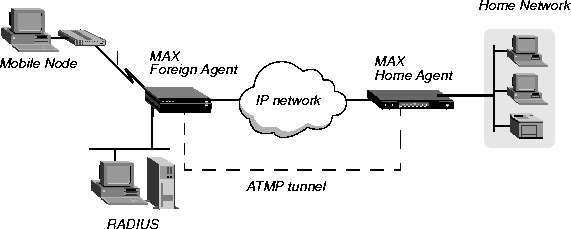
This section describes how ATMP tunnels work between two MAX units. One of the units acts as a Foreign Agent (typically a local ISP) and one as a Home Agent (which can access the Home Network). A Mobile Node dials into the Foreign Agent, which establishes a cross-Internet IP connection to the Home Agent. The Foreign Agent then requests an ATMP tunnel on top of the IP connection. The Foreign Agent must use RADIUS to authenticate Mobile Nodes dial ins.
The Home Agent is the terminating part of the tunnel, and provides most of the ATMP intelligence. It must be able to communicate with the Home Network (the destination network for Mobile Nodes) through a direct connection, another router, or across a nailed connection.
For example, in Figure 13-1, the Mobile Node might be a sales person who logs into an ISP to access his or her Home Network. The ISP is the Foreign Agent. The Home Agent has access to the Home Network.
Figure 13-1. ATMP tunnel across the Internet
How the MAX creates ATMP tunnels
The MAX establishes an ATMP connection as follows:
- A Mobile Node dials a connection to the Foreign Agent.
- The Foreign Agent uses a RADIUS profile to authenticate the Mobile Node.
The MAX, configured as a Foreign Agent, requires RADIUS authentication of the Mobile Node, because only RADIUS supports the required attributes.
- The Foreign Agent uses the Ascend-Home-Agent-IP-Addr attribute in the Mobile Node's RADIUS profile to locate a Connection profile (or RADIUS profile) for the Home Agent.
- The Foreign Agent dials the Home Agent, and authenticates and establishes an IP connection in the usual way.
- The Foreign Agent informs the Home Agent that the Mobile Node is connected, and requests a tunnel. The Foreign Agent sends up to 10 RegisterRequest messages at two-second intervals, timing out and logging a message if it receives no response to the requests.
- The Home Agent requests a password before it creates the tunnel.
- The Foreign Agent returns an encrypted version of the Ascend-Home-Agent-Password found in the Mobile Node's RADIUS profile. This password must match the Home Agent's Password parameter in the ATMP configuration in the Ethernet Profile.
- The Home Agent returns a RegisterReply with a number that identifies the tunnel. If registration fails, the MAX logs a message and the Foreign Agent disconnects the Mobile Node. If registration succeeds, the MAX creates the tunnel between the Foreign Agent and the Home Agent.
- When the Mobile Node disconnects from the Foreign Agent, the Foreign Agent sends a DeregisterRequest to the Home Agent to close the tunnel.
The Foreign Agent can send its request a maximum of ten times, or until it receives a DeregisterReply. If the Foreign Agent receives packets for a Mobile Node whose connection has been terminated, the Foreign Agent silently discards the packets.
Setting the UDP port
By default, ATMP agents use UDP port 5150 to exchange control information while establishing a tunnel. If the Home Agent ATMP profile specifies a different UDP port number, all tunnel requests to that Home Agent must specify the same UDP port.
Note: A system reset is required for the ATMP subsystem to recognize the new UDP port
number.
Setting an MTU limit
The type of link that connects a Foreign Agent and Home Agent determines the Maximum Transmission Unit (MTU). The link may be a dial-up connection, a Frame Relay connection, or an Ethernet link, and it may be a local network or routed through multiple hops. If the link between devices is multihop (if it traverses more than one network segment), the path MTU is the minimum MTU of the intervening segments.
Figure 13-2 shows an ATMP setup across an Ethernet segment, which limits the path MTU to 1500 bytes.
Figure 13-2. Path MTU on an Ethernet segment

If any segment of the link between the agents has an MTU smaller than 1528, some packet fragmentation and reassembly will occur. You can push fragmentation and reassembly tasks to connection end-points (a mobile client and a device on the home network) by setting an MTU limit. Client software then uses MTU discovery mechanisms to determine the maximum packet size, and then fragments packets before sending them.
How link compression affects the MTU
Compression affects which packets must be fragmented, because compressed packets are shorter than their original counterparts. If any kind of compression is on (such as VJ header or link compression), the connection can transfer larger packets without exceeding a link's Maximum Receive Unit (MRU). If compressing a packet makes it smaller than the MRU, it can be sent across the connection, whereas the same packet without compression could not.
How ATMP tunneling causes fragmentation
To transmit packets through an ATMP tunnel, the MAX adds an 8-byte GRE header and a 20-byte IP header to the frames it receives. The addition of these packet headers can make the packet larger than the MTU of the tunneled link, in which case the MAX must either fragment the packet after encapsulating it or reject the packet.
Fragmenting packets after encapsulating them has several disadvantages for the Foreign Agent and Home Agent. For example, it causes a performance degradation because both agents have extra overhead. It also means that the Home Agent device cannot be a GRF switch. (To maintain its very high aggregate throughput, a GRF switch does not perform reassembly.)
Pushing the fragmentation task to connection end-points
To avoid the extra overhead incurred when ATMP agents perform fragmentation, you can either set up a link between the two units that has an MTU greater than 1528 (which means it cannot include Ethernet segments), or you can set the Ethernet > Mod Config > ATMP > GRE MTU parameter to a value that is 28 bytes less than the path MTU.
If you set GRE MTU to zero (the default), the MAX might fragment encapsulated packets before transmission. The other ATMP agent must then reassemble the packets.
If you set GRE MTU to a nonzero value, the MAX reports that value to the client software as the path MTU, causing the client to send packets of the specified size. This pushes the task of fragmentation and reassembly out to the connection end-points, lowering the overhead on the ATMP agents.
For example, if the MAX is communicating with another ATMP agent across an Ethernet segment, you can set the GRE MTU parameter to a value 28 bytes smaller than 1500 bytes, as shown in the following example, to enable the unit to send full-size packets that include the 8-byte GRE header and a 20-byte IP header without fragmenting the packets first:
GRE MTU = 1472
With this setting, the connection end-point sends packets with a maximum size of 1472 bytes. When the MAX encapsulates them, adding 28 bytes to the size, the packets still do not violate the 1500-byte Ethernet MTU.
Forcing fragmentation for interoperation with outdated clients
To discover the path MTU, some clients normally send packets that are larger than the negotiated Maximum Receive Unit (MRU) and that have the Don't Fragment (DF) bit set. Such packets are returned to the client with an ICMP message informing the client that the host is unreachable without fragmentation. This standard, expected behavior improves end-to-end performance by enabling the connection end-points to perform any required fragmentation and reassembly.
However, some outdated client software does not handle this process correctly and continues to send packets that are larger than the specified GRE MTU. To enable the MAX to interoperate with these clients, you can configure the MAX to ignore the DF bit and perform the fragmentation that normally should be performed by the client software. This function in the MAX is sometimes referred to as prefragmentation.
When you set the GRE MTU parameter to a nonzero value, you can set the Force fragmentation parameter to Yes to enable the MAX to prefragment packets it receives that are larger than the negotiated MRU with the DF bit set. It prefragments those packets, and then adds the GRE and IP headers.
Note: Setting the Force fragmentation parameter to Yes causes the MAX to bypass the
standard MTU discovery mechanism and fragment larger packets before encapsulating them in
GRE. Because this changes expected behavior, it is not recommended except for ATMP
interoperation with outdated client software that does not handle fragmentation properly.
Router and gateway mode
The Home Agent can communicate with the Home Network through a direct connection, through another router, or across a nailed connection. When the Home Agent relies on packet routing to reach the Home Network, it operates in router mode. When it has a nailed connection to the Home Network, it is in gateway mode.
Configuring the Foreign Agent
Following are the parameters (shown with sample settings) related to Foreign Agent configuration:
Ethernet
      Mod Config
            ATMP options...
                  ATMP Mode=Foreign
                  Type=N/A
                  Password=N/A
                  SAP Reply=N/A
                  UDP Port=5150
                  GRE MTU=1472
                  Force fragmentation=No
                  Idle limit=N/A
                  ATMP SNMP Traps=No
Following are the parameters (shown with sample settings) for the IP routing connection to the Home Agent:
Ethernet
      Mod Config
            Ether options...
                  IP Adrs=10.65.212.226/24
Ethernet
      Connections
        any Connection profile
            Station=name-of-home-agent
            Active=Yes
            Dial #=555-1212
            Route IP=Yes
            IP options...
                  LAN Adrs=10.1.2.3/24
Following are the parameters (shown with sample settings) for using RADIUS authentication:
Ethernet
      Mod Config
            Auth...
                  Auth=RADIUS
                  Auth Host #1=10.23.45.11/24
                  Auth Host #2=0.0.0.0/0
                  Auth Host #3=0.0.0.0/0
                  Auth Port=1645
                  Auth Timeout=1
                  Auth Key-=[]
                  Auth Pool=No
                  Auth Req=Yes
                  Password Server=No
                  Password Port=N/A
                  Local Profile First=No
                  Sess Timer=0
                  Auth Src Port=0
                  Auth Send Attr 6,7=Yes
Following are the parameters (shown with sample settings) for creating RADIUS user profiles for Mobile Nodes running TCP/IP:
node1 Password="top-secret"
      Ascend-Metric=2,
      Framed-Protocol=PPP,
      Ascend-IP-Route=Route-IP-Yes,
      Framed-Address=200.1.1.2,
      Framed-Netmask=255.255.255.0,
      Ascend-Primary-Home-Agent=10.1.2.3,
      Ascend-Home-Agent-Password="private"
      Ascend-Home-Agent-UDP-Port = 5150
Following are the parameters (shown with sample settings) for creating RADIUS user profiles for Mobile Nodes running NetWare:
node2 Password="ipx-unit"
      User-Service=Framed-User,
      Ascend-Route-IPX=Route-IPX-Yes,
      Framed-Protocol=PPP,
      Ascend-IPX-Peer-Mode=IPX-Peer-Dialin,
      Framed-IPX-Network=40000000,
      Ascend-IPX-Node-Addr=123456789012,
      Ascend-Primary-Home-Agent=10.1.2.3,
      Ascend-Home-Agent-Password="private"
Understanding the Foreign Agent parameters and attributes
This section provides some background information about configuring a Foreign Agent to initiate an ATMP request to the Home Agent MAX. For detailed information about each parameter, see the MAX Reference Guide. For details about attributes and configuring external authentication, see the MAX RADIUS Configuration Guide.
Table 13-1 lists the required attributes when the Mobile Node and Home Network are routing IP.
Table 13-2 lists the required attributes when the Mobile Node and Home Network are routing IPX.
Following is a description of each Foreign Agent attribute:
Example of configuring a Foreign Agent (IP)
To configure the Foreign Agent and create a Mobile Node profile to access a home IP network:
- Open Ethernet > Mod Config > Ether Options and verify that the LAN interface has an IP address. For example:
Ethernet
      Mod Config
            Ether options...
                  IP Adrs=10.65.212.226/24
- Open the ATMP Options subprofile and set ATMP Mode to Foreign:
            ATMP options...
                  ATMP Mode=Foreign
                  Type=N/A
                  Password=N/A
                  SAP Reply=N/A
                  UDP Port=5150
- Open the Auth subprofile and configure the Foreign Agent to authenticate through RADIUS. For example:
            Auth...
                  Auth=RADIUS
                  Auth Host #1=10.23.45.11/24
                  Auth Host #2=0.0.0.0/0
                  Auth Host #3=0.0.0.0/0
                  Auth Port=1645
                  Auth Timeout=1
                  Auth Key-=[]
                  Auth Pool=No
                  Auth Req=Yes
                  Password Server=No
                  Password Port=N/A
                  Local Profile First=No
                  Sess Timer=0
                  Auth Src Port=0
                  Auth Send Attr 6,7=Yes
For detailed information about each parameter, see the MAX Reference Guide.
- Close the Ethernet profile.
- Open a Connection profile and configure an IP routing connection to the Home Agent. For example:
Ethernet
      Connections
          any Connection profile
            Station=home-agent
            Active=Yes
            Encaps=MPP
            Dial #=555-1212
            Route IP=Yes
            Encaps options...
                  Send Auth=CHAP
                  Recv PW=home-pw
                  Send PW=foreign-pw
            IP options...
                  LAN Adrs=10.1.2.3/24
- Close the Connection profile.
- On the RADIUS server, open the RADIUS user profile and create an entry for a Mobile Node. For example:
node1 Password="top-secret"
      Ascend-Metric=2,
      Framed-Protocol=PPP,
      Ascend-IP-Route=Route-IP-Yes,
      Framed-Address=200.1.1.2,
      Framed-Netmask=255.255.255.0,
      Ascend-Primary-Home-Agent=10.1.2.3,
      Ascend-Home-Agent-Password="private"
      Ascend-Home-Agent-UDP-Port = 5150
- Close the user profile.
When the Mobile Node logs into the Foreign Agent with the password top secret, the Foreign Agent uses RADIUS to authenticate the Mobile Node. It then looks for a profile with an IP address that matches the Ascend-Home-Agent-IP-Addr value, so that it can bring up an IP connection to the Home Agent.
Example of configuring a Foreign Agent (IPX)
The procedure for configuring a Foreign Agent to support IPX connections that use ATMP is very similar to one for IP. The only difference is in the Mobile Node's user profile as shown in the following example:
node2 Password="ipx-unit"
      User-Service=Framed-User,
      Ascend-Route-IPX=Route-IPX-Yes,
      Framed-Protocol=PPP,
      Ascend-IPX-Peer-Mode=IPX-Peer-Dialin,
      Framed-IPX-Network=40000000,
      Ascend-IPX-Node-Addr=123456789012,
      Ascend-Primary-Home-Agent=10.1.2.3,
      Ascend-Home-Agent-Password="private"
When the Mobile Node logs into the Foreign Agent with the password ipx-unit, the Foreign Agent uses RADIUS to authenticate the Mobile Node. It then looks for a profile with an IP address that matches the Ascend-Home-Agent-IP-Addr value, so that it can bring up an IP connection to the Home Agent.
Configuring a Home agent
To configure an ATMP Home agent, you must set parameters in the ATMP profile, verify that the Home agent can communicate across an IP link with the Foreign agent, and configure the connection to the home network.
The link to the Foreign agent can be any kind of connection (dial-up, nailed, Frame Relay, etc.) or an Ethernet link, and it can be a local network or a remote network provided the two units communicate through an IP network.
Because the Home agent does not establish a connection on the basis of receiving tunneled data, the link to the home network cannot be a regular switched dial-up connection, but can be a nailed connection, a switched incoming connection from the home network, or a routed connection.
Configuring a Home Agent in router mode
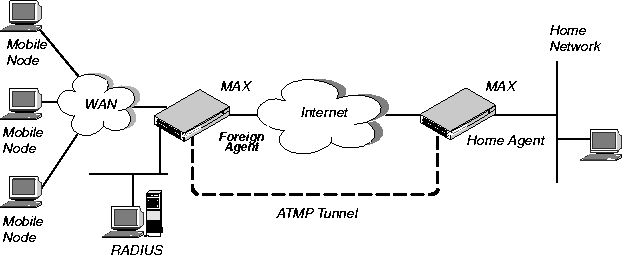
When the ATMP tunnel has been established between the Home Agent and Foreign Agent, the Home Agent in router mode receives IP packets through the tunnel, removes the GRE encapsulation, and passes the packets to its bridge/router software. In its routing table, the Home Agent adds a host route to the Mobile Node.
Figure 13-3. Home Agent routing to the Home Network
The MAX requires the IPX routing parameters in the Ethernet profile only if the MAX is routing IPX. The following parameters (shown with sample settings) are used for configuring a Home Agent in router mode:
Ethernet
      Mod Config
            IPX Routing=Yes
            Ether options
                  IP Adrs=10.1.2.3/24
                  IPX Frame=802.2
                  IPX Enet #=00000000
            ATMP options...
                  ATMP Mode=Home
                  Type=Router
                  Password=private
                  SAP Reply=No
                  UDP Port=5150
                  GRE MTU=1472
                  Force fragmentation=No
                  Idle limit=0
                  ATMP SNMP Traps=No
The IP routing connection to the Foreign Agent uses the following parameters (shown with sample settings):
Ethernet
      Connections
        any Connection profile
            Station=foreign-agent
            Active=Yes
            Encaps=MPP
            Dial #=555-1213
            Route IP=Yes
            Encaps options...
                  Send Auth=CHAP
                  Recv PW=foreign-pw
                  Send PW=home-pw
            IP options...
                  LAN Adrs=10.65.212.226/24
Understanding the ATMP router mode parameters
This section provides some background information about configuring a Home Agent in router mode. For detailed information about each parameter, see the MAX Reference Guide.
.
Routing to the Mobile Node
When the Home Agent receives IP packets through the ATMP tunnel, it adds a host route for the Mobile Node to its IP routing table. It then handles routing in the usual way. When the Home Agent receives IPX packets through the tunnel, it adds a route to the Mobile Node on the basis of the virtual IPX network number assigned in the RADIUS user profile.
For IP routes, you can enable RIP on the Home Agent's Ethernet to enable other hosts and networks to route to the Mobile Node. Enabling RIP is particularly useful if the Home Network is one or more hops away from the Home Agent's Ethernet. If you turn RIP off, other routers require static routes that specify the Home Agent as the route to the Mobile Node.
Note: If the Home Agent's Ethernet is the Home Network (a direct connection), you should
turn on proxy ARP in the Home Agent so that local hosts can use ARP to find the Mobile
Node.
For details on IP routes, see Configuring IP Routing. For information about IPX routes, see Configuring IPX Routing.
Example of configuring a Home Agent in router mode (IP)
To configure the Home Agent in router mode to reach an IP Home Network:
- Open Ethernet > Mod Config > Ether Options and verify that the LAN interface has an IP address. You can also set routing options. For example:
Ethernet
      Mod Config
            Ether options...
                  IP Adrs=10.1.2.3/24
                  RIP=On
- Open the ATMP Options subprofile, set ATMP Mode to Home, and set Type to Router.
- Specify the password used to authenticate the tunnel (Ascend-Home-Agent-Password). For example:
            ATMP options...
                  ATMP Mode=Home
                  Type=Router
                  Password=private
                  SAP Reply=No
                  UDP Port=5150
                  GRE MTU=1472
                  Force fragmentation=No
                  Idle limit=0
                  ATMP SNMP Traps=No
- Close the Ethernet profile.
- Open a Connection profile and configure an IP routing connection to the Foreign Agent. For example:
Ethernet
      Connections
        any Connection profile
            Station=foreign-agent
            Active=Yes
            Encaps=MPP
            Dial #=555-1213
            Route IP=Yes
            Encaps options...
                  Send Auth=CHAP
                  Recv PW=foreign-pw
                  Send PW=home-pw
            IP options...
                  LAN Adrs=10.65.212.226/24
- Close the Connection profile.
Example of configuring a Home Agent in router mode (IPX)
To configure the Home Agent in router mode to reach an IPX network:
- Open Ethernet > Mod Config > Ether Options and verify that the LAN interface has an IP address (needed for communication with the Foreign Agent) and can route IPX.
Ethernet
      Mod Config
            IPX Routing=Yes
            Ether options
                  IP Adrs=10.1.2.3/24
                  IPX Frame=802.2
                  IPX Enet #=00000000
For details, see Chapter 9, Configuring IPX Routing.
- Open the ATMP Options subprofile, set ATMP Mode to Home, and set Type to Router.
ATMP options...
ATMP Mode=Home
Type=Router
- Specify the password used to authenticate the tunnel (Ascend-Home-Agent-Password).
- Set SAP Reply to Yes, and leave the default for UDP port:
                  Password=private
                  SAP Reply=Yes
                  UDP Port=5150
- Close the Ethernet profile.
- Open a Connection profile and configure an IP routing connection to the Foreign Agent. For example:
Ethernet
      Connections
        any Connection profile
            Station=foreign-agent
            Active=Yes
            Encaps=MPP
            Dial #=555-1213
          Route IP=Yes
            Encaps options...
                  Send Auth=CHAP
                  Recv PW=foreign-pw
                Send PW=home-pw
            IP options...
                  LAN Adrs=10.65.212.226/24
- Close the Connection profile.
Configuring a Home Agent in gateway mode
When you configure the Home Agent in gateway mode, it receives GRE-encapsulated IP packets from the Foreign Agent, strips off the encapsulation, and passes the packets across a nailed WAN connection to the Home Network.
Figure 13-4. Home Agent in gateway mode
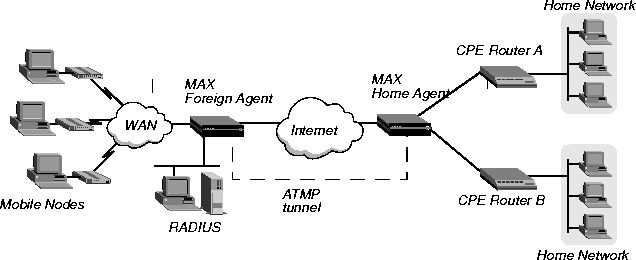
Note: To enable hosts and routers on the Home Network to reach the Mobile Node, you must
configure a static route in the Customer Premise Equipment (CPE) router on the Home
Network (not in the Home Agent). The static route must specify the Home Agent as the route
to the Mobile Node. That is, the route's destination address specifies the Framed-Address of
the Mobile Node, and its gateway address specifies the IP address of the Home Agent.
Limiting the maximum number of tunnels
If you decide to limit the maximum number of tunnels a gateway will support, you should consider the expected traffic per mobile client connection, the bandwidth of the connection to the home network, and the availability of alternative Home Agents (if any). For example, the lower the amount of traffic generated by each mobile client connection, the more tunnels a a gateway connection will be able to handle.
Enabling RIP on the interface to the home router
The router at the far end of the gateway profile must be able to route back to mobile clients. The easiest way to accomplish this is by setting the ATMP RIP parameter to Send-v2. With this setting, the Gateway Home Agent constructs a RIP-v2 Response(2) packet at every RIP interval and sends it to the home network from all tunnels using the gateway profile. For each tunnel, the Response packet contains the mobile client IP address, the subnet mask, the next hop = 0.0.0.0, metric = 1. RIP-v2 authentication and route tags are not supported.
Note: The home network router should not send RIP updates, because the Home Agent does
not inspect them. The RIP updates would be forwarded to the mobile clients instead.
If you set ATMP RIP to Off, the administrator of the home network must configure a static route to each mobile client. A static route to a mobile client can be specific to the client, where the route's destination is the mobile client IP address and the next-hop router is the Home Agent address. For example, in the following route the mobile client is a router (this is not a host route), and the Home Agent address is 2.2.2.2:
Dest=110.1.1.10/29

Gateway=2.2.2.2
Or, if the mobile clients have addresses allocated from the same address block (including router mobile client addresses with subnet masks less than 32 bits) and no addresses from that block are assigned to other hosts, the home network administrator can specify a single static route that encompass all mobile clients that use the same Home Agent. For example, in the following route all mobile clients are allocated addresses from the 10.4.n.n block (and no other hosts are allocated addresses from that block), and the Home Agent address is 2.2.2.2:
Dest=10.4.0.0/16

Gateway = 2.2.2.2
Configuring a Home Agent in gateway mode involves the following parameters (shown with sample settings):
Ethernet
      Mod Config
            IPX Routing=Yes
            Ether options
                  IP Adrs=10.1.2.3/24
                  IPX Frame=802.2
                  IPX Enet #=00000000
            ATMP options...
                  ATMP Mode=Home
                  Type=Gateway
                  Password=private
                  SAP Reply=No
                  UDP Port=5150
                  GRE MTU=1472
                  Force fragmentation=No
                  Idle limit=0
                  ATMP SNMP Traps=No
The IP routing connection to the Foreign Agent uses the following parameters (shown with sample settings):
Ethernet
      Connections
        any Connection profile
            Station=foreign-agent
            Active=Yes
            Encaps=MPP
            Dial #=555-1213
            Route IP=Yes
            Encaps options...
                  Send Auth=CHAP
                  Recv PW=foreign-pw
                  Send PW=home-pw
            IP options...
                  LAN Adrs=10.65.212.226/24
The nailed connection to the Home Network uses the following parameters (shown with sample settings):
Ethernet
      Connections
            Station=homenet
            Active=Yes
            Encaps=MPP
            Dial #=N/A
            Calling #=N/A
            Route IP=Yes
          Route IPX=Yes
            IP options...
                  LAN Adrs=5.9.8.2/24
            Telco options...
                  Call Type=Nailed
                  Group=1,2
            Session options...
                  ATMP Gateway=Yes
                  MAX ATMP Tunnels=0
                  ATMP RIP=Send-v2
The IPX routing parameters are required only if the MAX is routing IPX.
Understanding the ATMP gateway mode parameters
This section provides some background information about configuring a Home Agent in gateway mode. For detailed information about each parameter, see the MAX Reference Guide.
Set the following parameters in the Mod Config profile's ATMP Options subprofile:
IP configuration and Connection profile
The cross-Internet connection to the Foreign Agent is an IP routing connection that the MAX authenticates and establishes in the usual way. For details, see Chapter 7, Configuring IP Routing.
Connection profile to the Home Network
The Connection profile to the Home Network must be a local profile. It cannot be specified in RADIUS. The name of this Connection profile must match the name specified by the Ascend-Home-Network-Name attribute in the Mobile Node's RADIUS profile. In addition, the Connection profile for connection to the Home Network must specify the following values:
- Nailed call type. The Home Agent must have a nailed connection to the Home Network, because it dials the WAN connection on the basis of packets received through the tunnel.
- ATMP Gateway session option enabled. The ATMP Gateway parameter must be set to Yes. This parameter instructs the Home Agent to send to the mobile node the data that it receives back from the Home Network on this connection.
- ATMP tunnel limit. The MAX ATMP Tunnels parameter specifies the number of ATMP tunnels that the MAX as a Home Agent gateway can establish to a Home Network. The maximum number of ATMP tunnels can be specified individually for each Home Network.
Also, you can specify that the MAX include mobile-client routes in RIP-v2 responses to the home router. The ATMP RIP parameter specifies whether or not the MAX includes mobile-client routes in RIP-v2 responses to the home router.
Example of configuring a Home Agent in gateway mode (IP)
To configure the Home Agent in gateway mode to reach an IP Home Network:
- Open Ethernet > Mod Config > Ether Options and verify that the LAN interface has an IP address. For example:
Ethernet
      Mod Config
            Ether options...
                  IP Adrs=10.1.2.3/24
- Open the ATMP Options subprofile, set ATMP Mode to Home, and set Type to Gateway.
- Specify the password used to authenticate the tunnel. It must match the Ascend-Home-Agent-Password attribute of each Mobile Node's RADIUS profile. For example:
            ATMP options...
                  ATMP Mode=Home
                  Type=Gateway
                  Password=private
                  SAP Reply=No
                  UDP Port=5150
                  GRE MTU=1472
                  Force fragmentation=No
                  Idle limit=0
                  ATMP SNMP Traps=No
- Close the Ethernet profile.
- Open a Connection profile and configure an IP routing connection to the Foreign Agent. For example:
Ethernet
      Connections
          any Connection profile
            Station=foreign-agent
            Active=Yes
            Encaps=MPP
            Dial #=555-1213
            Route IP=Yes
            Encaps options...
                  Send Auth=CHAP
                  Recv PW=foreign-pw
                  Send PW=home-pw
            IP options...
                  LAN Adrs=10.65.212.226/24
- Open a Connection profile and configure a nailed WAN link to the Home Network. For example:
Ethernet
      Connections
          any Connection profile
            Station=homenet
            Active=Yes
            Encaps=MPP
            Dial #=N/A
            Calling #=N/A
            Route IP=Yes
            IP options...
                  LAN Adrs=5.9.8.2/24
            Telco options...
                  Call Type=Nailed
                  Group=1,2
            Session options...
                  ATMP Gateway=Yes
                  MAX ATMP Tunnels=0
                  ATMP RIP=Send-v2
- Close the Connection profile.
Example of configuring a Home Agent in gateway mode (IPX)
To configure the Home Agent in gateway mode to reach an IPX Home Network:
- Open Ethernet > Mod Config > Ether Options and verify that the LAN interface has an IP address (required for communication with the Foreign Agent) and can route IPX. For example:
Ethernet
      Mod Config
            IPX Routing=Yes
            Ether options
                  IP Adrs=10.1.2.3/24
                  IPX Frame=802.2
                  IPX Enet #=00000000
For details, see Chapter 9, Configuring IPX Routing.
- Open the ATMP Options subprofile, set ATMP Mode to Home, and set Type to Gateway.
- Specify the password used to authenticate the tunnel. It must match the Ascend-Home-Agent-Password attribute of each Mobile Node's RADIUS profile .
- Set SAP Reply to Yes. The profile now has the following settings:
            ATMP options...
                  ATMP Mode=Home
                  Type=Gateway
                  Password=private
                  SAP Reply=Yes
                  UDP Port=5150
                  GRE MTU=1472
                  Force fragmentation=No
                  Idle limit=0
                  ATMP SNMP Traps=No
- Close the Ethernet profile.
- Open a Connection profile and configure an IP routing connection to the Foreign Agent. For example:
Ethernet
      Connections
        any Connection profile
            Station=foreign-agent
            Active=Yes
            Encaps=MPP
            Dial #=555-1213
            Route IP=Yes
            Encaps options...
                  Send Auth=CHAP
                  Recv PW=foreign-pw
                  Send PW=home-pw
            IP options...
                  LAN Adrs=10.65.212.226/24
- Open a Connection profile and configure a nailed WAN link that routes IPX to the Home Network. For example:
Ethernet
      Connections
        any Connection profile
                  Station=homenet
                  Active=Yes
                  Encaps=MPP
                  PRI # Type=National     (for ISDN PRI lines only)
                  Dial #=555-1212
                  Route IPX=Yes
                  Encaps options...
                        Send Auth=CHAP
                        Recv PW=homenet-pw
                        Send PW=my-pw
                  IPX options...
                        IPX RIP=None
                        IPX SAP=Both
                        NetWare t/o=30
                  Telco options...
                        Call Type=Nailed
                        Group=1,2
                  Session options...
                        ATMP Gateway=Yes
                        MAX ATMP Tunnels=0
                        ATMP RIP=Send-v2
- Close the Connection profile.
Specifying the tunnel password
The Home Agent typically requests a password before establishing a tunnel. The Foreign Agent returns an encrypted version of the password found in the mobile client profile.
If the password sent by the Foreign Agent matches the Password value specified in the ATMP profile, the Home Agent returns a RegisterReply with a number that identifies the tunnel, and the mobile client's tunnel is established. If the password does not match, the Home Agent rejects the tunnel, and the Foreign Agent logs a message and disconnects the mobile client.
Setting an idle timer for unused tunnels
When a mobile client disconnects normally, the Foreign Agent sends a request to the Home Agent to close down the tunnel. However, when a Foreign Agent restarts, tunnels that were established to a Home Agent are not normally cleared, because the Home Agent is not informed that the mobile clients are no longer connected. The unused tunnels continue to hold memory on the Home Agent. To enable the Home Agent to reclaim the memory held by unused tunnels, set an inactivity timer on a Home Agent by changing the Idle limit parameter to a non-zero value.
The inactivity timer runs only on the Home Agent side and specifies the number of minutes (1 to 65535) that the Home Agent maintains an idle tunnel before disconnecting it. A value of 0 disables the timer, which means that idle tunnels remain connected forever. The setting affects only tunnels created after the timer was set. Tunnels that existed before the timer was set are not affected by it.
Configuring the MAX as an ATMP multimode agent
You can configure the MAX to act as both a Home Agent and Foreign Agent on a tunnel-by-tunnel basis. Figure 13-5 shows a sample network topology that has a MAX acting as a Home Agent for Network B and a Foreign Agent for Network A.
Figure 13-5. MAX acting as both Home Agent and Foreign Agent
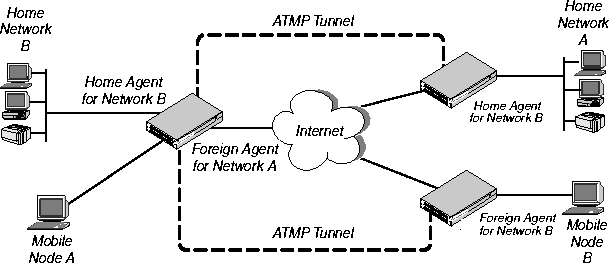
To configure the MAX as a multimode agent, set ATMP Mode to Both and complete both the foreign and Home Agent specifications. Setting ATMP Mode to Both indicates that the MAX will function as both a Home Agent and Foreign Agent on a tunnel-by-tunnel basis.
For example, to configure the MAX to operate as both a Home Agent and Foreign Agent, first check the interface and set the ATMP options:
- Open Ethernet > Mod Config > Ether Options and verify that the LAN interface has an IP address. For example:
Ethernet
      Mod Config
            Ether options...
                  IP Adrs=10.65.212.226/24
- Open the ATMP Options subprofile and set ATMP Mode to Both.
- Configure the other home-agent settings as appropriate. For example, to use Gateway mode and a password of private:
            ATMP options...
                  ATMP Mode=Both
                  Type=Gateway
                  Password=private
                  SAP Reply=No
                  UDP Port=5150
                  GRE MTU=1472
                  Force fragmentation=No
                  Idle limit=0
                  ATMP SNMP Traps=No
Then set the Foreign Agent aspect of the multimode configuration:
- Open the Auth subprofile and configure RADIUS authentication. For example:
            Auth...
                  Auth=RADIUS
                  Auth Host #1=10.23.45.11/24
                  Auth Host #2=0.0.0.0/0
                  Auth Host #3=0.0.0.0/0
                  Auth Port=1645
                  Auth Timeout=1
                  Auth Key-=[]
                  Auth Pool=No
                  Auth Req=Yes
                  Password Server=No
                  Password Port=N/A
                  Local Profile First=No
                  Sess Timer=0
                  Auth Src Port=0
                  Auth Send Attr 6,7=Yes
For detailed information about each parameter, see the MAX Reference Guide.
- Close the Ethernet profile.
- On the RADIUS server, open the RADIUS user profile and create an entry for a Mobile Node. For example:
node1 Password="top-secret"
      Ascend-Metric=2,
      Framed-Protocol=PPP,
      Ascend-IP-Route=Route-IP-Yes,
      Framed-Address=200.1.1.2,
      Framed-Netmask=255.255.255.0,
      Ascend-Primary-Home-Agent=10.1.2.3,
      Ascend-Home-Agent-Password="private"
      Ascend-Home-Agent-UDP-Port = 5150
      Ascend-Home-Network-Name=home-agent
- Close the user profile.
- Open a Connection profile and configure an IP routing connection to the Network A Home Agent. For example:
Ethernet
      Connections
          any Connection profile
            Station=home-agent
            Active=Yes
            Encaps=MPP
            Dial #=555-1212
            Route IP=Yes
            Encaps options...
                  Send Auth=CHAP
                  Recv PW=home-pw
                  Send PW=foreign-pw
            IP options...
                  LAN Adrs=10.1.2.3/24
- Close the Connection profile.
Finally, set the Home Agent aspect of the multimode configuration:
- Open a Connection profile and configure an IP routing connection to the Network B Foreign Agent. For example:
Ethernet
      Connections
        any Connection profile
            Station=foreign-agent
            Active=Yes
            Encaps=MPP
            Dial #=555-1213
            Route IP=Yes
            Encaps options...
                  Send Auth=CHAP
                  Recv PW=foreign-pw
                  Send PW=home-pw
            IP options...
                  LAN Adrs=10.65.212.226/24
- Open a Connection profile and configure a nailed WAN link to the Network B Home Network. For example:
Ethernet
      Connections
        any Connection profile
            Station=homenet
            Active=Yes
            Encaps=MPP
            Dial #=N/A
            Calling #=N/A
            Route IP=Yes
            IP options...
                  LAN Adrs=5.9.8.2/24
            Telco options...
                  Call Type=Nailed
                  Group=1,2
            Session options...
                  ATMP Gateway=Yes
                  MAX ATMP Tunnels=0
                  ATMP RIP=Send-v2
- Close the Connection profile.
Supporting Mobile Node routers (IP only)
To enable an IP router to connect as a Mobile Node, the Foreign Agent's RADIUS entry for the Mobile Node must specify the same subnet as the one that identifies the Home Network. For example, to connect to a Home Network whose router has the following address:
10.1.2.3/28
The Foreign Agent's RADIUS entry for the remote router would contain lines such as the following:
node1 Password="top-secret"
      Ascend-Metric=2,
      Framed-Protocol=PPP,
      Ascend-IP-Route=Route-IP-Yes,
      Framed-Address=10.168.6.21,
      Framed-Netmask=255.255.255.240,
      Ascend-Primary-Home-Agent=10.1.2.3,
      Ascend-Home-Agent-Password="private"
With these Framed-Address and Framed-Netmask settings (equivalent to 10.168.6.21/28) for the Mobile Node router, the connecting LAN can support up to 14 hosts. The network address (or base address) for this subnet is 10.168.6.16. This address represents the network itself, because the host portion of the IP address is all zeros.
The broadcast address (all ones in host portion of address) for this subnet is 10.168.6.31. Therefore, the valid host address range is 10.168.6.17-10.168.6.30, which includes 14 host addresses.
The MAX handles routes to and from the Mobile Node's LAN differently, depending on whether the Home Agent is configured in router mode or gateway mode.
Home Agent in router mode
If the Home Agent connects directly to the Home Network, set Proxy ARP=Always, which enables the Home Agent to respond to ARP requests on behalf of the Mobile Node.
If the Home Agent does not directly connect to the Home Network, the situation is the same as for any remote network: Routes to the Mobile Node's LAN must either be learned dynamically from a routing protocol or configured statically.
The Mobile Node always requires static routes to the Home Agent as well as to other networks reached through the Home Agent. (It cannot learn routes from the Home Agent.)
Home Agent in gateway mode
If the Home Agent forwards packets from the Mobile Node across a nailed WAN link to the home IP network, the answering unit on the Home Network must have a static route to the Mobile Node's LAN.
In addition, because no routing information passes through the connection between the Mobile Node and the Home Agent, the Mobile Node's LAN can only support local subnets that fall within the network specified in the RADIUS entry.
For example, using the previous sample RADIUS entry, the Mobile Node could support two subnets with a mask of 255.255.255.248: one on the 10.168.6.16 subnet and the other on the 10.168.6.24 subnet. The answering unit on the Home Network would have only one route to the router itself (10.168.6.21/28).
ATMP connections that bypass a Foreign Agent
If a Home Agent MAX has the appropriate RADIUS entry for a Mobile Node, the Mobile Node connects directly to the Home Agent. An ATMP-based RADIUS entry that is local to the Home Agent enables the Mobile Node to bypass a Foreign Agent connection, but it does not preclude a Foreign Agent. If both the Home Agent and the Foreign Agent have local RADIUS entries for the Mobile Node, the node can choose a direct connection or a tunneled connection through the Foreign Agent.
For example, the following RADIUS entry authenticates a mobile NetWare client that connects directly to the Home Agent. In this example, the Home Agent is in the gateway mode (it forwards packets from the Mobile Node across a nailed WAN link to the home IPX network):
mobile-ipx Password = "unit"
      User-Service = Framed-User,
      Ascend-Route-IPX = Route-IPX-Yes,
      Framed-Protocol = PPP,
      Ascend-IPX-Peer-Mode = IPX-Peer-Dialin,
      Framed-IPX-Network = 40000000,
      Ascend-IPX-Node-Addr = 12345678,
      Ascend-Home-Agent-IP-Addr = 192.168.6.18,
      Ascend-Home-Network-Name = "homenet",
      Ascend-Home-Agent-Password = "pipeline"
Note: If you configure the Home Agent in router mode (which forwards packets from the
Mobile Node to its internal routing module), the Ascend-Home-Network-Name line is not
included in the user entry. The Ascend-Home-Network-Name attribute specifies the name of
the answering unit across the WAN on the home IPX network.
Configuring PPTP tunnels for dial-in clients
Point to Point Tunneling Protocol (PPTP) enables Windows 95 and Windows NT Workstation users to dial into a local ISP to connect to a private corporate network across the Internet. To the user dialing the call, the connection looks like a regular login to an NT server that supports TCP/IP, IPX, or other protocols.
The MAX acts as a PPTP Access Controller (PAC) which functions as a front-end processor to offload the overhead of communications processing. At the other end of the tunnel, the NT server acts as a PPTP Network Server (PNS). All authentication is negotiated between the Windows 95 or NT client and the PNS. The NT server's account information remains the same as if the client dialed in directly. No changes are needed.
How the MAX works as a PAC
Currently, PPTP supports call routing and routing to the NT server by PPP-authenticated connection on a per-line basis, or on the basis of the called number or calling number. The following section describes how to dedicate an entire WAN access line for each destination PNS address. For details about configuring WAN lines and assigning phone numbers, see Chapter 3, Configuring WAN Access. For details about routing PPTP calls on the basis of called or calling number, see the MAX RADIUS Configuration Guide.
In the PPTP configuration, you specify the destination IP address of the PNS (the NT server), to which all calls that come in on the PPTP-routed line will be forwarded. When the MAX receives a call on that line, it passes the call directly to the specified IP address end-point, creating the PPTP tunnel to that address if one is not already up. The PNS destination IP address must be accessible by IP routing.
Note: The MAX handles PPTP calls differently than it does regular calls. No Connection
profiles are used for these calls, and the Answer profile is not consulted. The calls are routed
through the PPTP tunnel solely on the basis of the phone number dialed.
Following are the PPTP PAC configuration parameters (shown with sample settings):
Ethernet
      Mod Config
            L2 Tunneling Options...
                  PPTP Enabled=Yes
                  Line 1 tunnel type=PPTP
                  Route line 1=10.65.212.11
                  Line 2 tunnel type=None
                  Route line 2=0.0.0.0
                  Line 3 tunnel type=None
                  Route line 3=0.0.0.0
                  Line 4 tunnel type=None
                  Route line 4=0.0.0.0
Understanding the PPTP PAC parameters
This section provides some background information about configuring PPTP. For detailed information about each parameter, see the MAX Reference Guide.
Enabling PPTP
When you enable PPTP, the MAX can bring up a PPTP tunnel with a PNS and respond to a request for a PPTP tunnel from a PNS. You must specify the IP address of the PNS in one or more of the Route Line parameters.
Specifying a PRI line for PPTP calls and the PNS IP address
The PPTP parameters include four Route Line parameters, one for each of the MAX unit's WAN lines. If you specify the IP address of a PNS in one of these parameters, that WAN line is dedicated to receiving PPTP connections and forwarding them to that destination address.
The IP address you specify must be accessible via IP, but there are no other restrictions on it. It can be across the WAN or on the local network. If you leave the default null address, that WAN line handles calls normally.
Example of a PAC configuration
Figure 13-6 shows an ISP POP MAX unit communicating across the WAN with an NT Server at a customer premise. Windows 95 or NT clients dial into the local ISP and are routed directly across the Internet to the corporate server. In this example, the MAX unit's fourth WAN line is dedicated to PPTP connections to that server.
Figure 13-6. PPTP tunnel
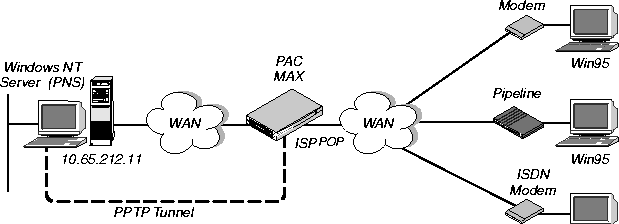
To configure this MAX for PPTP:
- Open Ethernet > Mod Config > PPTP Options.
- Turn on PPTP, and set Route Line 4 to the PNS IP address.
Ethernet
      Mod Config
            L2 Tunneling Options...
                  PPTP Enabled=Yes
                  Line 1 tunnel type=None
                  Route line 1=0.0.0.0
                  Line 2 tunnel type=None
                  Route line 2=0.0.0.0
                  Line 3 tunnel type=None
                  Route line 3=0.0.0.0
                  Line 4 tunnel type=PPTP
                  Route line 4=10.65.212.11
- Close the Ethernet Profile.
Example of a PPTP tunnel across multiple POPs
Figure 13-7 shows an ISP POP MAX communicating through an intervening router to the PNS that is the end-point of its PPTP tunnel. The MAX routes the packets in the usual way to reach the end-point IP address.
Figure 13-7. PPTP tunnel across multiple POPs
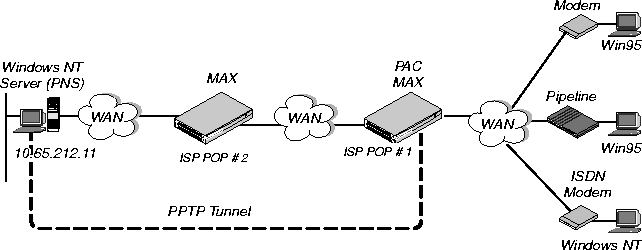
In this example, the MAX at ISP POP #1 dedicates its second WAN line to PPTP connections to the PNS at 10.65.212.11. To configure this MAX as a PAC:
- Open Ethernet > Mod Config > PPTP Options.
- Turn on PPTP, and specify the PNS IP address for Route Line 2.
Ethernet
      Mod Config
            L2 Tunneling Options...
                  PPTP Enabled=Yes
                  Line 1 tunnel type=None
                  Route line 1=0.0.0.0
                  Line 2 tunnel type=PPTP
                  Route line 2=10.65.212.11
                  Line 3 tunnel type=None
                  Route line 3=0.0.0.0
                  Line 4 tunnel type=None
                  Route line 4=0.0.0.0
- Close the Ethernet Profile.
The PAC must have a route to the destination address, in this case a route through the ISP POP #2. It does not have to be a static route. It can be learned dynamically by means of routing protocols. The remaining steps of this procedure configure a static route to ISP POP #2:
- Open an unused IP Route profile and activate it. For example:
Ethernet
      Static Rtes
            Name=pop2
            Active=Yes
- Specify the PNS destination address:
Dest=10.65.212.11
- Specify the address of the next-hop router (ISP POP #2). For example:
Gateway=10.1.2.4
- Specify a metric for this route, the route's preference, and whether the route is private. For example:
            Metric=1
            Preference=100
            Private=Yes
- Close the IP Route profile.
Routing a terminal-server session to a PPTP server
You can initiate a PPTP session in which the terminal-server interface routes the session to a PPTP server. The PPTP command gives you two options for selecting the tunnel the MAX creates. You can specify either the IP address or host name of the PPTP server. Normal PPTP authentication proceeds once the MAX creates the tunnel.
Enter the command, at the terminal-server prompt as follows:
pptp pptp_server
where pptp_server is the IP address or hostname of the PPTP server. When you enter the command, the system displays the following text:
PPTP: Starting session
PPTP Server pptp_server
Configuring L2TP tunnels for dial-in clients
L2TP enables you to dial into a local ISP and connect to a private corporate network across the Internet. You dial into a local MAX, configured as an L2TP Access Concentrator (LAC), and establish a PPP connection. Attributes in your RADIUS user profile specify that the MAX, acting as an LAC, establishes an L2TP tunnel. The LAC contacts the L2TP Network Server (LNS) that connects to the private network. The LAC and the LNS establish an L2TP tunnel (via UDP), and any traffic your client sends is tunneled to the private network. Once the MAX units establish the tunnel, the client connection has a PPP connection with the LNS, and appears to be directly connected to the private network.
You can configure the MAX to act as either an LAC, an LNS, or both. The LAC performs the following functions:
- Establishes PPP connections with dial-in clients.
- Sends requests to LNS units, requesting creation of tunnels.
- Encapsulates and forwards all traffic from clients to the LNS via the tunnel.
- De-encapsulates traffic received from an established tunnel, and forwards it to the client.
- Sends tunnel-disconnect requests to LNS units when clients disconnect.
The LNS performs the following functions:
- Responds to requests by LAC units for creation of tunnels.
- Encapsulates and forwards all traffic from the private network to clients via the tunnel.
- De-encapsulates traffic received from an established tunnel, and forwards it to the private network.
- Disconnects tunnels on the basis of requests from the LAC.
- Disconnects tunnels when the value you set for a user profile's MAX-Connect-Time attribute expires. You can also manually disconnect tunnels from the LNS by using SNMP, the terminal-server Kill command, or the DO Hangup command (which you access by pressing <Ctrl- D).
Note: With this release, a MAX acting as an LNS cannot send Incoming Call Requests to an
LAC. Only an LAC can make requests for the creation of L2TP tunnels.
Elements of L2TP tunneling
This section describes how L2TP tunnels work between an LAC and an LNS. A client dials into an LAC, from either a modem or ISDN device, and the LAC establishes a cross-Internet IP connection to the LNS. The LAC then requests an L2TP tunnel via the IP connection.
The LNS is the terminating part of the tunnel, where most of the L2TP processing occurs. It communicates with the private network (the destination network for the dial-in clients) through a direct connection.
Figure 13-8 shows an ISP POP MAX, acting as an LAC, communicating across the WAN with a private network. Clients dial into the ISP POP and are forwarded across the Internet to the private network.
Figure 13-8. L2TP tunnel across the Internet
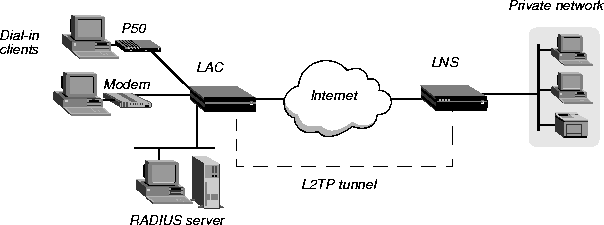
How the MAX creates L2TP tunnels
The dial-in client, the LAC, and the LNS establish, use, and terminate an L2TP-tunnel connection as follows:
- A client dials, over either a modem or ISDN connection, into the LAC.
- On the basis of dialed number or after authentication (depending on the LAC configuration), the LAC communicates with the LNS to establish an IP connection.
- Over the IP connection, the LAC and LNS establish a control channel.
- The LAC sends an Inbound Call Request to the LNS.
- Depending on the LNS configuration, the client might need to authenticate itself a second time.
- After successful authentication, the tunnel is established, and data traffic flows.
- When the client disconnects from the LAC, the LAC sends a Call Disconnect Notify message to the LNS. The LAC and LNS disconnect the tunnel.
LAC and LNS mode
The MAX can function as an LAC, an LNS, or both. When configured as both, the MAX functions as an LAC when so specified by the dial-in client configuration, and as an LNS in response to an Inbound Call Request from an LAC.
Note: The MAX can support several simultaneous connections, some in which it acts as an
LAC, and some in which it acts as an LNS. For any single connection, however, the MAX can
operate as either an LAC or LNS, but not both.
Tunnel authentication
You can configure the LNS to authenticate a tunnel during tunnel creation. You must enable tunnel authentication on both the LAC and LNS.
On the LNS, you must create a Names/Passwords profile where:
- The value in the Ethernet > Names/Passwords > Name parameter matches the value of the System > Sys Config > Name parameter on the LAC.
- The value of the Ethernet > Names/Passwords > Recv PW parameter matches the password configured on the LAC.
On the LAC, you can specify the password with the Tunnel-Password attribute in the RADIUS user profile for the connection initiating the session, or you can configure the password in a Names/Passwords profile. If you create a Names/Passwords profile, the value of the Ethernet > Names/Passwords > Name parameter must match the the value of the System > Sys Config > Name parameter on the LNS.
Conversely, you can configure the LAC and LNS to not require tunnel authentication.
Client authentication
Either the LAC, the LNS, or both, can perform PAP or CHAP authentication of clients for which they create tunnels. If you configure the MAX to create tunnels on a per-line basis, only the LNS can perform authentication, because the MAX automatically builds a tunnel to the LNS for any call it receives on that line.
If you use RADIUS to configure L2TP on a per-user basis, and you specify the Client-Port-DNIS attribute, the LAC does not perform PAP or CHAP authentication. If you specify Client-Port-DNIS, the tunnel is created as soon as the LAC receives a DNIS number that matches a Client-Port-DNIS for any user profile. You can configure the LNS to perform PAP or CHAP authentication after the LAC and LNS establish the tunnel.
If you use RADIUS to configure L2TP, but do not specify the Client-Port-DNIS attribute, the LAC performs PAP or CHAP authentication before the tunnel is established. Once the tunnel is up, the LNS can perform authentication again on the client. Each client sends the same username and password during the authentication phase, so for each client, make sure you configure the LAC and LNS to look for the same usernames and passwords.
You can also direct the MAX to create an L2TP tunnel, from the terminal server, by using the L2TP command. You can configure authentication on the LNS, requiring users to authenticate themselves when they manually initiate L2TP tunnels from the terminal server.
Flow control
The LAC and LNS automatically use a flow control mechanism that is designed to reduce network congestion. You do not need to configure the mechanism.
You can, however, configure the maximum number of unacknowledged packets that the LAC or LNS receives before it requests that the sending device stop sending data. You can configure the LAC or LNS to receive up to 63 unacknowledged packets before refusing new data, or you can disable flow control completely.
Configuration of the MAX as an LAC
The LAC is responsible for requesting L2TP tunnels to the LNS. You configure the LAC to determine when a dial-in connection should be tunneled, and you can specify the LNS used for the connection.
Understanding the L2TP LAC parameters
This section provides some background information about parameters used in configuring the MAX as an LAC:
Configuring the MAX
To configure the MAX as an L2TP LAC, you must first enable L2TP LAC on the MAX, then specify how the MAX determines which connections are tunneled.
Configuring systemwide L2TP LAC parameters
To configure systemwide L2TP LAC parameters on the MAX:
- Open the Ethernet > Mod Config > L2 Tunneling Options menu.
- Set L2TP Mode to LAC or to Both.
- If you require tunnel authentication, set L2TP Auth Enabled to Yes.
You must configure both the LAC and LNS identically, to either require or not require authentication.
- Set L2TP RX Window to the number of packets that the MAX should receive before it requests that the sending device stop transmitting packets.
The default is seven. Set the parameter to 0 (zero) to disable flow control in the receiving direction. The MAX continues to perform flow control for the sending direction regardless of the value of L2TP RX Window.
Enabling L2TP tunneling for an entire WAN line
If you want the LAC to create L2TP tunnels for every call received on a specific WAN line:
- Open the Ethernet > Mod Config > L2 Tunneling Options menu.
- For the line for which you are configuring LAC functionality (Line N) , set Line N Tunnel Type to L2TP. For example, if you want to tunnel all calls received on the first WAN port (labeled WAN 1 on the MAX back panel), set Line 1 Tunnel Type to L2TP.
- Set Route line n to the IP address of the LNS.
Enabling L2TP tunneling on a per-user basis
You can configure RADIUS to direct the MAX to create L2TP tunnels for specific users. To do so, you use three standard RADIUS attributes: Tunnel-Type, Tunnel-Medium-Type, and Tunnel-Server-Endpoint. Table 13-3 describes them.
Table 13-3. RADIUS attributes for specifying L2TP tunnels
Attribute
|
Description
|
Possible values
|
|---|
|
Tunnel-Type (64)
|
Specifies which tunneling protocol to use for this connection.
|
PPTP or L2TP. You must set this attribute to L2TP to direct the MAX to create an L2TP tunnel.
|
|
Tunnel-Medium-Type (65)
|
Specifies the protocol type, or medium, used for this connection. Currently, the MAX supports IP only. Future software releases will support additional medium types.
|
Currently, the only supported value is IP. You must set this attribute to IP.
|
|
Tunnel-Server-Endpoint (67)
|
Specifies the IP address or fully qualified host name of the LNS, if you set Tunnel-Type to L2TP, or PPTP Network Server (PNS), if you set Tunnel-Type to PPTP.
|
If a DNS server is available, you can specify the fully qualified host name of the LNS. Otherwise, specify the IP address of the LNS in dotted decimal notation (n.n.n.n, where n is a number from 0 to 255.) You must set this attribute to an accessible IP host name or address.
|
Configuration of the MAX as an LNS
When the MAX acts as an LNS, it responds to requests by LAC units to establish tunnels. The LNS does not initiate outgoing requests for tunnels, so configuration of the MAX is simple. Proceed as follows:
- Open the Ethernet > Mod Config > L2 Tunneling Options menu.
- Set L2TP Mode to either LNS or Both.
- If you require tunnel authentication, set L2TP Auth Enabled to Yes.
You must configure both the LAC and LNS identically, to either require or not require authentication.
- Set L2TP RX Window to the number of packets that the MAX should receive before it requests that the sending device stop transmitting packets.
The default is 7. Set the parameter to 0 (zero) to disable flow control in the receiving direction. The MAX continues to perform flow control for the sending direction regardless of the value of L2TP RX Window.
techpubs@ascend.com
Copyright © 1998, Ascend Communications, Inc. All rights
reserved.