
![[Top]](../images/home.jpg)
![[Contents]](../images/contents.jpg)
![[Prev]](../images/previous.jpg)
![[Next]](../images/next.jpg)
![[Last]](../images/index.jpg)


Configuring IPX Routing
Introduction to IPX routing
This section describes how the MAX supports IPX routing between sites that run Novell NetWare version 3.11 or newer. The MAX operates as an IPX router, with one interface to each of its two local Ethernet connections and the third across the WAN. Each IPX Connection profile defines an IPX WAN interface.
The most common use for IPX routing in the MAX is to integrate multiple NetWare LANs to form an interconnected wide-area network
The MAX supports IPX routing over PPP and Frame Relay connections. Support for both the IPXWAN and PPP IPXCP protocols makes the MAX fully interoperable with non-Ascend products that conform to these protocols and the associated RFCs.
Note: IPX transmission can use multiple frame types. The MAX, however, routes only one
IPX frame type (which you configure), and it routes and spoofs IPX packets only if they are
encapsulated in that type of frame. If you enable bridging and IPX routing in the same
Connection profile, the MAX bridges any other IPX packet frame types. (For more
information, see Chapter 11, Configuring Packet Bridging.)
Unlike an IP routing configuration, in which the MAX uniquely identifies the calling device by its IP address, a MAX IPX routing configuration does not include a built-in way to uniquely identify callers. For that reason, use PAP and CHAP which requires password authentication, unless you configure IP routing in the same Connection profile.
Note: If you have a MAX running Multiband Simulation, disable IPX routing.
IPX Service Advertising Protocol (SAP) tables
The MAX follows standard IPX SAP behavior for routers. However, when it connects to another Ascend unit configured for IPX routing, the two units exchange their entire SAP tables. Each unit immediately adds all remote services to its SAP table.
NetWare servers broadcast SAP packets every 60 seconds to make sure that routers (such as the MAX) know about their services. Each router builds a SAP table with an entry for each service advertised by each known server. When a router stops receiving SAP broadcasts from a server, it ages its SAP-table entry for that server and eventually removes it from the table.
Routers use SAP tables to respond to client queries. When a NetWare client sends a SAP request to locate a service, the MAX consults its SAP table and replies with its own hardware address and the internal address of the requested server. The process is analogous to proxy ARP in an IP environment. The client then transmits packets whose destination address is the internal address of the server. When the MAX receives the packets, it consults its RIP table. If it finds an entry for their destination address, it brings up the connection or forwards the packets across the active connection.
IPX Routing Information Protocol (RIP) tables
The MAX follows standard IPX RIP behavior for routers when connecting to non-Ascend units. However, when two Ascend units configured for IPX routing connect, they immediately exchange their entire RIP tables. In addition, the MAX maintains the imported RIP entries as static until you reset or power cycle the Ascend unit.
Note: In this chapter, RIP always refers to IPX RIP. IPX RIP is similar to the routing
information protocol in the TCP/IP protocol suite, but it is a different protocol.
The destination of an IPX route is the internal network of a server. For example, the network administrator assigns NetWare file servers an internal IPX network number, and the servers typically use the default node address of 000000000001. This is the destination network address for file read/write requests. (If you are not familiar with internal network numbers, see your NetWare documentation for details.)
IPX routers broadcast RIP updates both periodically and each time you establish a WAN connection. The MAX receives RIP broadcasts from a remote device, increments n the hop count of each advertised route, updates its own RIP table, and broadcasts updated RIP packets on connected networks in a split-horizon fashion.
The MAX recognizes network number -2 (0xFFFFFFFE) as the IPX RIP default route. When the MAX receives a packet for an unknown destination, it forwards the packet to the IPX router advertising the default route. For example, if the MAX receives an IPX packet destined for network 77777777, and it does not have a RIP-table entry for that destination, it forwards the packet toward network number FFFFFFFE, if available, instead of simply dropping the packet. If more than one IPX router is advertising the default route, the MAX makes a routing decision based on Hop and Tick count.
IPX and PPP link compression
NetWare relies on the Data Link layer (also called Layer 2) to validate and guarantee data integrity. STAC link compression, if specified, generates an eight-bit checksum, which is inadequate for NetWare data.
If your MAX supports NetWare (either routed or bridged), and you require link compression, you should configure your MAX in one of the following ways:
- Configure either STAC-9 or MS-STAC link compression, which use a more robust error-checking method, for any connection profile supporting IPX data. Configure link compression in the Ethernet > Answer > PPP Options > Link Comp parameter and Ethernet > Connections > Any Connection profile > Encaps Options > Link Comp parameter.
- Enable IPX-checksums on your NetWare servers and clients. (Both server and client must support IPX-checksums. If you enable checksums on your servers but your clients do not support checksums, they will fail to log in successfully.)
- Disable link compression completely by setting Ethernet > Answer > PPP Options > Link Comp = None and Ethernet > Connections > Any Connection profile > Encaps Options > Link Comp = None. By disabling link compression, the MAX validates and guarantees data integrity by means of PPP.
Ascend extensions to standard IPX
NetWare uses dynamic routing and service location, so clients expect to be able to locate a server dynamically, regardless of its physical location. To help accommodate these expectations in a WAN environment, Ascend provides two IPX extensions: IPX Route profiles and IPX SAP filters.
(For information about the Handle IPX parameter and IPX bridging, see Chapter 11, Configuring Packet Bridging.)
IPX Route profiles
IPX Route profiles specify static IPX routes. When the MAX clears its RIP and SAP tables because of a reset or power-cycle, it adds the static routes when it reinitializes. Each static route contains the information needed to reach one server.
If the MAX connects to another Ascend unit, some sites choose not to configure a static route. Instead, after a power-cycle or reset, the initial connection to that site must be activated manually. After the initial connection, the MAX downloads the RIP table from the remote site and maintains the routes as static until the next power-cycle or reset.
Static routes need manual updating whenever you remove the specified server or change the address. However, static routes help prevent timeouts when a client takes a long time to locate a server across a remote WAN link. (For more information, see Configuring static IPX routes, or see the Configurator Online Help for information about parameters in a profile.)
IPX SAP filters
Many sites do not want the MAX SAP table to include long lists of all services available at a remote site. IPX SAP filters enable you to exclude services from, or explicitly include certain services in, the SAP table.
SAP filters can be applied to inbound or outbound SAP packets. Inbound filters control the services you add to the MAX unit's SAP table from advertisements on a network link. Outbound filters control which services the MAX advertises on a particular network link. (For more information, see Creating and applying IPX SAP filters.)
WAN considerations for NetWare client software
NetWare clients on a wide area network do not need special configuration in most cases. Following are some considerations regarding NetWare clients in an IPX routing environment, and Ascend's recommendations.
Consideration
|
Recommendation
|
|---|
|
Preferred servers
|
If the local IPX network supports NetWare servers, configure NetWare clients with a preferred server on the local network, not at a remote site. If the local Ethernet does not support NetWare servers, configure local clients with a preferred server that is on the network with the lowest connection costs. (For more information, see your NetWare documentation for more information.)
|
|
Local copy of LOGIN.EXE
|
Because of possible performance issues, executing programs remotely is not recommended. You should put LOGIN.EXE on each client's local drive.
|
|
Packet Burst (NetWare 3.11)
|
Packet Burst lets servers send a data stream across the WAN before a client sends an acknowledgment. The feature is enabled by default in server and client software for NetWare 3.12 or later. If local servers are running NetWare 3.11, they should have PBURST.NLM loaded. (For more information, see your NetWare documentation.)
|
|
Macintosh or UNIX clients
|
Both Macintosh and UNIX clients can use IPX to communicate with servers. But they also support native communications via AppleTalk or TCP/IP, respectively. If Macintosh clients must use AppleTalk software (rather than MacIPX) to access NetWare servers across the WAN, the WAN link must support bridging. Otherwise, AppleTalk packets do not make it across the connection. If UNIX clients access NetWare servers via TCP/IP (rather than UNIXWare), the MAX must be configured as either a bridge or an IP router. Otherwise, TCP/IP packets do not make it across the connection.
|
Enabling IPX routing in the MAX
The Ethernet profile configures system-global parameters that affect all IP interfaces in the MAX. Following are the related parameters (shown with sample settings):
Ethernet
      Mod Config
            IPX Routing=Yes
            Ether options
                  IPX Frame=802.2
                  IPX Enet #=00000000
                  IPX Pool #=CCCC1234
Understanding the global IPX parameters
This section provides some background information about IPX routing in the Ethernet profile. For detailed information about each parameter, see the MAX Reference Guide.
IPX Routing
When you set to Yes, the IPX Routing parameter enables IPX routing mode. When you enable IPX routing in the MAX and close the Ethernet profile, the MAX comes up in IPX routing mode, uses the default frame type 802.2 (which is the suggested frame type for NetWare 3.12 or later), and listens on the Ethernet to acquire its IPX network number from other IPX routers on that segment.
IPX Frame
The MAX routes and spoofs only one IPX frame type (IEEE 802.2 by default), as specified in the IPX Frame parameter. If some NetWare software transmits IPX in a frame type other than the type specified here, the MAX drops those packets or, if you enable bridging, bridges them. If you are not familiar with the concept of packet frames, see the Novell documentation.
IPX Enet #
The IPX Enet # parameter specifies the IPX network number for the Ethernet interface of the MAX. The easiest way to ensure that the number is correct is to leave the default null address. The null address causes the MAX to listen for its network number and acquire it from another router on the same interface. If you enter a number other than zero, the MAX becomes a seeding router, and other routers can learn their IPX network number from the MAX. (For details about seeding routers, see the Novell documentation.)
IPX Pool #
The IPX Pool # parameter specifies a virtual IPX network to be assigned to dial-in NetWare clients. Dial-in clients do not belong to an IPX network, so they must be assigned an IPX network number to establish a routing connection with the MAX. The MAX advertises the route to this virtual network and assigns it as the network address for dial-in clients.
The dial-in Netware client must accept the network number, although it can provide its own node number or accept a node number provided by the MAX. If the client does not have a unique node address, the MAX assigns the node address as well.
Examples of IPX routing configuration
This section shows the simple configuration in which the MAX uses the default frame type and learns its network number from other routers on the Ethernet. It also shows a more complex router configuration whose values you enter explicitly.
A basic configuration using default values
In this example, the MAX routes IPX packets in 802.2 frames and learns its IPX network number from other routers on the Ethernet. It does not define a virtual network for dial-in clients. To configure the MAX Ethernet profile:
- Open the Ethernet profile.
- Set IPX Routing to Yes:
Ethernet
      Mod Config
            IPX Routing=Yes
- Close the Ethernet profile.
When you close the Ethernet profile, the MAX comes up in IPX routing mode, uses the default frame type of 802.2, and acquires its IPX network number from other routers.
A more complex example
In this example, the MAX routes IPX packets in 802.3 frames (other frame types are bridged), and uses the IPX network number CF0123FF. It also supports a virtual IPX network for assignment to dial-in clients.
To verify that the MAX should use 802.3 frames, go to the NetWare server's console and type LOAD INSTALL to view the AUTOEXEC.NCF file. Look for lines similar to the following:
internal network 1234
Bind ipx ipx-card net=CF0123FF
Load 3c509 name=ipx-card frame=ETHERNET_8023
The last line specifies the 802.3 frame type. To verify that the IPX network number you assign to the MAX Ethernet interface is compatible with other servers and routers on that interface, check the BIND line in the AUTOEXEC.NCF file. The second line in the example above specifies the number CF0123FF.
Note: Every IPX network number on each network segment and internal network within a
server on the entire WAN must be unique. So you should know both the external and internal
network numbers in use at all sites.
To configure the Ethernet profile:
- Open Ethernet > Mod Config and set IPX Routing to Yes:
Ethernet
      Mod Config
            IPX Routing=Yes
- Open the Ether Options subprofile.
- Specify the 802.3 frame type and set the IPX network number for the Ethernet interface. For example:
            Ether options
                  IPX Frame=802.2
                  IPX Enet #=00000000
- Assign a network number for assignment to dial-in clients.
IPX Pool #=CCCC1234
Note: The most common configuration mistake on NetWare internetworks is in
assigning duplicate network numbers. Make sure that the network number you specify in
the IPX Pool# field is unique within the entire IPX routing domain of the MAX unit.
- If more than one frame type needs to cross the WAN, make sure that you enable Bridging (as described in Configuring Packet Bridging).
Bridging=Yes
- Close the Ethernet profile.
Verifying the router configuration
You can IPXPING a NetWare server or client from the MAX to verify that it is up and running on the IPX network. To do so:
- Invoke the terminal-server command-line interface.
- Enter the IPXPING command with the advertised name of a NetWare server. For example:
ascend% ipxping server-1
- Terminate IPXPING at any time by pressing Ctrl-C.
Configuring IPX routing connections
You configure IPX routing connections, by setting parameters in the Answer profile and in Connection profiles. Following are the related parameters (shown with sample settings):
Ethernet
      Answer
            PPP options...
                  Route IPX
                  Recv Auth=Either
      Session options
            IPX SAP Filter=1
Ethernet
      Connections
          any Connection profile
                Station=device-name
                Route IPX=Yes
                Encaps options...
                    Recv PW=localpw
                IPX options...
                    Peer=Router
                    IPX RIP=None
                    IPX SAP=Send
                    Dial Query=No
                    IPX Net#=cfff0003
                    IPX Alias#=00000000
                    Handle IPX=None
                    Netware t/o=30
                    SAP HS Proxy=N/A
                    SAP HS Proxy Net#1=N/A
                    SAP HS Proxy Net#2=N/A
                    SAP HS Proxy Net#3=N/A
                    SAP HS Proxy Net#4=N/A
                    SAP HS Proxy Net#5=N/A
                    SAP HS Proxy Net#6=N/A
                Sessions options
                    IPX SAP Filter=1
Understanding the IPX connection parameters
This section provides some background information about IPX connections. For detailed information about each parameter, see the MAX Reference Guide.
Enabling IPX routing in the Answer profile
You must enable IPX routing in the Answer profile for the MAX to pass IPX packets to the bridge/router software.
Authentication method used for passwords received from the far end
The Recv Auth parameter specifies the protocol to use for authenticating the password sent by the far end during PPP negotiation. IPX connections require this parameter, because the MAX cannot verify Connection profiles by address as it does for IP connections.
IPX SAP filters
You can apply an IPX SAP filter to exclude or explicitly include certain remote services from the MAX unit's SAP table. If you apply a SAP filter in a Connection profile, you can exclude or explicitly include services in both directions (as described in Creating and applying IPX SAP filters).
Station name and Recv PW in a Connection profile
The MAX requires name and password authentication for IPX connections, because the MAX cannot verify Connection profiles by address as it does for IP connections.
Peer dialin for routing to NetWare clients
Dial-in NetWare clients do not have IPX network addresses. To establish an IPX routing connection to the local network, such a client must dial in with PPP software and the Connection profile must specify Peer=Dialin. In addition, the MAX must have a virtual IPX network defined for assignment to these clients (as described in IPX Pool # on page 9-5).
Peer=Dialin causes the MAX to assign the virtual IPX network number to the dial-in client during PPP negotiation. If the client does not provide its own unique node number, the MAX assigns a unique node number to the client. The MAX does not send RIP and SAP advertisements across the connection, and it ignores RIP and SAP advertisements received from the far end. However, it does respond to RIP and SAP queries received from dial-in clients. See "An example dial-in client connection" on page 7-18.
Controlling RIP and SAP transmissions across the WAN connection
The IPX RIP and IPX SAP parameters in a Connection profile define how the MAX handles RIP and SAP packets across this WAN connection.
Set IPX RIP to Both (the default), indicating that RIP broadcasts will be exchanged in both directions. You can disable the exchange of RIP broadcasts across a WAN connection, or specify that the MAX only send or only receive RIP broadcasts on that connection.
Set IPX SAP to Both (the default), indicating that SAP broadcasts will be exchanged in both directions. If you enable SAP to both send and receive broadcasts on the WAN interface, the MAX broadcasts its entire SAP table to the remote network and listens for SAP table updates from that network. Eventually, both networks have a full table of all services on the WAN. To control which services are advertised and where, you can disable the exchange of SAP broadcasts across a WAN connection, or specify that the MAX only send or only receive SAP broadcasts on that connection.
Dial Query for bringing up a connection based on service queries
Setting the Dial Query parameter to Yes configures the MAX to bring up a connection when it receives a SAP query for service type 0004 (File Server), if that service type is not present in the MAX SAP table. If the MAX has no SAP table entry for service type 0004, it brings up every connection that has Dial Query set. If 20 Connection profiles have Dial Query set, the MAX brings up all 20 connections in response to the query.
Note: If the MAX unit has a static IPX route for even one remote server, it brings up that
connection instead of choosing the more costly solution of bringing up every connection that
has Dial Query set.
IPX network and alias
IPX Net # specifies the IPX network number of the remote-end router. Rarely needed, it is provided only for those remote-end routers that require the MAX to know their router's network numbers before connecting. IPX Alias specifies a second IPX network number, to be used only when connecting to non-Ascend routers that use numbered interfaces.
Handle IPX client or server bridging
The Handle IPX parameter defines the handling of bridged connections. When you enable IPX routing for a connection, IPX Routing = N/A. (For more information, see Chapter 11, Configuring Packet Bridging.)
Netware T/O watchdog spoofing
The Netware T/O parameter defines the number of minutes the MAX enables clients to remain logged in after losing a connection.
NetWare servers send out NCP watchdog packets to determine which logins are active so that they can log out inactive clients. Only clients that respond to watchdog packets remain logged in.
Watchdog packets can cause a WAN connection to stay up unnecessarily. But if the MAX simply filtered them, the remote server would drop active as well as inactive client logins. To prevent unwanted client logouts while enabling WAN connections to be brought down in times of inactivity, the MAX local to IPX servers responds to NCP watchdog requests as a proxy for clients on the other side of an IPX routing or IPX bridging connection. Responding to such requests is commonly called watchdog spoofing.
To the server, a spoofed connection looks like a normal, active client login session, so it does not log the client out. The timer begins counting down as soon as the link goes down. At the end of the selected time, the MAX stops responding to watchdog packets and the server can release the client-server connections. If the WAN session reconnects before the end of the selected time, the MAX resets the timer.
Note: The MAX filters watchdog packets automatically on all IPX routing connections and
all IPX bridging connections that have watchdog spoofing enabled. The MAX applies a call
filter implicitly, which prevents the idle timer from resetting when the MAX sends or receives
IPX watchdog packets. You apply this filter after the standard data and call filters.
SAP HS Proxy (NetWare SAP Home Server Proxy)
By setting SAP HS Proxy parameters, you can configure the MAX to forward SAP broadcasts to specified IPX networks, thus ensuring that remote users access the same resources as local users.
By default, when you initially load any IPX client software on your PC, the MAX broadcasts a SAP Request packet asking for any servers to reply. The MAX takes the first SAP reply received to be the nearest server, and attaches your PC to that server.
If you load your client software from another PC, or use the same PC when traveling, the response to the initial SAP Request could attach you to a different server. With SAP HS Proxy, you can direct SAP Requests to specific networks. The SAP Responses come from servers on these specified networks rather than the server nearest the MAX. To configure the parameters, see Configuring the NetWare SAP Home Server Proxy.
Examples of IPX routing connections
This section shows sample WAN connections using IPX routing. If the MAX has not yet been configured for IPX routing, see Enabling IPX routing in the MAX.
Configuring a dial-in client connection
In this example, a NetWare client dials into a corporate IPX network by using PPP dial-in software. Figure 9-1 shows corporate network supporting both NetWare servers and clients.
Figure 9-1. A dial-in NetWare client
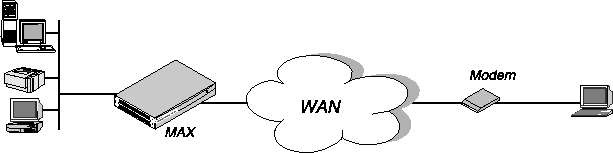
To configure an IPX routing connection for the client:
- Open Ethernet > Mod Config > Ether Options and verify that an IPX Pool assignment exists. For example:
Ethernet
      Mod Config
            Ether options
                  IPX Pool #=CCCC1234
- Close the Ethernet profile.
- Open Answer > PPP Options.
- Enable IPX routing and PAP/CHAP authentication:
Ethernet
      Answer
            PPP options...
                  Route IPX
                  Recv Auth=Either
- Close the Answer profile.
- Open the Connection profile for the dial-in user.
- Specify the dial-in client's login name and activate the profile. For example:
Ethernet
      Connections
            Station=scottpc
            Active=Yes
- Enable IPX routing:
Route IPX=Yes
- Select PPP encapsulation and configure the dial-in client's password. For example:
            Encaps=PPP
            Encaps options...
                  Recv PW=scottpw
- Open the IPX Options subprofile and specify a dial-in client:
            IPX options...
                  Peer=Dialin
                  IPX RIP=None
- Close the Connection profile.
Configuring a connection between two LANs
In this example, the MAX connects to an IPX network that supports both servers and clients and connects with a remote site that also supports both servers and clients as shown in Figure 9-2.
Figure 9-2. A connection with NetWare servers on both sides
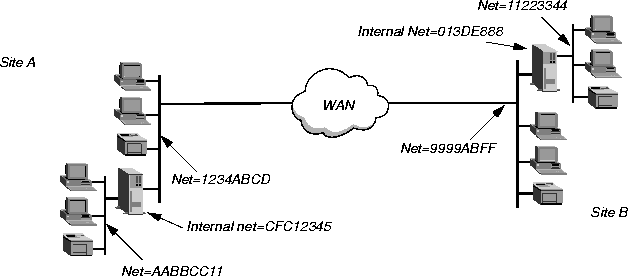
Site A and Site B both have Novell LANs that support NetWare 3.12 and NetWare 4 servers, NetWare clients, and a MAX. The NetWare server at Site A has the following configuration settings:
Name=SERVER-1
internal net CFC12345
Load 3c509 name=ipx-card frame=ETHERNET_8023
Bind ipx ipx-card net=1234ABCD
The NetWare server at Site B has the following configuration settings:
Name=SERVER-2
internal net 013DE888
Load 3c509 name=net-card frame=ETHERNET_8023
Bind ipx net-card net=9999ABFF
To establish the connection shown in Figure 9-2, you would configure the MAX at Site A, enable IPX routing for its Ethernet interface, and configure a static route to the remote server. The same procedures would apply to Site B.
Configuring the MAX at Site A:
At Site A:
- Make sure you assign the MAX a system name in the System profile. This example uses the name SITEAGW.
- If you have not done so already, configure the Ethernet profile (as described in Enabling IPX routing in the MAX).
- In Answer > PPP Options, enable IPX routing and PAP/CHAP authentication, and then close the Answer profile.
Ethernet
      Answer
            PPP options...
                  Route IPX
                  Recv Auth=Either
(If the MAX needs to support multiple IPX frame types, you must also enable bridging in the Answer profile.)
- Open the Connection profile for Site B.
In this example, the Connection profile for Site B is profile #5. A profile's number is the unique part of the number you assign in the Connections menu. For example, the Connection profile defined as 90-105 is #5.
- Set up the Connection profile as follows:
Ethernet
      Connections
            profile 5...
                  Station=SITEBGW
                  Active=Yes
                  Encaps=MPP
                  PRI # Type=National
                  Dial #=555-1212
                  Route IPX=Yes
                  Encaps options...
                        Send Auth=CHAP
                        Recv PW=*SECURE*
                        Send PW=*SECURE*
                  IPX options...
                        IPX RIP=None
                        IPX SAP=Both
                        NetWare t/o=30
                        SAP HS Proxy=N/A
                        SAP HS Proxy Net#1=N/A
                        SAP HS Proxy Net#2=N/A
                        SAP HS Proxy Net#3=N/A
                        SAP HS Proxy Net#4=N/A
                        SAP HS Proxy Net#5=N/A
                      SAP HS Proxy Net#6=N/A
- Close Connection profile #5.
- Open an IPX Route profile.
- Set IPX RIP to None in the Connection profile, and configure a static route to the remote server.
- Set up a route to the remote NetWare server (SERVER-2). Use the following settings:
Ethernet
      IPX Routes
            Server Name=SERVER-2
            Active=Yes
            Network=013DE888
            Node=000000000001
            Socket=0451
            Server Type=0004
            Connection #=5
Note: The Connection # parameter in the IPX Route profile must match the number of
the Connection profile you configured for that site. If you specify the internal network
number of a server, make sure you specify Server Name and Server Type. If you specify
an external network, do not specify Server Name or Server Type.
- Close the IPX Route profile.
Configuring the MAX at Site B:
At Site B:
- Assign a system name to the Ascend unit at Site B in the unit's System profile. This example uses the name SITEBGW.
- Verify that the Site B unit's Ethernet interface has a configuration defined for IPX routing (For instructions, see Enabling IPX routing in the MAX.)
- Verify that the Site B unit's Answer profile enables IPX routing and PAP/CHAP authentication.
- Open the Connection profile for Site A.
In this example, the Connection profile for site A is profile #2. A profile's number is the unique part of the number you assign in the Connections menu. For example, the Connection profile defined as 90-102 is #2.
- Set up the Connection profile as follows:
Ethernet
      Connections
            profile 2...
                  Station=SITEAGW
                  Active=Yes
                  Encaps=MPP
                  PRI # Type=National
                  Dial #=555-1213
                  Route IPX=Yes
                  Encaps options...
                        Send Auth=CHAP
                        Recv PW=*SECURE*
                        Send PW=*SECURE*
                  IPX options...
                        IPX RIP=None
                        IPX SAP=Both
                        NetWare t/o=30
                        SAP HS Proxy=N/A
                        SAP HS Proxy Net#1=N/A
                        SAP HS Proxy Net#2=N/A
                        SAP HS Proxy Net#3=N/A
                        SAP HS Proxy Net#4=N/A
                        SAP HS Proxy Net#5=N/A
                      SAP HS Proxy Net#6=N/A
- Close Connection profile #2.
- Open an IPX Route profile.
Set IPX RIP to None in the Connection profile, and configure a static route to the remote server.
- Set up a route to the remote NetWare server (SERVER-1). Use the following settings:
Ethernet
      IPX Routes
            Server Name=SERVER-1
            Active=Yes
            Network=CFC12345
            Node=000000000001
            Socket=0451
            Server Type=0004
            Connection #=2
Note: The Connection # parameter in the IPX Route profile must match the number of
the Connection profile you configured for that site. If you specify the internal network
number of a server, make sure you specify Server Name and Server Type. If you specify
an external network, do not specify Server Name or Server Type.
- Close the IPX Route profile.
Configuring a connection with local servers only
In this example, the MAX connects to a local IPX network that supports both servers and clients, and connects to a geographically remote network that supports one or more NetWare clients. Figure 9-3 shows the setup.
Figure 9-3. A dial-in client that belongs to its own IPX network
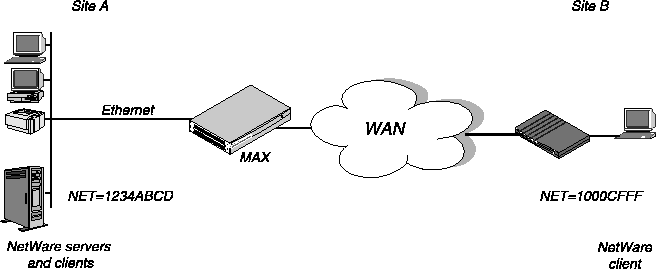
In this example, Site A supports NetWare 3.12 servers, NetWare clients, and a MAX. The NetWare server at Site A has the following configuration settings:
Name=SERVER-1
internal net CFC12345
Load 3c509 name=ipx-card frame=ETHERNET_8023
Bind ipx ipx-card net=1234ABCD
Site B is a home office that consists of one PC and an Ascend unit. It is not an existing Novell LAN, so the Ascend unit configuration creates a new IPX network (1000CFFF, for example).
Note: The new IPX network number assigned to Site B in this example cannot be in use
anywhere on the entire IPX wide-area network. That is, it cannot be in use at Site A or any
network that connects to Site A.
This example assumes that the Ethernet profile and Answer profile have already been set up to enable IPX routing. The initial connection between the two Ascend units should be manually dialed (using the DO menu) because you do not use static routes.
To configure the MAX at Site A
At Site A:
- Assign a system name in the System profile for the MAX. This example uses the name SITEAGW.
- Open the Connection profile for Site B.
- Set up the Connection profile as follows:
Ethernet
      Connections
            Station=SITEBGW
            Active=Yes
            Encaps=MPP
            PRI # Type=National
            Dial #=555-1212
            Route IPX=Yes
            Encaps options...
                  Send Auth=CHAP
                  Recv PW=*SECURE*
                  Send PW=*SECURE*
            IPX options...
                  IPX RIP=Both
                  IPX SAP=Both
                  NetWare t/o=30
                  SAP HS Proxy=N/A
                  SAP HS Proxy Net#1=N/A
                  SAP HS Proxy Net#2=N/A
                  SAP HS Proxy Net#3=N/A
                  SAP HS Proxy Net#4=N/A
                  SAP HS Proxy Net#5=N/A
                SAP HS Proxy Net#6=N/A
- Close the Connection profile.
To configure the Ascend unit at Site B
At Site B:
- Assign a system name in the System profile for the MAX. This example uses the name SITEBGW.
- Open the Connection profile for Site B.
- Set up the Connection profile as follows:
Ethernet
      Connections
            Station=SITEBGW
            Active=Yes
            Encaps=MPP
            PRI # Type=National
            Dial #=555-1213
            Route IPX=Yes
            Encaps options...
                  Send Auth=CHAP
                  Recv PW=*SECURE*
                  Send PW=*SECURE*
            IPX options...
                  IPX RIP=Both
                  IPX SAP=Both
                  NetWare t/o=30
                  SAP HS Proxy=N/A
                  SAP HS Proxy Net#1=N/A
                  SAP HS Proxy Net#2=N/A
                  SAP HS Proxy Net#3=N/A
                  SAP HS Proxy Net#4=N/A
                  SAP HS Proxy Net#5=N/A
                SAP HS Proxy Net#6=N/A
- Close the Connection profile.
Configuring the NetWare SAP Home Server Proxy
To configure the NetWare SAP Home Server Proxy parameters:
- Open the Ethernet > Connections > any Connection Profile > IPX Options menu.
- Set the SAP HS Proxy parameter to Yes.
- Specify the IPX network address to which SAP broadcasts will be directed. For example:
SAP HS Proxy Net#1=CB1123BC
This specifies that any SAP Broadcast Requests received from this user will be directed to IPX network CB1123BC.
- If you want to define other networks, repeat Step 3 for
SAP HS Proxy Net#2.
Configuring static IPX routes
A static IPX route includes all of the information needed to reach one NetWare server on a remote network. When the MAX receives an outbound packet for that server, it finds the referenced Connection profile and dials the connection. You configure the static route in an IPX Route profile.
You do not need to create IPX static routes to servers that are on the local Ethernet.
Most sites configure only a few IPX routes and rely on RIP for most other connections. If you have servers on both sides of the WAN connection, you should define a static route to the remote site even if your environment requires dynamic routes. If you have one static route to a remote site, it should specify a master NetWare server that knows about many other services. NetWare workstations can then learn about other remote services by connecting to that remote NetWare server.
Note: Remember that you manually configure static IPX routes, so you must update them if
there is a change to the remote server.
To configure a static route, set the following parameters (shown with sample settings):
Ethernet
      IPX Routes
            Server Name=server-name
            Active=Yes
            Network=CC1234FF
            Node=000000000001
            Socket=0000
            Server Type=0004
            Hop Count=2
            Tick Count=12
            Connection #=0
Understanding the static route parameters
This section provides some background information about static route configurations. For detailed information about each parameter, see the MAX Reference Guide.
Parameter
|
Usage
|
|---|
|
Server's name
|
Each IPX Route profile contains the information needed to reach one NetWare server on a remote network. Server Name is the remote server's name.
|
|
Active
|
Must be set to Yes for the MAX to read this route into its internal IPX RIP table.
|
|
Network and Node
|
Specify the remote server's internal network number and node number. (If you are not familiar with internal network numbers, see the Novell documentation.) The node number for the NetWare file servers is typically 0000000000001 (the default Node setting).
|
|
Socket
|
Typically, Novell file servers use socket 0451. The number you specify must be a well-known socket number. Services that use dynamic socket numbers can use a different socket each time they load and will not work with IPX Route profiles. To bring up a connection to a remote service that uses a dynamic socket number, specify a master server that uses a well-known socket number on the remote network.
|
|
Type
|
SAP advertises services by a type number. For example, NetWare file servers are SAP service type 0004 or 0x0004.
|
|
Hop Count and Tick Count
|
Usually, the default Hop Count and Tick Count settings of 2 and 12 respectively, are appropriate, but you can increase these value, for very distant servers. Ticks are IBM PC clock ticks (1/18 second). Note that the MAX calculates the best routes on the basis of on tick count, not hop count.
|
|
Connection
|
When the MAX receives a query for the specified server or a packet addressed to that server, it finds the referenced Connection profile and dials the connection. Identify a Connection profile by the unique part of its number in the Connections menu.
|
Examples of static-route configuration
This example shows a static route configuration to a remote NetWare server. Remember that you manually configure static IPX routes, so you must update them if there is a change to the remote server. To define an IPX Route profile:
- Open an IPX Route profile.
- Specify the name of the remote NetWare server and activate the route:
Ethernet
      IPX Routes
            Server Name=SERVER-1
            Active=Yes
- Because this is a route to a server's internal network, specify the server's internal network number, node, socket, and service type. For example:
            Network=CC1234FF
            Node=000000000001
            Socket=0451
            Server Type=0004
- Specify the distance to the server in hops and IBM PC clock ticks. (The default values are appropriate unless the server is very distant.)
            Hop Count=2
            Tick Count=12
- Specify the number of the Connection profile. For example:
Connection #=2
- Close the IPX Route profile.
Creating and applying IPX SAP filters
IPX SAP filters specify which services to include in the MAX service table or in SAP response packets sent across the WAN. (You can also prevent the MAX from sending its SAP table or receiving a remote site's SAP table by turning off IPX SAP in a Connection profile as described in Understanding the IPX connection parameters.)
To configure IPX SAP filters, you set the following parameters (shown with sample settings):
Ethernet
  IPX SAP Filters
      any filter profile
            Name=optional
            Input SAP filters...
                  In SAP filter 01-08
                        Valid=Yes
                        Type=Exclude
                        Server Type=0004
                        Server Name=SERVER-1
            Output SAP filters
      any filter profile
                  Out SAP filter 01-08
                        Valid=Yes
                        Type=Exclude
                        Server Type=0004
                        Server Name=SERVER-1
Ethernet
      Mod Config
            Ether options...
                  IPX SAP Filter=1
Ethernet
      Answer
            Session options...
                  IPX SAP Filter=2
Ethernet
      Connections
            Session options...
                  IPX SAP Filter=2
Understanding the IPX SAP filter parameters
This section provides some background information about SAP filters. For detailed information about each parameter, see the MAX Reference Guide.
Input SAP Filters and Output SAP Filters
Each filter contains up to eight Input filters and output filters, which you define individually and apply in order (1-8) to the packet stream. Apply the input filters to all SAP packets the MAX receives. They screen advertised services and exclude them from or include them in the MAX service table as specified by the filter conditions.
Apply output filters to SAP response packets the MAX transmits. If the MAX receives a SAP request packet, it applies output filters before transmitting the SAP response, and excludes services from or includes services in the response packet as specified by the output filters.
Valid
In an individual input or output filter, set the Valid parameter to Yes to enable the filter for use.
Type
In an individual input or output filter, set the Type parameter to specify whether the filter includes the service or excludes it.
Server Type
Server Type specifies a hexadecimal number representing a type of NetWare service to be included or excluded as specified by the Type parameter. For example, the number for file services is 0004.
In an input filter, the Type parameter specifies whether to include remote services of the specified type in the MAX service table or exclude them.
In an output filter, the Type parameter specifies whether to include advertisements for the specified service type in SAP response packets or to exclude them.
Server Name
In an individual input or output filter, the Server Name parameter identifies a local or remote NetWare server by name.
If the server is on the local network, you might name it in an output filter in which the Type parameter specifies whether or not to include advertisements for this server in SAP response packets.
If the server is on the remote IPX network, you might name it in an input filter in which the Type parameter specifies whether or not to include this server in the MAX service table.
Applying IPX SAP filters
You can apply an IPX SAP filter to the local Ethernet or to WAN interfaces, or both.
When applied in the Ethernet profile, a SAP filter either includes specific servers or services in the MAX unit's SAP table or includes them from the table. If directory services is not supported, servers or services that are not in the MAX table are inaccessible to clients across the WAN. A filter applied to the Ethernet interface takes effect immediately.
When applied in the Answer profile, a SAP filter screens service advertisements from across the WAN.
When applied in a Connection profile, a SAP filter screens service advertisements to and from a specific WAN connection.
Example of IPX SAP filter configuration
This example shows how to create an IPX SAP filter that prevents local NetWare users from having access to a remote NetWare server. The example also shows how to apply the filter to the Answer profile and the Connection profile used to reach the server's remote network.
To define an IPX SAP filter that excludes a remote file server from the MAX SAP table:
- Open IPX SAP Filter profile #1 (for this example) and then open the list of Input filters:
Ethernet
      IPX SAP Filters
            profile #1...
                  Name=NOSERVER-1
                  Input SAP filters...
                        In SAP filter 01
                        In SAP filter 02
                        In SAP filter 03
                        In SAP filter 04
                        In SAP filter 05
                        In SAP filter 06
                        In SAP filter 07
                        In SAP filter 08
- Open Input SAP filter 01, activate it by setting Valid to Yes, and set Type to Exclude.
- Specify the NetWare server's name and service type (for a file server, 0004):
                        In SAP filter 01
                              Valid=Yes
                              Type=Exclude
                              Server Type=0004
                              Server Name=SERVER-1
- Close the IPX SAP Filter profile.
To apply the IPX SAP Filter in the Answer profile and in a Connection profile:
- Open Answer > Session Options.
- Specify IPX SAP Filter profile #1, and then close the Answer profile.
Ethernet
      Answer
            Session options...
                  IPX SAP Filter=1
- Repeat the same assignment in Connections > Session Options.
Ethernet
      Connections
            Session options...
                  IPX SAP Filter=1
- Close the Connection profile.
techpubs@ascend.com
Copyright © 1998, Ascend Communications, Inc. All rights
reserved.