[Top][Contents][Prev][Next][Last]Search


Installing NavisConnect


NavisConnect installation requirements
Information you need for installation
Using NavisConnect Setup

Installing NavisConnect on a workstation running Microsoft Windows 95, Windows 98, or NT 4.0 is a simple and quick procedure using the NavisConnect Setup installation wizard.

NavisConnect installation requirements

You can install NavisConnect on a PC workstation running Microsoft Windows 95, Microsoft Windows 98, or Microsoft NT 4.0. Ascend recommends you use a workstation running a Pentium 100 processor or better, with 32 megabytes (MB) random access memory.

If you are going to use NavisConnect to assign Internet Protocol (IP) addresses to Ascend units, the workstation on which you install NavisConnect must be on the same subnet as the Ascend units to which you want to assign IP addresses.

Information you need for installation

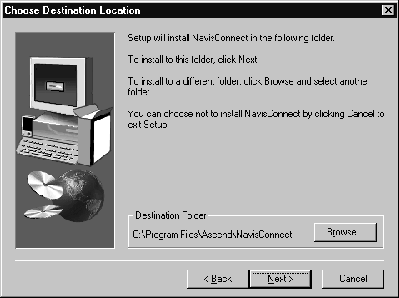
While you are installing NavisConnect, you need to supply the location in which you want to install NavisConnect. The default destination folder is C:\Program Files\Ascend\NavisConnect. If you want to select another destination folder, you can use the Setup program's browser to supply a new destination.

Using NavisConnect Setup

Before starting the installation procedure, exit all Windows programs.
The NavisConnect Setup program is an installation wizard that assists you in installing NavisConnect software. It installs the NavisConnect executable files, help files, Release Notes, and supporting files in the default directory or in another directory you select.

Setup also places NavisConnect in the Windows Start menu, by default, so that it is accessible by selecting Start > Programs > NavisConnect > NavisConnect. In addition to starting NavisConnect, you can also use the Start menu to display the Release Notes or uninstall NavisConnect.

The program displays a series of screens to prompt you for the information needed to install the NavisConnect software and to report installation progress. On each screen you can:

To install NavisConnect:

  1. Put the MAX Companion CD-ROM in the CD-ROM drive.

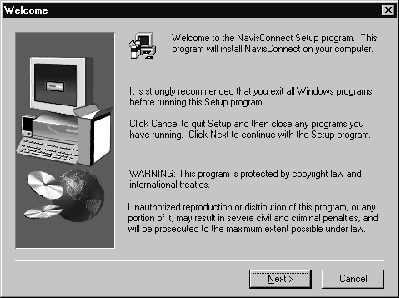
  2. Double-click the NavisConnect program icon or use the Windows Run function to execute NavisConnect1.0.exe. A pop-up dialog box appears, notifying you of the progress in unpacking and reading the files in the NavisConnect package. When the process is complete, a welcome screen appears.

Click Next to proceed.

  1. The Choose Destination Location screen appears.

Select a destination folder or click Next to accept the default location of
C:\Program Files\Ascend\NavisConnect.

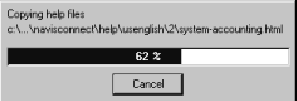
Thermometer-style progress indicators appear.
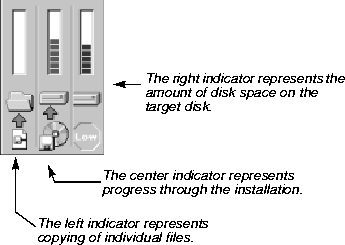
A pop-up window lists files as they are installed.
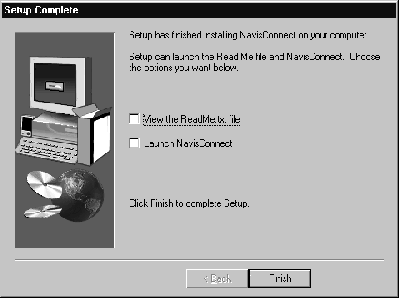
  1. The Setup Complete screen appears. You can choose to read the Release Notes and start NavisConnect immediately or you can exit from the Setup program and start NavisConnect from using the Windows Start menu.

Click the Finish button to complete the Setup program.


[Top][Contents][Prev][Next][Last]Search

techpubs@ascend.com

Copyright © 1998, Ascend Communications, Inc. All rights reserved.