
![[Top]](../images/home.jpg)
![[Contents]](../images/contents.jpg)
![[Prev]](../images/previous.jpg)
![[Next]](../images/next.jpg)
![[Last]](../images/index.jpg)


Using NavisConnect
Start NavisConnect, examine the Explorer, and examine the configuration window. You can use the Explorer and configuration window to customize the unit's settings to its optimal configuration, write the settings to a file, and load the file onto the unit. You can also use them to duplicate settings on one unit and load them onto another unit, performing any editing you need in the process. Explore the online help reference. It provides detailed, context-sensitive information about the parameters.
Before you begin
Before you use NavisConnect, make sure that:
- If you have not already assigned an IP address to the unit you plan to configure, it must reside on the same subnet as the workstation running NavisConnect.
- You know the Telnet password for the Ascend unit you want to configure. The default is a null value.
- You know the SNMP read-write community password. The default is
write.
- You have an HTML-capable browser installed on the workstation so that you can read NavisConnect online help.
To prevent unauthorized access to the Ascend unit(s), take the following precautions:
- Restrict the number of SNMP Managers allowed read/write access.
- Change the default read-write community password for the unit(s).
- Change the Telnet password.
- Run NavisConnect only on a secure, trusted network.
Starting and exiting from NavisConnect
To start NavisConnect, use the Windows Start menu (Start > Programs > NavisConnect > NavisConnect) to display the NavisConnect Explorer.
To exit from NavisConnect, select Connect > Exit from the Explorer menu bar.
Using Explorer
When you start NavisConnect, the NavisConnect Explorer appears. From the Explorer, you can:
- Connect to any unconfigured Ascend unit on the same IP subnet as the workstation on which NavisConnect is running, assign an IP address if necessary, and load the unit's existing settings into NavisConnect.
- Connect to any configured Ascend unit accessible on your IP network and load the unit's settings into NavisConnect.
- Start the NavisConnect QuickStart program.
- Obtain information about Ascend units and sessions through Syslog, the UNIX-based system activity log.
- Set NavisConnect application preferences (as described in Table 3-1).
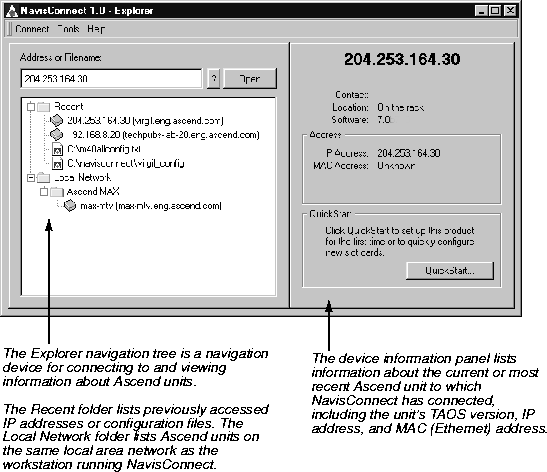
The Explorer is divided into two panels (illustrated in Figure 3-1). On the left is a Windows-style navigation tree for access to Ascend units and configuration files. On the right is a device information panel, which lists information about the unit selected in the tree.
Figure 3-1. Explorer panels
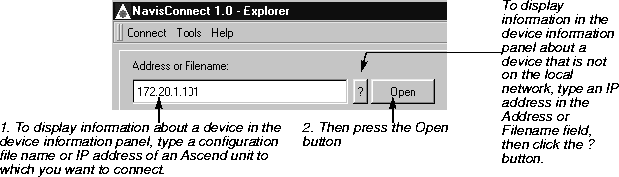
The Explorer Address or Filename text entry field and Open button provide a way to access an Ascend unit's configuration data and configuration files, as described in Figure 3-2.
Figure 3-2. Explorer tools for displaying device information
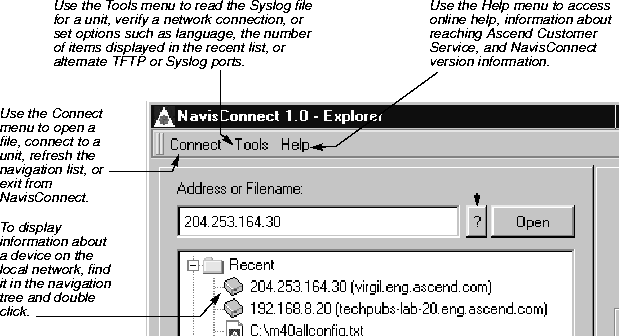
The menu bar has Connect, Tools, and Help menus (shown in Figure Figure 3-3). These menus provide additional means for selecting and examining units or files for setting options, and obtaining information.
Figure 3-3. Explorer menu bar
The Explorer Tools menu provides a tool to change option settings. (See Table 3-1.) When you change the default settings, the changes are written to a file called Configurator.properties. To return to the default options, you can delete the Configurator.properties file.
Using NavisConnect Help
NavisConnect Explorer, QuickStart (described in the next chapter), and the configuration window (described in the next section) all offer access to online help. The online Help is displayed in either a Netscape browser or an Internet Explorer browser, which starts automatically when you access help.
To access Help, click the Help button on any of the NavisConnect screens.
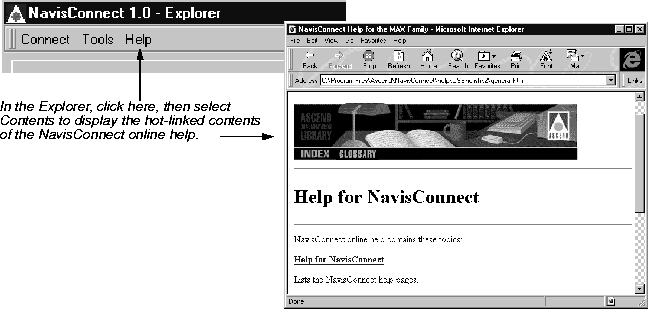
The Help button in the Explorer menu bar provides access to a help contents screen, information about accessing Ascend Customer Support, and version information about NavisConnect (shown in Figure 3-4).
Figure 3-4. Explorer online help
The help icon in the configuration window (shown in Figure 3-5) accesses the help file associated with whatever profile is highlighted in the Explorer tree. If you click the down arrow to the right of the Help icon, you can access the help contents screen.
Figure 3-5. Configuration window online help
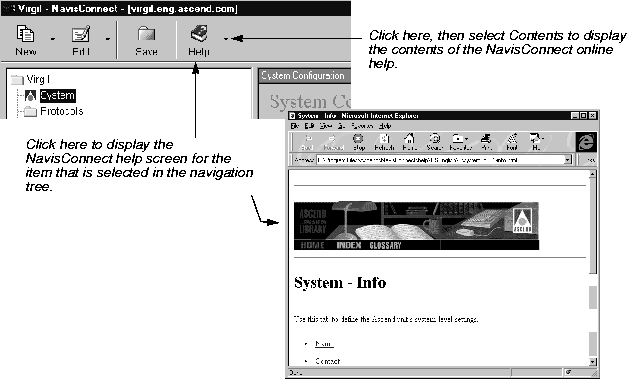
In the QuickStart program, clicking the Help button accesses the help file associated with the QuickStart screen you are editing.
If you place the cursor over the NavisConnect parameter field and hold it there for two seconds, the screen displays the VT100-style parameter name for the NavisConnect parameter you are editing (as shown in Figure 3-6).
Figure 3-6. Displaying a VT100 parameter

Using the configuration window
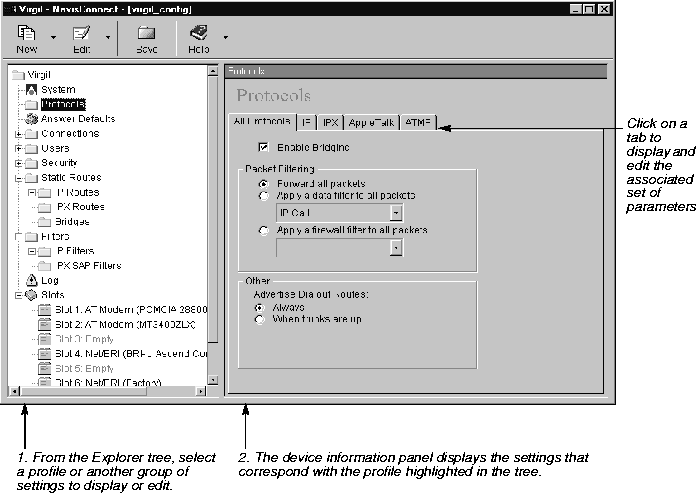
When you connect to an Ascend unit or load a configuration file, the configuration window appears. The configuration window, shown in Figure 3-7, is a graphical device for displaying and editing parameter settings. The navigation tree on the left provides a listing of the profiles and other groups of settings you can access for editing. On the right, the device information panel displays information about the item selected in the tree.
Figure 3-7. NavisConnect configuration window
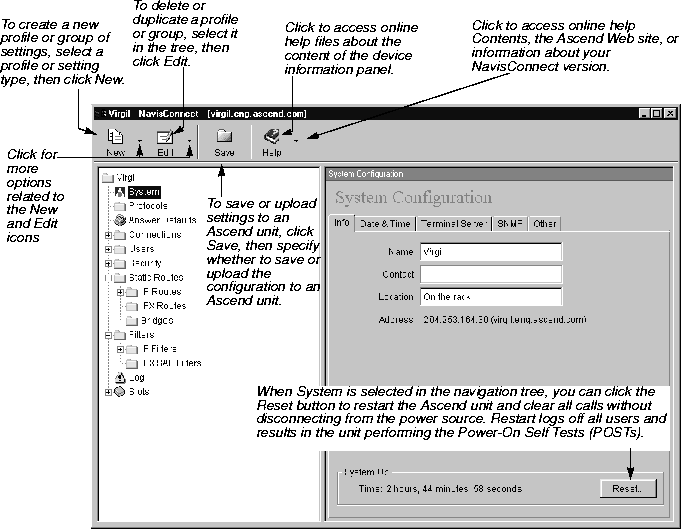
After editing parameter settings, you use the configuration window's Save command to load the new or changed settings to an Ascend unit, save the settings to a file, or save the settings to another unit, as described in Figure 3-8.
Figure 3-8. Configuration window tools
Most parameters accessible through NavisConnect have equivalent parameters with different names that are used in the TAOS VT100 configuration interface. To determine the VT100 interface name, in a NavisConnect session, place the pointer on the parameter and hold it in that position for two seconds to display the name, as described in Figure 3-6 on page 3-7. You can also refer to the list of VT100/NavisConnect parameter equivalencies on the Ascend Web site at www.ascend.com/doclibrary.
The Explorer tree and device information panel differ, depending on which Ascend model or configuration file type you have connected to. Table 3-2 lists the profile and groups that might appear if you were examining a MAX model or a configuration file for a MAX unit. Table 3-3 lists the profiles and groups that might appear if you were examining a MAX TNT unit or a configuration file for a MAX TNT.
Table 3-2. MAX profiles and settings accessed through the tree
Profile or setting group
|
Description
|
|---|
|
System
|
Defines system level settings such as date and time, terminal server, RADIUS server, accounting, SNMP, and global line settings.
|
|
Protocols
|
Displays settings that apply to all protocols on the MAX unit.
|
|
Answer Defaults
|
Defines the Ascend unit's default settings when answering calls, including terminal-server calls. More complicated connections require that you define a Connections profile.
|
|
Connections
|
Defines profiles that are used by remote devices to establish a connection with the MAX, or by the MAX to establish a connection with a remote device.
|
|
Users
|
Defines simple username and password profiles, which are used by individual users who want to connect to the Ascend unit.
|
|
Security
|
Defines the password security level for the terminal server.
|
|
Static Routes
|
Defines static configuration profiles for the Ascend unit's routing or bridging tables.
|
|
Filters
|
Defines static profiles for Generic, IP, or Internet Packet Exchange (IPX) input and output filters. Apply them to specific connections, to the default Answer profile, or to the Ethernet interface.
|
|
Dial Plans
|
Defines Dial Plan profile settings, including name, link type, call-by-call, PRI number type, transit number, and bill number.
|
|
Destinations (not on the MAX 800)
|
Defines Destination profile settings, including trunk selection and dial numbers.
|
|
Log
|
Defines the Syslog server (which is a UNIX host used to forward system log messages).
|
|
Slots (MAX 800 only)
|
Defines profiles for PCMCIA card modems and PCMCIA card ISDN adapters in MAX 800 PCMCIA card slots.
|
|
Frame Relay (not on the MAX 800)
|
Defines Frame Relay profiles.
|
Note: This guide describes how to use NavisConnect as a configuration tool,
but it does not describe the configuration parameters and settings in detail. For
information about parameters and settings, refer to NavisConnect online help.
techpubs@ascend.com
Copyright © 1998, Ascend Communications, Inc. All rights
reserved.