
![[Top]](../images/home.jpg)
![[Contents]](../images/contents.jpg)
![[Prev]](../images/previous.jpg)
![[Next]](../images/next.jpg)
![[Last]](../images/index.jpg)


Configuration with NavisConnect
You can use NavisConnect Explorer to assign an Internet Protocol (IP) address to a new Ascend unit and NavisConnect QuickStart to get your unit up and running quickly with a default set of configuration values. You can also use the QuickStart program to add new slot cards to already configured units. The Configuration window provides a simple way to customize a configuration for optimal use of the unit or a quick way to duplicate one unit's configuration on many other units, with or without alterations.
This chapter explains how to use NavisConnect to prepare a new Ascend unit for operation and how to alter, duplicate, or delete an existing configuration.
For detailed information about the specific configuration tasks you need to perform to prepare your Ascend unit for operation, refer to the system and network management manuals for your Ascend unit. You can also refer to NavisConnect online help for information about configuration parameters and tasks.
Getting started with a new Ascend unit
When you first install an Ascend unit, you need to assign it an IP address and perform initial configuration. You can use NavisConnect to assign an IP address and NavisConnect QuickStart to perform initial configuration. The QuickStart configuration process takes less than 30 minutes.
You can also use QuickStart to configure new slot cards on an already configured unit.
Once you have completed an initial configuration, you can further customize your configuration by using the NavisConnect Configuration window.
Before beginning, make sure you have the following information:
- An IP address and (optional) system name.
- A Simple Network Management Protocol (SNMP) read-write community password. The default is
write.
- Whether you want to enable SNMP host-based security (optional).
- A Telnet password (optional). The default is a null value.
- An administrative user password (optional).
Assigning an IP address
Before you assign the Ascend unit an IP address, make sure that:
- NavisConnect is running on a workstation that resides on the same physical subnet as the unconfigured Ascend unit.
- The Ascend unit is powered up, has passed its Power-On Self Test (POST), and is connected to the Ethernet network. For information about how to power up, see the Hardware Installation Guide for your Ascend unit .
The NavisConnect Change Address button enables you to assign or change an IP address or to assign a Telnet, SNMP, or administrative passwords:
- Start NavisConnect (Start > Programs > NavisConnect > NavisConnect).
- In the Explorer tree, double-click the icon for the unconfigured Ascend unit (
<Unconfigured>). If more than one unconfigured unit resides on the subnet, you can identify the units by the Media Access Control layer address (MAC address) that appears in the Explorer's device information panel.
The Change Address button appears on the device information panel on the right.
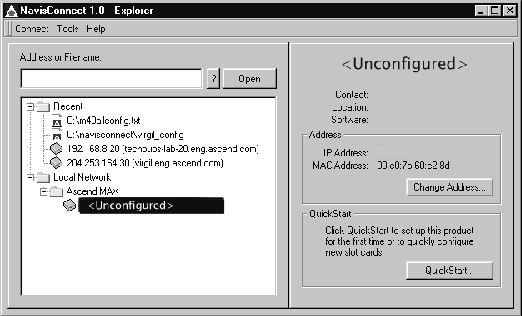
- Click the Change Address button.
The Change Name and Address dialog box appears.
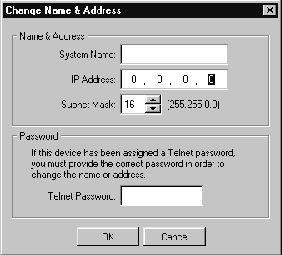
- Type an IP address, subnet mask, and, if you want, a name (to identify the Ascend unit without having to remember the IP address).
Click Next to continue.
- To use NavisConnect, you must enable SNMP. Click Next to continue.
- Type a read-only and read-write SNMP password. Although optional, Ascend recommends that you use passwords.
Click Next to continue.
- Press Next to restrict SNMP management access to trusted hosts only and to add the PC workstation running NavisConnect to the list of trusted hosts.
Click Next to continue.
- Type a password to be required for users accessing the Ascend unit through a Telnet connection. Type a password to be required for administrators using NavisConnect to configure the unit. Although optional, Ascend recommends that you set these passwords.
Click Next to continue.
- Click the Finish button.
NavisConnect connects to the Ascend unit, applies the address and passwords you specified, and downloads its configuration to NavisConnect. After a few moments, the Configuration window appears.
Performing a QuickStart configuration
Once you have assigned an IP address to a unit, you can use QuickStart to perform an initial configuration. You can also use the QuickStart program to configure new slot cards on an already configured unit.
Before you use QuickStart, make sure that you have the following information available:
- Definition of the network layout and the connections you need to make for the Ascend unit.
- Specifications for the lines that connect to the telephone company switch (for example, switch type, framing, and encoding).
- If you are configuring lines with channelized voice, the slot number of your first modem card.
To perform a QuickStart configuration:
- Start NavisConnect (Start > Programs > NavisConnect > NavisConnect).
- In the Explorer tree, highlight the device you want to configure.
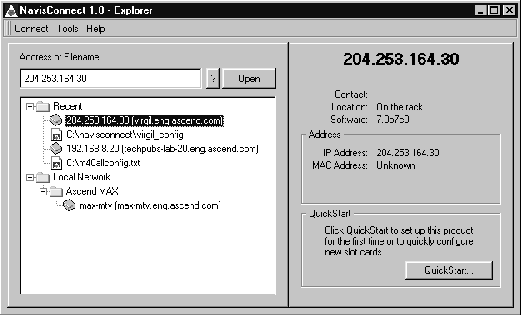
- Click the QuickStart button on the device information panel.
NavisConnect connects to the unit and loads the existing configuration settings.
- NavisConnect displays a series of screens to prompt you to enter configuration information about the unit. The screens that appear vary depending on the model you are configuring.
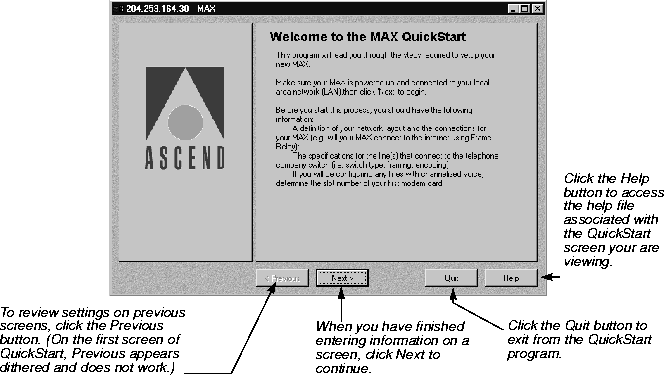
- When you click Next on the final screen, QuickStart asks you to confirm that you want to upload the configuration data that you entered to the Ascend unit. If you click the Yes button, the data is uploaded by TFTP to the unit. If you click the No button, you can resume at the previous screen and revise your QuickStart settings. You can also quit the QuickStart and begin again later.
- When finished, click the Quit button to exit the QuickStart program.
Changing an existing configuration
You can use NavisConnect to change the configuration of already configured units by:
- Connecting to a unit on the LAN.
- Loading a configuration file residing on the local file system of the workstation on which NavisConnect is running.
Whether you are connecting to a unit and editing its configuration or using a configuration file that already exists, the processes of changing the configuration are similar:
- Start NavisConnect.
- To connect to a unit on the LAN, double-click the unit's icon in the Explorer tree. Alternatively, you can type the IP address in the text entry box and click Open.
To load a configuration file into NavisConnect, type the filename in the text entry box and click Open. Alternatively, you can select Connect > Browse, then use the Open Configuration File window to locate the file you want to load. Then click Open.
The Configuration window appears.
- In the navigation tree, highlight the area that shows the profile or setting you want to edit.
- Edit the profile or setting you highlighted:
- To change the settings, type your changes in the device information panel.
- To create a new IP or IPX static route, bridge table entry, Connection or User profile, or filter, click New. Specify the name of the new profile in the pop-up dialog box. Click OK. Specify the appropriate settings for the new profile in the device information panel.
- To delete an IP or IPX static route, bridge table entry, Connection or User profile, or filter, select Edit > Delete. To confirm that you want to delete the profile, click Yes in the pop-up dialog box that appears. A tab appears in the device information panel with the new profile set to its default values.
- To duplicate the profile for use as a template for a new profile, select Edit > Duplicate. Specify a name in the pop-up dialog box that appears. Click OK. A tab for the new profile appears in the device information panel. Change settings for the profile if necessary.
- After you configure settings, you can save the settings to a file or upload them to an Ascend unit. From the Configuration window, click the Save icon. The appearance of the Save Configuration dialog box varies depending on whether you loaded the initial configuration from an Ascend unit or from a file.
- If you loaded the configuration from an Ascend unit, you can upload the changes to that unit by clicking the Save icon. Alternatively, you can either save the configuration under a new filename that you type or upload the configuration to another Ascend product by typing the IP address.
- If you loaded the configuration from a file, you can save the changes to the original file by clicking the Save icon. Alternatively, you can either save a copy under a new filename that you type or upload the configuration to an Ascend product by typing the IP address.
Where to go next?
For information about parameter settings, refer to NavisConnect online help. For information about managing and monitoring the Ascend unit on the network, see the Administration Guide for your Ascend unit. For information about configuring your unit, refer to its Network Configuration Guide. For information about security options, see the Security Supplement and the RADIUS Configuration Guide.
techpubs@ascend.com
Copyright © 1998, Ascend Communications, Inc. All rights
reserved.