![[Top]](../images/home.jpg)

![[Contents]](../images/contents.jpg)
![[Prev]](../images/previous.jpg)
![[Next]](../images/next.jpg)
![[Last]](../images/index.jpg)


Navigating and Securing the Interface
Configuration menus
You can access the MAX configuration menus in a VT100 emulation window from a computer or palmtop-controller connected to the control port as described in Starting up the MAX. When you establish the VT100 console session, the Main Edit Menu and eight status window appear. You can also establish a console session from any Telnet workstation by opening a Telnet session with the MAX. In a Telnet session you can perform all of the configuration, diagnostic, management, and other functions that could be performed from a computer connected to the MAX control port. In either case, access is controlled by Security profiles, as described in Security profiles for related information.
You can also use the Rem Mgmt command to enable a caller at the far end of an AIM or MPP call to access the MAX configuration menus.
The Main Edit Menu
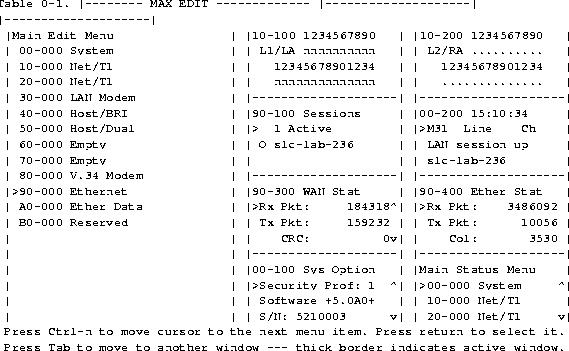
The configuration interface consists of the Main Edit Menu and eight status windows. You can configure the MAX with the Main Edit Menu which is located on the left side of the screen. The items listed in the Main Edit Menu differ depending on the system configuration. The Empty items represent expansion slots that do not contain cards as described in Understanding menu numbers.
Figure 4-1. MAX 6000 Series configuration menus
Making a menu or status window active
You can interact with only one window at a time. The active window has a thick, double-line border on the left, right, and top sides. Opening menus and profiles
The Main Edit Menu contains a list of menus, each of which can contain profiles and submenus. In the menu that is currently open, the cursor character (>) points to one item in the menu. For example, in the following Main Edit Menu, the cursor points to as Net/T1 menu item.
Main Edit MenuTo move the cursor down, press Ctrl-N (next). To move it up, press Ctrl-P (previous). Depending on your VT100 emulator, you might be able to press the Down-Arrow key instead of Ctrl-N and the Up-Arrow key instead of Ctrl-P. (For a complete list of key combinations to navigate the interface, see Table 4-1.)
00-000 System
>10-000 Net/T1
20-000 Net/T1
30-000 Empty
40-000 Empty
50-000 V.34 Modem
60-000 V.34 Modem
70-000 Net/T1
80-000 V.34 Modem
90-000 Ethernet
A0-000 Ether Data
b0-000 Serial WAN
90-000 EthernetThe Ethernet menu contains submenus and profiles related to network functions, such as bridging, routing, and WAN connections. The last menu item opens the Mod Config profile which relates to the configuration of the Ethernet interface itself. Not all of the Mod Config profile appears at the same time. Following is the initial display.
90-100 Connections
90-200 Names/Passwords
90-300 Bridge Adrs
90-400 Static Rtes
90-500 Filters
90-600 Firewalls
90-700 Frame Relay
90-800 Answer
90-900 SNMP Traps
90-A00 IPX Routes
90-B00 IPX SAP Filters
90-C00 Mod Config
      90-B00 Mod Config

          Module Name=

          Ether options...

          WAN options...

          SNMP options...

          OSPF options...

          OSPF global options...

          Route Pref...

          TServ options...

          Bridging=No

          Shared Prof=No

          Telnet PW=

          RIP Policy=Poison Rvrs

          RIP Summary=Yes

          ICMP Redirects=Accept

          BOOTP Relay...

          DNS...
Opening edit fields
To open an edit field for a text-based parameter (such as a password):
90-B00 Mod ConfigA blinking text cursor within the brackets indicates that you can start typing text. If the field already contains text, it is cleared when you type a character.
Module Name=
Ether options...
WAN options...
SNMP options...
OSPF options...
OSPF global options...
Route Pref...
TServ options...
Bridging=No
Shared Prof=No
Telnet PW:
[ ]
ICMP Redirects=Accept
BOOTP Relay...
DNS...
Setting enumerated parameters
An enumerated parameter has a set of predefined values. You modify it by simply placing the cursor beside the parameter and pressing the Enter, Return, or the Right-Arrow key until the proper value appears. Saving your changes
When you exit a profile after changing any of its settings, a message prompt asks if you want to save the changes.
EXIT?You can save the profile values by choosing the Exit and Accept option and pressing Enter, or by pressing the 2 key.
>0=ESC (Don't exit)
1=Exit and discard
2=Exit and accept
In the palmtop-controller, each menu displays only four lines, and each line displays a maximum of 20 characters. The palmtop-controller screen contains a single display. For example:
Main Edit MenuThe process of editing from the palmtop controller is nearly identical to the process of editing from the control-monitor, except that the Right-Arrow key replaces the functions of the Enter/Return key. Proceed as follows:
>00-000 System
10-000 Net/...
20-000 Host/...
21-101 Albuquerque+ O
>Name=Mark
  Dial #=555-1212
  Call Type=AIM
21-101 Albuquerque+ O
Name:
  [Mark]
Security profiles
The MAX has nine security profiles, which you can configure to provide up to nine levels of security. When you first receive your MAX, none of the profiles implements any restrictions.
00-300 Security
>00-301 Default
  00-302
  00-303
  00-304
  00-305
  00-306
  00-307
  00-308
  00-309 Full Access
A confirmation message appears.
A confirmation message appears.
Ascend.To activate the Full Access Security profile:
The DO menu, a context-sensitive menu, appears:
90-C00 Mod Config
DO...
    >0=Esc
    P=Password
    C=Close TELNET
    E=Termsrv
    D=Diagnostics
The list of Security profiles appears.
The MAX prompts for that profile's password:
00-300 Security
Enter Password:
  []
    Press > to accept
Note: You should modify the Full Access profile to assign a password other than the
default
(Ascend) as soon as possible.
Special display characters and keys
The following characters have special meaning within the displays:
The MAX displays the submenu when you select the menu option.
Understanding menu numbers
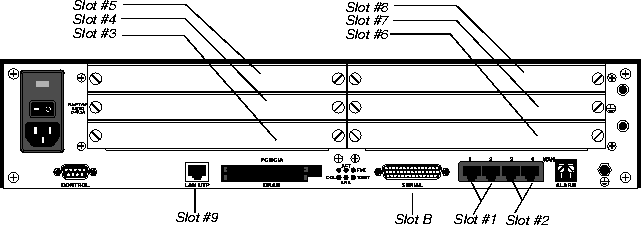
The MAX has four built-in T1 or E1 lines and a V.35 serial port for WAN access. It also has six expansion slots, which support additional bandwidth (BRI lines), AIM-port modules to support videoconferencing, or digital modems to support analog modem connections over digital lines.
Figure 4-2. Slot and port numbering in the MAX 6000 series
System slot
The system itself is assigned slot number 0 (menu 00-000). The System menu contains the following profiles and submenus that are related to systemwide configuration and maintenance:
00-000 System
      00-100 Sys Config
      00-200 Sys Diag
      00-300 Security
      00-400 Destinations
      00-500 Dial Plan
10-000 Net/T1 (Net/E1)
      10-100 Line Config
      10-200 Line Diag
20-000 Net/T1 (Net/E1)
      20-100 Line Config
      20-200 Line Diag
Ethernet and WAN slots
Slot 9 is Ethernet slot menu 90-000. The Ethernet menu contains submenus and profiles related to the local network, routing and bridging, and WAN connections. Main Edit Menu example
Following is an example of a Main Edit Menu for a unit with expansion modules installed in slots 3 through 8. (Note that the menu item for slot A is not applicable to the MAX with built-in Ethernet.)
Main Edit MenuNow that you understand the MAX user interface, you can proceed to the Network Configuration Guide for your MAX.
00-000 System
10-000 Net/T1
20-000 Net/T1
30-000 Host/Dual
40-000 Host/BRI
50-000 Net/BRI
60-000 BRI/LT
70-000 V.34 Modem
80-000 V.110
90-000 Ethernet
A0-000 Ether Data
B0-000 Serial WAN
Copyright © 1998, Ascend Communications, Inc. All rights reserved.