
![[Top]](../images/home.jpg)
![[Contents]](../images/contents.jpg)
![[Prev]](../images/previous.jpg)
![[Next]](../images/next.jpg)
![[Last]](../images/index.jpg)


Setting Up and Testing the MAX Hardware
Plan your installation before you start. Once you have installed all components and made all the connections, acquaint yourself with the indicator lights before you start the unit.
Planning the hardware installation
Before you begin installation of the MAX hardware, make sure that you have the items you need and that you are aware of the requirements regarding installation of digital modems and installation of MAX units in a rack.
What you need before you start
Before you install the MAX, make sure that you have the following items:
- A suitable location in which to install the MAX hardware. (If installing the hardware in a rack, see Guidelines for installing MAX units in a rack.)
- One or more active line(s), with at least one line set for bidirectional calling. (Bidirectional calling allows you to test the MAX hardware by having the MAX dial out on one channel and answer on another channel.)
- One or more active BRI lines, if applicable.
- An Ethernet interface. Also, if the MAX connects to an Ethernet LAN, you need the appropriate cables and connectors to set up an Ethernet interface.
- A locally connected host or workstation that can Telnet or Ping to the MAX.
- A VT100 terminal or a workstation with a communications program that supports VT100 emulation.
- Or, alternatively, a hand-held palmtop terminal and associated cable less than 10 feet (3 meters) in length.
- A remote Ascend or compatible unit to which you can telnet or which you can Ping over a dial-up Point-to-Point Protocol (PPP) connection.
- Any expansion modules that were shipped separately.
Guidelines for installing digital modems
- The Series56 architecture requires that all modem modules within a MAX chassis be homogeneous. That is, Series56 modules must not be mixed with non-Series56 digital modem modules.
- The Series56 architecture also requires that the modem density be homogeneous. Modem modules with mixed densities (for example, 8-port and 12-port modem modules) must not be combined in a single chassis.
- The MAX can support a total of 96 digital modems.
Guidelines for installing MAX units in a rack
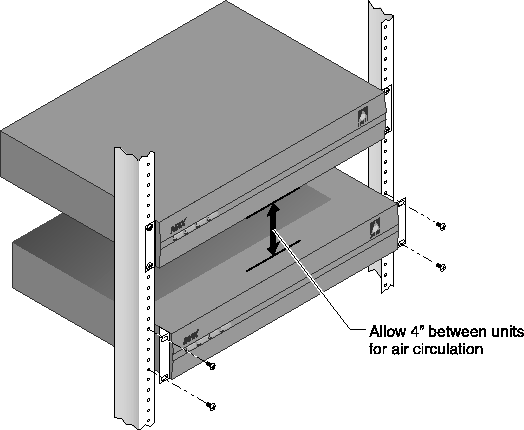
Figure 2-1 shows an example of MAX units installed in a rack.
Figure 2-1. MAX units installed in a rack.
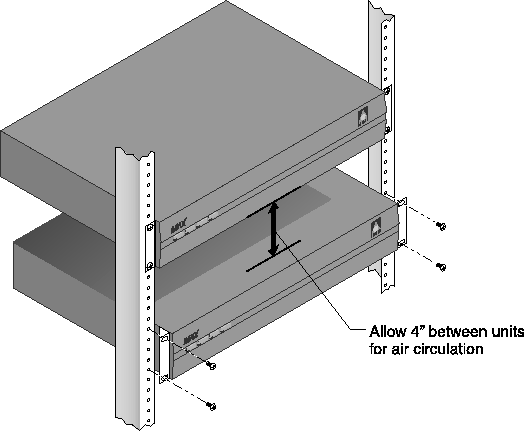
- Leave approximately four inches of vertical space between MAX units to allow adequate air flow and leave room for handling the units if they need to be removed.
- Leave approximately one foot between the racks of MAX units for adequate air flow.
- Stair-step MAX units in adjacent open racks, so that hot air from one unit is not being blown into an adjacent unit. The intake fans are on the right (as viewed from the front), and the exhaust fans are on the left.
- Ensure adequate cooling in the room.
- Install racks with open sides, if possible, because the MAX fans vent on the side of the unit. If you use enclosed racks:
- Make sure that there are openings to the air conditioning system in the floor beneath each cabinet.
- Preferably use exhaust fans at the top of the cabinet. At a minimum, however, the cabinets must be ventilated at the top.
If you ordered MAX expansion cards separately, continue with the next section. If all of your expansion cards are preinstalled, skip to Setting up the hardware.
Inserting an expansion card
 Caution: When installing any expansion card, be sure to follow proper procedures (such as
using a grounding mat and a wrist strap) to prevent buildup of static electricity.
Caution: When installing any expansion card, be sure to follow proper procedures (such as
using a grounding mat and a wrist strap) to prevent buildup of static electricity.
If your MAX package includes expansion modules that are not already installed in your MAX, insert the modules now. Perform the following steps:
- Make sure the MAX power is off and the power cord is unplugged.
Warning: Failure to turn off the MAX power and unplug the power cord could result in
bodily injury.
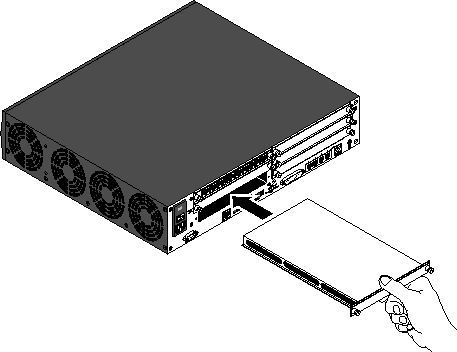
- Hold the expansion card with the network ports facing you, and insert the card into a back panel slot as shown in Figure 2-2. Do not handle the slot cards from both ends. Be sure to insert the card into guides that are in the same plane.
Figure 2-2. Inserting an expansion card into a MAX slot
- Push the card along the internal guides until it is secure. The face plate of the expansion card should touch the back-panel of the MAX.
Caution: Do not force the expansion card into the slot. Doing so can damage the card or
slot connector.
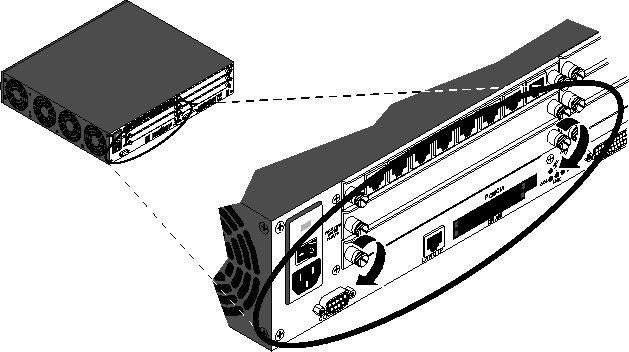
- Tighten the screws on either side of the module as shown in Figure 2-3. Now you are ready to set up the hardware.
Figure 2-3. Tightening slot card thumbscrews
Setting up the hardware
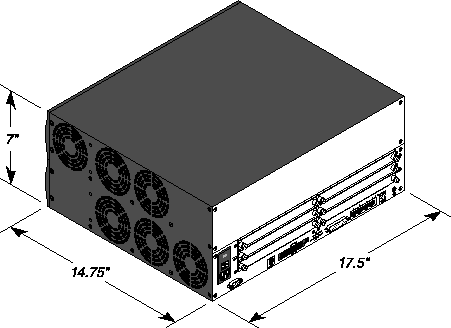
Before you set up the MAX hardware, you need to make sure you have the appropriate space. You can install the MAX in a 19-inch or 23-inch rack.
The following illustrations show the dimensions of both base MAX units: the single power supply unit and the redundant power supply unit.
Figure 2-4. Dimensions of the single power supply unit
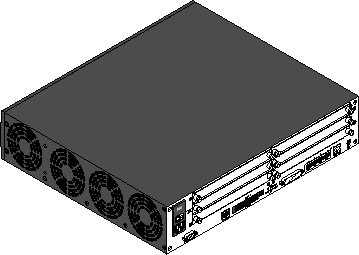
Figure 2-5. Dimensions of the redundant power supply unit
To set up the MAX hardware, proceed as follows:
- Either place the MAX in a rack and secure it, as shown in Figure 2-6, or place the unit where you can have full access to the front- and back-panels.
Figure 2-6. Mounting the MAX in a rack
- Use the null-modem cable provided in your package to connect your VT100 terminal, or your workstation with VT100 terminal-emulation software, to the MAX control port.
- If applicable, connect your hand-held palmtop terminal to the palmtop port.
Connecting to input power
Your power sources can be ac or dc, or a combination of both. You plug the ac source into an outlet. (A dc source receives its power from either an ac outlet or a battery). If your unit uses ac power, attach the power cable to the connector at the back of the unit.
(For power requirements, see Appendix B, MAX Technical Specifications. )
Figure 2-7. DC power source
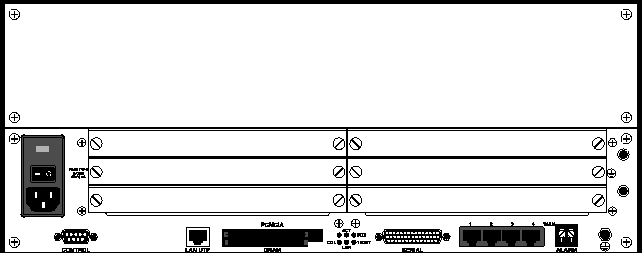
As shown in Figure 2-7, the power source on the MAX 6000 or the Redundant MAX 6000 has a terminal block with two separate input sources. (For an expanded view, see Figure 1-3.) The input power is identical for both terminal columns. Connect to two different sources if you want source redundancy. (If one source dies, the other backs up the power and the MAX unit sees no interruption in functioning.) Following are descriptions of the terminal block connectors:
Connecting to the LAN
To connect the MAX to the LAN, connect your Ethernet LAN cable to the Ethernet interface on the MAX. The MAX 6000 has a 10/100Base-T Ethernet port. You will need an adapter if you have a different type of Ethernet LAN.
Connecting the MAX to the T1 Line
To connect your MAX to the T1 line:
- Connect the MAX either directly to the T1/PRI line or through other network interface equipment.
Note: To connect to the demarcation point, where the T1/PRI line's metallic interface
connects to other equipment, the MAX T1/PRI ports must be configured to utilize the
unit's internal Channel Service Units (CSUs). Otherwise, you must install external CSUs
or other network (WAN) interface equipment between the MAX and the demarcation
point.
Enable the internal CSU by setting the Net/T1 > Line Config > Line N > Front End parameter to CSU. Disable the internal CSU by setting Front End to DSX.
- Inform your T1/PRI service provider that your equipment is connected, so that they can bring up the line.
Before you start up the MAX, familiarize yourself with the indicator lights (LEDS). (SeeInterpreting the MAX LEDs.)
Connecting the MAX to an E1 Line
The MAX can connect to any DPNSS access point on a Private Branch Exchange (PBX) or directly to E1 digital services. Use a cable that is specifically constructed for transmission of E1/PRI signals (CCITT G700 series recommended). The MAX can also connect to G.704 framed leased (non-switching) services for 75 ohm lines. (Use cable 2510-0272-001 with 75 ohm E1 lines.) Unless connecting to your PBX, connect your MAX to the E1 PRI network interface (TA) equipment supplied by your PTT.
Grounding
The screen (shield) of the transmit and receive coaxial cable must be earthed at one end of the line only. Links (jumpers) inside the MAX chassis earth the coaxial screens. The default position of the grounding links on the network line interface, when used with coaxial cable adapter, is on the transmit side (Tx) for 1680 Kbps network operations.
Figure 2-8. One set of links for each E1 port
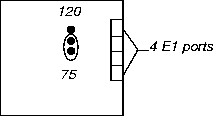
For a daisy chain connection of the MAX E1/PRI unit, only line 1 needs an earth link (jumper), because line 1 is the only port connected to the telecommunications network.
Cable length and characteristics
The maximum distance between the E1/PRI WAN interface equipment and the MAX should not introduce attenuation of more than 6dB, when measured at half the maximum data rate (1024 Kbps). Also, the cable must have a root F characteristic.
Interpreting the MAX LEDs
Before you start up the MAX, you need to understand the indicator lights (LEDs) on the number front- and back-panels of the MAX.
MAX front-panel
Figure 2-9 shows the location of LEDs on the MAX front-panel, and Figure 2-10 shows the location of the LEDs on the Redundant MAX front-panel.
Figure 2-9. Location of the MAX LEDs
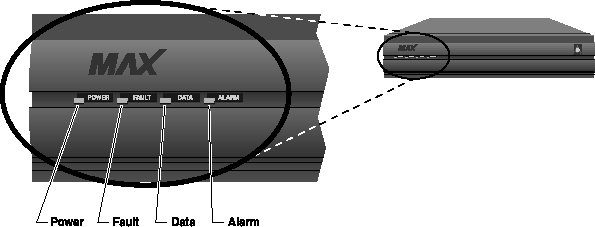
Table 2-1 lists the LEDs on the front-panel of the MAX and describes the function each LED
performs.
Figure 2-10. Location of the LEDs on the Redundant MAX
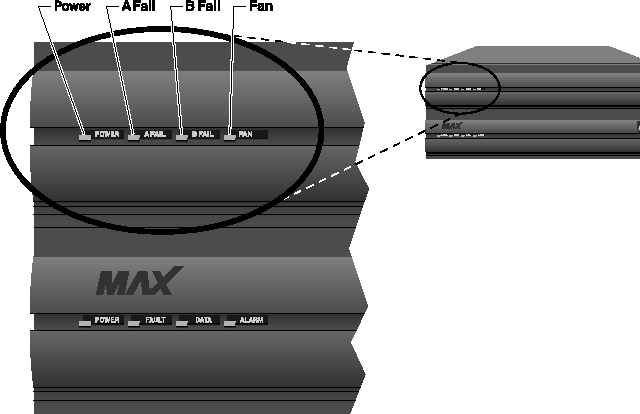
Table 2-2 lists and describes each LED on the front-panel of the Redundant MAX. This is supplemental information for the redundant ac or dc power supply.
MAX back-panel
Figure 2-11 shows the MAX back-panel LEDs, which display the status of the Ethernet- interface.
Figure 2-11. Ethernet interface LEDs on MAX back-panel
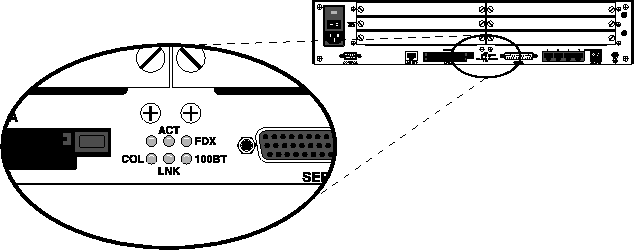
Note: The MAX Classic back-panel has similar LEDs on the Ethernet expansion card if one
is installed. The MAX Classic has one LED for each possible Ethernet interface (10Base-T,
and COAX (10Base-2), which illuminate when the interface is in use. The ACT and COL
LEDs are the same as those on the MAX 6000.
Table 2-3 describes the Ethernet-interface LEDs.
Once you are familiar with the MAX LEDs, you are ready to start up the MAX.
Starting up the MAX
To start up the MAX, perform the following steps:
- If you are using a PC, configure the terminal-emulation function in your communications software as follows:
- 9600 bps
- 8 data bits
- No parity
- 1 stop bit
- No flow control
- Direct connect
- Make sure that you can see the LEDs on the front-panel of the MAX while you view the VT100 or palmtop display.
- Connect one end of the ac power cord to a power source and the other end to the MAX.
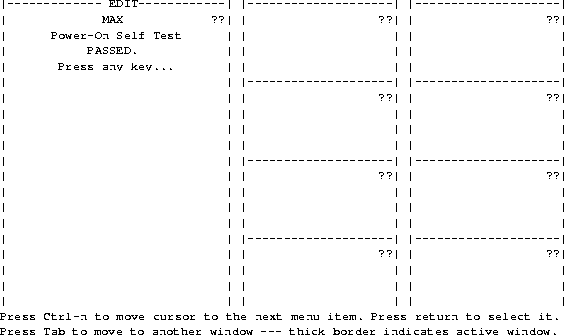
The Power-On Self-Test (POST) begins and finishes within one minute.
- While the POST is running, watch the LEDs.
If the Power LED is on and the Fault LED is off, the MAX is operating properly. You can continue with the next step.
If either the Power LED is off or the Fault LED is on, remove the power cord and do not continue. Contact your Ascend distributor.
- Watch the VT100 or palmtop display during the POST. When the POST is successful, the following screen appears:
- Press any key.
The following reminder screen appears, instructing you to edit your line configuration before you dial:
Edit Line Config
before dialing
Press any key...
Press any key again to display the MAX Main Edit menu as shown.
Main Edit Menu
    >00-000 System
    10-000 Net/T1
    20-000 Host/Dual
    30-000 Ethernet
    40-000 Empty
    50-000 Empty
    60-000 Host/Dual
    70-000 Empty
    80-000 Empty
Continue with Chapter 3, Quickstart, to get your MAX up and running with a basic configuration.
Continue with Chapter 4, Navigating and Securing the Interface, to learn how to navigate the MAX user interface before performing more advanced configuration as explained in the Network Configuration Guide for your MAX.
techpubs@ascend.com
Copyright © 1998, Ascend Communications, Inc. All rights
reserved.