
![[Top]](../images/home.jpg)
![[Contents]](../images/contents.jpg)
![[Prev]](../images/previous.jpg)
![[Next]](../images/next.jpg)
![[Last]](../images/index.jpg)


Quickstart
After installing the MAX hardware, you might want to perform a basic configuration so that you can test the setup. Procedures vary somewhat, depending on whether you use a T1 or an E1 configuration. (To perform a more advanced configuration, see the MAX 6000 Series Network Configuration Guide.)
Quickstart for T1 MAX units
Before you begin basic configuration of your T1 MAX, make sure that all required hardware components are available and that you have a good idea of what is involved in configuring the MAX for T1 operations. Gather all the necessary configuration information, and make sure that you know how to use the MAX VT100 interface. Then configure the MAX and test your LAN and WAN connections.
Setting up your hardware
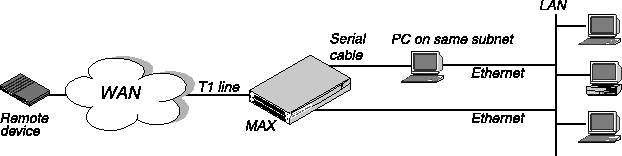
Before you begin, make sure you have installed the MAX as described in Chapter 2, Setting Up and Testing the MAX Hardware. Also verify that you have available:
- One or more active and installed T1 lines accessible from the MAX. These lines must provide switched data service on at least two channels. For more information, see Provisioning the Switch.
- An active Ethernet LAN with appropriate cables and connectors.
- A remote unit (an Ascend unit or other compatible equipment) that you can Telnet to or Ping over a dial-up PPP encapsulated link across the WAN.
- A local host or workstation, on the same subnet as the MAX, that can Telnet to or Ping the MAX.
Figure 3-1 illustrates the hardware setup required for this Quickstart.
Figure 3-1. Quickstart setup
Overview of T1 line configuration
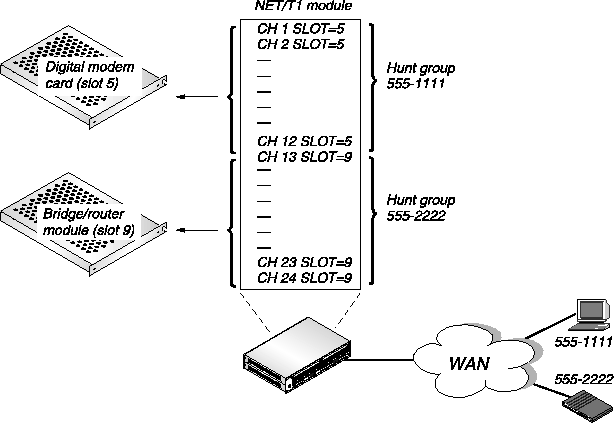
Figure 3-2 illustrates incoming call routing using inband signaling. The example shows two hunt groups: one for digital calls and one for analog calls. Each hunt group contains 12 channels. Analog callers use the phone number 555-1111 to call in and are routed to the digital modems in slot 5. Digital callers use the phone number 555-2222, and are routed to the MAX bridge/router module in slot 9. To set up call routing, you configure two Ch N Slot parameters in the T1 line's profile.
Inband signaling is less flexible than ISDN D-channel signaling, because you must preallocate the number of T1 channels used for voice calls and for data calls. If 12 analog callers are connected, subsequent analog callers are rejected because there are no more channels available for analog calls, even though there are 12 unused channels in the other hunt group.
Figure 3-2. Incoming call routing using inband signaling and hunt groups
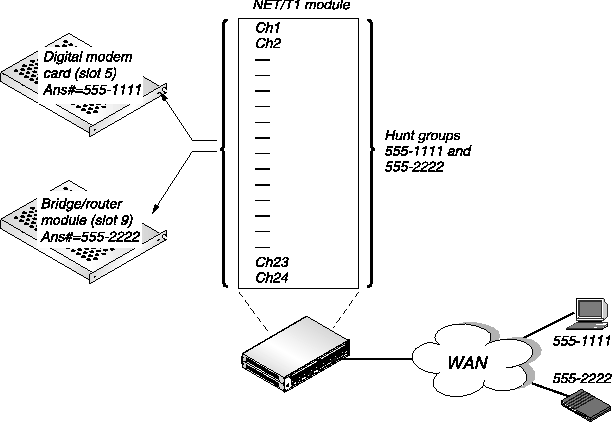
With ISDN signaling, the hunt groups overlap the T1 channels, allowing each channel to answer either voice calls or data calls. Figure 3-3 illustrates the use of ISDN D-channel signaling. In this example, each hunt group includes all 24 channels. Analog callers call in to the phone number 555-1111 and are routed to the digital modems in slot 5. Digital callers call in using the phone number 555-2222 and are routed to the MAX bridge/router module in slot 9. To route the calls, you configure the Ans# parameter in both the Modem profile and the Ethernet Mod Config profile.
Incoming ISDN calls contain information about whether the call is an analog voice call (from a modem) or a digital data call. The MAX can automatically route voice calls to the digital modem card and digital calls to the bridge/router module.
Figure 3-3. Incoming call routing using ISDN signaling and hunt groups
Gathering configuration information
Before you start configuring the MAX, gather the following configuration information about your network setup:
- T1 line information
- Connection profile information
- Ethernet profile information
T1 line information
Table 3-1 lists the parameters you use for configuring the MAX T1 line. As you gather the necessary information, you can record your settings in the middle column. The parameters are in the Net/T1 > Line Config > slot profile > Line N subprofile. For this Quickstart configuration, you can leave all other Line Config parameters at their default values.
For detailed information about the parameters in the following table, see the Reference Guide for your MAX.
Table 3-1. T1 line configuration information
Parameters
|
Your setting
|
Comments
|
|---|
|
Sig Mode
|
|
Enter the type of signaling your line uses: inband, ISDN, or ISDN_NFAS.
Get this information from your service provider.
|
|
Rob Ctl
|
|
For every line using inband signaling, enter the robbed-bit call control mechanism. Get this information from your service provider.
|
|
Switch Type
|
|
For each line using ISDN signaling, enter the type of switch that provides the ISDN service.
In a Net/T1 profile, specify one of the following values:
|
|
Framing Mode
|
|
For each line, enter D4 or ESF. Get this information from your service provider.
|
|
Encoding
|
|
For each line, enter AMI or B8ZS. Get this information from your service provider.
|
|
FDL
|
|
For each line using ISDN signaling, enter the Facilities Data Link (FDL) protocol the MAX uses. Get this information from your service provider.
|
|
Length
|
|
If your MAX does not have an internal CSU, enter the cable length from the CSU or other network interface to the MAX.
|
|
Buildout
|
|
If your MAX has an internal CSU, enter the amount of attenuation the MAX should apply to the line's network interface to match the cable length from the MAX to the next repeater. Get this information from your service provider.
|
Connection profile information
To define a connection to a remote device, you configure a Connection profile. Connection profiles are in the Ethernet > Connections menu. To test the system, you can set up two kinds of connections:
- A Connection profile for a remote device (such as an Ascend Pipeline) that dials in with its own IP address.
- A Connection profile for a remote device (such as a modem) that accepts a dynamically assigned address.
Table 3-2 lists the parameters you use for creating a connection to a remote device. As you gather the necessary information, you can record your settings in the middle column. For this Quickstart, you can leave all other parameters in the Connection profile at their default values. For detailed information about the parameters in the following table, see the Reference Guide for your MAX.
Ethernet profile information
Table 3-3 lists the parameters you use for configuring the MAX for your Ethernet LAN. As you gather the necessary information, you can record your settings in the middle column. The parameters are in the Ethernet > Mod Config profile. For this Quickstart configuration, you can leave all other parameters in that profile at their default values. For detailed information about the parameters in the following table, see the Reference Guide for your MAX.
Using the MAX VT100 interface
The MAX VT100 interface provides access to the configuration menus. For complete information about using this interface, see Chapter 4, Navigating and Securing the Interface. To set up the interface, see Starting up the MAX.
After communication has been established between the MAX and your console, your screen displays the MAX configuration interface screen Figure 3-4, which comprises an Edit menu and eight status displays. You use the Edit menu to configure the MAX, and you can use the status windows to monitor its activities. (If the configuration screen does not appear, press Ctrl-L.)
Note that the items listed in the Main Edit Menu differ, depending on the system configuration. In Figure 3-4, the Net/T1 menu items provide access to the line-configuration submenus.
Figure 3-4. MAX T1 configuration interface
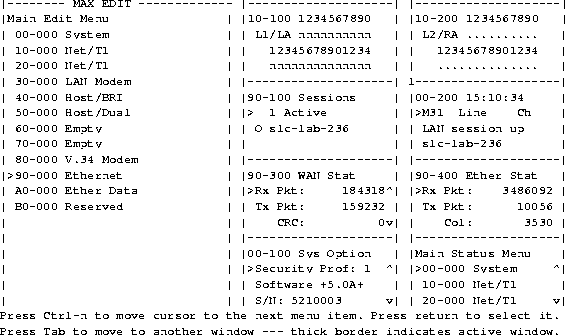
Table 3-4 provides a quick reference for navigating the MAX user interface.
Implementing a basic configuration
A basic configuration provides enough functionality to verify that the MAX is up and running, connected, and able to perform basic functions. The procedures described in this chapter assume that you have not configured the MAX. Therefore, all parameters initially are at their factory default settings. Do not turn the MAX off before you have completed all of the procedures. You must perform the configuration tasks in the order in which they are presented.
The Quickstart configuration involves modifying the following profiles:
Note: The question marks (??) that might appear in the upper right-hand corner of the Edit
screens and status windows indicate that there is no link to the T1/PRI line. They disappear
once you have configured the T1/PRI line.
Configuring the T1/PRI lines
To configure a T1 line with the information you recorded in Table 3-1, select the line's profile and specify the signaling mode. Then set the parameters that configure the signaling mode you have specified, and set the other required parameters. If you use inband signaling, configure incoming call routing for the line before you save the settings you have entered. If you use ISDN signaling, you set additional parameters after you have saved the Line N profile. When finished, check the line's status.
Specify signaling mode
- From the Main Edit Menu, select the slot that contains your Net/T1 card (for example, 10-000).
The slot's menu appears:
10-000 Net/T1
    >10-100 Line Config
    10-200 Line Diag
- Select Line Config.
The Line Config menu appears:
10-100 Line Config
    >10-1** Factory
    10-102
    10-103
    10-104
- Select the currently active slot profile, 10-1** Factory.
The selected slot profile appears:
10-1** Factory
    >Name=
    1st Line=Trunk
    2nd Line=Disabled
    Line 1...
    Line 2...
- Select Line 1.
The Line 1 subprofile appears:
10-1** Factory
    Line 1...
        >Sig Mode=Inband  ^
          NFAS ID num=N/A
          Rob Ctl=Wink-Start
          Switch Type=N/A
          Framing Mode=D4
          Encoding=AMI
          FDL=N/A
          Length=N/A
          Buildout=0 dB
          Clock Source=Yes
          Pbx Type=N/A
          Delete Digits=N/A
          Add Number=N/A
          Call-by-Call=N/A
          Ans #=N/A
- Set the appropriate signaling mode for the Sig Mode parameter. The selections are:
Configure your specified signaling mode
If you have selected ISDN_NFAS, enter the NFAS ID for your line. If you have selected Inband, select the type of robbed bit control for the Rob Ctl parameter. The selections are:
N/A (appropriate for Sig Mode=ISDN)
Wink-Start
Idle-Start
Inc-W-200
Inc-W-400
Loop-Start
If you selected ISDN, select the type of WAN switch used at the line's point-of-presence. The selections are:
N/A (appropriate for Sig Mode=Inband)
AT&T
NTI
NI-2
GloBanD
Japan
Continue specifying line parameters
Once you have configured the signaling mask:
- Select the type of framing this line uses (D4 or ESF).
- Set the encoding used on this line. The selections are:
- None (identical to AMI, but without density enforcement)
- AMI
- B8ZS
- Set the Facility Data Link (FDL) used on this line. The selections are:
- N/A (appropriate for Framing Mode=D4)
- None
- AT&T
- ANSI
- Sprint
- Specify the cable distance between the MAX and the WAN interface equipment.
If the MAX has an internal CSU, select the N/A settings. Otherwise, select the correct cable distance in feet between MAX and the CSU or other network (WAN) interface unit to which it is connected. The default is 1-133.
- Specify the amount of attenuation to add to the line's network interface.
If the MAX does not have an internal CSU, select the N/A settings. Otherwise, select the Buildout value to provide the proper line attenuation. The default is 0dB.
- If you cannot accept the default channel-type setting of
switched for every channel on the line, set the Ch N parameter as required.
- Switched (the default)
- Nailed (dedicated)
- Unused (not in service)
Note: To test the line later, you must have at least two switched channels. If you plan to
use a channel for drop-and-insert (D&I), you can enter it as Switched for the Quickstart
and then change it to D&I for the final installation.
For inband signaling, route incoming calls
If you using inband signaling, configure incoming call routing for the T1 line by setting the Ch N # and Ch N Slot parameters as follows:
- For each Ch N # parameter, enter the unique digits of the phone number used to reach this channel.
For example, if your line is set up as illustrated in Figure 3-2 on page 3-2, enter 1111 for the first 12 channels, and 2222 for the last 12 channels.
- For each T1 channel that will answer analog calls, set the Ch N Slot parameters to the number of the slot that contains the modem card.
For example, if the modem card is in slot 5, set Ch 1 Slot=5, Ch 2 Slot=5, and so on, up to the total number of analog calls you want the MAX to accept on this T1 line. These settings tell the MAX to route incoming analog calls to the digital modem card.
- For each T1 channel that will answer digital calls, set the Ch N Slot parameters to 9, the default number of the slot that contains the MAX unit's bridge/router module. These settings tell the MAX to route incoming digital calls to the bridge/router module, to be bridged or routed to their destination.
Save the Line N profile
At this point, you have configured a line and are ready to save its profile, as follows:
- Press the Left-Arrow or Escape key to exit the Line 1 profile.
A confirmation menu appears:
EXIT?
    >0=ESC (Don't exit)
    1=Exit and discard
    2=Exit and accept
- Press 2 to save and exit.
For ISDN signaling, route incoming modem calls
If you are using ISDN signaling, you must perform the following steps to configure incoming call routing:
- To tell the MAX how to route incoming modem calls, from the Main Edit Menu select the slot that contains the digital modem cards-for example, 50-000 V.34 Modem.
The slot's menu appears:
50-000 V.34 Modem
50-100 Mod Config
50-200 Modem Diag
- Select Mod Config.
The Mod Config submenu appears:
50-000 Mod Config
    Module Name=
    Ans 1#=
    Ans 2#=
    Ans 3#=
    Ans 4#=
- Set the Ans N # parameters by entering the unique digits of the telephone numbers dialed by callers who use analog devices. For example,
Ans 1#=1111. This setting tells the MAX to route all calls coming in from phone number 555-1111 (the hunt group for analog callers) to the digital modems.
- Press the Left-Arrow or Escape key to exit the current Modem profile.
- In the confirmation menu, press 2 to save and exit.
- Press the Left-Arrow or Escape key to return to the Main Edit Menu so that you can configure routing for MAX incoming modem calls. From the Main Edit Menu select Ethernet > Mod Config > WAN Options.
The WAN Options profile appears:
90-C00 Mod Config
    WAN options...
        Dial Plan=N/A
        Ans 1#=
        Ans 2#=
        Ans 3#=
        Ans 4#=
        Pool#1 start=0.0.0.0
        Pool#1 count=0
        Pool#2 start=0.0.0.0
        Pool#2 count=0
        Pool only=No
        Pool Summary=No
- Set the Ans N # parameters by entering the unique digits of the telephone numbers by callers who use analog devices. For example, set
Ans 1#=2222. This setting tells the MAX to route all calls coming in from phone number 555-2222 (the hunt group for digital callers) to the MAX Ethernet module.
- If you are going to dynamically assign addresses to incoming callers, set the following parameters:
- Pool#1 Start-The first IP address in the pool
- Pool#1 Count-The number of IP addresses in the pool
- Press the Left-Arrow or Escape key to exit the Ethernet Mod Config profile.
In the confirmation menu, press 2 to save and exit.
You have now set all the parameters necessary for your T1 line configuration.
Check the line's status
After the T1/PRI provider has established service, observe the MAX unit's front-panel indicator lights (LEDs) as illustrated in Figure 3-5.
Figure 3-5. Front-panel indicator lights
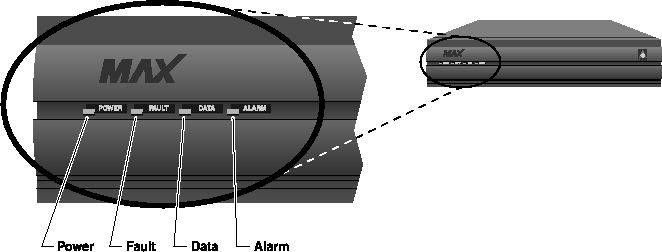
Is the Power LED on and are the Fault, Data, and Alarm LEDs off?
- If Yes: Continue on to "Configuring the Ethernet profile."
- If No: The connection to the T1/PRI line has failed. If the Alarm LED is on, check your cabling. Also verify with your T1/PRI line provider that you have the correct Framing Mode, Encoding, Length, and Buildout values.
Re-entering T1 line parameters
If you must re-enter the parameters for your T1 line, make sure you have Full Access privileges and return all parameter values to their defaults as listed in the following steps:
- At the Main Edit Menu, press Ctrl-D.
The Main Edit Menu's DO menu appears.
- Select P (Password).
- Press Enter or the Right-Arrow key.
The Security Profile menu appears.
- Select Full Access.
- Press Enter or the Right-Arrow key.
A password entry field appears.
- Enter your password within the brackets.
- Press Enter or the Right-Arrow key.
If your password is accepted, you have Full Access privileges.
- Press Enter.
The Main Edit Menu reappears.
Returning all values to their defaults
- At the Main Edit Menu, press Ctrl-D.
The Main Edit Menu's DO menu appears.
- Select D (Diagnostics).
The Diagnostics screen appears.
- Type
fclear.
This command clears flash memory. Flash memory stores a copy of the configuration.
- Type
nvramclear.
This command clears nvram and resets the box. Nvram stores the current configuration. The MAX comes up in the default configuration.
Configuring the Ethernet profile
To configure the Ethernet profile, proceed as follows:
- From the Main Edit Menu, select Ethernet > Mod Config.
The Mod Config menu appears:
90-B00 Mod Config
    Module Name=
    Ether options...
    WAN options...
    SNMP options...
    OSPF options...
    OSPF global options...
    Route Pref...
    TServ options...
    Bridging=No
    Shared Prof=No
    Telnet PW=
    RIP Policy=Poison Rvrs
    RIP Summary=Yes
    ICMP Redirects=Accept
    BOOTP Relay...
    DNS...
- Select Ether Options.
The following list of parameters appears:
90-C00 Mod Config
    >IP Adrs=10.9.8.7
    2nd Adrs=0.0.0.0/0
    RIP Recv-v1
    Ignore Def Rt=Yes
    Proxy Mode=Off
    Filter=0
    IPX Frame=None
    IPX Enet#=N/A
    IPX Pool#=N/A
    IPX SAP Filter=N/A
    Handle IPX Type20=N/A
- Set the IP address and subnet mask of this MAX.
- Set the IP Adrs parameter.
- Press Enter to return to the list of parameters.
- Set the RIP parameter to specify how you want the MAX to handle RIP packets on its Ethernet interface.
- Off (the default)-The MAX does not transmit or receive RIP updates.
- Recv-v1-The MAX receives RIP-v1 updates, but does not transmit RIP updates.
- Send-v1-The MAX transmits RIP-v1 updates, but does not receive RIP updates.
- Both-v1-The MAX transmits and receives RIP-v1 updates.
- Send-v2-The MAX transmits RIP-v2 updates, but does not receive RIP updates.
- Recv-v2-The MAX receives RIP-v2 updates, but does not transmit RIP updates.
- Both-v2-The MAX transmits and receives RIP-v2 updates.
- Press the Left-Arrow or Escape key to exit Ether Options submenu.
A confirmation menu appears:
EXIT?
>0=ESC (Don't exit)
  1=Exit and discard
  2=Exit and accept
- Press 2 to save your changes.
- Press Escape until you return to the Main Edit Menu.
Configuring the Answer profile
The MAX uses the parameters in the Answer profile to build incoming calls. Note that settings in Connection profiles take precedence over the same settings in the Answer profile.
To configure the Answer profile, proceed as follows:
- From the Main Edit Menu, select Ethernet > Answer.
The Answer profile appears:
90-800 Answer
    >Use Answer as Default=No
    Force 56=No
    Profile Reqd=Yes
    Clid Auth=Ignore
    Assign Adrs=No
    Encaps...
    Ip options...
    PPP options...
    COMB options...
    V.120 options...
    Session options...
    DHCP options...
- To be able to dynamically assign addresses to incoming callers, make sure that Assign Adrs=Yes.
- Select PPP Options.
The PPP Options submenu appears:
90-700 Answer
    PPP options...
    Route IP=Yes
    Route IPX=No
    Bridge=Yes
    Recv Auth=CHAP
    MRU=1524
    LQM=No
    LQM Min=600
    LQM Max=600
    Link Comp=Stac
    VJ Comp=Yes
    Dyn Alg=Quadratic
    Sec History=15
    Add Pers=5
    Sub Pers=10
    Min Ch Count=1
    Max Ch Count=1
- Make sure Route IP=Yes.
- Set the Recv Auth parameter to the authentication you are going to require for incoming calls:
- None (the default)-The MAX does not use an authentication protocol to validate incoming calls.
- PAP-Password Authentication Protocol, a PPP authentication protocol.
- CHAP-Challenge Handshake Authentication Protocol, a more secure PPP authentication protocol.
- MS-CHAP-Enter description of MS-CHAP.
- Either-The MAX can use either CHAP, PAP, or MS-CHAP. The MAX first requests CHAP authentication. If the dial-in call rejects the request (or does not acknowledge it), the MAX requests PAP authentication, then MS-CHAP.
- Press the Escape or Left-Arrow key until the confirmation menu appears.
- Press 2 to save your changes.
- Press the Left-Arrow or Escape key until you return to the Main Edit Menu.
Creating Connection profiles
Connection profiles define connections to remote users.
To create a Connection profile, proceed as follows:
- From the Main Edit Menu, select Ethernet > Connections.
The Connection menu appears. Initially, the Connection profiles are identified only by numbers:
90-100 Connections
90-101
90-102
90-103
90-104
90-105
90-106
90-107
90-108
90-109
90-110
90-111
90-111
- Select the first profile.
A list of parameters appears:
90-101
    Station=
    Active=No
    Encaps=MPP
    PRI # Type=National
    Dial #=
    Calling #=
    Called #=
    Route IP=Yes
    Route IPX=N/A
    Bridge=N/A
    Dial brdcast=
    Encaps options...
    Ip options...
    Ipx options...
    Session options...
    Telco options...
- Modify or verify the settings of the following parameters:
- Station. Enter a name, such as Remote-Call which becomes the name of the profile and acts as the login name of the remote user.
- Active. Set to Yes.
- Encaps. Set the encapsulation method you want to use for this connection. However , the default setting (MPP) is probably the best choice for this test. If the remote device does not support MPP, the MAX will attempt to negotiate an MP session. If the remote device does not support MP, the MAX will attempt to negotiate a PPP session.
- Route IP. Make sure that Route IP = Yes.
- Select Encaps Options.
The Encaps menu appears:
90-101
Encaps options...
    Send Auth=None
    Send PW=N/A
    Aux Send PW=N/A
    Recv PW=
    DBA Monitor=Transmit
    Base Ch Count=1
    Min Ch Count=2
    Inc Ch Count=1
    Dec Ch Count=1
    MRU=1524
    LQM=No
    LQM Min=600
    LQM Min=600
    Link Comp=Stac
- These parameters can remain at their default settings.
- Select IP Options.
The IP Options subprofile appears:
90-101
  Ip options...
    LAN Adrs=0.0.0.0/0
    WAN Alias=0.0.0.0/0
    IF Adrs=0.0.0.0/0
    Preference=100
    Metric=7
    Private=No
    RIP=Off
    Pool=0
    Multicast Client=No
    Multicast Rate Limit=100
    Client Pri DNS-0.0.0.0
    Client Sec DNS=0.0.0.0
    Client Assign DNS=Yes
- If you are configuring a Connection profile for a device with its own IP address, set the following parameters:
- LAN Adr -Enter the IP address including any subnet mask, of the remote unit, then press Enter to return to the list of parameters.
- WAN Alias-If the far-end device is non-Ascend and requires numbered interfaces with PPP encapsulation, enter the IP address of the remote unit's WAN interface (not its Ethernet interface), then press Enter to return to the list of parameters.
- IF Adrs-If you are implementing interfaced-based routing on the MAX, enter the IP address of the port used on the MAX side of the link.
- If you are configuring a Connection profile for dynamic address assignment, set the following parameter:
- Pool-The IP address pool from which you want to assign this client an address. IP address pools are configured in the Ethernet > Mod Config > WAN Options submenu.
- Using the RIP parameter, specify how you want the MAX to handle RIP packets on this WAN interface:
- Off (the default)-The MAX does not transmit or receive RIP updates.
- Recv-v1-The MAX receives RIP-v1 updates, but does not transmit RIP updates.
- Send-v1-The MAX transmits RIP-v1 updates, but does not receive RIP updates.
- Both-v1-The MAX transmits and receives RIP-v1 updates.
- Send-v2- The MAX transmits RIP-v2 updates, but does not receive RIP updates.
- Recv-v2-The MAX receives RIP-v2 updates, but does not transmit RIP updates.
- Both-v2-The MAX transmits and receives RIP-v2 updates.
- Press the Escape or Left-Arrow key until the confirmation menu appears, then press 2 to save your changes.
- Press the Left-Arrow key until you return to the Main Edit Menu.
Testing the connections
When you have successfully configured the MAX as described in the previous section, you are ready to test the connections. To verify that everything is working:
- Test the LAN connection by using Ping or Telnet to reach the MAX from a workstation or host on the same LAN as the unit.
- Test the T1/PRI line by placing and answering a test call from the MAX to itself over the T1/PRI interface. This procedure tests the T1 lines to verify that they are active and that the phone numbers are correct.
- Test the WAN connection by using Ping or Telnet to reach a remote unit from a workstation or host on the same LAN as the MAX. This procedure also tests the processing of data packets through the MAX.
Testing the LAN connection
To test the LAN connection, you must be able to run Ping or Telnet from a host or workstation on the same subnet as your MAX.
If you open a Telnet session with the MAX, the MAX user interface display should appear. If you have configured a Telnet password in the Ethernet > Mod Config > Telnet PW parameter, the MAX prompts for it before you can access the MAX user interface.
If you Ping the MAX, you should get a message saying that you are immediately receiving a return packet for every packet you are sending to the MAX. If you are not getting the proper response, the cause might be a problem with the LAN, entry of the wrong IP address, or misconfiguration of either the subnet mask or IP Adrs parameter in the Ethernet profile. If the host or workstation is on a different network than the MAX, make sure your IP routing configurations allow the host or workstation to reach the MAX.
Testing the T1/PRI line
To test whether the MAX T1/PRI line is functioning normally, use the Test command from the MAX terminal server. The command causes the MAX to place a call to itself over the WAN, and to send a number of packets over the connection. This procedure tests the MAX unit's ability to initiate and receive calls, and demonstrates whether the connection over the digital access line is functional.
The terminal-server Test command uses one channel to dial out and another channel to answer, as shown in Figure 3-6. Consequently, you must set the T1/PRI line for bidirectional calling and have two channels available for the test.
Note: The Test command is a basic test of connectivity. Receiving fewer packets than are sent
is normal. For example, if the command sends 1000 packets, and receives 994 packets, the test
is successful.
To perform the test:
- From the Main Edit Menu, select System:
The System menu appears:
00-200 System
    00-100 Sys Config
    >00-200 Sys Diag
    00-300  Security
    00-400 Destinations
    00-500 Dial Plan
- Select Sys Diag.
The Sys Diag menu appears:
00-200 Sys Diag
    >00-201 Restore Cfg
    00-202 Save Config
    00-203 Use MIF
    00-204 Sys Reset
    00-205 Term Serv
    00-206 Upd Rem Cfg
- Select Term Serv.
The Terminal Server screen appears:
** Ascend Pipeline Terminal Server **
ascend%
- Enter the Test command:
test phone-number
where phone-number is the phone number of the MAX T1 line.
Note: The most frequent cause for failing to connect is an incorrect phone number.
- If the test is unsuccessful, verify that you have entered all the T1 line parameters correctly and that your line is correctly provisioned as explained in Appendix A, Provisioning the Switch. If you cannot correct the problem, contact your carrier.
- Enter the Quit command to exit the terminal-server interface.
- Press the Left-Arrow or the Escape key to return to the Main Edit Menu.
Testing the WAN connection
To test the WAN connection either Ping a remote unit or establish a telnet session with it, over a dial-up connection. The procedure assumes that:
- You can run Telnet or Ping from a host or workstation on the same LAN segment as MAX.
- There is a remote unit (MAX-compatible) to which you can route data packets over a dial-up link.
Note: The remote unit should be configured for the route back to your MAX. Otherwise, you
might bring up the connection and send packets but fail to receive anything back.
Figure 3-6. Testing the WAN by dialing into and out from the MAX
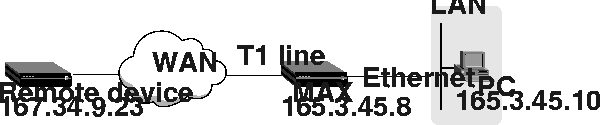
To test the WAN connection, proceed as follows:
- Configure the routes of a host that is on the same LAN as your MAX so that your MAX is the gateway to the remote unit. The most common method is to add static routes.
For example, if the remote unit address is 167.34.9.23, and the your MAX address is 165.3.45.8, the gateway configuration on the remote unit would be:
- From the local host, enter the Telnet or Ping command with an argument specifying the remote unit.
If you use Telnet, and the remote unit's user interface display appears, the MAX is functioning properly and you are finished with this chapter.
If you use Ping, and a message informs you that you are immediately receiving a return packet for every packet you are sending to the remote unit, the MAX is functioning properly and you are finished with the chapter.
If you are not getting the proper response, the procedure has failed. The problem might be with the LAN or with your configuration. Verify the configuration of the Ethernet profile. You can also refer to the Troubleshooting chapter of the Administration Guide for your MAX.
- Terminate the Telnet or Ping session.
Where to go next
Table 3-5 explains where to find further information about configuring and operating your MAX.
Quickstart for E1 MAX units
Before you begin basic configuration of your E1 MAX, make sure that all required hardware components are available and that you have a good idea of what is involved in configuring the MAX for E1 operations. Gather all the necessary configuration information, and make sure that you know how to use the MAX VT100 interface. Then configure the MAX and test your LAN and WAN connections.
Setting up your hardware for E1
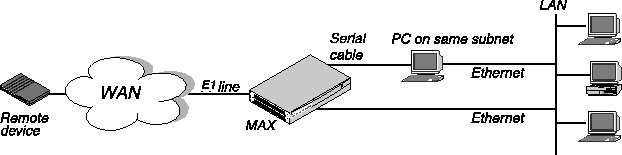
Before you begin, make sure you have installed the MAX as described in Chapter 2, Setting Up and Testing the MAX Hardware. Also verify that you have available:
- One or more active and installed E1 lines accessible from the MAX. These lines must provide switched data service on at least two channels. For more information, see Provisioning the Switch.
- An active Ethernet LAN with appropriate cables and connectors.
- A remote unit (an Ascend unit or other compatible equipment) that you can Telnet to or Ping over a dial-up PPP encapsulated link across the WAN.
- A local host or workstation, on the same subnet as the MAX, that can Telnet to or Ping the MAX.
Figure 3-7 illustrates the hardware setup required for this Quickstart.
Figure 3-7. Quickstart set up
Overview of E1 line configuration
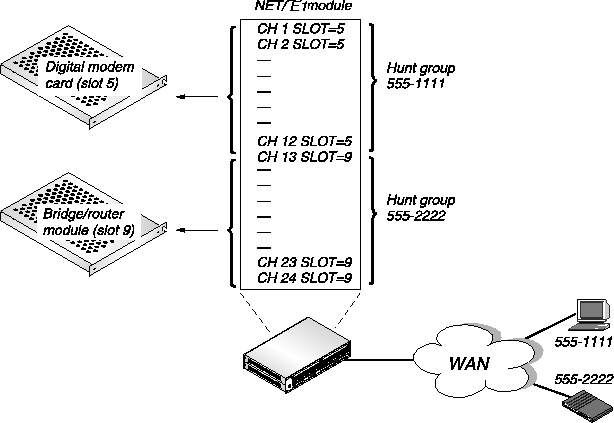
Figure 3-8 illustrates incoming call routing using R2 signaling. The example shows two hunt groups: one for digital calls and one for analog calls. Each hunt group contains 12 channels. Analog callers use the phone number 555-1111 to call in and are routed to the digital modems in slot 5. Digital callers use the phone number 555-2222, and are routed to the MAX bridge/router module in slot 9. To set up call routing, you configure two Ch N Slot parameters in the E1 line's profile.
R2 signaling is less flexible than ISDN D-channel signaling, because you must preallocate the number of E1 channels used for voice calls and for data calls. If 12 analog callers are connected, subsequent analog callers are rejected because there are no more channels available for analog calls, even though there are 12 unused channels in the other hunt group.
Figure 3-8. Incoming call routing using R2 signaling and hunt groups
With ISDN signaling, the hunt groups overlap the E1 channels, allowing each channel to answer either voice calls or data calls. Figure 3-9 illustrates the use of ISDN D-channel signaling. In this example, each hunt group includes all 24 channels. Analog callers call in to the phone number 555-1111 and are routed to the digital modems in slot 5. Digital callers call in using the phone number 555-2222 and are routed to the MAX bridge/router module in slot 9. To route the calls, you configure the Ans# parameter in both the Modem profile and the Ethernet Mod Config profile.
Incoming ISDN calls contain information about whether the call is an analog voice call (from a modem) or a digital data call. The MAX can automatically route voice calls to the digital modem card and digital calls to the bridge/router module.
Figure 3-9. Incoming call routing using ISDN signaling and hunt groups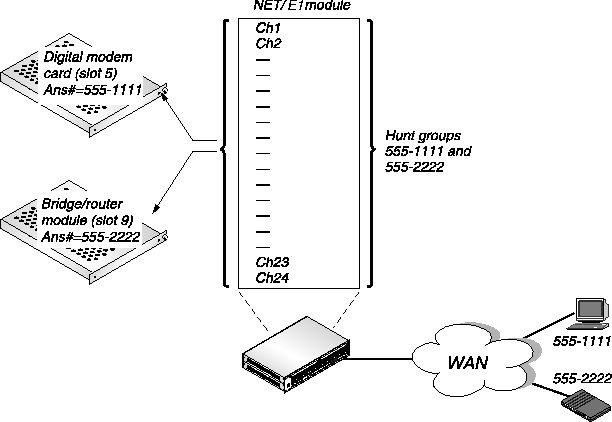
Gathering configuration information
Before you start configuring the MAX, gather the following configuration information about your network setup:
- E1 line information
- Connection profile information
- Ethernet profile information
E1 line information
Table 3-6 lists the parameters you use for configuring the MAX E1 line. As you gather the necessary information, you can record your settings in the middle column. The parameters are in the Net/E1 > Line Config > slot profile > Line N subprofile. For this Quickstart configuration, you can leave all other Line Config parameters at their default values.
For detailed information about the parameters in the following table, see the Reference Guide for your MAX.
Table 3-6. E1 line configuration information
Parameters
|
Your setting
|
Comments
|
|---|
|
Sig Mode
|
|
Enter the type of signaling your line uses:
- None-A leased line.
- ISDN-ISDN signaling using the D channel. The 32nd channel of the E1 line must be designated as the D channel.
- DPNSS-The interface supports DPNSS or DASS 2 signaling.
- R2-R2 signaling.
- Metered-Metered R2 signaling protocol, used in Brazil and South Africa.
- Chinese- A version of the R2 signaling protocol specified for use in China.
- Malaysia indicates a version of the R2 signaling protocol with CLID processing specified for use in Malaysia.
Get this information from your service provider.
|
|
Switch Type
|
|
In a Net/E1 profile, specify one of the following values:
- GloBanD-Q.931W GloBanD data service
- NI-1-National IDSN-1
- Net 5-Euro ISDN services in Belgium, the Netherlands, Switzerland, Sweden, Denmark, and Singapore
- DASS 2-U.K. only
- ISLX-DPNSS switch type
- ISDX-DPNSS switch type
- Mercury-DPNSS switch type
- Australian-Australia only
- French-VN3 ISDN PRI
- German-1TR6
- CAS-New Zealand
|
|
Framing Mode
|
|
For each line, select G.703 (the default) or 2DS. Get this information from your service provider.
If you select G.703, the MAX provides CRC-4 checking. If you select 2DS, it does not.
|
|
Length
|
|
If your MAX does not have an internal CSU, enter the cable length from the CSU or other network interface to the MAX.
|
Connection profile information
The To define a connection to a remote device, you configure a Connection profile. Connection profiles are in the Ethernet > Connections menu. To test the system, you can set up two kinds of connections:
- A Connection profile for a remote device (such as an Ascend Pipeline) that dials in with its own IP address.
- A Connection profile for a remote device (such as a modem) that accepts a dynamically assigned address.
Table 3-7 lists the parameters you use for creating a connection to a remote device. As you gather the necessary information, you can record your settings in the middle column. For this Quickstart, you can leave all other parameters in the Connection profile at their default values. For detailed information about the parameters in the following table, see the Reference Guide for your MAX.
Ethernet profile information
Table 3-8 lists the parameters you use for configuring the MAX for your Ethernet LAN. As you gather the necessary information, you can record your settings in the middle column. The parameters are in the Ethernet > Mod Config profile. For this Quickstart configuration, you can leave all other parameters in that profile at their default values. For detailed information about the parameters in the following table, see the Reference Guide for your MAX.
Using the MAX VT100 interface
The MAX VT100 interface provides access to the configuration menus. For complete information about using this interface, see Chapter 4, Navigating and Securing the Interface. To set up the interface, see Starting up the MAX.
After communication has been established between the MAX and your console, your screen displays the MAX configuration interface screen Figure 3-10, which comprises an Edit menu and eight status displays. You use the Edit menu to configure the MAX, and you can use the status windows to monitor its activities. (If the configuration screen does not appear, press Ctrl-L.)
Note that the items listed in the Main Edit Menu differ, depending on the system configuration. In Figure 3-10, the Net/E1 menu items provide access to the line-configuration submenus.
Figure 3-10. MAX E1 configuration interface
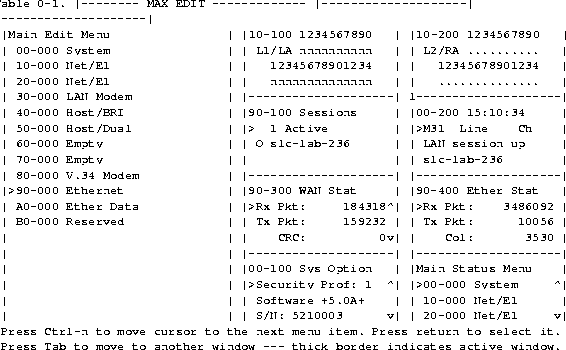
Table 3-9 provides a quick reference for navigating the MAX user interface.
Implementing a basic configuration
A basic configuration provides enough functionality to verify that the MAX is up and running, connected, and able to perform basic functions. The procedures described in this chapter assume that you have not configured the MAX. Therefore, all parameters initially are at their factory default settings. Do not turn the MAX off before you have completed all of the procedures. You must perform the configuration tasks in the order in which they are presented.
The Quickstart configuration involves modifying the following profiles:
Note: The question marks (??) that might appear in the upper right-hand corner of the Edit
screens and status windows indicate that there is no link to the E1/PRI line. They disappear
once you have configured the E1/PRI line.
Configuring the E1/PRI lines
To configure a E1 line with the information you recorded in Table 3-6, select the line's profile and specify the signaling mode. Then set the parameters that configure the signaling mode you have specified, and set the other required parameters. If you use R2 signaling, configure incoming call routing for the line before you save the settings you have entered. If you use ISDN signaling, you set additional parameters after you have saved the Line N profile. When finished, check the line's status.
Specify signaling mode
- From the Main Edit Menu, select the slot that contains your Net/E1 card (for example, 10-000).
The slot's menu appears:
10-000 Net/E1
    >10-100 Line Config
    10-200 Line Diag
- Select Line Config.
The Line Config menu appears:
10-100 Line Config
    >10-1** Factory
    10-102
    10-103
    10-104
- Select the currently active slot profile, 10-1** Factory.
The selected slot profile appears:
10-1** Factory
    >Name=
    1st Line=Trunk
    2nd Line=Disabled
    Line 1...
    Line 2...
- Select Line 1.
The Line 1 subprofile appears:
10-1** Factory
    Line 1...
        >Sig Mode=R2  ^
          NFAS ID num=N/A
          Rob Ctl=Wink-Start
          Switch Type=N/A
          Framing Mode=D4
          Encoding=AMI
          FDL=N/A
          Length=N/A
          Buildout=0 dB
          Clock Source=Yes
          Pbx Type=N/A
          Delete Digits=N/A
          Add Number=N/A
          Call-by-Call=N/A
          Ans #=N/A
Configure your specified signaling mode
With the Line 1 profile selected, set the appropriate signaling mode for the Sig Mode parameter to:
- None-A leased line.
- ISDN-ISDN signaling using the D channel. The 32nd channel of the E1 line must be designated as the D channel.
- DPNSS-The interface supports DPNSS or DASS 2 signaling.
- R2-R2 signaling.
- Metered-Metered R2 signaling protocol, used in Brazil and South Africa.
- Chinese-A version of the R2 signaling protocol specified for use in China.
If you have selected the ISDN setting, set the Switch Type parameter to the type of WAN switch used at the line's point-of-presence:
N/A (appropriate for Sig Mode=R2)
AT&T
NTI
NI-2
GloBanD
Japan
Setting the remaining Line N parameters
After you have set the required parameter or parameters for your signaling mode, set the remaining parameters for the line:
- Select the type of framing this line uses (G.703 or 2DS).
Note: If you select G.703, the MAX provides CRC-4 checking. If you select 2DS, it does
not.
- Set the encoding used on this line: The selections are:
- None: This is identical to AMI, but without density enforcement.
- AMI
- B8ZS
- Set the Facility Data Link (FDL) used on this line. The selections are:
- N/A (appropriate for Framing Mode=D4)
- None
- AT&T
- ANSI
- Sprint
- Specify the cable distance between the MAX and the WAN interface equipment.
If the MAX has an internal CSU, select the N/A settings. Otherwise, select the correct cable distance in feet between MAX and the CSU or other network (WAN) interface unit to which it is connected. The default is 1-133.
- Specify the amount of attenuation to add to the line's network interface.
If the MAX does not have an internal CSU, select the N/A settings. Otherwise, select the Buildout value to provide the proper line attenuation. The default is 0dB.
- If you cannot accept the default channel-type setting of
switched for every channel on the line, set the Ch N parameter as required.
- Switched (the default)
- Nailed (dedicated)
- Unused (not in service)
Note: To test the line later, you must have at least two switched channels. If you plan to
use a channel for drop-and-insert (D&I), you can enter it as Switched for the Quickstart
and then change it to D&I for the final installation.
For R2 signaling, route incoming calls
If you using R2 signaling, configure incoming call routing for the E1 line by setting the Ch N # and Ch N Slot parameters as follows:
- For each Ch N # parameter, enter the unique digits of the phone number used to reach this channel.
For example, if your line is set up as illustrated in Figure 3-8 on page 3-23, enter 1111 for the first 12 channels, and 2222 for the last 12 channels.
- For each E1 channel that will answer analog calls, set the Ch N Slot parameters to the number of the slot that contains the modem card.
For example, if the modem card is in slot 5, set Ch 1 Slot=5, Ch 2 Slot=5, and so on, up to the total number of analog calls you want the MAX to accept on this E1 line. These settings tell the MAX to route incoming analog calls to the digital modem card.
- For each E1 channel that will answer digital calls, set the Ch N Slot parameters to 9, the default number of the slot that contains the MAX unit's bridge/router module. These settings tell the MAX to route incoming digital calls to the bridge/router module, to be bridged or routed to their destination.
Save the Line N profile
At this point, you have configured a line and are ready to save its profile, as follows:
- Press the Left-Arrow or Escape key to exit the Line 1 profile.
A confirmation menu appears:
EXIT?
    >0=ESC (Don't exit)
    1=Exit and discard
    2=Exit and accept
- Press 2 to save and exit.
For ISDN signaling, route incoming modem calls
If you are using ISDN signaling, you must perform the following steps to configure incoming call routing:
- To tell the MAX how to route incoming modem calls, from the Main Edit Menu select the slot that contains the digital modem cards-for example, 50-000 V.34 Modem.
The slot's menu appears:
50-000 V.34 Modem
50-100 Mod Config
50-200 Modem Diag
- Select Mod Config.
The Mod Config submenu appears:
50-000 Mod Config
    Module Name=
    Ans 1#=
    Ans 2#=
    Ans 3#=
    Ans 4#=
- Set the Ans N # parameters by entering the unique digits of the telephone numbers dialed by callers who use analog devices. For example,
Ans 1#=1111. This setting tells the MAX to route all calls coming in from phone number 555-1111 (the hunt group for analog callers) to the digital modems.
- Press the Left-Arrow or Escape key to exit the current Modem profile.
- In the confirmation menu, press 2 to save and exit.
- Press the Left-Arrow or Escape key to return to the Main Edit Menu so that you can configure routing for MAX incoming modem calls. From the Main Edit Menu select Ethernet > Mod Config > WAN Options.
The WAN Options profile appears:
90-C00 Mod Config
    WAN options...
        Dial Plan=N/A
        Ans 1#=
        Ans 2#=
        Ans 3#=
        Ans 4#=
        Pool#1 start=0.0.0.0
        Pool#1 count=0
        Pool#2 start=0.0.0.0
        Pool#2 count=0
        Pool only=No
        Pool Summary=No
- Set the Ans N # parameters by entering the unique digits of the telephone numbers by callers who use analog devices. For example, set
Ans 1#=2222. This setting tells the MAX to route all calls coming in from phone number 555-2222 (the hunt group for digital callers) to the MAX Ethernet module.
- If you are going to dynamically assign addresses to incoming callers, set the following parameters:
- Pool#1 Start-The first IP address in the pool
- Pool#1 Count-The number of IP addresses in the pool
- Press the Left-Arrow or Escape key to exit the Ethernet Mod Config profile.
In the confirmation menu, press 2 to save and exit.
You have now set all the parameters necessary for your E1 line configuration.
Check the line's status
After the E1/PRI provider has established service, observe the MAX unit's front-panel indicator lights (LEDs) as illustrated in Figure 3-5.
Figure 3-11. Front-panel indicator lights
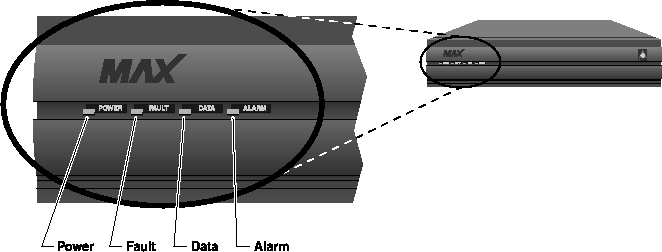
Is the Power LED on and are the Fault, Data, and Alarm LEDs off?
- If Yes: Continue on to "Configuring the Ethernet profile."
- If No: The connection to the E1/PRI line has failed. If the Alarm LED is on, check your cabling. Also verify with your E1/PRI line provider that you have the correct Framing Mode, Encoding, Length, and Buildout values.
Re-entering E1 line parameters
If you must re-enter the parameters for your E1 line, make sure you have Full Access privileges and return all parameter values to their defaults as listed in the following steps:
- At the Main Edit Menu, press Ctrl-D.
The Main Edit Menu's DO menu appears.
- Select P (Password).
- Press Enter or the Right-Arrow key.
The Security Profile menu appears.
- Select Full Access.
- Press Enter or the Right-Arrow key.
A password entry field appears.
- Enter your password within the brackets.
- Press Enter or the Right-Arrow key.
If your password is accepted, you have Full Access privileges.
- Press Enter.
The Main Edit Menu reappears.
Returning all values to their defaults
- At the Main Edit Menu, press Ctrl-D.
The Main Edit Menu's DO menu appears.
- Select D (Diagnostics).
The Diagnostics screen appears.
- Type
fclear.
This command clears flash memory. Flash memory stores a copy of the configuration.
- Type
nvramclear.
This command clears nvram and resets the box. Nvram stores the current configuration. The MAX comes up in the default configuration.
Configuring the Ethernet profile
To configure the Ethernet profile, proceed as follows:
- From the Main Edit Menu, select Ethernet > Mod Config.
The Mod Config menu appears:
90-B00 Mod Config
    Module Name=
    Ether options...
    WAN options...
    SNMP options...
    OSPF options...
    OSPF global options...
    Route Pref...
    TServ options...
    Bridging=No
    Shared Prof=No
    Telnet PW=
    RIP Policy=Poison Rvrs
    RIP Summary=Yes
    ICMP Redirects=Accept
    BOOTP Relay...
    DNS...
- Select Ether Options.
The following list of parameters appears:
90-C00 Mod Config
    >IP Adrs=10.9.8.7
    2nd Adrs=0.0.0.0/0
    RIP Recv-v1
    Ignore Def Rt=Yes
    Proxy Mode=Off
    Filter=0
    IPX Frame=None
    IPX Enet#=N/A
    IPX Pool#=N/A
    IPX SAP Filter=N/A
    Handle IPX Type20=N/A
- Set the IP address and subnet mask of this MAX.
- Set the IP Adrs parameter.
- Press Enter to return to the list of parameters.
- Set the RIP parameter to specify how you want the MAX to handle RIP packets on its Ethernet interface.
- Off (the default)-The MAX does not transmit or receive RIP updates.
- Recv-v1-The MAX receives RIP-v1 updates, but does not transmit RIP updates.
- Send-v1-The MAX transmits RIP-v1 updates, but does not receive RIP updates.
- Both-v1-The MAX transmits and receives RIP-v1 updates.
- Send-v2-The MAX transmits RIP-v2 updates, but does not receive RIP updates.
- Recv-v2-The MAX receives RIP-v2 updates, but does not transmit RIP updates.
- Both-v2-The MAX transmits and receives RIP-v2 updates.
- Press the Left-Arrow or Escape key to exit Ether Options submenu.
A confirmation menu appears:
EXIT?
>0=ESC (Don't exit)
  1=Exit and discard
  2=Exit and accept
- Press 2 to save your changes.
- Press Escape until you return to the Main Edit Menu.
Configuring the Answer profile
The MAX uses the parameters in the Answer profile to build incoming calls. Note that settings in Connection profiles take precedence over the same settings in the Answer profile.
To configure the Answer profile, proceed as follows:
- From the Main Edit Menu, select Ethernet > Answer.
The Answer profile appears:
90-800 Answer
    >Use Answer as Default=No
    Force 56=No
    Profile Reqd=Yes
    Clid Auth=Ignore
    Assign Adrs=No
    Encaps...
    Ip options...
    PPP options...
    COMB options...
    V.120 options...
    Session options...
    DHCP options...
- To be able to dynamically assign addresses to incoming callers, make sure that Assign Adrs=Yes.
- Select PPP Options.
The PPP Options submenu appears:
90-700 Answer
    PPP options...
    Route IP=Yes
    Route IPX=No
    Bridge=Yes
    Recv Auth=CHAP
    MRU=1524
    LQM=No
    LQM Min=600
    LQM Max=600
    Link Comp=Stac
    VJ Comp=Yes
    Dyn Alg=Quadratic
    Sec History=15
    Add Pers=5
    Sub Pers=10
    Min Ch Count=1
    Max Ch Count=1
- Make sure Route IP=Yes.
- Set the Recv Auth parameter to the authentication you are going to require for incoming calls:
- None (the default)-The MAX does not use an authentication protocol to validate incoming calls.
- PAP-Password Authentication Protocol, a PPP authentication protocol.
- CHAP-Challenge Handshake Authentication Protocol, a more secure PPP authentication protocol.
- MS-CHAP-Enter description of MS-CHAP.
- Either-The MAX can use either CHAP, PAP, or MS-CHAP. The MAX first requests CHAP authentication. If the dial-in call rejects the request (or does not acknowledge it), the MAX requests PAP authentication, then MS-CHAP.
- Press the Escape or Left-Arrow key until the confirmation menu appears.
- Press 2 to save your changes.
- Press the Left-Arrow or Escape key until you return to the Main Edit Menu.
Creating Connection profiles
Connection profiles define connections to remote users.
To create a Connection profile, proceed as follows:
- From the Main Edit Menu, select Ethernet > Connections.
The Connection menu appears. Initially, the Connection profiles are identified only by numbers:
90-100 Connections
90-101
90-102
90-103
90-104
90-105
90-106
90-107
90-108
90-109
90-110
90-111
90-111
- Select the first profile.
A list of parameters appears:
90-101
    Station=
    Active=No
    Encaps=MPP
    PRI # Type=National
    Dial #=
    Calling #=
    Called #=
    Route IP=Yes
    Route IPX=N/A
    Bridge=N/A
    Dial brdcast=
    Encaps options...
    Ip options...
    Ipx options...
    Session options...
    Telco options...
- Modify or verify the settings of the following parameters:
- Station. Enter a name, such as Remote-Call which becomes the name of the profile and acts as the login name of the remote user.
- Active. Set to Yes.
- Encaps. Set the encapsulation method you want to use for this connection. However , the default setting (MPP) is probably the best choice for this test. If the remote device does not support MPP, the MAX will attempt to negotiate an MP session. If the remote device does not support MP, the MAX will attempt to negotiate a PPP session.
- Route IP. Make sure that Route IP = Yes.
- Select Encaps Options.
The Encaps menu appears:
90-101
Encaps options...
    Send Auth=None
    Send PW=N/A
    Aux Send PW=N/A
    Recv PW=
    DBA Monitor=Transmit
    Base Ch Count=1
    Min Ch Count=2
    Inc Ch Count=1
    Dec Ch Count=1
    MRU=1524
    LQM=No
    LQM Min=600
    LQM Min=600
    Link Comp=Stac
- These parameters can remain at their default settings.
- Select IP Options.
The IP Options subprofile appears:
90-101
  Ip options...
    LAN Adrs=0.0.0.0/0
    WAN Alias=0.0.0.0/0
    IF Adrs=0.0.0.0/0
    Preference=100
    Metric=7
    Private=No
    RIP=Off
    Pool=0
    Multicast Client=No
    Multicast Rate Limit=100
    Client Pri DNS-0.0.0.0
    Client Sec DNS=0.0.0.0
    Client Assign DNS=Yes
- If you are configuring a Connection profile for a device with its own IP address, set the following parameters:
- LAN Adr -Enter the IP address including any subnet mask, of the remote unit, then press Enter to return to the list of parameters.
- WAN Alias-If the far-end device is non-Ascend and requires numbered interfaces with PPP encapsulation, enter the IP address of the remote unit's WAN interface (not its Ethernet interface), then press Enter to return to the list of parameters.
- IF Adrs-If you are implementing interfaced-based routing on the MAX, enter the IP address of the port used on the MAX side of the link.
- If you are configuring a Connection profile for dynamic address assignment, set the following parameter:
- Pool-The IP address pool from which you want to assign this client an address. IP address pools are configured in the Ethernet > Mod Config > WAN Options submenu.
- Using the RIP parameter, specify how you want the MAX to handle RIP packets on this WAN interface:
- Off (the default)-The MAX does not transmit or receive RIP updates.
- Recv-v1-The MAX receives RIP-v1 updates, but does not transmit RIP updates.
- Send-v1-The MAX transmits RIP-v1 updates, but does not receive RIP updates.
- Both-v1-The MAX transmits and receives RIP-v1 updates.
- Send-v2- The MAX transmits RIP-v2 updates, but does not receive RIP updates.
- Recv-v2-The MAX receives RIP-v2 updates, but does not transmit RIP updates.
- Both-v2-The MAX transmits and receives RIP-v2 updates.
- Press the Escape or Left-Arrow key until the confirmation menu appears, then press 2 to save your changes.
- Press the Left-Arrow key until you return to the Main Edit Menu.
Testing the connections
When you have successfully configured the MAX as described in the previous section, you are ready to test the connections. To verify that everything is working:
- Test the LAN connection by using Ping or Telnet to reach the MAX from a workstation or host on the same LAN as the unit.
- Test the E1/PRI line by placing and answering a test call from the MAX to itself over the E1/PRI interface. This procedure tests the E1 lines to verify that they are active and that the phone numbers are correct.
- Test the WAN connection by using Ping or Telnet to reach a remote unit from a workstation or host on the same LAN as the MAX. This procedure also tests the processing of data packets through the MAX.
Testing the LAN connection
To test the LAN connection, you must be able to run Ping or Telnet from a host or workstation on the same subnet as your MAX.
If you open a Telnet session with the MAX, the MAX user interface display should appear. If you have configured a Telnet password in the Ethernet > Mod Config > Telnet PW parameter, the MAX prompts for it before you can access the MAX user interface.
If you Ping the MAX, you should get a message saying that you are immediately receiving a return packet for every packet you are sending to the MAX. If you are not getting the proper response, the cause might be a problem with the LAN, entry of the wrong IP address, or misconfiguration of either the subnet mask or IP Adrs parameter in the Ethernet profile. If the host or workstation is on a different network than the MAX, make sure your IP routing configurations allow the host or workstation to reach the MAX.
Testing the E1/PRI line
To test whether the MAX E1/PRI line is functioning normally, use the Test command from the MAX terminal server. The command causes the MAX to place a call to itself over the WAN, and to send a number of packets over the connection. This procedure tests the MAX unit's ability to initiate and receive calls, and demonstrates whether the connection over the digital access line is functional.
The terminal-server Test command uses one channel to dial out and another channel to answer, as shown in Figure 3-12. Consequently, you must set the E1/PRI line for bidirectional calling and have two channels available for the test.
Note: The Test command is a basic test of connectivity. Receiving fewer packets than are sent
is normal. For example, if the command sends 1000 packets, and receives 994 packets, the test
is successful.
To perform the test:
- From the Main Edit Menu, select System:
The System menu appears:
00-200 System
    00-100 Sys Config
    >00-200 Sys Diag
    00-300  Security
    00-400 Destinations
    00-500 Dial Plan
- Select Sys Diag.
The Sys Diag menu appears:
00-200 Sys Diag
    >00-201 Restore Cfg
    00-202 Save Config
    00-203 Use MIF
    00-204 Sys Reset
    00-205 Term Serv
    00-206 Upd Rem Cfg
- Select Term Serv.
The Terminal Server screen appears:
** Ascend Pipeline Terminal Server **
ascend%
- Enter the Test command:
test phone-number
where phone-number is the phone number of the MAX T1 line.
Note: The most frequent cause for failing to connect is an incorrect phone number.
- If the test is unsuccessful, verify that you have entered all the T1 line parameters correctly and that your line is correctly provisioned as explained in Appendix A, Provisioning the Switch. If you cannot correct the problem, contact your carrier.
- Enter the Quit command to exit the terminal-server interface.
- Press the Left-Arrow or the Escape key to return to the Main Edit Menu.
Testing the WAN connection
To test the WAN connection either Ping a remote unit or establish a telnet session with it, over a dial-up connection. The procedure assumes that:
- You can run Telnet or Ping from a host or workstation on the same LAN segment as MAX.
- There is a remote unit (MAX-compatible) to which you can route data packets over a dial-up link.
Note: The remote unit should be configured for the route back to your MAX. Otherwise, you
might bring up the connection and send packets but fail to receive anything back.
Figure 3-12. Testing the WAN by dialing into and out from the MAX
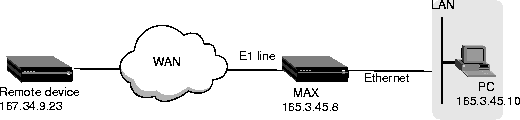
To test the WAN connection, proceed as follows:
- Configure the routes of a host that is on the same LAN as your MAX so that your MAX is the gateway to the remote unit. The most common method is to add static routes.
For example, if the remote unit address is 167.34.9.23, and the your MAX address is 165.3.45.8, the gateway configuration on the remote unit would be:
- From the local host, enter the Telnet or Ping command with an argument specifying the remote unit.
If you use Telnet, and the remote unit's user interface display appears, the MAX is functioning properly and you are finished with this chapter.
If you use Ping, and a message informs you that you are immediately receiving a return packet for every packet you are sending to the remote unit, the MAX is functioning properly and you are finished with the chapter.
If you are not getting the proper response, the procedure has failed. The problem might be with the LAN or with your configuration. Verify the configuration of the Ethernet profile. You can also refer to the Troubleshooting chapter of the Administration Guide for your MAX.
- Terminate the Telnet or Ping session.
Where to go next
Table 3-10 explains where to find further information about configuring and operating your MAX.
techpubs@ascend.com
Copyright © 1998, Ascend Communications, Inc. All rights
reserved.