![[Top]](../images/home.jpg)

![[Contents]](../images/contents.jpg)
![[Prev]](../images/previous.jpg)
![[Next]](../images/next.jpg)
![[Last]](../images/index.jpg)


VT100 Interface Status Windows
This chapter describes the MAX unit's status windows. This chapter covers the following topics:
Using the MAX status windows
The right side of the screen in the MAX configuration interface displays eight status windows (Figure 4-1). The status windows provide a great deal of read-only information about what is currently happening in the MAX.
SystemThe Status numbers 1 through 8 refer to the status-window positions, which start with 1 in the upper left and continue with 2 in the upper right, and so forth. For details about each parameter, see the MAX Reference Guide.
Sys Config
Status 1=10-100
Status 2=10-200
Status 3=50-100
Status 4=00-200
Status 5=50-300
Status 6=50-400
Status 7=00-100
Status 8=00-000
|--------------------| |--------------------|
|10-100 1234567890   | |10-200 1234567890   |
| L1/LA nnnnnnnnnn   | | L2/RA ..........   |
|   12345678901234   | |   12345678901234   |
|   nnnnnnnnnnnnnn   | |   ..............   |
|--------------------| l--------------------|
|90-100 Sessions     | |00-200 15:10:34     |
|>  1 Active         | |>M31  Line    Ch    |
| O slc-lab-236      | | LAN session up     |
|                    | | slc-lab-236        |
|--------------------| |--------------------|
|90-300 WAN Stat     | |90-400 Ether Stat   |
|>Rx Pkt:     184318^| |>Rx Pkt:    3486092 |
| Tx Pkt:     159232 | | Tx Pkt:      10056 |
|    CRC:          0v| |    Col:       3530 |
|--------------------| |--------------------|
|00-100 Sys Option   | |Main Status Menu    |
|>Security Prof: 1  ^| |>00-000 System     ^|
| Software +5.0A0+    | | 10-000 Net/T1      |
| S/N: 5210003      v| | 20-000 Net/T1     v|
|--------------------| |--------------------|
To scroll the selections in the Main Status Menu in a status window, Tab to the window, then use the Up Arrow or the Down Arrow key to scroll the window. To access a sub-menu, use the Right Arrow key, and to return to the original menu use the Left Arrow key.
Some of the status windows contain more information than can be displayed in the small window. A lowercase
v in the lower-right corner of a window, indicates that more information is available. You can scroll through additional information if you make the window active.
Line status windows
Slots 1 and 2 contain the built-in T1 (or E1) lines, with Slot 1 containing the two leftmost lines (when you look at the unit's back panel.) To display the Line Status window, tab to status window, then use the arrow keys to access the Net/T1 > Line N Stat window.
|--------------------| |--------------------|Each window displays four lines:
|10-100 1234567890 | |10-200 1234567890 |
| L1/LA nnnnnnnnnn | | L2/RA .......... |
| 12345678901234 | | 12345678901234 |
| nnnnnnnnnnnnnn | | .............. |
|--------------------| l--------------------|
LA indicates Link Active (the line is physically connected).
n means the channel is nailed.
* indicates a current connection.
- means the channels is idle but in service.
s means the channel is an active D channel (ISDN only).
The fourth line shows a 1-character channel-status indicator for channels 11-24.
|--------------------| l--------------------|The Sessions window shows the number of active bridging/routing and modem (terminal server) sessions. When this window is active, you can scroll down to see the name, address, or CLID of each connected device. Each line starts with a 1-character session-status indicator. For example, O means online. For terminal-server sessions, the modem number is identified.
|90-100 Sessions | |00-200 15:10:34 |
|> 1 Active | |>M31 Line Ch |
| O slc-lab-236 | | LAN session up |
| | | slc-lab-236 |
|--------------------| |--------------------|
To display the Sessions window, tab to a status window, then use the arrow keys to access the Ethernet > Sessions window.
The system message log provides a log of up to 32 of the most recent system events. To display the System Message Log window, tab to a status window, then use the arrow keys to access the System > Message Log window.
Use an arrow key to scroll up (previous messages) or down (later messages). The Delete key clears all the messages in the log. The message log window is organized as follows:
|--------------------| |--------------------|The WAN Stat window shows the current count of received frames, transmitted frames, and frames with errors for each active WAN link and for the entire WAN. When this window is active, you can scroll down to see the statistics for each link. The first line of each per-link count shows the name, IP address, or MAC address of the remote device. To display the WAN Stat window, tab to a status window, then use the arrow keys to access the Ethernet > WAN Stat window.
|90-300 WAN Stat | |90-400 Ether Stat |
|>Rx Pkt: 184318^| |>Rx Pkt: 3486092 |
| Tx Pkt: 159232 | | Tx Pkt: 10056 |
| CRC: 0v| | Col: 3530 |
|--------------------| |--------------------|
The Ether Stat window shows the current count of received frames, transmitted frames, and frames with errors at the Ethernet interface. To display the Ether Stat window, tab to a status window, then use the arrow keys to access the Ethernet > Ether Stat window.
|--------------------| |--------------------|The Sys Options window shows which Security profile is active, which Ascend software version is running, the unit's serial number (S/N). Additionally, it can list a variety of hardware or software options. It also displays a system uptime value, which is updated every few seconds to show the number of days, hours, minutes, and seconds the MAX has been operating. For example:
|00-100 Sys Option | |Main Status Menu |
|>Security Prof: 1 ^| |>00-000 System ^|
| Software +5.0A0+ | | 10-000 Net/T1 |
| S/N: 5210003 v| | 20-000 Net/T1 v|
|--------------------| |--------------------|
Up: 12:17:18:26When the Sys Options window is active, you can use the arrow keys to scroll down and display the list of system options. Appearing, for example, are the software load name, various installed-software options (such as Frame Relay, AIM, and BONDING), and the AuthServer and AcctServer options, which specify the IP addresses of the RADIUS (or TACACS) authentication server and the RADIUS accounting server.
To display the System Options window, tab to a status window, then use the arrow keys to access the System > Sys Option window.
The last status window contains the Main Status Menu, a hierarchical menu that contains an entry for each line or installed card in the MAX. The structure of the Main Status Menu exactly follows the Main Edit Menu (the top-level configuration menu).
When the window that displays the Main Status Menu is active, the menu works like the Main Edit Menu. Use the arrow keys to scroll to a particular status menu. Then press the Enter key to open that menu and the Escape key to close it.
To specify which status window appears on the VT100 interface, proceed as follows:
Status 3=20-100
Status 4=20-200
When the MAX resets, the status windows will appear with the new selections.
Status-window reference in alphabetic order
This section describes in detail the contents of each status window. It lists the windows in alphabetic order. BRI/LT window
BRI/LT is a branch of the Main Status Menu that lists windows indicating the status of the ISDN BRI interfaces. The BRI/LT window appears only if a BRI/LT module is installed. The BRI/LT window displays the following list:
X0-000 BRI/LTThe Line Status window shows the condition of the electrical link to the carrier and the status of the B1 and B2 channels. (For details, see "Line Status (BRI) window" on page 4-17.)
XO-100 Line Status
X0-200 Line Errors
X0-300 Block Errors
X0-400 LB Counters
X0-500 Net Options
The Line Errors status window displays the errors recorded on all current channels, in a channel-by-channel, line-by-line list. (For details, see "Line Errors window" on page 4-15.)
X0-X00 FEBE NEBEThe LB Counters window shows the number of test frames sent and received since the loopback command was issued. The numbers displayed are totals accumulated since the Line Loopback Command was issued. When the loopback command is started or restarted, the LB counters are reset to 0. For example, when a MAX with eight BRI lines is restarted, the LB Counter status window has the following contents:
1: 0 0
2: 0 0
3: 0 0
4: 0 0
5: 0 0
6: 0 0
7: 0 0
8: 0 0
X0-XXX XMIT RECVThe Net Options window lists the interface features with which your MAX has been equipped. (For details, see "Net Options window" on page 4-25.)
1: 0 0
2: 0 0
3: 0 0
4: 0 0
5: 0 0
6: 0 0
7: 0 0
8: 0 0
Call Status window
The Call Status window is a read-only window that indicates whether a call is active at a specific AIM port. If there is an active call, the Call Status window displays its current state.
71-000 Port1 StatFollowing is an example, of a Call Status window for the first AIM port on the base system:
>71-100 Call Status
71-200 Message Log
71-300 Statistics
71-400 Port Opts
71-500 Session Err
71-600 Port Leads
71-100 Albuquerque+ CThe first line of the Call Status window shows the status window number, the name of the current Call profile, and a call-status character (described in Table 4-1).
CALLING/ONLINE
336K 6 channels
Albq. NM
The second line shows the call-status message corresponding to the current state. The message can change dynamically as you dial, modify, or receive calls. Table 4-1 lists the call status characters and messages that can appear:
21-100 Albuquerque+ CIn some types of calls, you might notice that the data rate to your host is actually somewhat less than reported on line 3. Line 3 shows the bandwidth the PRI interface provides, but does not show how much of this bandwidth an AIM or BONDING management subchannel consumes. (For further information, see the Call profile parameters Call Type and Call Mgm in the MAX Reference Guide. In addition, see FT1-B&O under the Call Type parameter for information about how FT1-B&O calls handle channels.)
CALLING
336K 6/2 channels
Albq. NM
The last line of the Call Status window contains the name of the AIM port of the remote-end AIM-compatible product. If the remote-end Port profile is not named, the MAX uses the remote-end module name taken from the Host-Module profile. If neither the module nor the port is named, the MAX uses the remote-end system name.
You can arrange the information to create a wide variety of reports, which can be based on factors such as individual call costs, inverse-multiplexed WAN-session costs, costs on an application-by-application basis and bandwidth usage patterns over specified time periods. With the resulting better understanding of your bandwidth usage patterns, you can make any necessary adjustments to the ratio of switched to nailed bandwidth between network sites.
Like the MAX message logs, CDR shows the most recent session event. The MAX generates new CDR messages as events occur. However, unlike a log, the MAX does not store past CDR events. CDR is primarily a source of data captured by external devices.
To display the Call Detail Reporting (CDR) window, tab to a status window, then use the arrow keys to access the System > CDR window.
Following is a sample four-line CDR display:
00-400 CDRThe first line displays the status-window number and title.
93:05:28:10:33:52
OR 025 384KR 02-01
15105551212
The second line displays the time at which the event occurred, in the following format:
year:month:day:hour:minute:secondThe third line displays the following items of information about the CDR event in the order shown:
The fourth line displays either the dialed or called-party phone number. If the event description on line 3 is OR (outgoing call), the number dialed appears. If the event description on line 3 is AN (incoming call), the called-party number appears. To get the called-party number on incoming calls, you must have DNIS service from your WAN provider. In some cases, the called-party number is not delivered, (for example, when the MAX is behind some types of PBX).
Dyn Stat window (dynamic status)
The Dyn Stat window shows the name, quality, bandwidth, and bandwidth utilization of each online multichannel PPP connection with dynamic bandwidth management. To display the Dyn Stat window, tab to a status window, then use the arrow keys to access the Ethernet > Dyn Stat window.
90-500 Dyn Stat
 Qual Good 00:02:03
 56K     1 channels
 CLU  12%  ALU  23%
The first line of the Dyn Stat window shows the window number and the name of the current Connection profile. If no connection is currently active, the window name appears instead.
The fourth line displays the following values:
Ether Opt window (Ethernet options)
The Ether Opt window lists the type of Ethernet interface specified in the Ethernet I/F parameter, and its MAC address. To display the Ether Opt window, tab to a status window, then use the arrow keys to access the Ethernet > Ether Opt window.
90-600 Ether OptThe interface type may be AUI, UTP, or COAX. The MAC address is a 6-byte hexadecimal address assigned to the Ethernet controller by the manufacturer. For related information, see the entry for the Ethernet I/F parameter in the MAX Reference Guide.
>I/F: COAX
Adrs: 00c07b322bd8
For example, the following screen shows the Ether Stat display for an Ethernet module in slot 9:
90-400 Ether StatThe screen shows the following fields:
>Rx Pkt: 106
Col: 0
Tx Pkt: 118
50-000 Ethernet
 50-100 Sessions
 50-200 Routes
 50-300 WAN Stat
The MAX has two windows that list the performance registers of the PRI interface: FDL1 Stats for line 1 and FDL2 Stats for line 2.
The FDL Stats windows are the fourth and fifth options listed in the Net/T1 window:
10-000 Net/T1The following display shows the contents of the FDL2 Stats window:
10-300 Line Errors ^
10-400 FDL1 Stats
>10-500 FDL2 Stats
10-600 Net Options
10-500 FDL2 Stats
>Error Events...
 Current Period...
 Last 24 Hours...
 00:00...          v
Error-register statistics
If you select Error Events, the MAX displays the accumulated error events in the user and carrier error events registers. Performance-register statistics
You can display the statistics accumulated during the current 15-minute period (Current Period), the summed performance data accumulated during the past 24 hours, or the statistics for any 15-minute period in the previous 24 hours. If you select Last 24 Hours, you can get any past period's registers, select an hour from the window, (03:00, for example), and then select any 15-minute period within that hour. You can select any hour within the last 24. 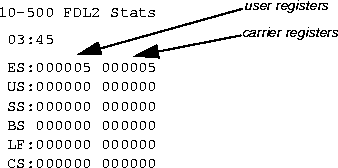
For related information, see Clr Err1, Clr Err 2, Clr Perf1, and Clr Perf2 in the MAX Reference Guide.
FR Stat window
The FR Stat (Frame Relay status) window shows the status of each online link defined in a Frame Relay profile. To display the FR Stat window, tab to a status window, then use the arrow keys to access the Ethernet > FR Stat > any active Frame Relay connection window.
B0-500 FR profileThe window shows the number of packets received and transmitted on the Frame Relay connection. It also shows the number of frames received with CRC errors.
Rx Pxt: 2560
Tx Pxt: 3000
CRC: 003
CprofX 16
Rx Pxt: 2560
Tx Pxt: 3000
For example, the following screen shows a Host/Dual status window for a module installed in slot 6:
60-000 Host/Dual
 60-100 Host Config
 60-200 Port1 Menu
 60-300 Port2 Menu
To display the Line Errors window, tab to a status window, then use the arrow keys to select a menu item representing a slot configuration (this section assumes a slot configured for T1 lines). After selecting that item, select the Line errors window:
10-000 Net/T1Then, when you press Enter or the Right Arrow key, the T1 Line Errors window displays the channel-by-channel errors accumulated during all current calls. The window is divided into three columns. For example:
10-100 Line 1 Stat
10-200 Line 2 Stat
10-300 Line Errors
10-300 Ln1 Ln2The first column displays the T1 channel number followed by a colon (:). For a BRI line, it lists the line numbers (1 through 8).
1: 0 -
3: 33 -
4: 0 -
The second column indicates the number of byte errors the MAX has detected on the channel in Line 1 during the current call. The third column displays the number of byte errors the MAX has detected on the channel in Line 2 during the current call.
If a channel is not associated with a current call, a hyphen (-) appears instead of a number. Any channel that would not have a number in either is omitted from the display.
For example:
10-100 1234567890The first line of a Line Stat window shows the window number followed by columns for channels 1 through 10.
L1/LA ----------
12345678901234
-------------s
The second line begins with the line number, followed by the link status, which is indicated by one of the two-character abbreviations listed in Table 4-3. Following the link status is followed by a single-character that indicates channel status. Table 4-4 lists the channel-status indicators.) The third line has column headers for the remaining channels. The fourth line continues where the second line left off, showing the status of the remaining channels.
A single character represents the status of each channel in the line, as described in Table 4-4:
Line Status (BRI) window
The Line Status window shows the dynamic status of each BRI line, the condition of its electrical link to the carrier, and the status of each line's individual channels. To display the Line Status window, tab to a status window, then use the arrow keys to access the Host/BRI (or Net/BRI) > Line Status window.
40-100 12345678 OThe first line of the Line Status window shows the window number and the column headers for each of the 8 BRI lines in an expansion module. The second line of the window uses the one-character abbreviations listed in Table 4-5 to characterize the overall state of the line. The third and fourth lines show a single-character abbreviations, listed in Table 4-6, that indicate B1 and B2 channels, respectively.
Link PPP-----
B1 ***.....
B2 ***.....
The third and fourth lines indicate the state of the B1 and B2 channels, respectively, with the indicators shown in Table 4-6.
Message Log windows
You can display the Message Log window for an AIM module (such as Host/6 or Host/Dual) or for the system itself. The contents of the port-specific message log and the contents of the system message log do not overlap. That is, an event described in the system message log is not displayed in the message log specific to an AIM port. AIM port message logs
The Message Log window for an AIM port provides a log of events that occurred at each AIM port during call dialing and transmission. You access the window by selecting it from the Port N Stat menu. The following example shows a Message Log entry generated by an incoming call on an AIM port installed in slot 7:
71-200 12:23:47 OThe first line of the window shows the status window number and the time the event occurred. The second line identifies the log entry number (M00-M31) and, if applicable, the line and channel on which the event occurred. The third line contains the text of the message (as described in "Log messages" on page 4-20). The fourth line of the log changes when an online FT1-B&O call restores or removes nailed-up channels. The following display shows that one channel has been restored to an FT1-B&O call:
>M31 Line 1 Ch 13
Moved to primary
1 secondary chans
00-200 12:23:47    O
>M31 Line 1 Ch 13
 Moved to primary
 1 secondary chans
00-200 11:23:55The first line of the window shows the status window number and the time the event occurred. The second line identifies the log entry number (M00-M31) and, if applicable, the line and channel on which the event occurred. The third line contains the text of the message (as described in "Log messages" ). The fourth line contains connection-specific messages (as described in Table 4-9 on page 4-23.
>M31 Line 1 Ch 07
Incoming Call
MBID 022
Log messages
Table 4-7 shows the informational messages that can appear in the Message Log window:
Table 4-8 shows the warning messages that can appear in the Message Log windows.
Table 4-9 shows connection messages that can appear on the fourth line of the Message Log windows.
Modem window
The Main Status Menu window contains an entry for each modem card. When you select the modem entry for a card, the Modem Stat (modem status) menu appears in the window. In this menu, each modem corresponds to a display character. To display the Modem Stat window for a modem module, tab to a status window, then use the arrow keys to access the V.34 Modem > Modem Stat window.
80-000 Modem StatThe first line shows the window name. The second line lists the modems by number, and the third line contains a status indicator. Table 4-10 describes the status indicators.
12345678
-**-*-**
Net T1, Net E1 and Net BRI windows
Net/T1, Net E1and Net/BRI windows are branches of the Main Status Menu window. The Net/BRI window is available only if a Net/BRI module is installed. To display the Net/BRI window, tab to a status window, then use the arrow keys to access the Net/BRI window.
10-000 Net/T1Following are the contents of the Net/E1 window for the base system's E1 PRI interface:
10-100 Line 1 Stat
>10-200 Line 2 Stat
10-300 Line Errors
10-000 Net/E1Following are the contents of the Net/BRI window:
10-100 Line 1 Stat
>10-200 Line 2 Stat
10-300 Line Errors
40-000 Net/BRI
>40-100 Line Status
 40-200 Line Errors
The following screen shows the Net Options window:
Net OptionsThe first line shows the type of physical interface to the WAN or, in the case of Host BRI modules, to the local BRI lines. The line can specify either T1/PRI Network I/F or BRI Network I/F.
>T1/PRI Network I/F
2 Network I/F(s)
Type: CSU/CSU
The second line shows the number of network interfaces associated with the module.
The third line shows whether internal CSUs are installed for the T1 lines. Following are the values that can appear:
Following is an example of a Port Info window:
00-300 Port InfoThe first line specifies the window number and name. The second line indicates the available bandwidth. The third line displays the current accumulated DS0 minutes for all calls placed from the MAX.
Avail BW= 128K
DS0 Mins=12
>71 O G 384K v
The fourth line and subsequent lines that follows it display the AIM host-interface status. Each line includes the following fields, in the order shown:
00-300 Port Info
 Avail BW= 128K
 21 O G 384K
>22 O G 128K/  64K
Table 4-11 shows call-status indicators for AIM port calls.
Port Leads window
The MAX provides a Port Leads status window for checking the state of the input and output control leads of the associated AIM port. A Port Leads status window exists for each AIM port. A Port Leads status window also exists for the serial WAN port. By checking the status of an AIM port's control leads, you can monitor an automatic dialing or answering process, such as X.21, V.25 bis, RS-366, or control-lead dialing.
B0-100 Port Leads
 DSR+ DCD+ RI + DTR+
The first line of the window shows the slot-port address of the AIM port. The remaining lines show the state of the control leads going into and out of the serial port. A plus symbol (+) indicates an active control lead. A minus symbol (-) indicates that the lead is inactive. For RS-366 dialing output and input signals, the MAX uses the abbreviations in Table 4-12.
Output |
Input |
|---|---|
|
acr (Abandon Call and Retry)
|
dp (Digit Present)
|
|
pnd (Present Next Digit)
|
crq (Call Request)
|
|
dlo (Data Line Occupied)
|
If the port is an RS-366 dialing interface, the lower right-hand corner of the Post Leads window has a Digit field that displays the last digit dialed.
Output |
Input |
|---|---|
|
DSR (Data Set Ready)
|
DTR (Data Terminal Ready)
|
|
CD (Carrier Detect)
|
RTS (Request to Send)
|
|
RI (Ring Indicate)
|
Table 4-14 lists the abbreviations used for dialing output and input signals at the serial WAN port.
Output |
Input |
|---|---|
|
DSR (Data Set Ready)
|
DTR (Data Terminal Ready)
|
|
CD (Carrier Detect)
| |
|
RI (Ring Indicate)
|
Port Opts window
The Port Opts window is a read-only window that displays information about the configuration options for the MAX unit's AIM ports. A Port Opts status window exists for each AIM port. To display the Port Opts window for an AIM module, tab to a status window, then use the arrow keys to access the Host/Dual > Portn Stat > Port Opts window.
71-400 Port OptsThe first line of the window shows the slot-port address of the AIM port. The second line indicates the electrical interface of the port. The MAX senses the type of cable you plugged into the AIM port and changes its electrical characteristics accordingly. Table 4-15 describes the values that can appear.
>V.35 Host I/F
PortN Stat window
The PortN Stat window appears in the Host/6 or Host/Dual branch of the Main Edit Menu. It displays a list of windows, each of which shows the status of an AIM port. For example, if you select the listing for the first port of an AIM card installed in slot 7, the following window appears:
71-000 Port1 Stat
 71-100 Call Status
 71-200 Message Log
 71-300 Statistics
>71-400 Port Opts
 71-500 Session Err
 71-600 Port Leads
A Routes window initially displays the first route in the table. For example:
50-200 Routes
>D: 223.0.100.129
 G: 223.0.100.129
 LOOP Active
The second line in a Routes window contains the destination address. The destination can be a network address or the address of a single station. If the route is the default route, the word Default replaces the address.
A route becomes inactive if taken out of service. Whether a dialed-up link in a route has or has not been connected does not affect the active or inactive status of the route
Serial WAN window
The Serial WAN status window is a branch of the Main Status Menu. It displays the status of the serial WAN interface. From this window, you can show the Port Leads status display, which indicates the status of the serial WAN port's control signals. To display the Serial WAN window, tab to a status window, then use the arrow keys to access the Serial WAN > Port Leads window. Session Err window
The Session Err status window displays the errors encountered during the current call, on a channel-by-channel, line-by-line basis. A Session Err window exists for each host port. The second and subsequent rows of this window each reports the accumulated errors on one of the channels active in the call. Each row has four fields, separated by colons. For example:
21-500 Errors OThe first column in this display shows the T1 line's slot number. The second column shows the line number (1 or 2), and the third column 3 shows the channel number on which the error occurred.
1: 1: 1: 0 -
1: 1: 3: 33 -
1: 1: 4: 0 -
Column 4 shows the number of byte errors detected during the current call. In an online FT1-B&O call, any channels that the MAX has removed have an asterisk (*) after the error column.
If a channel is not associated with the current call, its session errors are displayed as a hyphen (-). Any line in the display that would show dashes in both columns is omitted.
(For related information, see "Line Errors window" on page 4-15.)
Sessions window
The Sessions status window indicates the number of active bridging/routing links or remote terminal-server sessions. An online link, as configured in the Connection profile, constitutes a single active session. A session can be PPP or Combinet-encapsulated. The MAX treats each multichannel MP+ or MP link as a single session. The following screen shows the display when the Ethernet module is installed in slot 5:
50-100 SessionsThe first line specifies the number and name of the window. The second line shows the number of active sessions. The third and all remaining lines use the following format:
>5 Active
O Headquarters
status remote devicewhere
status is a status indicator and remote device is the name, address, or CLID of the remote device. Table 4-17 lists the session-status characters that can appear.
Modem slot:position, where slot specifies the slot of the
active digital modem, and position is a number indicating the position of the modem in that
slot.
Statistics window
The Statistics window is an AIM-port-specific window that provides information about line utilization and synchronization delay while a call is up. A Statistics window exists for each AIM port. For example, a Statistics window with the following contents would apply to the first port of an AIM card installed in slot 7:
71-300 Albuquerqu+ OThe first line of the Statistics window shows the status window number. This number includes the host port's number, the name of the current Call profile, and the call-status character.
Qual Good 01:23:44
MAX Rel Delay 10
CLU 80% ALU 77%
The second line lists the quality of the call and the call duration. When a call lasts more than 96 hours, the window displays the call duration in number of days. The call quality, or Qual, can be Good, Fair, Marg (marginal), or Poor. The meaning of each value is as follows:
21-300 Albuquerqu+ OThe third line displays the MAX Rel Delay value. During a MAX call, different channels can take different paths through the WAN and can arrive at the destination at different times. This difference is known as a relative delay. The MAX Rel Delay value indicates the largest amount of delay between any two channels in the call. The delay is calculated and reported in multiples of 125 microseconds, and cannot exceed 3000.
Qual Good 00:04:01
MAX Rel Delay 10
CLU 80% ALU 77%
The last line displays the following values:
(For related information, see the Call Mgm, Call Type, Dyn Alg, and Sec History parameters in the MAX Reference Guide.)
logger(1), syslog(3), syslog.conf(5),
and syslogd(8) for details of the syslog daemon. The Syslog function requires UDP port
514.
Level 4 and Level 6 syslog messages
The data for Level 4 (warning) and Level 6 Syslog messages is derived from the Message Log displays. Level 4 and Level 6 messages are presented in the following format:
ASCEND: slot-nport-n| line-n, channel-n, text-1
The device address (slot, port or line, and channel) is followed by two lines of text, which are displayed on lines 3 and 4 of the Message Log window. The device address is suppressed when it is not applicable or unknown.ASCEND: slot-nport-n| line-n, channel-n, text-2
The line represented by
text-2 specifies the system name and IP address or MAC address of the remote end of a session for the LAN Session Up and LAN Session Down messages in the line represented by text-1.
ASCEND: call-event-ID event-description slot-N port-N data-svcK phone-N
call-event-ID specifies the event ID in the CDR display.
event description is a description of the CDR event.
slot N port N address indicates the AIM port, which is suppressed when it is not applicable or is unknown.
data-svcK indicates the data service in use.
phone-N is the phone number.
Oct 21 11:18:07 marcsMAX ASCEND: slot 0 port 0, line 1, channel 1, \
No Connection
Oct 21 11:18:07 marcsMAX ASCEND: slot 4 port 1, Call Terminated
Oct 21 11:19:07 marcsMAX ASCEND: slot 4 port 1, Outgoing Call, 123In this example, three messages are displayed for the system
marcsMAX. Notice that the back-slash (\) indicates the continuation of a log entry onto the next line.
Syslog daemon whenever a connection is closed. Additional information about the user name, Disconnect code, Progress code, and login host is appended to each CL message. The CL message uses the following format:
[name,]c=xxxx,p=yyyy,[ip-addr]where:
Table 4-19 lists the Ascend Progress codes.
The backoff queue error message in the Syslog file
The MAX keeps accounting records until the accounting server acknowledges them. The backoff queue stores up to 100 unacknowledged records. If the unit never receives an acknowledgment to an accounting request, it eventually runs out of memory. To prevent this situation, the MAX might delete an accounting record and send the following error message to the Syslog file:
Backoff Q full, discarding userThis error generally occurs for one of the following reasons:username
date time router name ASCEND: interface message
date is the date the message was logged by Syslog.
time is the time the message was logged by Syslog.
router name is the router this message was sent from.
ie0, wan0, and so on) unless a call filter logs the packet as it brings up the link, in which case the word call appears.
message format has a number of fields, one or more of which may be present.
Table 4-21 describes the fields.protocol local direction remote length frag log tag
Sys Options window
The Sys Options window provides a read-only list that identifies your MAX and names each feature that has been installed. The following screen shows the Sys Options window:
00-100 Sys OptionsTable 4-21 describes the information that the Sys Options window can contain:
>Security Prof:1 ^
Software +1.0+
S/N:42901
System Status window
The System Status window is a branch of the Main Status Menu. It displays the windows that show the status of the MAX system as a whole.
00-000 SystemThese selections provide information, about the MAX, that pertains to the system as a whole, and that would not fall under the classification of its T1 PRI or ISDN BRI line interfaces, its Ethernet interface, or its AIM host interface.
00-100 Sys Options
>00-200 Message Log
00-300 Port Info
00-400 CDR
The following screen shows WAN statistics:
50-300 WAN StatThe first line displays the window number and name of the window. You can press the Down-Arrow key to get per-link statistics. The first line of a per-link display shows the name, IP address, or MAC address of the remote device. The per-link count is updated every 30 seconds. The overall count is updated at the end of every active link.
>Rx Pkt: 387112
Tx Pkt: 22092
CRC: 0
The second and third lines show the number of frames received and transmitted, respectively. The fourth line indicates the number of CRC errors. A CRC error indicates a frame containing at least one data error.
Copyright © 1998, Ascend Communications, Inc. All rights reserved.