[Top][Contents][Prev][Next][Last]Search


Setting Up Security-Card Authentication


How security cards work
Overview of security-card authentication methods
Setting up incoming security-card calls
Setting up outgoing security-card calls
How the SecurID ACE/Server works without RADIUS
Configuring direct SecurID ACE authentication
Configuring direct Defender server authentication

How security cards work

If you can configure your network site to require that users change passwords several times per day, you use an external authentication server, such as a Security Dynamics ACE/Server or an Enigma Logic SafeWord server. The external server syncs up with hand-held personal security cards. These devices are typically the size of a credit card. The security card provides a user with a current password in real time. The LCD on the user's card displays the current, one-time-only password required to gain access at that moment to the secure network.

You can configure a remote authentication server supporting security cards to work though RADIUS. Or, an ACE/Server or Defender server can work with the MAX directly, without using RADIUS.

Security card authentication with RADIUS

Figure 5-1 illustrates an environment that includes an Ascend Pipeline as the calling unit, a MAX functioning as a Network Access Server (NAS), a RADIUS server, and an external authentication server.

Figure 5-1. Using an external authentication server
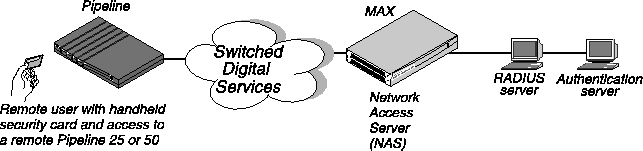
When you use security-card authentication, the following events take place:

  1. A user sends his or her username to try to open a connection to the MAX.

    This user is a client of the MAX. The user can be in terminal-server mode or use the APP Server utility during the authentication phase. When authentication is complete, the user can switch to PPP mode.

  2. The MAX determines that it must access a RADIUS user profile to authenticate the user.

  3. The MAX sends the user connection request to the RADIUS server in an Access-Request packet.

    The MAX is a client of the RADIUS server.

  4. The RADIUS server forwards the connection request to the ACE or SafeWord client residing on the same system as RADIUS.

  5. The ACE client forwards the information to the ACE/Server authentication server. The SafeWord client forwards the information to the SafeWord authentication server.

    In this case, the RADIUS server is a client of the authentication server.

  6. The authentication server sends an Access-Challenge packet back through the RADIUS server and the MAX to the user dialing in.

  7. The user sees the challenge message and obtains the current password from his or her security card.

    If the authentication server is an ACE/Server, the user has a SecurID token card that displays a randomly generated access code, which changes every 60 seconds.

    If the authentication server is a SafeWord server, the user can have one of the following types of token cards:

  8. The user enters the current password obtained from the security card in response to the challenge message. This password travels back through the NAS and the RADIUS server to the authentication server.

  9. The authentication server sends a response to the RADIUS server, specifying whether the user has entered the proper username and password.

    If the user enters an incorrect password, the ACE./Server or SafeWord server returns another challenge and the user can again attempt to enter the correct password. The server sends up to three challenges. After three incorrect entries, the MAX terminates the call.

  10. The RADIUS server sends an authentication response to the MAX.

    If authentication is unsuccessful, the MAX receives an Access-Reject packet. If authentication is successful, the MAX receives an Access-Accept packet containing a list of attributes from the user profile in the RADIUS server's database. The MAX then establishes network access for the caller.

Direct SecurID ACE authentication

You can configure the MAX to use ACE/Server authentication without using RADIUS. The authentication process is different from authentication using the RADIUS server. It supports authentication of terminal-server users only (not dial-in PPP users using the APP Server utility, which enables a user to respond to token challenges received from an external authentication server such as ACE/Server or SafeWord server). If your installation requires support for dial-in PPP users, you should configure it with RADIUS (as described in Configuring the MAX to recognize the authentication server).

The direct method is useful for installations in which other RADIUS features are not required, because it decreases the complexity of the system, making it easier to configure and maintain. In addition, direct ACE/Server authentication supports the New PIN Mode feature, which allows a dial-in user to change the personal identifying number (PIN). For information about the New PIN Mode feature, see New PIN Mode.

You can also configure ACE/Server authentication to use PAP-TOKEN-CHAP authentication. For more information, see Configuring PAP-TOKEN-CHAP when using direct ACE authentication.

Overview of security-card authentication methods

When setting up SafeWord and ACE/Server security-card authentication of incoming calls, you can specify PAP-TOKEN, CACHE-TOKEN, or PAP-TOKEN-CHAP authentication. You can also specify that users request one of these authentication types when dialing out through the MAX. This section provides an overview of token-based authentication.

Type of authentication

Description

PAP-TOKEN

PAP-TOKEN specifies an extension of PAP authentication. The user authenticates his or her identity by entering a password derived from a hardware device, such as a hand-held security card. The MAX prompts the user for this password, and possibly for a challenge key. The MAX obtains the challenge key from a security server that it accesses through RADIUS.

CACHE-TOKEN

CACHE-TOKEN uses a shared secret, and simplifies the authentication process by caching the user's token for the fixed length of time specified by the Ascend-Token-Expiry attribute. During the lifetime of the token, subsequent calls by the user require only CHAP authentication without the use of a hand-held security card.

PAP-TOKEN-CHAP

PAP-TOKEN-CHAP uses an encrypted CHAP password with which the answering unit authenticates second and subsequent channels of an MP+ call. The advantage of a PAP-TOKEN-CHAP call over a PAP-TOKEN call is that only the initial connection needs to be verified by a hand-held security card. Any additional channels are verified by CHAP only.

Setting up incoming security-card calls

When the MAX receives an incoming security-card password from a user, it must forward the authentication request to RADIUS (unless you are using direct authentication). The RADIUS server, in turn, forwards the request to an ACE/Server or SafeWord server. The security-card caller must have a valid RADIUS user profile. Therefore, you must carry out both of the following tasks:

For details about these tasks, see the MAX RADIUS Configuration Guide.

You can set up the ACE/Server for use without RADIUS (as described in Configuring direct SecurID ACE authentication). This method does not permit use of the APP Server utility to authenticate PPP dial-in users.

To configure the Ace/Server to use PAP-TOKEN-CHAP authentication, see Configuring PAP-TOKEN-CHAP when using direct ACE authentication.

If you are using Defender without RADIUS, see Configuring direct Defender server authentication.

Setting up outgoing security-card calls

Most sites use the MAX as an NAS for incoming security-card calls. However, you can also configure the MAX as the calling unit to allow a security-card user on the local network to call out to an NAS at a secure site.

To set up your site for outgoing security-card calls, you must complete these tasks:

  1. Configure the MAX to recognize the security-card authentication server.

  2. Configure the MAX to recognize the APP Server utility for each security-card user.

    The APP Server utility enables a user to respond to token password challenges received from an external authentication server, such as an ACE/Server or SafeWord server. To allow users to supply token passwords from a host on the local network, you must configure the MAX to communicate with the APP Server utility on that host.

  3. Set up dial-out connections in one or more Connection profiles.

  4. Install the APP Server utility on each user's computer.

Configuring the MAX to recognize the authentication server

You must set each of the parameters listed in Table 5-1 for the MAX to communicate with the authentication server. (The values shown in the table are just examples.)

Table 5-1. Authentication-server parameters

Location

Parameters with sample values

Ethernet\>Mod Config\>DNS

Password Host=10.0.0.1

Ethernet > Mod Config > Auth

Password Port=10
Password Server=Yes

The parameters listed in Table 5-1 apply only to outgoing calls that use security-card authentication. For the authentication-server parameters to have their intended effect, your system must meet the following conditions:

To configure the MAX to recognize the authentication server, proceed as follows:

  1. Open the Ethernet > Mod Config > DNS menu.

  2. For the Password Host parameter, specify the IP address of the authentication server on the remote network.

  3. Open the Ethernet > Mod Config > Auth menu.

  4. Set the Password Port parameter to specify the UDP port number that the server specified by Password Host is monitoring.

    Valid port numbers range from 0 to 65535. The default value is 0 (zero), which specifies that the authentication server does not monitor a UDP port.

  5. Set Password Server to Yes to specify that callers use security-card authentication rather than terminal server authentication.

  6. Save your changes.

Configuring the MAX to recognize the APP Server utility

To allow users to supply token passwords from a PC or UNIX host on the local network, you must configure the MAX to communicate with the APP Server utility on that host. APP is a UDP protocol whose default port is 7001. The communication between the MAX and the host running the APP Server can be unicast (when both the MAX and the host have an IP address) or broadcast (when the host might not have an IP address).

To set up the MAX to communicate with the APP Server utility, set the APP Server, APP Host, and MAX Port parameters. Proceed as follows:

  1. Open the Ethernet > Mod Config > Auth menu.

  2. Set APP Server to Yes.

    This setting enables the MAX to communicate password challenges to the host running the APP Server utility.

  3. Specify the IP address of the host running the APP Server utility.

    For example:

    If the host obtains its address at boot time from a BOOTP or DHCP server, or if it has no IP address, you can specify the IP broadcast address (255.255.255.255).

  4. Specify the UDP port to use for communicating with the host running the APP Server.

    The default for the APP Server is UDP port 7001. If you change this number, you must specify the new UDP port number in the APP Server utility (DOS), the WIN.INI file (Windows), or the /etc/services file (UNIX). The MAX and the host running the APP Server utility must agree on the UDP port number.

  5. Save your changes.

Setting up a dial-out connection to a secure site

For the MAX to place calls to an NAS at a secure site, it needs the appropriate Connection profile requesting a token-based authentication type. The authentication type configured in the calling unit affects

The calling unit requests an authentication type, but the RADIUS daemon and RADIUS user profile accessed by the answering NAS determine the access mode to use.

Requesting PAP-TOKEN authentication

When PAP-TOKEN authentication is in use, the MAX sends the dial-out user's password in the clear by means of PAP. Because the password is used for one time only, sending it in the clear does not constitute a serious security risk.

The response to the initial password challenge authenticates the base channel of the call. If bandwidth requirements result in an attempt to add a channel to the call, the system challenges the user for a password.

To request PAP-TOKEN authentication for an outgoing call, set the Send Auth and Send PW parameters. Proceed as follows:

  1. Open the Ethernet > Connections menu.

  2. Open the Connection profile.

  3. Open the Encaps Options submenu.

  4. Set Send Auth to PAP-TOKEN.

    The Send Auth parameter specifies the authentication type requested by the caller.

  5. For the Send PW parameter, specify a password.

    The MAX sends the value of the Send PW parameter as part of the initial session negotiation. If the session then presents a password challenge, the user types in the current one-time-only password displayed on the security card.

  6. Save your changes.

Requesting CACHE-TOKEN authentication

CACHE-TOKEN uses CHAP and caches the initial password for re-use in authenticating additional channels. The RADIUS profile at the remote end must include attributes specifying how long the token remains cached. For complete information about setting up the RADIUS user profile at the remote end, see the RADIUS Configuration Guide.

To request CACHE-TOKEN authentication for an outgoing call, set the Send Auth and Send PW parameters.

  1. Open the Ethernet > Connections menu.

  2. Open the Connection profile.

  3. Open the Encaps Options submenu.

  4. Set Send Auth to CACHE-TOKEN.

    The Send Auth parameter specifies the authentication type requested by the caller.

  5. Set the Send PW parameter to specify a password.

    The MAX sends the value of the Send PW parameter as part of the initial session negotiation. The system prompts the user for a token password and uses this password to authenticate the base channel of the call by means of CHAP. The RADIUS server caches the encrypted password for the period specified by the Ascend-Token-Expiry attribute, or for the amount of idle time specified by the Ascend-Token-Idle attribute. When the system adds channels to a call or places a new call, it uses the cached password to authenticate the channels.

  6. Save your changes.

Requesting PAP-TOKEN-CHAP authentication

In PAP-TOKEN-CHAP authentication, the remote NAS uses the dynamic password supplied by the user to authenticate the base channel of the call. The MAX sends the dial-out user's password in the clear (by means of PAP). When the MAX adds additional channels to the base channel of the call, it uses CHAP authentication for the new channels. CHAP sends encrypted passwords, so it can take the auxiliary password specified by the Aux Send PW parameter and transmit it securely.

If the calling unit requests PAP-TOKEN-CHAP authentication but the RADIUS user profile at the remote end is not set up for PAP-TOKEN-CHAP, the remote end uses PAP-TOKEN authentication instead.

To request PAP-TOKEN-CHAP authentication for an outgoing call, set the parameters as follows.

  1. Open the Ethernet > Connections menu.

  2. Open the Connection profile.

  3. Open the Encaps Options submenu.

  4. Set Send Auth to PAP-TOKEN-CHAP.

    The Send Auth parameter specifies the authentication type requested by the caller.

  5. Set the Send PW parameter to specify a password.

    The MAX sends the value of the Send PW parameter as part of the initial session negotiation. If the session then presents a password challenge, the user types in the current one-time-only password displayed on the security card.

  6. Set the Aux Send PW parameter to specify an auxiliary password.

    When the MAX adds more channels after establishing the call's base channel, CHAP encrypts the auxiliary password specified by Aux Send PW and transmits it to the remote end.

  7. Save your changes.

Installing the APP Server utility

The APP Server utility enables a user to respond to token password challenges from an external authentication server, such as a Security Dynamics (ACE) or Enigma Logic (SafeWord) server.

Previous versions of the APP Server utility enabled a single user to respond to password challenges from a remote ACE/Server or SafeWord server. The current version supports multiple tokens (for a user name as well as the current password) so more than one user can use the APP Server to respond to password challenges.

Getting the right version of the utility

The APP Server utility is available for five platforms: DOS, Windows 3.1, Windows 95, Windows NT, and UNIX. The utility resides on ftp.ascend.com as a single tar archive that contains all five versions of the utility.

The tar file expands into five directories, one for each version of the utility:

Creating banner text for the password prompt

The current release incorporates a banner display facility. The banner text appears with the password prompt on the APP Server screen when you receive a challenge message. You can use the sample banner file included with this release. Or, you can specify the banner text in an ASCII file named appsrvr.ini. You can create the text file with any text editor. The file must reside in the directory in which the APP Server utility is located.

The banner can contain up to 200 characters and five lines of text. The first line of the file must contain the text [BANNER]. For example, you might set up the file as follows:

[BANNER]
line1=The security password has changed. Please consult your 
line2=card and enter the current password now.
line3=You have 60 seconds to enter the new password.

Installing the APP Server utility for DOS

To install the APP Server utility for DOS, proceed as follows:

  1. Create an \ascend directory below the root directory.

  2. Copy appsrvds.exe into the \ascend directory.

  3. If the appsrvr.ini file exists, copy the file into the \ascend directory.

    For more information about the appsrvr.ini file, see Creating banner text for the password prompt.

  4. Open the autoexec.bat file and add a command line to start appsrvds.exe.

    The appsrvds.exe DOS utility does not require an IP stack or IP address, but it does require an ODI driver.

    You must put the command line for appsrvds.exe after the line that loads the network ODI driver and before the line that loads the network protocol stack (TCP/IP, IPX, or another supported protocol). For example:

  5. Save your changes and close the autoexec.bat file.

  6. Reboot your machine.

You can specify these options on the autoexec.bat command line:


Note: The PC sends a broadcast UDP packet that has the destination and the source port 7001, unless you specify otherwise with the /p or /b option. If you specify a number other than 7001 in the APP Port parameter, you must use the /p or /b option to specify the same port.

If you do not specify any command-line variables, the APP Server utility uses the following default values:


Note: A Connection profile is required for logging into the remote secure network, so if the APP Server line in the autoexec.bat file does not specify which Connection profile to use, the system prompts you for a Connection profile name as the system boots.

For example, consider this command line:

C:\ascend\appsrvds.exe /cChicago /t20 /p7005
This line specifies a Connection profile named Chicago, assigns a 20-second time delay between connection attempts, and designates UDP port 7005 for communicating with the MAX.

Now, consider the following command line:

C:\ascend\appsrvds.exe /cChicago /m00805110C7A44 /p7523 /t65 /b7112
This line specifies a Connection profile named Chicago, specifies 00805110C7A44 as the MAC address of the PC running the utility, designates UDP port 7523 for communicating with the MAX, assigns a 65-second time delay between connection attempts, and designates port 7112 for sending broadcast messages (to initiate a call).

Installing the APP Server utility for Windows 3.1

To install the APP Server on a Windows 3.1 workstation, proceed as follows:

  1. Create an \ascend directory below the root directory.

  2. Copy appsrv31.exe into the \ascend directory.

  3. If the appsrvr.ini file exists, copy that file into the \ascend directory.

    For details about the appsrvr.ini file, see Creating banner text for the password prompt.

  4. Copy ctl3d.dll into the Windows \system directory.

Ascend recommends adding the APP Server utility to the startup group (provided that you connect to the network as part of normal system startup). If you do not add the APP Server utility to your Startup group, you can launch the utility manually by double-clicking its icon.

To create an icon and add the APP Server to the startup group, proceed as follows:

  1. Create a new program group. In the Program Manager, choose File\>New\>Program Group and type:

  2. Create an icon for appsrv31.exe. In the Program Manager, choose File\>New\>Program Item.

  3. To launch the APP Server utility when you start Windows, place the appsrv31.exe icon in your Startup group.

  4. Reboot your machine.

Installing the APP Server utility for Windows 95

To install the APP Server on a Windows 95 workstation, proceed as follows:

  1. Copy the file xas-w95.exe into a temporary directory.

  2. Execute the file from the DOS shell.

    The xas-w95.exe zip file expands to several files that constitute the Setup program for Windows 95.

  3. From the Start menu, run the Setup program in the temporary directory.

  4. Follow the prompts and select the directory in which to install APP Server for Windows 95.

APP Server for Windows 95 starts automatically whenever the system reboots. You can close the APP Server utility in a session, but next time you reboot the system, the utility starts up again. To permanently remove or disable the APP Server utility, you must edit the Windows 95 Registry to remove the key that refers to appsrv95.exe.

Installing the APP Server utility for Windows NT

To install the APP Server on a Windows NT workstation, proceed as follows:

  1. Copy the file xas-nt.exe into a temporary directory.

  2. Execute the file from the DOS shell.

    The xas-nt.exe zip file expands to several files that constitute the Setup program for Windows NT.

  3. From the Start menu, run the Setup program in the temporary directory.

  4. Follow the prompts, selecting the directory in which to install APP Server for Windows NT.

APP Server for Windows NT starts automatically whenever the system reboots. You can close the APP Server utility in a session, but next time you reboot the system, the utility starts up again.

There are three icons provided during installation that enable you to temporarily disable the APP Server, manually control when it runs, or remove it from the system.

Icon

Function

Activate service icon

Restarts the utility, or activates it for the first time.

Remove service icon

Stops the utility if it is running and removes it from the service database. It no longer appears as a service in the Services applet on the Control Panel.

Uninstall service icon

Removes the files, icons, program groups, and registry entries from the system.

Installing the APP Server utility for UNIX

To install the APP Server utility on a UNIX host:

  1. Edit the Makefile appropriately for your operating system and compiler.

  2. Compile the appsrvr source file (make).

  3. Add a line to the /etc/services file, assigning UDP port 7001 to the APP Server utility.

    To use the default UDP port 7001, add the following line to the /etc/services file, to document that the port is now in use:

    If port 7001 is already assigned for a different purpose, you can use a different port for the APP Server utility by adding a line such as the following to the services file:

    appServer port_num/udp

    The port_num argument is the port number the utility uses. Make sure you specify the same number for the APP Port parameter on the MAX.

  4. If the UNIX host has an IP address, you can run the utility in unicast mode by typing the following command at the UNIX prompt:

    When you run the utility in unicast mode, it transmits packets on the specified UDP port with the source address set to its own IP address. When the MAX receives the packets on the specified UDP port, it returns them to the specified IP address.

  5. If the UNIX host does not have an IP address (for example, if it obtains its address from a BOOTP or DHCP server), run the utility in broadcast mode by entering the following command:

    The -b argument sets a socket option to allow broadcast transmissions and inhibits the utility's error messages about receiving invalid APP frame types when it receives its own transmissions.


Note: On some UNIX systems, you need root privileges to run the APP Server utility in broadcast mode. Some hosts disallow broadcast transmissions without root privileges. If you are running the utility in broadcast mode, make sure that the MAX is configured with the broadcast address in the APP Host parameter (APP Host=255.255.255.255).

Dialing a connection to a secure site

This sections describes how to initiate a connection to a remote network from a terminal server and from a DOS, Windows, or UNIX workstation.

Connecting to a remote network from the terminal server

To make an outgoing call to a secure site from a terminal server session, perform all the steps of the following procedure. For a modem connection, begin at step 2.

  1. At the terminal server prompt, enter the following command:

    The following message appears:

    Then the prompt changes to the display following text:

  2. Bring up a connection to the secure site in one of the following ways:

  3. At the challenge prompt, enter the password obtained from your security card.

    You have 60 seconds to enter the password correctly. When you enter the correct password, the MAX establishes the connection to the secure network. If you do not specify the correct password within 60 seconds, the login attempt times out. If you enter the password incorrectly, the challenge prompt displays again, up to three times.

  4. Press Ctrl-C at the Password Mode prompt to return to normal terminal server operations.

Connecting to a remote network from a DOS workstation

To initiate a connection to a remote secure network, reboot the PC. After the initial session negotiation, the remote ACE/Server or SafeWord server returns a password challenge similar to the following:

From: hostname
0-Challenge: challenge
Enter next password:
where hostname is the name of the NAS the user is calling. It is optional on some systems.

If the Send Auth parameter is configured incorrectly, no challenge prompt appears or you see an error message such as the following:

From: hostname	
Received unexpected PAP Challenge!... check PPP Auth Mode
You have 60 seconds to enter the password correctly. When you enter the correct password, the MAX establishes the connection to the secure network. If you do not specify the correct password within 60 seconds, the login attempt times out. If you enter the password incorrectly, the challenge prompt appears again, up to three times.

If more than one user uses the APP Server to log into a remote secure network through the MAX, each user must include a user name in the following format:

password.username

Connecting to a remote network from a Windows workstation

The user interface is the same for all Windows versions of the APP Server utility. To use the Windows version, proceed as follows:

  1. Start the utility by using the Services applet on the Control Panel.

  2. In the dialog that displays, click Connect.

    The Settings dialog box opens.

  3. Enter the name of the Connection profile used to log into the remote secure network.

  4. Enter your username.

    You can specify up to 32 characters. Do not enter spaces.

  5. Click OK.

    After the initial session negotiation, the remote ACE/Server or SafeWord server returns a password challenge in a dialog box. You have 60 seconds to obtain the current dynamic password from the security card and enter it correctly.

  6. Type the current password and click OK.

  7. To log out of the remote network, click Disconnect.

  8. In the dialog that appears, type the name of the Connection profile that defines your connection to the remote network, then click OK.

Connecting to a remote network from a UNIX workstation

When you start an application that requires a connection to a host on a secure network, the MAX initiates a call. After the initial session negotiation, the remote ACE/Server or SafeWord server returns a password challenge similar to the following:

From: hostname
0-Challenge: challenge (or null challenge, depending on your setup)
Enter next password:
where hostname is the name of the NAS you are calling. It is optional on some systems.

If the Send Auth parameter is configured incorrectly, no challenge prompt appears, or you see an error message such as the following:

From: hostname	
Received unexpected PAP Challenge!... check PPP Auth Mode
You have 60 seconds to enter the password correctly. When you enter the correct password, the MAX establishes the connection to the secure network. If you do not specify the correct password within 60 seconds, the login attempt times out. If you enter the password incorrectly, the challenge prompt appears again, up to three times.

If more than one user uses the APP Server to log into a remote secure network through the MAX, each user must include a user name in the following format:

password.username

How the SecurID ACE/Server works without RADIUS

Users dialing into a MAX who are authenticated by a SecurID ACE server directly (without RADIUS) can specify that one of the MAX unit's local profiles provide the values for the session parameters. When a user dials into the MAX, the usual banner and prompt appear. For example:

** Ascend Pipeline Terminal Server **
Login:
When the user enters a name, the screen prompts for a password:

Password:
At this point, the user must enter his or her PIN, followed by the numbers currently displayed on the SecurID token card.


Note: Unlike the SecurID ACE support in RADIUS, which ignores input entered in response to the Password prompt and asks for a Passcode, this direct implementation does not take the extra step. The Ascend unit sends the password-prompt response to the ACE server as the passcode. If you want the Ascend unit to ask for a passcode, you can change the password prompt by setting the Password Prompt parameter in the TServ Options submenu of the Ethernet Profile to a new value.

If the login is correct, the terminal-server prompt appears:

ascend%
If the login is incorrect, the following message appears:

** Bad Password
and the Ascend unit requests another login. The user gets three chances to enter a valid login name/password (or passcode) combination.

NextCode Mode

If a particular user has three or more consecutive incorrect logins, the server marks that user's token card as being in NextCode mode. When the user finally logs in successfully, he or she must enter in an extra passcode from his or her token to verify actual possession of the token card. When the user has sent his or her first correct PIN + passcode to the Ascend unit, the following message appears:

Wait for the code on your token to change, then enter the new 
code (without PIN).
Passcode:
The user must wait until the number displayed on the token card changes, and then type in that number without the PIN. If the user enters a correct code, the terminal server command prompt or menu appears. If the user enters an incorrect code, the Ascend unit displays a **Bad Password** message and the user's token remains in NextCode mode.

New PIN Mode

The ACE server system administrator can place particular tokens in New PIN mode. The next time the user successfully authenticates and wants access to the system, the user must choose a new PIN or allow the server to generate one.

After the normal authentication, the Ascend unit displays one of the following three messages:

  1. If the server has been configured to allow the user to choose a new PIN or request one from the server, the following 5-line message displays:


Note: The number of allowed digits might change according to the server configuration. The server can also be configured to allow alphabetic characters in the PIN, in which case the word characters appears in place of digits in the first message.

  1. If the server has been configured to force the user to choose his or her own PIN, the following message appears:

  2. If the server has been configured to restrict the user from choosing a PIN, and to always generate a random PIN for the user, the following message appears:

User-chosen PIN

In cases 1 and 2, when the user enters a new PIN, the server checks the PIN. If the new PIN has the appropriate number of characters or digits, the MAX asks the user to retype the same PIN for verification:

Please re-enter new PIN:
The user types in the new PIN. If the PINs match, the new PIN is sent to the server, the user is informed that the PIN has changed, and the following message appears:

Wait for the code on your token to change, then log in with the 
new PIN
Login:
If, after the second verifying PIN entry, the MAX detects that the user has entered two different PINs, the following message appears:

PINs do not match. Please try again.
Login: 
The user must log in again. The server then asks the user to choose a new PIN.

Server-chosen PIN

In cases 1 and 3, when the server generates a PIN for the user, the user simply presses Enter in response to the initial "New PIN" prompt. The server then displays the following prompt:

ARE YOU PREPARED TO HAVE THE SYSTEM GENERATE A PIN? (y or n) 
[n]:
If the user presses y or Y, the screen displays a new PIN chosen by the ACE server. For example:

Your new PIN: 6467
Press Enter to clear screen:
The user must immediately memorize the PIN, and then press Enter. The screen clears, the PIN is sent back to the MAX for confirmation, and if the ACE server accepts the PIN, the MAX displays the following message:

Wait for the code on your token to change, then log in with the 
new PIN
Login:

Note: Changing your PIN counts as one of the three allowed logins per dialup, so a correct PIN change followed by a login counts as two attempts. Therefore, if you fail twice, you need to redial and connect to complete authentication.

Configuring direct SecurID ACE authentication

If you configure the SecurID ACE as the external authentication server for your MAX, any calls that are not authenticated by local Connection profiles are forwarded to the ACE server for authentication. If you require your MAX to reach more than one authentication server, see the RADIUS Configuration Guide. Other software products, such as Ascend's Access Control, support multiple external authentication servers through the MAX.

Although SecurID ACE authentication is indirectly supported through RADIUS, direct support for the SecurID ACE server can be useful for two main reasons. The first applies to installations in which other RADIUS features are not required. Direct SecurID ACE support decreases the complexity of such a system, making it easier to configure and maintain.

The second reason is that you can specify one of the MAX unit's local profiles to be used for session parameters with ACE authentication, and configure different profiles/addresses for each user on the basis of whether the user has dialed in with a modem (analog call) or ISDN (digital call). You can also specify a LAN Address setting that overrides the LAN Address in the specified profile (or in the default profile, if no specific profile is given). Therefore, you can specify two different remote settings for a user with a single token card.

To configure the MAX for direct authentication using a SecurID ACE server, proceed as follows:

  1. Open the Ether > net > Mod Config > Auth menu:

  2. Set Auth to SECURID.

    Auth Host #2 and Auth Host #3 are not applicable, because the MAX can support only one SecurID ACE authentication server at this time.

    Note: For a SecurID server to authenticate an AppleTalk Remote Access (ARA) caller through RADIUS, set Auth to RADIUS/LOGOUT. For more information about setting up a ARA connection through RADIUS, see Setting up ARA authentication.

  3. Set the Auth Port parameter to the UDP port number used by the SecurID ACE server.

    For example, you might specify the following setting:

  4. Set the Auth Timeout parameter to specify the number of seconds the MAX waits for a response to an authentication request.

    If the MAX does not receive a response within the time specified by Auth Timeout, it assumes the SecurID ACE server has become nonfunctional.

  5. Choose one of the following values for SecurID DES encryption parameter to specify whether the server uses standard DES or the native encryption provided by SecurID.

  6. Set the SecurID Host Retries parameter to an integer to specify the number of times the MAX attempts to contact the SecurID host before timing out.

    The default value is 3.

  7. Set the SecurID Node Secret parameter.

    For details on this parameter, see the MAX Reference Guide.

Configuring user shell settings on the ACE server

You can configure a user shell setting for each user on the ACE server. The shell setting specifies how calls are handled for each user, including the name of a MAX local profile to apply when setting up the call and an address and subnet mask to use in place of the LAN address in the given profile.

Shell setting structure

The ACE shell setting, which is limited to 64 characters, consists of call type specifications and the parameters and associated values that define how calls of each type are handled.

The syntax is:

[CallType ][ rp=password ] [la=ipaddress ] [prf=conn-prof ] 
[|[CallType ][ rp=password ] [la=ipaddress ] [prf=conn-prof] ]
where:

CallType

Specifies the call type to which the parameters that follow (up to the | symbol) apply. Permitted values are:

A Analog (modem) calls
D Digital (ISDN) calls
no specifier Both analog and digital calls

For information about how calls are classified as analog or digital, refer to the explanation of the NAS-Port attribute in the RADIUS Configuration Guide

=

Parameters are used in simple assignment statements, in which the equal sign assigns the value following it to the preceding parameter.

rp = password

rp indicates that the string value that follows (password) is to be used in place of the Receive Password in the Connection profile for authentication of calls subsequent to the first call.

The rp value applies only to PAP-TOKEN-CHAP calls because direct SecurID authentication does not support CACHE-TOKEN. Note also that the rp value authenticates the second and subsequent calls in an MP bundle, never the first call, which must be authenticated by the user with a token value from the SecurID card.

la = ipaddress

la indicates that the dotted decimal value that follows (ipaddress) specifies the IP address of the remote caller that differs from that in the selected or default Connection profile's Lan Adrs parameter. You can also use a subnet mask, such as 202.444.3.19/24.

prf= conn_prof

prf indicates that the string value that follows (conn_prof) is the name of the Connection profile stored in the MAX unit's NVRAM to configure the caller.

If there is no profile for a call, the MAX unit's behavior depends on whether the Answer profile's Use Answer as Default parameter has been set to yes or no. If set to yes, the Answer profile is used as the default. If set to no, the Factory Default Profile is used.

| (vertical line/pipe symbol)

Separates call type specifications and indicates the end of a string.

Each parameter is copied in sequence onto the current state of the caller's profile. Consequently, it is possible for one setting to overwrite another. Take care to ensure that your settings do not have unintended results. For example, in the following setting, the rp value of joebob is read and applied first, then it is overwritten unintentionally by the Receive Password parameter in the profile john.

rp=joebob prf=john
One way to limit the likelihood of overwriting is to place the prf parameter before the rp or la parameter.

Authentication fails if string values in a shell setting are unrecognized or in error. Observe the following rules in specifying strings:

Example User Settings:

Following are examples of ACE server user settings.

Notice that the previous setting just fits in the permitted space, with 64 characters. If the setting were any longer, the end of modemroute would be cut off and authentication would fail for analog calls. The same setting could be shortened to the following:

Another way to save space is to place parameters that are common to both analog and digital calls in a section that precedes the parameters that set analog or digital specifics. For example:

The section with common parameters can precede or follow the call-type-specific parameters. In the following example, the common parameters follow the specific parameters:

You do not need to include separate sections for each call type in your user settings. For example, in the following setting, the general assignment statements suffice without specifying sections for different call types:
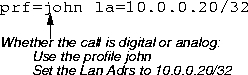
You can also have just one call type or the other. In the example that follows, the digital caller's settings are specified. The analog settings are not set explicitly. Consequently, the Default or Answer profile is applied to analog callers, depending on the setting of the Use Answer as Default parameter in the Answer profile:

Troubleshooting errors in user settings

If there is an error or unrecognized string in a user's shell setting, the authentication fails. If you have trouble determining what caused the failure, enter the MAX unit's debug mode and turn on a diagnostic display of the string interpretation by executing the command securiddebug, which is a toggle that turns the display on and off.

Verify that you have not exceeded the 64 character limit. If the final parameter is not complete, you have exceeded the limit. For security, this debug mode does not display the password string.

Because debug mode does not display the password string, you cannot tell directly from the debug output whether the rp parameter is being truncated. If you encounter problems with the second and subsequent channels of an MP call being automatically authenticated, the problem could be that the end of the rp parameter is being cut off.

Configuring PAP-TOKEN-CHAP when using direct ACE authentication

PAP-TOKEN-CHAP stores a static password in the user's shell setting on the ACE server and sends it back to the MAX when the user first connects. Except for this, PAP-TOKEN-CHAP configuration on the calling router is identical to configuring PAP-TOKEN-CHAP for any other type of token card authentication.

To set the static password to use during PAP-TOKEN-CHAP for a particular user:

  1. Run the sdadmin program on the ACE server machine.

  2. From the Client menu, select Edit.

  3. Select the MAX from the list of clients and click OK.

  4. Click User Activations.

  5. From the Directly Activated Users list, select the one using PAP-TOKEN-CHAP, then click Edit Activation Data.

  6. In the Activation Data window, delete any existing text in the Shell field, and replace it with:

    rp="password"

    where rp stands for Receive Password and password is the password to be configured in step 8 as the Aux Send PW on the calling router (usually a Pipeline).

    For example, if you type

    rp="Little Big"

    in the Shell field (with quotation marks), the password the user types is

    Little Big (without quotation marks).

    In this example, the quotes are delimiters for the password. Different delimiters are allowed so that the user can choose a password containing those delimiters, for example:

    rp='Quote"quote'

    which contains a double quote in the middle of the password.

    You can use any character you like for the delimiters in place of the double quotes except the vertical bar ( | ), which has a special meaning in the shell field. For example, the following entry would produce the same Receive Password setting as rp="Little Big":

    However, rp=[Little Big] is not identical and would an produce error, because the left bracket and right bracket are different characters.

  7. Press OK to clear the Activation Data dialog and Exit to clear the Edit Client dialog.

  8. Configure the calling router (usually a Pipeline) to use PAP-TOKEN-CHAP authentication, and set Aux Send PW in the Connection profile Encaps options to be identical to the string you entered in the ACE server as rp in step 6.

Assuming all other configuration is already done (configuring the answering MAX to use SecurID authentication, and configuring the calling router to use the APP Server, for example), you should now be able to bring up a multi-channel call, although it performs only a single token authentication.

Configuring direct Defender server authentication

This section describes how to configure the Defender as your MAX unit's external authentication server. When you configure the Defender as an external authentication server, any calls that are not authenticated by local Connection profiles are forwarded to the Defender server for authentication.

If you require your MAX to reach more than one authentication server, see the RADIUS Configuration Guide. Other software products, such as Ascend's Access Control, support multiple external authentication servers through the MAX.


Note: The Defender server does not provide per-user control, such as enforcing a maximum number of channels. It provides only per-user authentication. If you need both per-user control and authentication, you need RADIUS.

How Defender server authentication works

Table 5-2 show the three major stages in authentication using AssureNet Pathways' Defender. The behavior of the MAX depends on the stage of the call dialing the MAX is in when it loses the connection with the host.

Table 5-2. Token card authentication

Stage

Duration of stage

Authentication actions

1

Stage 1 usually occurs a short time after the caller has connected to the MAX and before the MAX has received the first prompt from the authentication host.

The Defender server provides the text of the prompts or challenges, and the MAX passes them through to the caller.

Calls in Stage 1 are preserved if an authentication host is unavailable or loses its connection.

This might be the case when the very first caller is authenticated with Defender after the router boots up, and the first authentication host is unavailable. The Defender authentication code in the router tries the second and third hosts to authenticate the user.

2

Stage 2 occurs during the time the caller is interacting with the authentication host, but before the authentication sequence is complete.

The Defender uses a challenge-response protocol, with a token card to provide the responses.

Calls in Stage 2 are never preserved if an authentication hosts loses its connection.

Defender has no mechanism for having one authentication server take over for another if the first loses connection in the middle of a state.

3

Stage 3 occurs when the caller has completed authentication and is interacting with the MAX normally (either asynchronously or framed).

Callers in Stage 3 are not dropped by the router because their calls are already authenticated. However, because the host on which they were authenticated is no longer available, their logout time is not sent (as would be the case if the host had remained connected).

Defender provides no mechanism to notify one authentication host when a user call that was authenticated by another host is terminated.

When no authentication host is available

If a MAX cannot establish contact with any of the authentication hosts in Ethernet > Mod Config > Auth > Auth Host n parameter, it drops all sessions, including calls in Stage 1.

If a caller who has been disconnected tries again to make a connection, the MAX begins the process again of connecting to authentication hosts in the list until it either succeeds or has tried every host in the list.

To configure a Defender server for direct authentication, proceed as follows:

  1. Open the Ethernet > Mod Config > Auth menu:

  2. Set Auth to Defender.

  3. Specify up to three authentication hosts for the Auth Host # parameters.

  4. Set the value of Auth Port to the TCP port number of the Defender authentication server (usually 2626).

  5. Set the value of Auth Key.

    Auth Key is used as a DES secret key shared between the Ascend unit and the Defender authentication server. This key is also used for authentication by the Ascend unit in its role as a Defender authentication agent.

  6. Set Auth Timeout to indicate the number of seconds the Ascend unit waits before assuming that the Defender server has become nonfunctional.

  7. Enter the port number for the source port for remote authentication requests.

    Type a port number from 0 to 65535. The default value is 0 (zero). If you accept this value, the Ascend unit can use any port number from 1024 to 2000.

    You can specify the same port for authentication and accounting requests.

  8. Normally, APP Server is set to No. APP Server only applies when the MAX makes outgoing calls to MAX units and other sites that use token card authentication. See the MAX Reference Guide for more information.

  9. If the MAX must make outgoing calls to other MAX units and to other sites using token-card authentication, you might need to set APP Servers. Normally APP Server is set to No. For more details, see the MAX Reference Guide.

  10. Save your changes.


[Top][Contents][Prev][Next][Last]Search

techpubs@ascend.com

Copyright © 1998, Ascend Communications, Inc. All rights reserved.



