![[Top]](../images/home.jpg)

![[Contents]](../images/contents.jpg)
![[Prev]](../images/previous.jpg)
![[Next]](../images/next.jpg)
![[Last]](../images/index.jpg)


Introduction to Ascend filters
Static filters are packet filters created by setting parameters in Ethernet > Filters menus.
A packet filter contains rules that specify what the MAX does when it encounters different types of packets. When you specify a packet filter in a RADIUS user profile, the MAX monitors the data stream associated with that profile and takes a specified action when packet contents match the filter rules. Each filter specification either forwards or drops packets. You can apply a filter to inbound packets, outbound packets, or both. In addition, you can specify that the MAX forward or drop those packets that match the rules, or all packets except those that match the rules.
How packet filters work
You can specify several filters in a RADIUS user profile. Filter entries apply on a first-match basis. Therefore, the order in which you specify filter entries is significant. When you define a filter in a RADIUS user profile, it applies to data the user sends or receives. If you make changes to a filter, the changes do not take effect until a call uses that profile.
For complete information about how filters work, see the filter configuration chapter in the MAX Network Configuration Guide.
You can also set up filters on the MAX or define firewalls in SecureConnect Manager (SCM), and then specify those filters or firewalls in a RADIUS user profile. When the connection is made the RADIUS user profile determines which filters are used for the connection. For more information, see the MAX RADIUS Configuration Guide, or your SCM documentation.
Data filters for dropping or forwarding certain packets
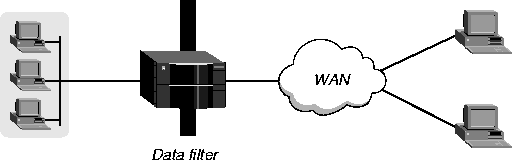
A data filter defines which packets the MAX can transmit over a connection. Many sites use data filters for security purposes, but you can apply data filters for any purpose that requires the MAX to drop or forward only specific packets. For example, you can use data filters to drop packets addressed to particular hosts or to prevent broadcasts from going across the WAN. You can also use data filters to restrict user access to include only specific devices across the WAN.
Figure 4-1. Data filters can drop or forward certain packets
Overview of filter profiles
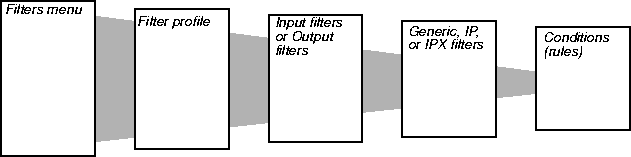
Figure 4-2 shows how filters are organized and the terminology used to describe each part of a filter.
Figure 4-2. Filter terminology
Filters menu
The Filters menu contains a list of numbered profiles. When applying a filter, you identify it by the unique portion of its Filter profile number (for example, 1, 2, 3...). The MAX applies all filter conditions within that profile. Filter profile
Each profile in the Filters menu defines a set of filters that are applied as a group. The term filter can apply to a filter profile or to one of the individual filters defined in the profile. Input and output filters
At the top level of a Filter profile are submenus labeled Input Filters and Output Filters. Each submenu contains a list of 12 filters. In each of the 24 filters, you can set parameters to specify conditions. The MAX first applies the Input Filters, in order from 1 to 12, then it applies the Output Filters, in order from 1 to 12. Generic, IP, or IPX filters
Each input filter or output filter can be a Generic filter, an IP filter, or an IPX filter. The type you specify determines which parameters are included in the filter. Filter conditions
Filter conditions specify the actual packet characteristics that the MAX examines in the data stream. Generic filter conditions specify locations and values that can appear in any packet. IP filter conditions specify IP-specific packet characteristics, such as address, mask, and port. IPX filter conditions specify IPX-specific packet characteristics, such as network address, node address, and socket number. Once you assign a type, you can open the corresponding submenu to define the packet-level filter conditions.
Filtering inbound and outbound packets
To set up a filter, first assign it a name. Within the filter, activate each individual filter that you want to apply and specify its type. Depending on the type you specify, define the Generic filter conditions, IP filter conditions, or IPX filter conditions. Once you have defined each individual (component) filter, you can apply the entire filter by specifying it in an Answer profile, Connections profile, or Ethernet profile.
Specifying and activating an input or output filter
To begin setting up filters for inbound and outbound packets, proceed as follows:
Name=IP Data
When you select Input Filters, the following menu appears:
50-401 IP DataYou can specify up to 12 input filters and 12 output filters in a Filter profile. The MAX applies these filters in the order in which they appear. A filter must be activated for the MAX to apply it. Input filters cause the MAX to examine incoming packets. Output filters cause the MAX to examine outgoing packets.
Input filters...
>In filter 01
In filter 02
In filter 03
In filter 04
In filter 05
In filter 06
In filter 07
In filter 08
In filter 09
In filter 10
In filter 11
In filter 12
If the MAX applies the filter as a data filter on Ethernet, it affects packets from the Ethernet into the MAX or from the MAX out to the Ethernet. If the MAX applies a data filter on a WAN interface defined in a Connection profile, the filter affects packets from that WAN interface into the MAX or from the MAX out to that interface.
If you define only input filters, the default action for output filters is to forward all packets. The same is true in the other direction. If you define only output filters, the default action for inbound packets is to forward them.
In filter or an Out filter to configure.
When you open an
In filter, a menu similar to the following appears:
50-401 IP DataWhen you open an
In filter 01
>Valid=Yes
Type=GENERIC
Generic...
IP...
IPX...
Out filter, the a menu similar to the following appears:
50-401 IP Data
  Out filter 01
  >Valid=Yes
    Type=GENERIC
    Generic...
    IP...
    IPX...
To be able to apply the filter, you must activate it.
To specify generic filter conditions, proceed as follows:
If you set Forward to Yes, the MAX forwards a packet that matches the filter definition. If you set Forward to No, the MAX drops a packet that matches the filter definition.
The Length parameter indicates the number of bytes in a packet. The Offset parameter specifies the starting position of the bytes the filter examines. The MAX ignores the portion of the packet that exceeds the Length specification. In other words, the Offset parameter hides the left-most bytes of data, while the Length parameter hides the right-most bytes of data.
If More is set to Yes, the MAX can examine multiple non-contiguous bytes within a packet by marrying the current filter to the next one.The match occurs only if both sets of
An IP filter can examine source address, destination address, and IP protocol type and port. Table 4-2 shows the filter conditions you can specify in an IP filter. The values shown are examples.
To specify IP filter conditions, proceed as follows:
If you set Forward to Yes, the MAX forwards a packet that matches the filter definition. If you set Forward to No, the MAX drops a packet that matches the filter definition.
Enter the address in dotted decimal format. The null address (0.0.0.0) is the default. If you accept the default, the MAX does not use the source address as a filtering criterion.
A mask hides the part of a number that appears behind each binary 0 (zero) in the mask. The MAX uses only the part of a number that appears behind binary 1s. The MAX applies the mask to the address by performing a logical AND after both mask and address have been translated into binary format.
Enter the address in dotted decimal format. The null address (0.0.0.0) is the default. If you accept the default, the MAX does not use the destination address as a filtering criterion.
The Src Port Cmp criterion determines how the MAX carries out the comparison.
The Dst Port Cmp criterion determines how the MAX carries out the comparison.
The Dst Port Cmp parameter works only for TCP and UDP packets. You must set Dst Port Cmp to None if the Protocol parameter is not set to 6 (TCP) or 17 (UDP).
No is the default.
An IPX filter can examine network address, node address, and socket number. Table 4-2 shows the filter conditions you can specify in an IPX filter. The values shown are examples.
To specify IPX filter conditions, perform any or all of the following:
If you set Forward to Yes, the MAX forwards a packet that matches the filter definition. When you set Forward to No, the MAX drops a packet that matches the filter definition.
Enter the address in hexadecimal format. The null address (000000000000) is the default. If you accept the default, the MAX does not use the source network address as a filtering criterion.
Enter the address in hexadecimal. The null address (000000000000) is the default. If you accept the default, the MAX does not use the destination network address as a filtering criterion.
Enter the address in hexadecimal. The null address (000000000000) is the default. If you accept the default, the MAX does not use the source node address as a filtering criterion.
Enter the address in hexadecimal format. The null address (000000000000) is the default. If you accept the default, the MAX does not use the destination node address as a filtering criterion.
If you set Data Filter to 0 (zero), the MAX forwards all data packets.
If you set Filter to 0 (zero), the MAX forwards all data packets.
Sample filters
This section provides a step-by-step examples of creating Filter profiles and defining IP filters for network security purposes. A sample IP filter to prevent address spoofing
IP address spoofing is a technique in which outside users pretend to be on the local network in order to obtain unauthorized access. This section shows how to define an IP data filter whose purpose is to prevent spoofing of local IP addresses. You can also use Password profiles to prevent IP address spoofing (for details, see Using Names/Passwords profiles to prevent IP address spoofing).
In this example, the filter first defines input filters that drop (inbound) packets whose source address is on the local IP network or is the loopback address (127.0.0.0). The third input filter defines every other source address (0.0.0.0) and specifies that inbound packets with those source addresses are forwarded.
  50-400 Filters
  50-401 IP Data
  50-402 NetWare Data
  50-403 AppleTalk Data
>50-404
  50-405
  50-406
  50-407
  50-408
  50-409
  50-410
  50-411
  50-412
Name=no spoofing
50-404
>Name=no spoofing
  Input filters...
  Output filters...
50-404
  In filter 01
  >Valid=Yes
    Type=IP
    Generic...
    IP...
Ip...
>Forward=NoThe Src Mask parameter specifies the local subnet mask, and the Src Adrs parameter specifies the local IP address. If an incoming packet has the local address, the MAX does not forward it onto the Ethernet.
Src Mask=255.255.255.192
Src Adrs=192.100.50.128
Dst Mask=0.0.0.0
Dst Adrs=0.0.0.0
Protocol=0
Src Port Cmp=None
Src Port #=N/A
Dst Port Cmp=None
Dst Port #=N/A
TCP Estab=N/A
Ip...These conditions specify the loopback address in the Src Mask and Src Adrs fields. If an incoming packet has this address, the MAX does not forward it onto the Ethernet.
>Forward=No
Src Mask=255.0.0.0
Src Adrs=127.0.0.0
Dst Mask=0.0.0.0
Dst Adrs=0.0.0.0
Protocol=0
Src Port Cmp=None
Src Port #=N/A
Dst Port Cmp=None
Dst Port #=N/A
TCP Estab=N/A
Ip...These conditions specify every other source address (0.0.0.0). If an incoming packet has any nonlocal source address, the MAX does not forward it onto the Ethernet.
>Forward=Yes
Src Mask=0.0.0.0
Src Adrs=0.0.0.0
Dst Mask=0.0.0.0
Dst Adrs=0.0.0.0
Protocol=0
Src Port Cmp=None
Src Port #=N/A
Dst Port Cmp=None
Dst Port #=N/A
TCP Estab=N/A
no spoofing Filter profile.
Ip...The Src Mask parameter specifies the local subnet mask, and the Src Adrs parameter specifies the local IP address. If an outgoing packet has a local source address, the MAX forwards it.
>Forward=Yes
Src Mask=255.255.255.192
Src Adrs=192.100.40.128
Dst Mask=0.0.0.0
Dst Adrs=0.0.0.0
Protocol=0
Src Port Cmp=None
Src Port #=N/A
Dst Port Cmp=None
Dst Port #=N/A
TCP Estab=N/A
In this example, the local network supports a Web server and the administrator needs to carry out the following tasks:
Each input filter is defined as described in the following sections.
In filter 01...Ip...Forward=Yes

In filter 01...Ip...Src Mask=0.0.0.0

In filter 01...Ip...Src Adrs=0.0.0.0

In filter 01...Ip...Dst Mask=255.255.255.255

In filter 01...Ip...Dst Adrs=192.9.250.5

In filter 01...Ip...Protocol=6

In filter 01...Ip...Src Port Cmp=None

In filter 01...Ip...Src Port #=N/A

In filter 01...Ip...Dst Port Cmp=Eql

In filter 01...Ip...Dst Port #=80

In filter 01.Ip...TCP Estab=No
In filter 02...Ip...Forward=Yes

In filter 02...Ip...Src Mask=0.0.0.0

In filter 02...Ip...Src Adrs=0.0.0.0

In filter 02...Ip...Dst Mask=0.0.0.0

In filter 02...Ip...Dst Adrs=0.0.0.0

In filter 02...Ip...Protocol=6

In filter 02...Ip...Src Port Cmp=None

In filter 02...Ip...Src Port #=N/A

In filter 02...Ip...Dst Port Cmp=Gtr

In filter 02...Ip...Dst Port #=1023

In filter 02...Ip...TCP Estab=No
In filter 03...Ip...Forward=Yes

In filter 03...Ip...Src Mask=0.0.0.0

In filter 03...Ip...Src Adrs=0.0.0.0

In filter 03...Ip...Dst Mask=0.0.0.0

In filter 03...Ip...Dst Adrs=0.0.0.0

In filter 03...Ip...Protocol=17

In filter 03...Ip...Src Port Cmp=None

In filter 03...Ip...Src Port #=N/A

In filter 03...Ip...Dst Port Cmp=Gtr

In filter 03...Ip...Dst Port #=1023

In filter 03.Ip...TCP Estab=No
In filter 04...Ip...Forward=Yes

In filter 04...Ip...Src Mask=0.0.0.0

In filter 04...Ip...Src Adrs=0.0.0.0

In filter 04...Ip...Dst Mask=0.0.0.0

In filter 04...Ip...Dst Adrs=0.0.0.0

In filter 04...Ip...Protocol=1

In filter 04...Ip...Src Port Cmp=None

In filter 04...Ip...Src Port #=N/A

In filter 04...Ip...Dst Port Cmp=None

In filter 04...Ip...Dst Port #=N/A

In filter 04.Ip...TCP Estab=No
Copyright © 1998, Ascend Communications, Inc. All rights reserved.