
User's Manual
|
| RabbitCore RCM4500W User's Manual |
 |
 |
 |
2. Getting Started
This chapter describes the RCM4510W hardware in more detail, and explains how to set up and use the accompanying Prototyping Board.
2.1 Install Dynamic C
To develop and debug programs for the RCM4510W modules (and for all other Rabbit hardware), you must install and use Dynamic C.
If you have not yet installed Dynamic C version 10.11 (or a later version), do so now by inserting the Dynamic C CD from the Development Kit in your PC's CD-ROM drive. If autorun is enabled, the CD installation will begin automatically.
If autorun is disabled or the installation does not start, use the Windows Start | Run menu or Windows Disk Explorer to launch
setup.exefrom the root folder of the CD-ROM.The installation program will guide you through the installation process. Most steps of the process are self-explanatory.
Dynamic C uses a COM (serial) port to communicate with the target development system. The installation allows you to choose the COM port that will be used. The default selection is COM1. You may select any available port for Dynamic C's use. If you are not certain which port is available, select COM1. This selection can be changed later within Dynamic C.
Once your installation is complete, you will have up to three new icons on your PC desktop. One icon is for Dynamic C, another opens the documentation menu, and the third is for the Rabbit Field Utility, a tool used to download precompiled software to a target system.
If you have purchased any of the optional Dynamic C modules, install them after installing Dynamic C. The modules may be installed in any order. You must install the modules in the same directory where Dynamic C was installed.
2.2 Hardware Connections
There are three steps to connecting the Prototyping Board for use with Dynamic C and the sample programs:
- Prepare the Prototyping Board for Development.
- Attach the RCM4510W module to the Prototyping Board.
- Connect the programming cable between the RCM4510W and the PC.
- Connect the power supply to the Prototyping Board.
2.2.1 Step 1 — Prepare the Prototyping Board for Development
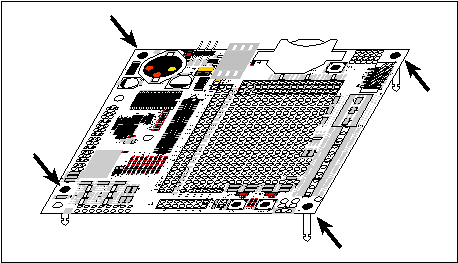
Snap in four of the plastic standoffs supplied in the bag of accessory parts from the Development Kit in the holes at the corners on the bottom side of the Prototyping Board as shown in Figure 3.
2.2.2 Step 2 — Attach Module to Prototyping Board
Turn the RCM4510W module so that the mounting holes line up with the corresponding holes on the Prototyping Board with the programming header at the top right. Insert the metal standoffs as shown in Figure 4, secure them from the bottom using the 4-40 screws and washers, then insert the module's header J1 on the bottom side into socket RCM1 on the Prototyping Board.
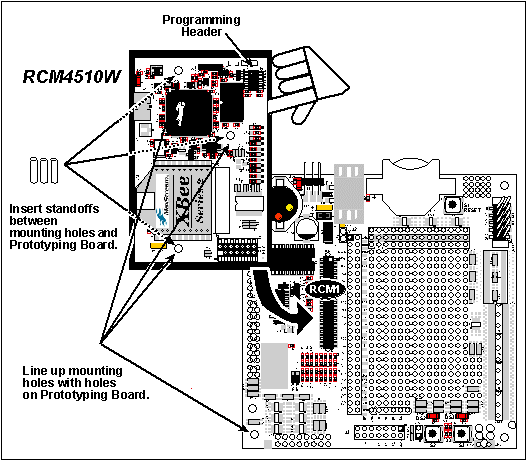
Press the module's pins gently into the Prototyping Board socket—press down in the area above the header pins. For additional integrity, you may secure the RCM4510W to the standoffs from the top using the remaining three 4-40 screws and washers.
NOTE If you are using the preview version of the RCM4510W, do not connect the programming cable to header J3 (shown below the programming header at right). Header J3 is used only by the factory. 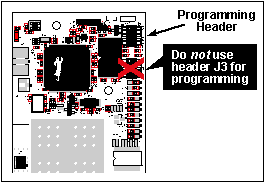
2.2.3 Step 3 — Connect Programming Cable
The programming cable connects the module to the PC running Dynamic C to download programs and to monitor the module during debugging.
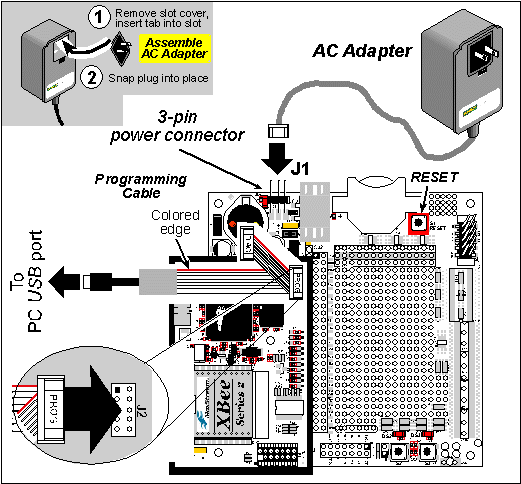
Connect the 10-pin connector of the programming cable labeled PROG to header J2 on the RCM4510W as shown in Figure 5. Be sure to orient the marked (usually red) edge of the cable towards pin 1 of the connector. (Do not use the DIAG connector, which is used for a standard serial connection.)
NOTE Never disconnect the programming cable by pulling on the ribbon cable. Carefully pull on the connector to remove it from the header. Connect the other end of the programming cable to an available USB port on your PC or workstation.
Your PC should recognize the new USB hardware, and the LEDs in the shrink-wrapped area of the USB programming cable will flash — if you get an error message, you will have to install USB drivers. Drivers for Windows XP are available in the Dynamic C
Drivers\Rabbit USB Programming Cable\WinXP_2Kfolder — double-clickDPInst.exeto install the USB drivers. Drivers for other operating systems are available online at www.ftdichip.com/Drivers/VCP.htm.2.2.4 Step 4 — Connect Power
Once all the other connections have been made, you can connect power to the Prototyping Board.
First, prepare the AC adapter for the country where it will be used by selecting the appropriate plug. The RCM4510W Development Kit presently includes Canada/Japan/U.S., Australia/N.Z., U.K., and European style plugs. Snap in the top of the plug assembly into the slot at the top of the AC adapter as shown in Figure 5, then press down on the spring-loaded clip below the plug assembly to allow the plug assembly to click into place. Release the clip to secure the plug assembly in the AC adapter.
Connect the AC adapter to 3-pin header J1 on the Prototyping Board as shown in Figure 5. The connector may be attached either way as long as it is not offset to one side—the center pin of J1 is always connected to the positive terminal, and either edge pin is ground.
Plug in the AC adapter. The PWR LED on the Prototyping Board next to the power connector at J1 should light up. The RCM4510W and the Prototyping Board are now ready to be used.
NOTE A RESET button is provided on the Prototyping Board next to the battery holder to allow a hardware reset without disconnecting power. To power down the Prototyping Board, unplug the power connector from J1. You should disconnect power before making any circuit adjustments in the prototyping area, changing any connections to the board, or removing the RCM4510W from the Prototyping Board.
2.3 Run a Sample Program
If you already have Dynamic C installed, you are now ready to test your programming connections by running a sample program. Start Dynamic C by double-clicking on the Dynamic C icon on your desktop or in your Start menu.
You may have to select the COM port assigned to the USB programming cable on your PC. In Dynamic C, select Options > Project Options, then select this COM port on the "Communications" tab. Then check "Use USB to Serial Converter" in "Serial Options." Click OK to save the settings.
Find the file PONG.C, which is in the Dynamic C SAMPLES folder. To run the program, open it with the File menu, then compile and run it by pressing F9. The STDIO window will open on your PC and will display a small square bouncing around in a box.
2.3.1 Troubleshooting
If you receive the message
Could Not Open Serial Port, check that the COM port assigned to the USB programming cable was identified and set up in Dynamic C as described in the preceding section.If you receive the message
No Rabbit Processor Detected, the programming cable may be connected to the wrong COM port, a connection may be faulty, or the target system may not be powered up. First, check to see that the power LED on the Prototyping Board is lit. If the LED is lit, check both ends of the programming cable to ensure that it is firmly plugged into the PC and the programming header on the RCM4510W with the marked (colored) edge of the programming cable towards pin 1 of the programming header. Ensure that the module is firmly and correctly installed in its connectors on the Prototyping Board.If Dynamic C appears to compile the BIOS successfully, but you then receive a communication error message when you compile and load a sample program, it is possible that your PC cannot handle the higher program-loading baud rate. Try changing the maximum download rate to a slower baud rate as follows.
- Locate the Serial Options dialog on the "Communications" tab in the Dynamic C Options > Project Options menu. Select a slower Max download baud rate.
If a program compiles and loads, but then loses target communication before you can begin debugging, it is possible that your PC cannot handle the default debugging baud rate. Try lowering the debugging baud rate as follows.
- Locate the Serial Options dialog on the "Communications" tab in the Dynamic C Options > Project Options menu. Choose a lower debug baud rate.
Press <Ctrl-Y> to force Dynamic C to recompile the BIOS. You should receive a
Bios compiled successfullymessage once this step is completed successfully.2.3.2 Run a ZigBee Sample Program
This section explains how to run a sample program in which the RCM4510W is used in its default setup as a router and the Digi® XBee USB is used as the ZigBee coordinator.
- Connect the Digi® XBee USB acting as a ZigBee coordinator to an available USB port on your PC or workstation. Your PC should recognize the new USB hardware.
- Find the file
AT_INTERACTIVE.C, which is in the Dynamic CSAMPLES\XBeefolder. To run the program, open it with the File menu, then compile and run it by pressing F9. The Dynamic C STDIO window will open to display a list of AT commands. TypeMENUto redisplay the menu of commands.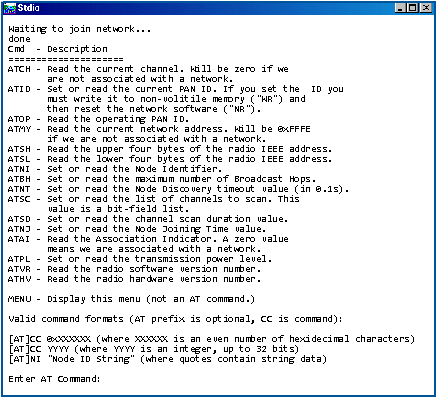
Appendix D provides additional configuration information if you experience conflicts while doing development simultaneously with more than one ZigBee coordinator, or if you wish to install new firmware. Different firmware must be installed to use the RCM4510W as either a coordinator or as an end device.
2.4 Where Do I Go From Here?
If the sample program ran fine, you are now ready to go on to the sample programs in Chapter 3 and to develop your own applications. The sample programs can be easily modified for your own use. The user's manual also provides complete hardware reference information and software function calls for the RCM4510W series of modules and the Prototyping Board.
For advanced development topics, refer to the Dynamic C User's Manual, also in the online documentation set. An Introduction to ZigBee provides background information on the ZigBee protocol, and is available on the CD and on our Web site.
2.4.1 Technical Support
NOTE If you purchased your RCM4510W through a distributor or through a Rabbit partner, contact the distributor or partner first for technical support. If there are any problems at this point:
- Use the Dynamic C Help menu to get further assistance with Dynamic C.
- Check the Rabbit Technical Bulletin Board and forums at www.rabbit.com/support/bb/ and at www.rabbitcom/forums/.
- Use the Technical Support e-mail form at www.rabbit.com/support/.
| Rabbit—A Digi International Brand www.rabbit.com |
| |
|
|