
![[Top]](../images/home.jpg)
![[Contents]](../images/contents.jpg)
![[Prev]](../images/previous.jpg)
![[Next]](../images/next.jpg)
![[Last]](../images/index.jpg)


Configuring IP Routing
Introduction to IP routing and interfaces
The first task in this chapter, setting up the IP network, involves setting parameters in the MAX unit's Ethernet profile. The parameters define the unit's Ethernet IP interface, network services (such as DNS), and routing policies.
In the next task, configuring IP routing connections, you configure Connection profiles (or similar profiles in an external authentication server) to define destinations across WAN interfaces and to add routes to the routing table.
For configuring IP routes and preferences and configuring the MAX for dynamic route updates, you configure the IP profile and individual Connection profiles to set up the IP routing table, which determines the paths over which IP packets are forwarded and specifies the connections to be brought up.
To perform the tasks described in this chapter, you have to understand how the MAX uses IP addresses and subnet masks, IP routes, and IP interfaces.
IP addresses and subnet masks
In the MAX, you specify IP addresses in dotted decimal format (not hexadecimal). If you specify no subnet mask, the MAX assumes that the address contains the default number of network bits for its class. In other words, in Table 7-1 shows the classes and the default number of network bits for each class corresponds to the default subnet mask for that class.
For example, a class C address, such as 198.5.248.40, has 24 network bits, so its default mask is 24. The 24 network bits leave 8 bits for the host portion of the address. So one class C network supports up to 253 hosts.
Figure 7-1. Default mask for class C IP address

As shown in Figure 7-1, a mask has a binary 1 in each masked position. Therefore, the default, 24-bit, subnet mask for a class C address can be represented in dotted decimal notation as 255.255.255.0. For specifying a different subnet mask, the MAX supports a modifier consisting of a slash followed by a decimal number that represents the number of network bits in the address. For example, 198.5.248.40/29 is equivalent to:
IP address = 198.5.248.40
Mask = 255.255.255.248
That is, the mask specification indicates that the first 29 bits of the address specify the network. This is a 29-bit subnet. The three remaining bits specify unique hosts, as shown in Figure 7-2.
Figure 7-2. A 29-bit subnet mask and the number of supported hosts
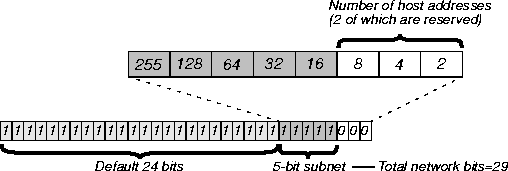
In Figure 7-2, three available bits present eight possible bit combinations. Of the eight possible host addresses, two are reserved, as follows:
000 - Reserved for the network (base address)
001
010
011
100
101
110
111-Reserved for the broadcast address of the subnet
Zero subnets
Early implementations of TCP/IP did not allow zero subnets. That is, subnets could not have the same base address that a class A, B, or C network would have. For example, the subnet 192.168.8.0/30 was illegal because it had the same base address as the class C network 192.168.8.0/24, while 192.168.8.4/30 was legal. The first example (192.168.8.0/30 is called a zero subnet, because like a class C base address, its last octet is zero). Modern implementations of TCP/IP enable subnets to have base addresses that can be identical to the class A, B, or C base addresses. Ascend's implementations of RIP 2 and OSPF treat these so-called zero subnetworks the same as any other network. You should decide whether or not to support and configure zero subnetworks for your environment. If you configure them in some cases and treat them as unsupported in other cases, you encounter routing problems.
Table 7-2 shows how the standard subnet address format relates to Ascend notation for a class C network number.
The broadcast address of any subnet has the host portion of the IP address set to all ones. The network address (or base address) represents the network itself, with the host portion of the IP address set to all zeros. Therefore, these two addresses define the address range of the subnet. For example, if the MAX configuration assigns the following address to a remote router:
IP address = 198.5.248.120
Mask = 255.255.255.248
the Ethernet attached to that router has the following address range:
198.5.248.120 - 198.5.248.127
A host route is a special case IP address with a subnet mask of 32 bits. It has a subnet mask of 255.255.255.255 (32 bits).
IP routes
At system startup, the MAX builds an IP routing table that contains configured routes. When the system is up, it can use routing protocols such as RIP or OSPF to learn additional routes dynamically. In each routing table entry, the Destination field specifies a destination network address that can appear in IP packets, and the Gateway field specifies the address of the next-hop router to reach that destination. Each entry also has a preference value and a metric value, which the MAX evaluates when comparing multiple routes to the same destination.
How the MAX uses the routing table
The MAX relies on the routing table to forward IP packets, as follows:
- If the MAX finds a routing table entry whose Destination field matches a packet's destination address, it routes the packet to the specified next-hop router, whether through its WAN interface or through its Ethernet interface.
- If the MAX does not find a matching entry, it looks for the Default route, which is identified in the routing table by a destination of 0.0.0.0. If that route has a specified next-hop router, the MAX forwards the packet to that router.
- If the MAX does not find a matching entry and does not have a valid Default route, it drops the packet.
Static routes
A static route is a manually configured path from one network to another. It specifies the destination network and the gateway (router) to use to get to that network. If a path to a destination must be reliable, the administrator often configures more than one static route to the destination. In that case, the MAX chooses the route on the basis of metrics and availability. Each static route has its own Static Rtes profile.
The Ethernet > Mod Config profile specifies a static connected route, which states, in effect, "to reach system X, send packets out this interface to system X." Connected routes are low- cost, because no remote connection is involved.
Each IP-routing Connection profile specifies a static route that states, in effect, "to reach system X, send packets out this interface to system Y," where system Y is another router.
Dynamic routes
A dynamic route is a path, to another network, that is learned from another IP router rather than configured in one of the MAX unit's local profiles. A router that uses RIP broadcasts its entire routing table every 30 seconds, updating other routers about the usability of particular routes. Hosts that run ICMP can also send ICMP Redirects to offer a better path to a destination network. OSPF routers propagate link-state changes as they occur. Routing protocols such as RIP and OSPF all use some mechanism to propagate routing information and changes through the routing environment.
Route preferences and metrics
The MAX supports route preferences, because different protocols have different criteria for assigning route metrics. For example, RIP is a distance-vector protocol, which uses a virtual hop count to select the shortest route to a destination network. OSPF is a link-state protocol, which means that OSPF can take into account a variety of link conditions, such as the reliability or speed of the link, when determining the best path to a destination network.
When choosing a route to put into the routing table, the router first compares preference values, preferring the lowest number. If the preference values are equal, the router compares the metric fields and uses the route with the lowest metric. Following are the preference values for the various types of routes:
Note: You can configure the DownMetric and DownPreference parameters to assign different
metrics and preferences, respectively, to routes on the basis of whether the routes are in use or
are down. You can direct the MAX to use active routes, if available, rather than routes that are
down.
MAX IP interfaces
The MAX supports routing on Ethernet and WAN interfaces. It can function as either a system- or interface-based router. Interface-based routing uses numbered IP interfaces.
Ethernet interfaces
The following example shows the routing table for a MAX configured to enable IP routing:
** Ascend MAX Terminal Server **
ascend% iproute show
Destination                Gateway      IF              Flg      Pref      Met          Use          Age

10.10.0.0/16              -                  ie0      C        0          0       3     222

10.10.10.2/32            -                  local    CP       0          0       0     222

127.0.0.0/8                -                  bh0      CP       0          0       0     222

127.0.0.1/32              -                  local    CP       0          0       0     222

127.0.0.2/32              -                  rj0      CP       0          0       0     222

224.0.0.0/4                -                  mcast    CP       0          0       0     222

224.0.0.1/32              -                  local    CP       0          0       0     222

224.0.0.2/32              -                  local    CP       0          0       0     222

224.0.0.5/32              -                  local    CP       0          0       0     222

224.0.0.6/32              -                  local    CP       0          0       0     222

224.0.0.9/32              -                  local    CP       0          0       0     222

255.255.255.255/32  -                  ie0           CP             0          0             0          222
In this example, the Ethernet interface has the IP address 10.10.10.2 (with a subnet mask of 255.255.0.0). No Connection profiles or static routes are configured. At startup, the MAX creates the following interfaces:
WAN IP interfaces
The MAX creates WAN interfaces as they are brought up. WAN interfaces are labeled wanN, where N is a number assigned in the order in which the interfaces become active. The WAN IP address can be a local address assigned dynamically when the caller logs in, an address on a subnet of the local network, or a unique IP network address for a remote device.
Numbered interfaces
The MAX can operate as both a system-based and an interface-based router. Interface-based routing uses numbered interfaces. Some routers or applications require numbered interfaces. Also, some sites use them for trouble-shooting leased point-to-point connections and forcing routing decisions between two links going to the same final destination. More generally, interface-based routing enables the MAX to operate in much the same way as a multihomed Internet host.
Figure 7-3 shows an example of an interface-based routing connection.
Figure 7-3. Interface-based routing example
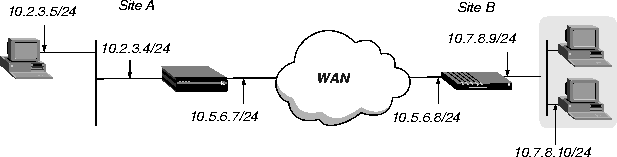
At Site A, The MAX assigns IP addresses 10.5.6.7 and 10.5.6.8 to the WAN interfaces. The MAX route and uses these interface addresses to route packets to the remote network 10.7.8.0.
With system-based routing, the MAX does not assign interface addresses. It routes packets to the remote network through the WAN interface it created when the connection was brought up.
Interface-based routing requires that, in addition to the systemwide IP configuration, the MAX and the far end of the link have link-specific IP addresses, for which you specify the following parameters:
- Connections > IP Options > IF Adrs (the link-specific address for the MAX)
- Connections > IP Options > WAN Alias (the far end link-specific address)
Or, you can omit the remote side's system-based IP address from the Connection profile and use interface-based routing exclusively. This is an appropriate mechanism if, for example, the remote system is on a backbone net that can be periodically reconfigured by its administrators, and you want to refer to the remote system only by its mutually agreed-upon interface address. In this case, the following parameters specify the link-specific IP addresses:
- Connections > IP Options > IF Adrs (the near-end numbered interface)
- Connections > IP Options > LAN Adrs (the far-end numbered interface)
Note that the IP Adrs parameter, so if the only known address is the interface address, you must place it in the IP Adrs parameter rather than the WAN Alias parameter. In this case, the MAX creates a host route to the interface address (IP Adrs) and a net route to the subnet of the remote interface, and incoming calls must report their IP Addresses as the value of the IP Adrs parameter.
It is also possible, although not recommended, to specify the local numbered interface (Interface Address) and use the far end device's systemwide IP address (IP Adrs). In this case, the remote interface must have an address on the same subnet as the local, numbered interface.
If a MAX uses a numbered interface, note the following differences and similarities in operation as compared to unnumbered (system-based) routing:
- IP packets generated in the MAX and sent to the remote address have an IP source address corresponding to the numbered interface, not the systemwide (Ethernet) address.
- The MAX adds all numbered interfaces to its routing table as host routes.
- The MAX accepts IP packets addressed to a numbered interface, considering them to be destined for the MAX itself. (The packet can actually arrive over any interface, and the numbered interface corresponding to the packet's destination address need not be active.)
Configuring the local IP network setup
The Ethernet profile consists of system-global parameters that affect all IP interfaces in the MAX. Following are the related parameters (shown with sample settings):
Ethernet
      Mod Config
            Ether options
                  IP Adrs=10.2.3.1/24
                  2nd Adrs=0.0.0.0/0
                  RIP=Off
                  Ignore Def Rt=Yes
                  Proxy Mode=Off
            WAN options...
                  Pool#1 start=100.1.2.3
                  Pool#1 count=128
                  Pool#1 name=Engineering Dept.
                  Pool#2 start=0.0.0.0
                  Pool#2 count=0
                  Pool#2 name=
                  Pool#3 start=10.2.3.4
                  Pool#3 count=254
                  Pool#3 name=Marketing Dept.
                  Pool#4 start=0.0.0.0
                  Pool#4 count=0
                  Pool#4 name=
                  Pool#5 start=0.0.0.0
                  Pool#5 count=0
                  Pool#5 name=
                  Pool#6 start=0.0.0.0
                  Pool#6 count=0
                  Pool#6 name=
                  Pool#7 start=0.0.0.0
                  Pool#7 count=0
                  Pool#7 name=
                  Pool#8 start=0.0.0.0
                  Pool#8 count=0
                  Pool#8 name=
                  Pool#9 start=0.0.0.0
                  Pool#9 count=0
                  Pool#9 name=
                  Pool#A start=0.0.0.0
                  Pool#A count=0
                  Pool#A name=
                  Pool only=No
                  Pool Summary=No
            Shared Prof=No
            Telnet PW=Ascend
            BOOTP Relay...
                  BOOTP Relay Enable=No
                  Server=N/A
                  Server=N/A
            DNS...
                  Domain Name=abc.com
                  Sec Domain Name=
                  Pri DNS=10.65.212.10
                  Sec DNS=12.20 7.23.51
                  Allow As Client DNS=Yes
                  Pri WINS=0.0.0.0
                  Sec WINS=0.0.0.0
                  List Attempt=No
                  List Size=N/A
                  Client Pri DNS=0.0.0.0
                  Client Sec DNS=0.0.0.0
            SNTP Server...
                  SNTP Enabled=Yes
                  Time zone-UTC+0000
                  SNTP host#1=0.0.0.0
                  SNTP host#2=0.0.0.0
                  SNTP host#3=0.0.0.0
            UDP Cksum=No
            Adv Dialout Routes=Always
Understanding the IP network parameters
This section provides some background information about the IP network configuration. For detailed information about each parameter, see the MAX Reference Guide.
Primary IP address for each Ethernet interface
The IP Adrs parameter specifies the MAX unit's IP address for each local Ethernet interface. When specifying the IP addresses for a MAX Ethernet interface, you must specify the subnet mask. IP address and subnet mask are required settings for the MAX to operate as an IP router.
Second IP address for each Ethernet interface
The MAX can assign two unique IP addresses to each physical Ethernet port and route between them. This feature, referred to as dual IP, can give the MAX a logical interface on each of two networks or subnets on the same backbone.
Usually, devices connected to the same physical wire all belong to the same IP network. With dual IP, a single wire can support two separate IP networks, with devices on the wire assigned to one network or the other and communicating by routing through the MAX.
Dual IP is also used to distribute the routing of traffic to a large subnet, by assigning IP addresses on that subnet to two or more routers on the backbone. When a router has a direct connection to the subnet as well as to the backbone network, it routes packets to the subnet and includes the route in its routing table updates.
Dual IP also enables you to make a smooth transition when changing IP addresses. That is, a second IP address can act as a placeholder while you are making the transition in other network equipment.
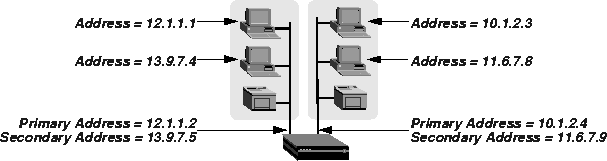
Figure 7-4 shows two IP addresses assigned to each of the MAX unit's Ethernet interfaces. 10.1.2.4 and 11.6.7.9 are assigned to one interface, and 1. 12.1.1.2 and 13.9.7.5 are assigned to the other. In this example, the MAX routes between all displayed networks. For example, the host assigned 12.1.1.1 can communicate with the host assigned 13.9.7.4, the host assigned 10.1.2.3 and the host assigned 11.6.7.8. The host assigned 12.1.1.1 and the host assigned 13.9.7.4 share a physical cable segment, but cannot communicate unless the MAX routes between the 12.0.0.0 network and the 13.0.0.0 network.
Figure 7-4. Sample dual IP network
Enabling RIP on the Ethernet interface
You can configure each IP interface to send RIP updates (inform other local routers of its routes), receive RIP updates (learn about networks that can be reached through other routers on the Ethernet), or both.
Note: Ascend recommends that you run RIP version 2 (RIP-v2) if possible. You should not
run RIP-v2 and RIP-v1 on the same network in such a way that the routers receive each other's
advertisements. RIP-v1 does not propagate subnet mask information, and the default-class
network mask is assumed, while RIP-v2 handles subnet masks explicitly. Running the two
versions on the same network can result in RIP-v1 class subnet mask assumptions overriding
accurate subnet information obtained via RIP-v2.
Ignoring the default route
You can configure the MAX to ignore default routes advertised by routing protocols. This configuration is recommended, because you typically do not want the default route changed by a RIP update. The default route specifies a static route to another IP router, which is often a local router such as an Ascend GRF400 or other kind of LAN router. When you configure the MAX to ignore the default route, RIP updates do not modify the default route in the MAX routing table.
Proxy ARP and inverse ARP
You can configure the MAX to respond to an ARP request with its own MAC address. Typically, you enable Proxy ARP when the MAX supplies IP addresses dynamically to dial-in users and both of the following conditions exist:
- The MAX-supplied IP addresses are in the same local subnet as the MAX.
- Hosts on the local subnet must send packets to the dial-in clients.
Normally, you should not need to enable Proxy ARP, because most routing protocols (including those used over the Internet) are designed to propagate subnet mask information.
The MAX also supports Inverse Address Resolution Protocol (Inverse ARP). Inverse ARP enables the MAX to resolve the protocol address of another device when the hardware address is known. The MAX does not issue any Inverse ARP requests, but it does respond to Inverse ARP requests that have the protocol type of IP (8000 hexadecimal), or in which the hardware address type is the two-byte Q.922 address (Frame Relay). All other types are discarded. The Inverse ARP response packet sent by the MAX includes the following information:
- ARP source-protocol address (the MAX unit's IP address on Ethernet)
- ARP source-hardware address (the Q.922 address of the local DLCI)
(For the details about Inverse ARP, see RFCs 1293 and 1490.)
Specifying address pools
You can define up to ten address pools in the Ethernet profile, with each pool supporting up to 254 addresses. The Pool#N Start parameter specifies the first address in a block of contiguous addresses on the local network or subnet. The Pool#N Count parameter specifies how many addresses are in the pool (up to 254). Addresses in a pool do not accept a submask, because they are advertised as host routes. If you allocate IP addresses on a separate IP network or subnet, make sure you inform other IP routers about the route to that network or subnet, either by statically configuring those routes or configuring the MAX to dynamically send updates.
Forcing callers configured for a pool address to accept dynamic assignment
During PPP negotiation, a caller can reject the IP address offered by the MAX and present its own IP address for consideration. Connection profiles compare IP addresses as part of authentication, so the MAX would automatically reject such a request if the caller has a Connection profile. However, Name-Password profiles have no such authentication mechanism, and could potentially enable a caller to spoof a local address. The Pool Only parameter can instruct the MAX to hang up if a caller rejects the dynamic assignment.
Summarizing host routes in routing table advertisements
IP addresses assigned dynamically from a pool are added to the routing table as individual host routes. You can summarize this network (the entire pool), cutting down significantly on route flappage and the size of routing table advertisements.
The Pool Summary setting enables or disables route summarization, which summarizes a series of host routes into a network route advertisement. The MAX routes packets destined for a valid host address on the summarized network to the host, and the MAX rejects packets destined for an invalid host address with an ICMP host unreachable message.
To use the pool summary feature, create a network-aligned pool and set the Pool Summary parameter to Yes. To be network-aligned, the Pool #N Start address must be the first host address. Subtract one from the Pool #N Start address to determine the network address (the zero address on the subnet). Since the first and last address of a subnet are reserved, you must set Pool #N Count to a value that is two less than a power of two. For example, you can use values 2, 6, 14, 30, 62, 126 or 254. The subnet mask includes a value that is two greater than Pool #N Count. For example, with the following configuration:
Pool Summary=Yes
Pool#1 Start=10.12.253.1
Pool#1 Count=126
the network alignment address is (Pool Start #1 -1 ) 10.12.253.0 and the subnet mask is (Pool #1 Count +2 addresses) 255.255.255.128. The resulting address-pool network is:
10.12.253.0/25
For a sample configuration that shows route summarization, see Configuring DNS.
Sharing Connection profiles
The Shared Prof parameter specifies whether the MAX allows more than one incoming call to share the same Connection profile. This feature relates to IP routing because the sharing of profiles must result in two IP addresses reached through the same profile.
In low-security situations, more than one dial-in user can share a name and password for accessing the local network. This would require sharing a single Connection profile that specifies bridging only, or dynamic IP address assignment. Each call would be a separate connection. The name and password would be shared, and a separate IP address would be assigned dynamically to each caller.
If a shared profile uses an IP address, it must be assigned dynamically, because multiple hosts cannot share a single IP address.
Suppressing host route advertisements
The MAX creates host routes for Dial-in sessions and advertises them back to the backbone. Dial-in sessions can cause excessive routing updates and, consequently, network delays. You can set the Suppress Hosts Routes parameter to reduce the routing updates caused by dial-in sessions.
Telnet password
The Telnet password is required from all users attempting to access the MAX unit by Telnet. Users are allowed three tries to enter the correct password. If all three are unsuccessful, the connection attempt fails.
BOOTP Relay
By default, a MAX does not relay Bootstrap Protocol (BOOTP) requests to other networks. It can do so if you set Boot Relay Enable to Yes, but you must disable SLIP BOOTP in Ethernet > Mod Config > TServ Options. SLIP BOOTP makes it possible for a computer connecting to the MAX over a SLIP connection to use the Bootstrap Protocol. A MAX supports BOOTP on only one connection. If you enable both SLIP BOOTP and BOOTP relay, you receive an error message.
You can specify the IP address of one or two BOOTP servers but you are not required to specify a second BOOTP server.
If you specify two BOOTP servers, the MAX that relays the BOOTP request determines when to use each server. The order of the BOOTP servers in the BOOTP Relay menu does not necessarily determine which server the MAX tries first.
Local domain name
Use the Domain Name for DNS lookups. When you give the MAX a hostname to look up, it tries various combinations, including the appending of the configured domain name to the hostname. The secondary domain name (Sec Domain Name) can specify another domain that the MAX can search. The MAX searches the secondary domain only after the domain specified by the Domain Name parameter.
DNS or WINS name servers
When the MAX is informed about DNS (or WINS), Telnet and Rlogin users can specify hostnames instead of IP addresses. If you configure a primary and secondary name server, the secondary server is accessed only if the primary one is inaccessible.
DNS lists
DNS can return multiple addresses for a hostname in response to a DNS query, but it does not include information about availability of those hosts. Users typically attempt to access the first address in the list. If that host is unavailable, the user must try the next host, and so forth. However, if the access attempt occurs automatically as part of immediate services, the physical connection is torn down when the initial connection fails. To avoid tearing down physical links when a host is unavailable, you can set the List Attempt parameter to Yes. The List Size parameter specifies the maximum number of hosts listed (up to 35).
Client DNS
Client DNS configurations define DNS server addresses that will be presented to WAN connections during IPCP negotiation. They provide a way to protect your local DNS information from WAN users. Client DNS has two levels: a global configuration that applies to all PPP connections (defined in the Ethernet profile), and a connection-specific configuration that applies only to the WAN connection defined in the Connection profile. The global client addresses are used only if none are specified in the Connection profile.
SNTP service
The MAX can use Simple Network Time Protocol (SNTP)-RFC 1305) to set and maintain its system time by communicating with an SNTP server. SNTP must be enabled for the MAX to use it to communicate with the server. In addition, you must specify your time zone as an offset from Universal Time Coordinated (UTC). UTC is the same as Greenwich Mean Time (GMT). Specify the offset in hours, using a 24-hour clock. Because some time zones, such as Newfoundland, do not have an even hour boundary, the offset includes four digits and is stated in half-hour increments. For example, in Newfoundland the time is 1.5 hours behind UTC and is represented as follows:
UTC -0130
For San Francisco, which is 8 hours behind UTC, the time would be:
UTC -0800
For Frankfurt, which is 1 hour ahead of UTC, the time would be:
UTC +0100
Specifying SNTP server addresses
The Host parameter lets you specify up to three server addresses. The MAX polls the configured SNTP server at 50-second intervals. The MAX sends SNTP requests to the first address. It sends requests to the second only if the first is inaccessible, and to the third only if the second is inaccessible.
UDP checksums
If data integrity is of the highest concern for your network, and having redundant checks is important, you can turn on UDP checksums to generate a checksum whenever a UDP packet is transmitted. UDP packets are transmitted for queries and responses related to ATMP, SYSLOG, DNS, ECHOSERV, RADIUS, TACACS, RIP, SNTP, and TFTP.
Setting UDP checksums to Yes could cause a slight decrease in performance, but in most environments the decrease is not noticeable.
Poisoning dialout routes in a redundant configuration
If you have another Ascend unit backing up the MAX in a redundant configuration on the same network, you can set the Adv Dialout Routes parameter to instruct the MAX to stop advertising IP routes that use dial services if its trunks experience an alarm condition. Unless you specify otherwise, the MAX continues to advertise its dialout routes, which prevents the redundant unit from taking over the routing responsibility.
Examples of IP network configuration
This section shows some examples of Ethernet profile IP configuration. One of the examples, Configuring DNS shows an Ethernet profile, Route profile, and Connection profile configuration that work together.
Configuring the MAX IP interface on a subnet
On a large corporate backbone, many sites configure subnets to increase the network address space, segment a complex network, and control routing in the local environment. For example, Figure 7-5 shows the main backbone IP network (10.0.0.0) supporting an Ascend GRF router (10.0.0.17).
Figure 7-5. Creating a subnet for the MAX
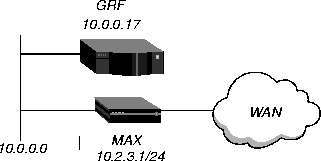
You can place the MAX on a subnet of that network by entering a subnet mask in its IP address specification. For example:
- Open Ethernet > Mod Config > Ether Options.
- Specify the IP subnet address for the MAX on Ethernet. For example:
Ethernet
      Mod Config
            Ether options
                  IP Adrs=10.2.3.1/24
- Configure the MAX to receive RIP updates from the local GRF router:
RIP=Recv=v2
- Close the Ethernet profile.
With this subnet address, the MAX requires a static route to the backbone router on the main network. Otherwise, it can only communicate with devices on the subnets to which it is directly connected. To create the static route and make the backbone router the default route:
- Open the Default IP Route profile.
- Specify the IP address of a backbone router in the Gateway parameter. For example:
Ethernet
      Static Rtes
            Name=Default
            Active=Yes
            Dest=0.0.0.0/0
            Gateway=10.0.0.17
            Preference=100
            Metric=1
            DownPreference=140
            DownMetric=7
            Private=Yes
- Close the Default IP Route profile.
For more information about IP Route profiles, see Configuring IP routes and preferences. To verify that the MAX is up on the local network, invoke the terminal-server interface and Ping a local IP address or hostname. For example:
ascend% ping 10.1.2.3
You can terminate the Ping exchange at any time by pressing Ctrl-C.
Configuring DNS
The DNS configuration enables the MAX to use local DNS or WINS servers for lookups. In this example of a DNS configuration, client DNS is not in use. Note that you can protect your DNS servers from callers by defining connection-specific (client) DNS servers and specifying that Connection profiles use those client servers. To configure the local DNS service:
- Open Ethernet > Mod Config > DNS.
- Specify the local domain name.
- If appropriate, specify a secondary domain name.
- Specify the IP addresses of a primary and secondary DNS server, and turn on the DNS list attempt feature:
Ethernet
      Mod Config
            DNS...
                  Domain Name=abc.com
                  Sec Domain Name=
                  Pri DNS=10.65.212.10
                  Sec DNS=12.20 7.23.51
                  Allow As Client DNS=Yes
                  Pri WINS=0.0.0.0
                  Sec WINS=0.0.0.0
                  List Attempt=Yes
                  List Size=35
                  Client Pri DNS=0.0.0.0
                  Client Sec DNS=0.0.0.0
                  Enable Local DNS Table=No
                  Loc.DNSTab Auto Update=No
- Close the Ethernet profile.
You can create a local DNS table to provide a list of IP addresses for a specific hostname when the remote DNS server fails to resolve the host name. If the local DNS table contains the host name for the attempted connection, it provides the list of IP addresses.
You create the DNS table from the terminal server by entering the hostnames and their IP addresses. A table can contain up to eight entries, with a maximum of 35 IP addresses for each entry. If you specify automatic updating, you only have to enter the first IP address of each host. Any others are added automatically.
Automatic updating replaces the existing address list for a host each time the remote DNS server succeeds in resolving a connection to a host that is in the table. You specify how many of the addresses returned by the remote server can be included in the new list.
On the MAX, the table provides additional information for each table entry. The information is in the following two fields, which the MAX updates when the system matches the table entry with a hostname not found by the remote server:
- # Reads- The number of reads since the MAX created the entry. The MAX updates this field each time it finds a local name query match in the local DNS table.
- Time of Last Read
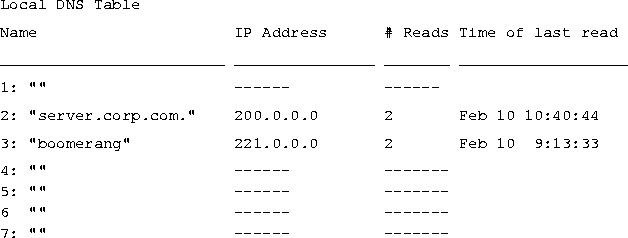
You can check the list of hostnames and IP addresses in the table by entering the terminal-server command Show DNStab. Figure 7-6 shows an example of a DNS table on a MAX. Other terminal-server commands show individual entries, with a list of IP addresses for the entry.
Figure 7-6. Local DNS table example
Additional terminal-server commands
The terminal-server interface includes Show and DNStab commands have been added to help you view, edit, or and add entries to the DNS table.
Show commands
Show ? displays a list that includes DNStab help.
Show dnstab displays the local DNS table.
Show dnstab ? displays help for the DNStab editor.
Show dnstab entry displays the local DNS table entry (all IP addresses in the list)
DNStab commands
The terminal server DNStab command has the following variations:
Configuring the local DNS table
To enable and configure the local DNS table:
- Display Ethernet > Mod Config > DNS menu.
- Select a setting for the List Attempt parameter.
- Specify the list size by setting the List Size parameter.
- Select Enable Local DNS Table=Yes.
The default is No.
- Select a setting for the Loc.DNS Tab Auto Update parameter.
Criteria for valid names in the local DNS table
Each name in the local DNS table:
- Must be unique in the table.
- Must start with an alphabetic character, which can be either uppercase or lowercase.
- Must be less than 256 characters
- Can be a local name or a fully qualified name that includes the domain name.
Periods at the ends of names are ignored.
Entering IP addresses in the local DNS table
To enter IP addresses in a local DNS table, you use the DNS table editor from the terminal server. While the editor is in use, the system cannot look up addresses in the table or perform automatic updates. A table entry is one of the eight table indexes. It includes the hostname, IP address (or addresses), and information fields. To place the initial entries in the table:
- At the terminal-server interface, type dnstab edit.
Before you make any entries, the table is empty. The editor initially displays zeros for each of the eight entries in the table. To exit the table editor without making an entry, press Enter.
- Type an entry number and press Enter.
A warning appears if you type an invalid entry number. If the entry exists, the current name for that entry appears in the prompt.
- Type the name for the current entry.
If the system accepts the name, it places the name in the table and prompts you for the IP address for the name that you just entered. (For the characteristics of a valid name, see Criteria for valid names in the local DNS table.)
If you enter an invalid name, the system prompts you to enter a valid name.
- Type the IP address for the entry.
If you enter an address in the wrong format, the system prompts you for the correct format. If your format is correct, the system places the address in the table and the editor prompts you for the next entry.
- When you are finished making entries, type the letter
O and press Enter when the editor prompts you for another entry.
Editing the local DNS table
To edit the DNS table entries, you access the DNS table editor from the terminal server. While the editor is in use, the system cannot look up addresses in the table or perform automatic updates. A table entry is one of the eight table indexes. It includes the host name, IP address (or addresses), and information fields. To edit one or more entries in the local DNS table:
- At the terminal-server interface, type dnstab edit
If the table has already been created, the number of the entry last edited appears in the prompt.
- Type an entry number, or press Enter to edit the entry number currently displayed.
A warning appears if you type an invalid entry number. If the entry exists, the current value for that entry appears in the prompt.
- Replace, accept, or clear the displayed name, as follows:
- To replace the name, type a new name and press Enter.
- To accept the current name, press Enter.
- To clear the name, press the spacebar, then press Enter.
- If you enter a valid name, the system places it in the table (or leaves it there if you accept the current name) and prompts you for the corresponding IP address. (For the characteristics of a valid name, see Criteria for valid names in the local DNS table.)
- If you clear an entry name, all information in all fields for that entry is discarded.
- Either type a new IP address and press Enter, or leave the current address and just press Enter.
- When you are finished making entries, type the letter
O and press Enter when the editor prompts you for another entry.
Deleting an entry from the local DNS table
To delete an entry from the local DNS table:
- At the terminal-server interface, type dnstab edit to display the table.
- Type the number of the entry you want to delete and press Enter.
- Press the spacebar, then press Enter.
Setting up address pools with route summarization
The address pool parameters enable the MAX to assign an IP address to incoming calls that are configured for dynamic assignment. These addresses are assigned on a first-come, first-served basis. After the MAX terminates a connection, its address is freed up and returned to the pool for reassignment to another connection. Figure 7-7 shows a host using PPP dial-in software to connect to the MAX.
Figure 7-7. Address assigned dynamically from a pool
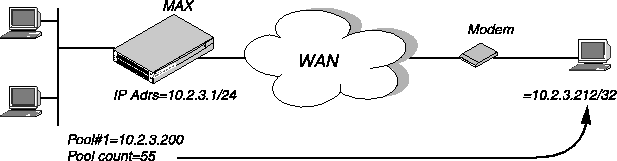
This example shows how to set up network-aligned address pools and use route summarization. It also shows how to enter a static route for the pool subnet and make the Connection profile route private, both of which are requirements when using route summarization.
Following are the rules for network-aligned address pools:
For example, the following configuration is network aligned:
Ethernet
      Mod Config
            WAN options...
                  Pool#1 start=10.12.253.1
                  Pool#1 count=62
                  Pool#1 name=Engineering Dept.
                  Pool Summary=Yes
Pool #1 Start is set to 10.12.253.1. When you subtract one from this address, you get 10.12.253.0, which is a valid base address for a subnet defined by a mask of 255.255.255.192. Note that 10.12.253.64, 10.12.253.128, and 10.12.253.192 are also valid zero addresses for the same mask. The resulting address pool subnet is 10.12.253.0/26.
Pool #1 Count is set to 62. When you add two to the Pool #1 Count, you get 64. The subnet mask for 64 addresses is 255.255.255.192 (256-64 = 192). The Ascend subnet notation for a 255.255.255.192 mask is /26.
After verifying that every one of the configured address pools is network-aligned, you must enter a static route for each of them. These static routes handle all IP address that have not been given to users by routing them to the reject interface or the black-hole interface. (See MAX IP interfaces).
Note: The MAX creates a host route for every address assigned from the pools, and host
routes override subnet routes. Therefore, packets whose destination matches an assigned IP
address from the pool are properly routed and not discarded or bounced. Because the MAX
advertises the entire pool as a route, and only privately knows which IP addresses in the pool
are active, a remote network can improperly send the MAX a packet for an inactive IP address.
Depending on the static-route specification, these packets are either bounced with an ICMP
host unreachable message or silently discarded.
For example, the following static route specifies the black-hole interface, so it silently discards all packets whose destination falls in the pool's subnet. In addition to the Dest and Gateway parameters that define the pool, be sure you have set the Metric, Preference, Cost, and Private parameters as shown.
Ethernet
      Static Rtes
            Name=pool-net
            Active=Yes
            Dest=10.12.253.0/26
            Gateway=127.0.0.0
            Preference=0
            Metric=0
            Cost=0
            Private=No
The routing table contains the following lines:
Destination Gateway IF Flg Pref Met Use Age
10.12.253.0/26      -          bh0     C         0      0       0   172162

127.0.0.0/32        -          bh0     CP        0      0       0   172163

127.0.0.1/32        -          lo0     CP        0      0       0   172163

127.0.0.2/32        -          rj0     CP        0      0       0   172163
When you configure Connection profiles that assign IP addresses from the pool, make sure you set the Private parameter to Yes. For example:
Ethernet
      Connections
            Ip options...
                  LAN Adrs=0.0.0.0/0
                  WAN Alias=0.0.0.0
                  IF Adrs=0.0.0.0/0
                  Preference=100
                  Cost=0
                  Private=Yes
                  RIP=Off
                  Pool=1
Configuring IP routing connections
When you enable IP routing and addresses are specified in a Connection profile, you define an IP WAN interface. Following are the related parameters (shown with sample settings):
Ethernet
      Answer
            Assign Adrs=Yes
            PPP options...
                  Route IP=Yes
            Session options...
                  RIP=Off
Ethernet
      Connections
            Station=remote-device
            Route IP=Yes
            IP options...
                  LAN Adrs=0.0.0.0/0
                  WAN Alias=0.0.0.0/0
                  IF Adrs=0.0.0.0/0
                  Preference=100
                  Metric=7
                  DownPreference=120
                  DownMetric=9
                  Private=No
                  RIP=Off
                  Pool=0
            Session options...
                  IP Direct=0.0.0.0
Understanding the IP routing connection parameters
This section provides some background information about enabling IP routing in the Answer profile and Connection profiles. For detailed information about each parameter, see the MAX Reference Guide.
Assign Adrs
In the Answer profile, the Assign Adrs parameter must be set to Yes, to enable the MAX to allocate IP addresses dynamically from a pool of designated addresses on the local network. The caller's PPP software must be configured to accept an address dynamically. If the Pool Only parameter is set to Yes in the Ethernet profile, the MAX terminates connections that reject the assigned address during PPP negotiation. For related information, see Configuring dynamic address assignment to a dial-in host.
Route IP
Set Route IP in Answer > PPP Options to Yes to enable the MAX to negotiate a routing connection.
Enabling IP routing for a WAN interface
To enable IP packets to be routed for this connection, set the Route IP parameter to Yes in the Connection profile. When you enable IP routing, IP packets are always routed, they are never bridged.
Configuring the remote IP address
The LAN Adrs parameter specifies the IP address of the remote device. Before accepting a call from the far end, the MAX matches this address to the source IP address presented by the calling device. It can be one of the following values:
Note: The most common cause of trouble in initially establishing an IP connection is
incorrect configuration of the IP address or subnet specification for the remote host or calling
device.
WAN Alias
A WAN alias is another IP address for the remote device, used for numbered-interface routing. The WAN alias will be listed in the routing table as a gateway (next hop) to the Lan Adrs value. The caller must use a numbered interface, and its interface address must agree with the WAN Alias setting.
Specifying a local IP interface address
The IF Adrs parameter specifies another local IP-interface address, to be used as the local numbered interface instead of Ethernet IP Adrs (the default).
Assigning metrics and preferences
Connection profiles often represent switched connections, which have an initial cost that you avoided if you use a nailed-up link to the same destination. To favor nailed-up links, you can assign a higher metric to switched connections than to any of the nailed-up links to the same destination.
Each connection represents a static route, which has a default preference of 100. (For other preferences, see Route preferences and metrics.) For each connection, you can fine-tune the route preference or assign a completely different preference.
Note: You can configure the DownMetric and DownPreference parameters to assign different
metrics or preferences to routes on the basis of whether the route is in use or is down. You can
direct the MAX to use active routes, if available, rather than choose routes that are down.
Private routes
The Private parameter specifies whether the MAX discloses the existence of the route when queried by RIP or another routing protocol. The MAX uses private routes internally. They are not advertised.
Assigning the IP address dynamically
The Pool parameter specifies an IP-address pool from which the MAX assigns the caller an IP address. If the Pool parameter is null but all other configuration settings enable dynamic assignment, the MAX gets IP addresses from the first defined address pool.
IP direct configuration
An IP Direct configuration bypasses routing and bridging tables for all incoming packets and sends each packet received to the specified IP address. All outgoing packets are treated as normal IP traffic. They are not affected by the IP Direct configuration.
Note: Typically, you configure IP Direct connections with RIP turned off. If you set the IP
Direct configuration with RIP set to receive, the MAX forwards all RIP updates to the
specified address. Typically, this is not desirable, because RIP updates are designed to be
stored locally by the IP router (in this case, the MAX).
Configuring RIP on this interface
You can configure an IP interface to send RIP updates, receive RIP updates or both.
Ascend recommends that you run RIP version 2 (RIP-v2) if possible. Ascend does not recommend running RIP-v2 and RIP-v1 on the same network in such a way that the routers receive each other's advertisements. RIP-v1 does not propagate subnet mask information, and the default class network mask is assumed, while RIP-v2 handles subnet masks explicitly. Running the two versions on the same network can result in RIP-v1 guesses overriding accurate subnet information obtained via RIP-v2.
Checking remote host requirements
IP hosts, such as UNIX systems, Windows or OS/2 PCs, or Macintosh systems, must have appropriately configured TCP/IP software. A remote host calling into the local IP network must also have PPP software.
UNIX software
UNIX systems typically include a TCP/IP stack, DNS software, and other software, files, and utilities used for Internet communication. UNIX network administration documentation describes how to configure these programs and files.
Window or OS/2 software
PCs running Windows or OS/2 need TCP/IP networking software. The software is included with Windows 95, but the user might need to purchase and install it separately if the computer has an earlier version of Windows, or OS/2.
Macintosh software
Macintosh computers need MacTCP or Open Transport software for TCP/IP connectivity. Apple system software versions 7.1 or later include MacTCP. To see if a Macintosh has the software, the user should open the Control Panels folder and look for MacTCP or MacTCP Admin.
Software configuration
For any platform, the TCP/IP software must be configured with the host's IP address and subnet mask. If the host obtains its IP address dynamically from the MAX, the TCP/IP software must be configured to enable dynamic allocation. If your local network supports a DNS server, you should also configure the host software with the DNS server's address.
Typically, the host software is configured with the MAX as its default router.
Examples of IP routing connections
This section provides sample Connection profile configurations for IP routing. The examples presume that you have configured the Ethernet profile correctly, as described in Configuring the local IP network setup.
Configuring dynamic address assignment to a dial-in host
In this example, the dial-in host is a PC that accepts an IP address assignment from the MAX dynamically. Figure 7-8 shows a sample network.
Figure 7-8. A dial-in user requiring dynamic IP address assignment
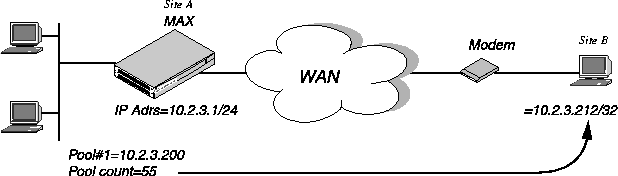
In this example, Site A is a backbone network and Site B is a single dial-in host with a modem, TCP/IP stack, and PPP software. The PPP software running on the PC at Site B must be configured to acquire its IP address dynamically. For example, the following a sample software configuration presumes that the PC has a modem connection to the MAX:
Username=victor
Accept Assigned IP=Yes
IP address=Dynamic (or Assigned or N/A)
Netmask=255.255.255.255 (or None or N/A)
Default Gateway=None or N/A
Name Server=10.2.3.55
Domain suffix=abc.com
Baud rate=38400
Hardware handshaking ON
VAN Jacobsen compression ON
To configure the MAX to accept dial-in connections from Site B and assign an IP address:
- Open Ethernet > Mod Config > WAN Options.
- Enter the start address of the pool and the number of contiguous addresses it includes. For example:
Ethernet
      Mod Config
            WAN options
                  Pool#1 start=10.12.253.1
                  Pool#1 count=126
                  Pool#1 name=Engineering Dept.
                  Pool only=Yes
                  Pool Summary=Yes
- Open the Ether Options subprofile and turn on Proxy Mode:
            Ether options
                  Proxy Mode=Yes
- Close the Ethernet profile.
- Open the Answer profile and enable both dynamic address assignment and IP routing:
Ethernet
      Answer
            Assign Adrs=Yes
            PPP options
                  Route IP=Yes
- Close the Answer profile.
- Open a Connection profile for the dial-in user.
- Specify the user's name, activate the profile, and set encapsulation options. For example:
Ethernet
      Connections
            Station=victor
            Active=Yes
            Encaps=PPP
            Encaps options...
                  Send Auth=CHAP
                  Recv PW=*SECURE*
- Configure IP routing and address assignment:
            Route IP=Yes
            IP options
                  LAN Adrs=0.0.0.0/0
                  RIP=Off
                  Pool=1
- Close the Connection profile.
Configuring a host connection with a static address
A host connection with a static address enables the dial-in host to keep its own IP address when logging into the MAX IP network. For example, if a PC user telecommutes to one IP network and uses an ISP on another IP network, one of the connections can assign an IP address dynamically and the other can configure a host route to the PC. This example shows how to configure a host connection with a static address. For details about the /32 subnet mask, see IP addresses and subnet masks.)
Figure 7-9. A dial-in user requiring a static IP address (a host route)
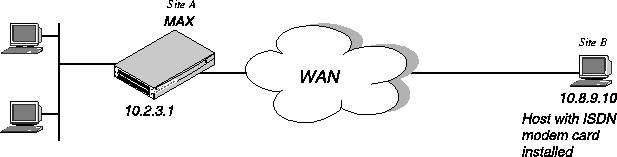
In this example, the PC at Site B is running PPP software that includes settings like these:
Username=patti
Accept Assigned IP=N/A (or No)
IP address=10.8.9.10
Subnet mask=255.255.255.255
Default Gateway=N/A (or None)
Name Server=10.7.7.1
Domain suffix=abc.com
VAN Jacobsen compression ON
To configure the MAX to accept dial-in connections from Site B:
- Open the Answer profile and enable IP routing:
Ethernet
      Answer
            PPP options
                  Route IP=Yes
- Close the Answer profile.
- Open a Connection profile for the dial-in user.
- Specify the user's name, activate the profile, and set encapsulation options. For example:
Ethernet
      Connections
            Station=patti
            Active=Yes
            Encaps=PPP
            Encaps options...
                  Send Auth=CHAP
                  Recv PW=*SECURE*
- Configure IP routing:
            Route IP=Yes
            IP options
                  LAN Adrs=10.8.9.10/32
                  RIP=Off
- Close the Connection profile.
Configuring an IP Direct connection
You can configure a Connection profile to automatically redirect incoming IP packets to a specified host on the local IP network without having the packets pass through the routing engine on the MAX as shown in Figure 7-10.
Figure 7-10. Directing incoming IP packets to one local host
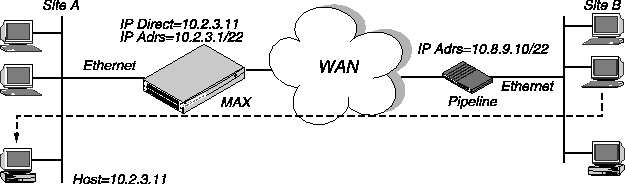
Note: IP Direct connections typically turn off RIP. If the connection is configured to receive
RIP, all RIP packets from the far side are kept locally and forwarded to the IP address you
specify for IP Direct.
To configure an IP Direct connection:
- Open the Answer profile and enable IP routing:
Ethernet
      Answer
            PPP options
                  Route IP=Yes
- Close the Answer profile.
- Open a Connection profile for the dial-in connection.
- Specify the remote device's name, activate the profile, and set encapsulation options. For example:
Ethernet
      Connections
            Station=Pipeline1
            Active=Yes
            Encaps=MPP
            Encaps options...
                  Send Auth=CHAP
                  Recv PW=localpw
                  Send PW=remotepw
- Configure IP routing:
            Route IP=Yes
            IP options
                  LAN Adrs=10.8.9.10/22
                  RIP=Off
- Open the Session Options subprofile and specify the IP Direct host. For example:
            Session options
                  IP Direct=10.2.3.11
- Close the Connection profile.
Note: The IP Direct address you specify in Connections > Session Options is the address to
which the MAX directs all incoming packets on this connection. When you use the IP Direct
feature, a user cannot Telnet directly to the MAX from the far side. The MAX directs all
incoming IP traffic to the specified address on the local IP network.
Configuring a router-to-router connection
In this example, the MAX connects to a corporate IP network and needs a switched connection to another company that has its own IP configuration. Figure 7-11 shows the network diagram.
Figure 7-11. A router-to-router IP connection
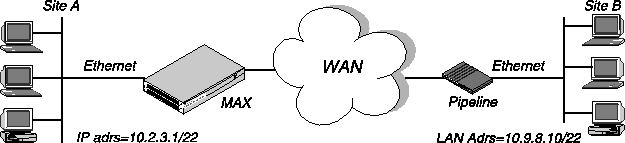
This example assumes that the Answer profile in each of the two devices enable IP routing. To configure the Site A MAX for a connection to Site B:
- Open a Connection profile for the Site B device.
- Specify the remote device's name, activate the profile, and set encapsulation options. For example:
Ethernet
      Connections
            Station=PipelineB
            Active=Yes
            Encaps=MPP
            Encaps options...
                  Send Auth=CHAP
                  Recv PW=localpw
                  Send PW=remotepw
- Configure IP routing:
            Route IP=Yes
            IP options
                  LAN Adrs=10.9.8.10/22
                  RIP=Off
- Close the Connection profile.
To configure the Site B Pipeline:
- Open the Connection profile for the Site A MAX.
- Specify the Site A MAX unit's name, activate the profile, and set encapsulation options. For example:
Ethernet
      Connections
            Station=MAXA
            Active=Yes
            Encaps=MPP
            Encaps options...
                  Send Auth=CHAP
                  Recv PW=localpw
                  Send PW=remotepw
- Configure IP routing.
            Route IP=Yes
            IP options
                  LAN Adrs=10.2.3.1/22
                  RIP=Off
- Close the Connection profile.
Configuring a router-to-router connection on a subnet
In the sample network illustrated in Figure 7-12, the MAX connects telecommuters with their own Ethernet networks to the corporate backbone. The MAX is on a subnet, and assigns subnet addresses to the telecommuters' networks.
Figure 7-12. A connection between local and remote subnets
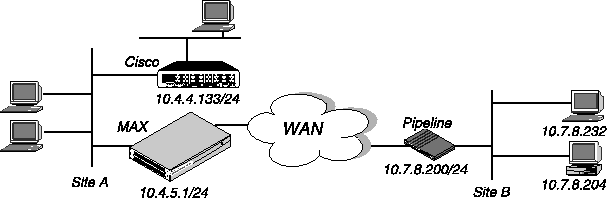
This example assumes that the Answer profile in each of the two devices enables IP routing. Because the MAX specifies a subnet mask as part of its own IP address, the MAX must use other routers to reach IP addresses outside that subnet. To forward packets to other parts of the corporate network, the MAX either must have a default route configuration to a router in its own subnet (for example the Cisco router in Figure 5-12) or must enable RIP on Ethernet.
To configure the MAX at Site A with an IP routing connection to Site B:
- Open a Connection profile for the Site B device.
- Specify the remote device's name, activate the profile, and set encapsulation options. For example:
Ethernet
      Connections
            Station=PipelineB
            Active=Yes
            Encaps=MPP
            Encaps options...
                  Send Auth=CHAP
                  Recv PW=localpw
                  Send PW=remotepw
- Configure IP routing:
            Route IP=Yes
            IP options
                  LAN Adrs=10.7.8.200/24
                  RIP=Off
- Close the Connection profile.
To specify the local Cisco router as the MAX unit's default route:
- Open the Default IP Route profile.
- Specify the Cisco router's address as the gateway address.
Ethernet
      Static Rtes
            Name=Default
            Active=Yes
            Dest=0.0.0/0
            Gateway=10.4.4.133
            Metric=1
            Preference=10
            Private=Yes
- Close the IP Route profile.
To configure the Site B Pipeline unit for a connection to Site A:
- Open the Connection profile in the Pipeline unit for the Site A MAX.
- Specify the Site A MAX unit's name, activate the profile, and set encapsulation options. For example:
Ethernet
      Connections
            Station=MAXA
            Active=Yes
            Encaps=MPP
            Encaps options...
                  Send Auth=CHAP
                  Recv PW=localpw
                  Send PW=remotepw
- Configure IP routing:
            Route IP=Yes
            IP options
                  LAN Adrs=10.4.5.1/24
                  RIP=Off
To make the MAX the default route for the Site B Pipeline unit:
- Open the Default IP Route profile in the Site B Pipeline.
- Specify the MAX unit at the far end of the WAN connection as the gateway address:
Ethernet
      Static Rtes
            Name=Default
            Active=Yes
            Dest=0.0.0/0
            Gateway=10.4.5.1
            Metric=1
            Preference=100
            Private=Yes
- Close the IP Route profile.
Configuring a numbered interface
In the following example, the MAX is a system-based router but supports a numbered interface for one of its connections. (If you are not familiar with numbered interfaces, see Numbered interfaces.) The double-headed arrow in Figure 7-13 indicates the numbered interface for this connection.
Figure 7-13. Example of a numbered interface
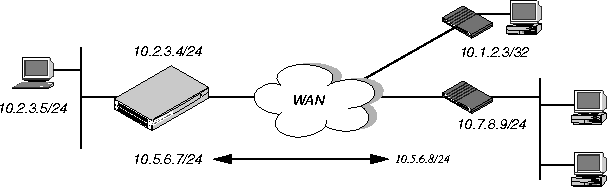
The numbered interface addresses are:
- IF Adrs=10.5.6.7/24
- WAN Alias=10.5.6.8/24
An unnumbered interface is also shown in Figure 7-13. The 10.1.2.3/32 connection uses a single system-based address for both the MAX itself and the dial-in user. To configure the unnumbered interface:
- Open Ethernet > Mod Config > Ether Options and verify that the IP Adrs parameter is set to the IP address of the Ethernet interface of the MAX:
Ethernet
      Mod Config
            Ether options...
                  IP Adrs=10.2.3.4/24
- Close the Ethernet profile.
- Open the Connection profile and configure the required parameters, then open the IP Options subprofile.
- Specify the IP address of the Ethernet interface of the remote device by setting the LAN Adrs parameter.
Ethernet
            Connections
            IP options...
                  LAN Adrs=10.3.4.5/24
- Specify the numbered interface address for the remote device in the WAN Alias parameter.
            IP options...
                  WAN Alias=10.7.8.9/24
- Close the Connection profile.
Configuring IP routes and preferences
The IP routing table contains routes that are configured (static routes) and routes that are learned dynamically from routing protocols such as RIP or OSPF. Configuration of static routes involve the following parameters (shown with sample settings):
Ethernet
      Static Rtes
            Name=route-name
            Active=Yes
            Dest=10.2.3.0/24
            Gateway=10.2.3.4
            Metric=2
            Preference=100
            Private=No
            Ospf-Cost=1
            LSA-ASE7=ExternalType1
            NSSA-ASE7=N/A
            ASE-tag=c000000
            Third-Party=No
Ethernet
      Connections
            Route IP=Yes
            IP options...
                  LAN Adrs=10.2.3.4/24
                  WAN Alias=10.5.6.7/24
                  IF Adrs=10.7.8.9/24
                  Preference=100
                  Metric=7
                  DownPreference=120
                  DownMetric=9
                  Private=No
                  SourceIP Check=No
                  RIP=Off
                  Pool=0
                  Multicast Client=No
                  Multicast Rate Limit=100
                  Multicast Grp Leave Delay=0
                  Client Pri DNS=
Ethernet
      Mod Config
            Ether options
                  IP Adrs=10.2.3.1/24
                  2nd Adrs=0.0.0.0/0
                  RIP=Off
                  RIP2 Use Multicast=No
                  Ignore Def Rt=Yes
                  Proxy Mode=Off
                  Filter=0
                  IPX Frame=N/A
            Route Pref
                  Static Preference=100
                  Rip Preference-100
                  RIP Queue Depth=
                  RipAseType=Type2
                  Rip Tag=c8000000
                  OSPF Preference=10
                  OSPF ASE Preference=150
Understanding the static route parameters
This section provides some background information about static routes. For detailed information about each parameter, see the MAX Reference Guide.
2nd Adrs
The 2nd Adrs parameter assigns a second IP address to the Ethernet interface. With a second address, the MAX has a logical interface on two networks or two subnets on the same backbone. The configuration is sometimes called dual IP... The default value is 0.0.0.0/0.
Active
A route must be active to affect packet routing. If Active=No, the route is ignored.
ASE-tag
The ASE-tag parameter specifies the OSPF ASE tag of this link. The tag is a 32-bit hexadecimal number attached to each external route. The OSPF protocol does not use the value of ASE-tag. Border routers can use ASE-tag to filter this record. You can specify a 32-bit hexadecimal number. c0:00:00:00 is the default.
Client Pri DNS
The Client Pri DNS parameter specifies a primary DNS server address that the MAX sends to any IP-routing PPP client connecting to the MAX. The client DNS feature has two levels: a global configuration that applies to all PPP connections, and a connection-specific configuration that applies to that connection only. The MAX uses global client addresses only if you specify none in the Connection profile. Also, you can choose to present your local DNS servers if there are no defined or available client servers. You can specify the IP address of a DNS server to be used for all connections that do not have a DNS server defined. The default value is 0.0.0.0.
Dest
The destination address of a route is the target network (the destination address in a packet). Packets destined for that host use this static route to bring up the right connection. The zero address (0.0.0.0) represents the default route (the destination to which packets are forwarded when there is no route to the packet's destination).
DownMetric
The DownMetric parameter specifies the metric for a route whose associated WAN connection is down. The higher the metric, the less likely that the MAX will use the route. You can specify an integer. The default is 7.
DownPreference
The DownPreference parameter specifies the preference value for a route whose associated WAN connection is down. A higher preference number represents a less desirable route. You can specify an integer. The default is 120.
Filter
The Filter parameter specifies the number of a data filter that applies to the Ethernet interface. You can define the data filter to help manage data flow to and from the Ethernet interface. The filter examines every packet, and forwards or discards the packet on the basis of the configured Filter profile. You can specify a number from 0 to 199. The number you enter depends on the whether you are applying a filter created using the VT100 interface, or a firewall created using Secure Access Manager (SAM).
IF Adrs
The IF Adrs parameter specifies another local IP-interface address, to be used as the local numbered interface instead of the default (the Ethernet IP Adrs).
Gateway
The Gateway parameter specifies the IP address of the router or interface through which to reach the target network.
Ignore Def Rt
The Ignore Def Rt parameter specifies whether the MAX ignores the default route when updating its routing table via RIP updates. The default route specifies a static route to another IP router, which is often a local router such as a Cisco router or another kind of LAN router. When the MAX is configured to ignore the default route, RIP updates will not modify the default route in the MAX routing table. You can specify either Yes or No. No is the default.
IP Adrs
The IP Adrs parameter specifies the MAX unit's IP address on the local Ethernet. The MAX creates a route for this address at system startup.
IPX Frame
The IPX Frame parameter specifies the packet frame used by the majority of NetWare servers on Ethernet. The MAX routes and spoofs only one IPX frame type (IEEE 802.2 by default), which is specified in the IPX Frame parameter. If some NetWare software transmits IPX in a frame type other than the type specified here, the MAX drops those packets, or if bridging is enabled, it bridges them.
LAN Adrs
The LAN Adrs parameter specifies the IP address of Ethernet interface of the remote-end host or router. You can specify a valid IP address and subnet mask.
LSA-ASE7
The LSA-ASE7 parameter specifies the OSPF ASE type of this link-state advertisement (LSA). You can specify ExternalType-1, ExternalType-2, or Internal.
Metric
In a Connection or Route profile, Metric specifies a RIP metric associated with the IP route. In the Answer profile, it specifies the RIP metric of the IP link when the MAX validates an incoming call using RADIUS or TACACS and Use Answer as Default is enabled.
Multicast Client
The Multicast Client parameter enables the MAX to respond to multicast clients on the WAN link. Clients cannot be supported on the MBONE interface, so this means another WAN link or the local Ethernet supports a multicast router.
When you set Multicast Client to Yes, the MAX begins handling IGMP requests and responses on the interface. It does not begin forwarding multicast traffic until the rate limit is set. You can specify either Yes or No. The default is No.
Multicast GRP Leave Delay
The Multicast GRP Leave Delay parameter specifies the amount of seconds the MAX waits before forwarding any IGMP, version 2, leave group message from any multicast client. If you specify a value other than 0, and the MAX receives a leave group message, the MAX sends a igmp query to the WAN interface from which it received the leave group message. If the MAX does not receive a response from an active multicast client from the same group from the WAN interface, it sends a leave group message when the time you specified in the Multicast GRP Leave Delay parameter has expired.
If you specify the default value of zero, the MAX forwards any leave group message immediately. If users might establish multiple multicast sessions for identical groups, you should set Multicast GRP Leave Delay to a value from 10 to 120 seconds.
Multicast Rate Limit
The Multicast Rate Limit parameter specifies the rate at which the MAX accepts multicast packets from clients on this interface. It does not affect the MBONE interface.
Note: By default, the Rate Limit t parameter is set to 100, which disables multicast
forwarding on the interface. The forwarder handles IGMP packets, but does not accept packets
from clients or forward multicast packets from the MBONE router.
To begin forwarding multicast traffic on the interface, you must set the rate limit to a number less than 100. For example if you set it to 5, the MAX accepts a packet from multicast clients on the interface every 5 seconds. Any subsequent packets received in that 5-second window are discarded. You can specify a number lower than the default 100 to begin forwarding multicast traffic on the interface.
Name
IP routes are indexed by name. You can assign any name of less than 31 characters.
NSSA-ASE7
The NSSA-ASE 7 parameter specifies that area border routers convert ASE type-7 LSA to an ASE type-5 LSA. ASE type-7s can be imported only from static route definitions. NSSAs are described in RFC 1587. You can specify Advertise, or DoNotAdvertise.
OSPF ASE Preference
The OSPF ASE Preference parameter specifies the OSPF ASE Preference the MAX uses when importing an ASE. You can specify a number from 0 to 255. A value of 255 specifies that the MAX never puts any ASEs into its routing table.
OSPF-Cost
The OSPF-Cost parameter specifies the cost of an OSPF link. Cost is a configurable metric that takes into account the speed of the link and other issues. The lower the cost, the more likely is the interface to be used to forward data traffic. (For details, see Chapter 8, Configuring OSPF Routing.)
OSPF Preference
The OSPF Preference parameter specifies the OSPF ASE Preference the MAX uses when importing an ASE. You can specify a number from 0 to 255. A value of 255 specifies that the MAX never puts any ASEs into its routing table.
Pool
The Pool parameter specifies an IP address pool that the MAX assigns to incoming calls. If the Pool parameter is null but all other configuration settings enable dynamic assignment, the MAX gets IP addresses from the first defined address pool. You can define up to 10 IP address pools in the VT100 interface. Specify the number of the pool. The default is 1.
Preference
The Preference parameter specifies the Preference value for a route. RIP is a distance-vector protocol, which uses a hop count to select the shortest route to a destination network. OSPF is a link-state protocol, which means that OSPF can take into account a variety of link conditions, such as the reliability or speed of the link, when determining the best path to a destination network. Because these two metrics are incompatible, the MAX supports route preferences.
Private
The Private parameter specifies whether the MAX will disclose the existence of this route when queried by RIP or another routing protocol. Private routes are used internally but are not advertised. You can specify Yes or No. The default is No.
Proxy Mode
The Proxy Mode parameter specifies under what conditions the MAX responds to ARP requests for remote devices. When you enable Proxy Mode, the MAX responds to the ARP request with its own MAC address. You can specify one of the following values:
- Off-Disables proxy ARP. The default is Off.
- Always-Specifies that the MAX responds to any ARP request with its own MAC address if the ARP request is sent to a host to which the MAX has a route.
- Active-Specifies that the MAX responds to any ARP request with its own MAC address if the ARP request is sent to a host to which the MAX has an active connection.
- Inactive-Specifies that the MAX responds to an ARP request with its own MAC address if the ARP request is sent to a host to which the MAX has an inactive connection.
RIP2 Use Multicast
Specifies that Multicast IP is to be used for RIP 2 packets. You can specify Yes or No. No is the default.
RIP
The RIP parameter specifies how the MAX handles RIP update packets on the interface. RIP applies only if the MAX supports IP routing.
Note: You should configure all routers and hosts to run RIP-v2 instead of RIP-v1. The IETF
has voted to move RIP version 1 into the historic category and its use is no longer
recommended.
You can specify one of the following values:
- Off-Specifies that the MAX does not transmit or receive RIP updates. Off is the default.
- Recv-v2-Specifies that the MAX receives RIP-v2 updates on the interface but does not send RIP updates.
- Send-v2-Specifies that the MAX sends RIP-v2 updates on the interface but does not receive RIP updates.
- Both-v2-Specifies that the MAX sends and receives RIP-v2 updates on the interface.
- Recv-v1-Specifies that the MAX receives RIP-v1 updates on the interface but does not send RIP updates.
- Send-v1-Specifies that the MAX sends RIP-v1 updates on the interface but does not receive RIP updates.
- Both-v1-Specifies that the MAX sends and receives RIP-v1 updates on the interface.
RipAseType
The RipAseType parameter can specify Type-1 or Type-2. Type-1 is a metric expressed in the same units as the link-state metric (that is, the same units as interface cost). Type-2 is considered larger than any link-state path. It assumes that routing between autonomous systems is the major cost of routing a packet, and it eliminates the need for conversion of external costs to internal link-state metrics.
RIP Preference
The RIP Preference parameter specifies the preference value for routes learned from the RIP protocol. When choosing which routes to put in the routing table, the router first compares the Rip Preference values, preferring the lower number. If the Rip Preference values are equal, the router compares the Metric values, using the route with the lower Metric. You can specify a number between 0 and 255. The default value is 100. Zero is the default for connected routes (such as the Ethernet). The value of 255 means Do not use this route.
RIP Queue Depth
The maximum number of unprocessed RIP requests which the MAX saves. If RIP requests arrive at a rate faster than they can be processed, then a backlog builds up. This parameter sets the maximum depth of the queue. If the queue fills, further packets destined for it are discarded. This limit applies to each RIP socket, so if RIP is running on multiple interfaces, this parameter limits the number of requests stored per interface. You can enter a number from 0 to 1024. If you specify 0, the MAX saves RIP requests until it runs out of memory. The default is 50.
RIP Tag
The Rip Tag parameter is attached to all routes learned from RIP in OSPF updates. The tag is a hexadecimal number that can be used by border routers to filter the record.
SourceIP Check
The SourceIP Check parameter enables and disables anti-spoofing for this session. When set to Yes, the system checks all packets received on this interface to ensure that the source IP address in the packets matches the far-end remote address or the address agreed upon in IPCP negotiation. If the addresses do not match, the system discards the packet. You can specify Yes or No. No is the default.
Static Preference
By default, static routes and RIP routes have the same preference, so they compete equally. ICMP redirects take precedence over both, and OSPF routes take precedence over everything. If a dynamic route's preference is lower than that of the static route, the dynamic route can overwrite (hide) a static route to the same network. In the IP routing table, the hidden static route has an h flag, indicating that it is inactive. The active, dynamically learned route is also in the routing table. However, dynamic routes age and, if no updates are received, eventually expire. In that case, the hidden static route reappears in the routing table.
Third-Party
The Third-Party parameter enables OSPF third-party routing for a static route. When enabled, the gateway address is used as the third-party router for this route. Third-party routing enables an OSPF router to advertise a route to a destination network through a remote router (Router-A advertises a route to Network-B via Router-C). This is accomplished by specifying the address of the remote router (Router-C) in the next-hop field of an LSA.
Note: In some cases, third-party routing results in more efficient routes, because other OSPF
routers (such as Router-D and Router-E) might be able to trim one hop off of the packet's path
and send it to the specified address (Router-C) directly. In practice, it requires that the
third-party router is on an Ethernet that is running OSPF, and that its designated router is
advertising that network into the OSPF cloud.
WAN Alias
The WAN Alias parameter is another IP address for the remote device, used for numbered-interface routing. The WAN alias will be listed in the routing table as a gateway (next hop) to the Lan Adrs value. The caller must use a numbered interface, and its interface address must agree with the WAN Alias setting.
Examples of static route configuration
This section discusses configuring the default static route, a static route to a remote subnet, a method to make sure the MAX uses the static routes before RIP routes.
For sample Connection profile configurations, see Configuring IP routing connections. Each of the configurations shown in that section. For an example of the Ethernet profile configuration of the MAX unit's local IP interface, see Configuring the MAX IP interface on a subnet.
Configuring the default route
If no routes exist for the destination address of a packet, the MAX forwards the packet to the default route. Most sites use the default route to specify a local IP router (such as a Cisco router or a UNIX host running the route daemon) to offload routing tasks to other devices.
Note: If the MAX does not have a default route, it drops packets for which it has no route.
To configure the default route:
- Open the first IP Route profile (the route named Default) and activate it:
Ethernet
      Static Rtes
            Name=Default
            Active=Yes
            Dest=0.0.0.0/0
Note: The name of the first IP Route profile is always Default, and its destination is
always 0.0.0.0. You cannot change these values.
- Specify the router to use for packets with unknown destinations. For example:
Gateway=10.9.8.10
- Specify a metric for this route, the route's preference, and whether the route is private. For example:
            Metric=1
            Preference=100
            Private=Yes
- Close the IP Route profile.
Defining a static route to a remote subnet
If the connection does not enable RIP, the MAX does not learn about other networks or subnets that might be reachable through the remote device. The remote network shown in Figure 7-14 is an example of such a network.
Figure 7-14. Two-hop connection that requires a static route when RIP is off
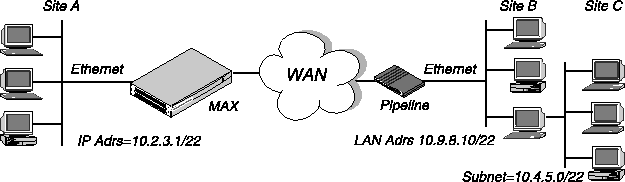
To enable the MAX to route to Site C without using RIP, you must configure an IP Route profile similar to the following example:
Ethernet
      Static Rtes
            Name=SITEBGW
            Active=Yes
            Dest=10.4.5.0/22
            Gateway=10.9.8.10
            Metric=2
            Preference=100
            Private=Yes
            Ospf=Cost=1
            ASE-type=Type1
            ASE=tag=c0000000
Example of route preferences configuration
The following example increases the preference value of RIP routes, instructing the router to use a static route first if one exists:
- Open Ethernet > Mod Config > Route Pref.
- Set Rip Preference to 150:
Ethernet
      Mod Config
            Route Pref
                  Rip Preference=150
- Close the Ethernet profile.
Configuring the MAX for dynamic route updates
You can configure each active interface to send or receive RIP or OSPF updates. (For information about OSPF updates, see Chapter 8, Configuring OSPF Routing.) You can also configure the Ethernet interface to accept or ignore ICMP redirects. All of these routing mechanisms modify the IP routing table dynamically.
Following are the parameters that enable the MAX to receive updates from RIP or ICMP, (the settings shown are examples.)
Ethernet
      Mod Config
            Ether options
                  RIP=On
                  Ignore Def Rt=Yes
            RIP Policy=Poison Rvrs
            RIP Summary=Yes
            ICMP Redirects=Accept
Ethernet
      Answer
            Session options...
                  RIP=On
Ethernet
      Connections
        any Connection profile
            IP options...
                  Private=No
                  RIP=On
Understanding the dynamic routing parameters
This section provides some background information about the dynamic routing options. For complete information about each parameter, see the MAX Reference Guide.
RIP (Routing Information Protocol)
You can configure the MAX to send or receive, or send and receive, RIP updates on the Ethernet interface and on each WAN interface. The RIP parameter in Ethernet > Answer > Session options profile applies to local profiles and profiles retrieved from RADIUS. You can also select between RIP-v1 and RIP-v2 on any interface. Many sites turn off RIP on WAN connections to keep their routing tables from becoming very large.
Note: The IETF has voted to move RIP-v1 into the historic category and its use is no longer
recommended. Ascend recommends that you upgrade all routers and hosts to RIP-v2. If you
must maintain RIP-v1, Ascend recommends that you create a separate subnet and place all
RIP-v1 routers and hosts on that subnet.
Ignore Def Rt
You can configure the MAX to ignore default routes advertised by routing protocols. This configuration is recommended, because you typically do not want the default route changed by a RIP update. The default route specifies a static route to another IP router, which is often a local router such as a Cisco or kind of LAN router. When you configure the MAX to ignore the default route, RIP updates do not modify the default route in the MAX routing table.
RIP Policy and RIP Summary
The RIP Policy and RIP Summary parameters have no affect on RIP-v2.
If the MAX is running RIP-v1, the RIP Policy parameter specifies a split horizon or poison reverse policy to handle update packets that include routes that are received on the same interface on which the update is sent. Split-horizon means that the MAX does not propagate routes back to the subnet from which they were received. Poison-reverse means that it propagates routes back to the subnet from which they were received, but with a metric of 16.
The RIP Summary parameter specifies whether to summarize subnet information when advertising routes. If the MAX summarizes RIP routes, it advertises a route to all the subnets in a network of the same class. For example, the route to 200.5.8.13/28 (a class C address subnetted to 28 bits) would be advertised as a route to 200.5.8.0. When the MAX does not summarize information, it advertises each route in its routing table as-is. For the subnet in the preceding example, the MAX would advertise a route only to 200.5.8.13.
Ignoring ICMP Redirects
The design for ICMP enables the MAX to dynamically find the most efficient IP route to a destination. ICMP Redirect packets are one of the oldest route discovery methods on the Internet. They are also one of the least secure methods, because it is possible to counterfeit ICMP Redirects and change the way a device routes packets.
Private routes
If you configure a Connection profile with Private=Yes, the router does not disclose its route in response to queries from routing protocols.
Examples of RIP and ICMP configurations
The following sample configuration instructs the MAX to ignore ICMP redirect packets, to receive (but not send) RIP updates on Ethernet, and to send (but not receive) RIP updates on a WAN connection.
- Open Ethernet > Mod Config > Ether Options.
- Configure the MAX to receive (but not send) RIP updates on Ethernet.
Ethernet
      Mod Config
            Ether options
                  RIP=Recv-v2
Receiving RIP updates on Ethernet means that the MAX learns about networks that are reachable via other local routers. However, it does not propagate information about all of its remote connections to the local routers.
- Close the Ether Options subprofile, and set ICMP Redirects to Ignore.
ICMP Redirects=Ignore
- Close the Ethernet profile.
- Open Connections > IP Options, and configure the MAX to send (but not receive) RIP updates on this link.
Ethernet
      Connections
            IP options...
                  RIP=Send-v2
Sending RIP on a WAN connection means that the remote devices are able to access networks that are reachable via other local routers. However, the MAX does not receive information about networks that are reachable through the remote router.
- Close the Connection profile.
Translating Network Addresses for a LAN
Network Address Translation (NAT) functionality makes it possible for the MAX to translate private IP addresses on its local LAN to IP addresses temporarily supplied by a remote access router.
To connect to the Internet or any other TCP/IP network, a host must have an IP address that is unique within that network. The Internet and other large TCP/IP networks guarantee the uniqueness of addresses by creating central authorities that assign official IP addresses. However, many local networks use private IP addresses that are unique only on the local network. To enable a host with a private address to communicate with the Internet or another network that requires an official IP address, a MAX performs a service known as Network Address Translation (NAT). The service works as follows:
- When the local host sends packets to the remote network, the MAX automatically translates the host's private address on the local network to an official address on the remote network.
- When the local host receives packets from the remote network, the MAX automatically translates the official address on the remote network to the host's private address on the local network.
NAT can be implemented to use a single address or multiple addresses. To use multiple IP addresses, the MAX must have access to a DHCP server through the remote network.
Single-address NAT and port routing
A MAX can perform single-address NAT in the following ways:
- For more than one host on the local network, without borrowing IP addresses from a DHCP server on the remote network.
- When the remote network initiates the connection to the MAX.
- By routing packets it receives from the remote network for up to 10 different TCP or UDP ports to specific hosts and ports on the local network.
Note: You can use single-address NAT by setting the Ethernet > NAT > Lan parameter to
Single IP Addr.
With single-address NAT, the only host on the local network that is visible to the remote network is the MAX.
Outgoing connection address translation
For outgoing calls, the MAX performs NAT for multiple hosts on the local network after getting a single IP address from the remote network during PPP negotiation.
Any number of hosts on the local network can make any number of simultaneous connections to hosts on the remote network. The network is limited only to the size of the translation table. The translations between the local network and the Internet or remote network are dynamic and do not need to be preconfigured.
Incoming connection address translation
For incoming calls, the MAX can perform NAT for multiple hosts on the local network by using its own IP address. The MAX routes incoming packets for up to 10 different TCP or UDP ports to specific servers on the local network. Translations between the local network and the Internet or remote network are static and need to be preconfigured. You need to define a list of local servers and the UDP and TCP ports each should handle. You can also define a local default server that handles UDP and TCP ports not listed.
For example, you can configure the MAX to route all incoming packets for TCP port 80 (the standard port for HTTP) to port 80 of a World Wide Web server on the local network. The port you route to does not have to be the same as the port specified in the incoming packets. For example, you can route all packets for TCP port 119, the well known port for Network News Transfer Protocol, to port 1119 on a Usenet News server on the local network. You can also specify a default server that receives any packets that are not sent to one of the routed ports. If you do not specify any routed ports but do specify a default server, the default server receives all packets sent to the MAX from the remote network.
When you configure the MAX to route incoming packets for a particular TCP or UDP port to a specific server on the local network, multiple hosts on the remote network can connect to the server at the same time. The number of connections is limited by the size of the translation table.
Note: NAT automatically turns RIP off, so the address of the MAX is not propagated to the
Internet or remote networks.
Translation table size
NAT has an internal translation table limited to 500 active addresses. A translation-table entry represents one TCP or UDP connection.
Note: A single application can generate many TCP and UDP connections.
A translation table entry is reused as long as traffic includes packets that match the entry. All the entries for a connection are freed (expire) when the connection disconnects. For Nailed connections, the connection is designed not to disconnect.
The MAX removes entries from the translation-table on the basis of the following timeouts:
- Non-DNS UDP translations timeout after 5 minutes.
- DNS times out in one minute.
- TCP translations time out after 24 hours.
Multiple-address NAT
When translating addresses for more than one host on the local network, the MAX can perform multiple-address NAT by borrowing an official IP address for each host from a Dynamic Host Configuration Protocol (DHCP) server on the remote network or accessible from the remote network.
The advantage of multiple-address NAT is that hosts on the remote network can connect to specific hosts on the local network, not just specific services such as Web or FTP service. This advantage can be realized only if the remote DHCP server is configured to assign the same address whenever a particular local host requests an address. Another reason for using multiple-address NAT is that network service providers might require it for networks with more than one host.
When you use multiple-address NAT, hosts on the remote network can connect to any of the official IP addresses that the MAX borrows from the DHCP server. If the local network must have more than one IP address that is visible to the remote network, you must use multiple-address NAT. If hosts on the remote network need to connect to a specific host on the local network, you can configure the DHCP server to always assign the same address when that local host requests an address.
When multiple-address NAT is enabled, the MAX attempts to perform IP address translation on all packets received. (It cannot distinguish between official and private addresses.)
The MAX acts as a DHCP client on behalf of all hosts on the LAN and relies on a remote DHCP server to provide addresses from a pool of addresses suitable for the remote network. On the local network, the MAX and the hosts all have local addresses that are only used for local communication between the hosts and the MAX over the Ethernet.
When the first host on the LAN requests access to the remote network, the MAX obtains an address through PPP negotiation. When subsequent hosts request access to the remote network, the MAX sends a DHCP request packet asking for an IP address from the DHCP server. The server then sends an address from its IP address pool to the MAX. The MAX uses the dynamic addresses it receives from the server to translate IP addresses on behalf of local hosts.
As packets are received on the LAN, the MAX determines whether the source IP address has been assigned a translated address. If so, the packet is translated and forwarded to the wide area network. If no translation has been assigned (and none is pending), the MAX issues a DHCP request for the packet's IP address. While waiting for an IP address to be offered by the server, the MAX drops corresponding source packets. Similarly, for packets received from the WAN, the MAX checks the destination address against its table of translated addresses. If the destination address is in the table and is active, the MAX forwards the packet. If the destination address is not in the table, or is not active, the MAX drops the packet.
IP addresses are typically offered by the DHCP server only for a limited duration, but the MAX automatically renews the leases on them. If the connection to the remote server is dropped, all leased addresses are considered revoked. Therefore, TCP sessions do not persist if the WAN call disconnects.
The MAX itself does not have an address on the remote network. Therefore, the MAX can only be accessed from the local network, not from the WAN. For example, you can Telnet to the MAX from the local network, but not from a remote network.
In some installations, the DHCP server could be handling both NAT DHCP requests and ordinary DHCP requests. In this situation, if the ordinary DHCP clients are connecting to the server over a nonbridged connection, you must have a separate DHCP server to handle the ordinary DHCP requests. The NAT DHCP server only handles NAT DHCP requests.
Configuring single or multiple address NAT
To configure NAT on the MAX:
- Open the Ethernet > NAT > NAT menu. For example:
50-C00 NAT
  50-C01 NAT...
      >Routing=Yes
      Profile=NATprofile
      Lan=Single IP addr
      FR address=10.10.10.10
      Static Mappings...
      Def Server=N/A
      Reuse last addr=N/A
      Reuse addr timeout=N/A
- Enable NAT by setting Routing to Yes. Without this setting, no other setting is valid.
- Set Profile to the name of a Connection profile you want to use NAT.
- If applying NAT to Frame Relay connections, set FR Address and other parameters as described in NAT for Frame Relay.
- Optionally, configure NAT port routing in the Static Mapping nn submenus, as described in Configuring NAT port routing (Static Mapping submenu).
- Optionally set Def Server to the IP address of a local server to which the MAX routes incoming packets that are not routed to a specific server and port. (For more information, see Routing all incoming sessions to the default server.)
- Optionally set Reuse Last Addr to Yes to continue to use a dynamically assigned IP address. The Reuse Addr Timeout value specifies the time for which to use the address. Set it to a number of minutes (up to 1440). Limitations apply, as described in the MAX Reference Guide.
- Exit and save the NAT profile.
Note: If you have additional routers on your local area network, open Ethernet > Mod Config
> Ether Options, and set the value of Ignore Def Rt to Yes. This avoids the possibility that a
default route from the ISP overwrites the NAT route.
NAT for Frame Relay
The single-IP address implementation of NAT extends to Frame Relay. For connections using Frame Relay encapsulation, a MAX running single-IP address NAT translates the local addresses into a single, official address specified by the FR Address parameter. You must set the Routing parameter in the NAT profile to enable NAT, set the Lan parameter to Single IP Addr, and set FR Address to a valid, official IP address:
50-C00 NAT
  50-C01 NAT...
        Routing=Yes
        Profile=max4
        Lan=Single IP addr
        FR address=10.10.10.10
        Static Mapping...
        Def Server=181.81.8.1
        Reuse last addr=No
        Reuse addr timeout=N/A
Configuring NAT port routing (Static Mapping submenu)
The Static Mappings menu includes 10 Static Mapping nn submenus, where nn is a value from 1 to 10. Each of these submenus contains parameters for controlling the translation of the private IP addresses to TCP or UDP port numbers when operating in single-address NAT mode. You only need to specify static mappings for connections initiated by devices calling into the private LAN. For sessions initiated by hosts on the private LAN, the MAX generates a mapping dynamically if one does not already exist in the Static Mappings parameters.
Each Static Mapping nn menu contains the following parameters (shown with sample settings):
50-C00 NAT
50-C01 NAT...
Static Mappings...
Static Mapping 01
Valid=Yes
Dst Port #=21
Protocol=TCP
Loc Port #=21
Loc Adrs=181.100.100.102
You can configure a NAT port routing
Note: You need to configure port routing only for sessions initiated by hosts outside the
private LAN. For sessions initiated by hosts on the private LAN, the MAX generates the port
mapping dynamically.
For port routing in single-address NAT to work, if firewalls are present, they must be configured to enable the MAX to receive packets for the routed ports.
Routing all incoming sessions to the default server
To configure the MAX to perform NAT and to define a single server which handles all sessions initiated by callers from outside the private LAN:
- Open the Ethernet > NAT > NAT menu.
- Set the Routing parameter to Yes.
- Set the Profile parameter to the name of an existing Connection profile.
The MAX performs NAT whenever a connection is made with this Connection profile. The connection can be initiated either by the MAX or by the remote network.
- Set the Lan parameter to Single IP Addr.
- To ensure that all incoming sessions are routed to the default server, open each Ethernet > NAT > Static Mappings > Static Mapping NN menu (where NN is a number from 1 to 10) and make sure to set the Valid parameter in each menu is set to No.
- Set the Def Server parameter to the IP address of the server on the local network to receive all incoming packets from the remote network.
- Press the Esc key to exit the menu.
- Save the changes when prompted.
The changes take effect the next time a connection specified in the NAT profile is established. To activate the changes immediately, close the connection specified by the Profile parameter and then reopen it.
Routing incoming sessions to up to ten servers on the private LAN
To configure the MAX to perform NAT and to define up to ten servers, and optionally a default server, to handle sessions initiated by callers from outside the private LAN:
- Open the Ethernet > NAT > NAT menu.
- Set the Routing parameter to Yes.
- Set the Profile parameter to the name of an existing Connection profile.
The MAX performs NAT whenever a connection is made with this Connection profile. The connection can be initiated either by the MAX or by the remote network.
- Set the Lan parameter to Single IP Addr.
- Open the Ethernet > NAT > NAT > Static Mappings menu.
- Open a Static Mapping nn menu, where nn is a number from 1 to 10.
You use the parameters in each Static Mapping nn menu to specify routing for incoming packets sent to a particular TCP or UDP port.
- Set the Valid parameter to Yes.
This enables the port routing specified by the remaining parameters in the menu. Setting this parameter to No disables routing for the specified port.
- Set the Dst Port # parameter to the number of a TCP or UDP port that users outside the private network can access.
Each Dst Port # corresponds to a service provided by a server on the local private network. You can use the actual port number as given by the Loc Port # parameter as long as that address is unique for the local private network. For information about obtaining port number, see Well-known ports.
The MAX routes incoming packets it receives from the remote network for this port to the local server and port you are about to specify.
- Set the Protocol parameter to TCP or UDP.
This parameter determines whether the Dst Port # and Loc Port # parameters specify TCP ports or UDP ports.
- Set the Loc Port # to a port corresponding to a service provided by the local servers.
- Set the Loc Adrs parameter to the address of the local server providing the service specified by Loc Port #.
- Exit and save the profile.
Repeat steps 6 through 12 for any additional ports whose packets you want to route to a specific server and port on the local network.
- Optionally, open the Ethernet > NAT > NAT menu and set the Def Server parameter to the IP address of a server, on the local network, that is to receive any remaining incoming packets from the remote network (that is, any that are not for ports you have specified in Static Mapping nn menus).
- Exit and save the profile.
The changes take effect the next time a connection specified in the NAT profile is established. To activate the changes immediately, close the connection specified by the Profile parameter and then reopen it.
Disabling routing for specific ports
To disable routing of incoming packets destined for specific TCP or UDP ports:
- Open the Ethernet > NAT > Static Mappings menu.
- Open a Static Mapping nn menu, where nn is a number from 1 to 10.
The parameters in each Static Mapping nn menu specify the routing for incoming packets sent to a particular TCP or UDP port.
- Set the Valid parameter to No.
This disables routing for the port specified by the Dst Port # and Protocol parameters in this menu.
- Exit and save the profile.
Repeat steps 2 through 4 to disable routing for any additional ports.
- Exit and save the profile.
The changes take effect the next time the MAX makes a connection specified in the NAT profile. To make the changes immediately, close the connection specified by the Profile parameter and then reopen it.
Well-known ports
TCP and UDP ports numbered 0-1023 are the Well Known Ports. The Internet Assigned Numbers Authority (IANA) assigns these ports, which include the ports for the most common services available on the Internet. In almost all cases, the TCP and UDP port numbers for a service are the same.
You can obtain current lists of Well Known Ports and Registered Ports (ports in the range 1024-4915 that have been registered with the IANA) via FTP from:
ftp://ftp.isi.edu/in-notes/iana/assignments/port-numbers
Proxy-QOS and TOS support in the MAX
You can configure the MAX to set priority bits and Type-of-Service (TOS) classes of service on behalf of customer applications. The MAX does not implement priority queuing, but it does set information that can be used by upstream routers to prioritize and select links for particular data streams.
You can enable proxy-QOS and TOS by setting parameters that define a policy in a Connection profile or RADIUS profile. The parameters in the profile set bits in the TOS byte of IP packet headers that are received, transmitted, or both, on the WAN interface. You can then configure other routers to interpret the bits accordingly.
You can also specify proxy-QOS and TOS policy in a TOS filter, which you apply to any number of Connection or RADIUS profiles. Like other kinds of Ascend packet filters, a TOS filter can affect incoming packets, outgoing packets, or both, depending on how you define the filter.
For a Connection profile or RADIUS profile that has both its own local policy and an applied TOS filter, the policy defined in the TOS filter takes precedence. For example, applying a TOS filter to a TOS-enabled connection allows you to define one priority setting for incoming packets on a connection and another policy for incoming packets addressed to a particular destination specified in a TOS filter.
Defining QOS and TOS policy within a profile
To provide service-based TOS or to set precedence for the traffic on a particular WAN connection, you can define the policy directly in a Connection profile or RADIUS profile.
Settings in a Connection profile
Following are the relevant Connection profile parameters:
Settings in a RADIUS profile
Following are the relevant attribute-value pairs in RADIUS:
Examples of connection-based proxy-QOS and TOS
The following set of commands enables TOS for incoming packets on a WAN interface. The profile sets the priority of the packets at 6 which specifies that an upstream router (that supports priority queuing) will not drop the packets until it has dropped all packets of a lower priority. The commands also set TOS to prefer maximum throughput which specifies that the upstream router (that supports priority queuing) will choose a a high bandwidth connection is one is available, even if it is higher cost, higher latency, or less reliable than another available link.
Ethernet

      Connections

            sampleProf

                  IP options

                        LAN Adrs = 10.168.6.120/24

                        TOS Enabled = Yes

                        Precedence = 110

                        TOS = Throughput
Following is a comparable RADIUS profile:
sampleProf Password = "mypasswd", User-Service = Framed-User

    Framed-Protocol = PPP,

    Framed-IP-Address = 10.168.6.120

    Framed-IP-Netmask = 255.255.255.0

    Framed-Routing = 3

    Ascend-IP-TOS = IP-TOS-Throughput

    Ascend-IP-TOS-Precedence = IP-TOS-Precedence-Pri-Six

    Ascend-IP-TOS-Apply-To = IP-TOS-Apply-To-Incoming
Defining TOS filters
To enable proxy-QOS for all packets that match a specific filter specification, administrators can define a TOS filter locally in a Filter profile, and then apply the filter to any number of Connection profiles or RADIUS profiles. (The Filter-ID attribute can apply a local Filter profile to RADIUS user profiles.) Administrators can also define TOS filters directly in a RADIUS user profile by setting the Ascend-Filter attribute.
Settings in a local Filter profile
Following are the relevant Filter parameters:
Parameter
|
Description
|
|---|
|
Protocol
|
Specifies a TCP/IP protocol number. A value of zero matches all protocols. If you specify a non-zero number, the MAX compares it to the Protocol field in packets. For a complete list of protocol numbers, see RFC 1700.
|
Source-Address-
Mask
|
Specifies a subnet mask to apply to the Source-Address value before comparing the result to the source address in a packet. The MAX translates both the Source-Address-Mask and Source-Address values into binary format and then uses a logical AND to apply the Source-Address-Mask to the Source-Address. The mask hides the portion of the Source-Address that appears behind each binary 0 (zero) in the mask. A mask of all zeros (the default) masks all bits. If the Source-Address value is also all zeros, all source addresses in packets are matched. A mask of all ones (255.255.255.255) masks no bits, so the full source address for a single host is matched.
|
|
Source-Address
|
Specifies an IP address. After applying the Source-Address-Mask to this value, the MAX compares the result to the source address in a packet.
|
|
Dest-Address-Mask
|
Specifies a subnet mask to apply to the Dest-Address value before comparing the result to the destination address in a packet. The MAX translates both the Dest-Address-Mask and Dest-Address values into binary format and then uses a logical AND to apply the Dest-Address-Mask to the Dest-Address. The mask hides the portion of the Dest-Address that appears behind each binary 0 (zero) in the mask. A mask of all zeros (the default) masks all bits. If the Dest-Address value is also all zeros, all destination addresses in packets are matched. A mask of all ones (255.255.255.255) masks no bits, so the full destination address for a single host is matched.
|
|
Dest-Address
|
Specifies an IP address. After applying the Dest-Address-Mask to this value, the MAX compares the result to the destination address in a packet.
|
|
Src-Port-Cmp
|
Specifies how the MAX compares the source port number in a packet to the value specified in Source-Port. If you set Src-Port-Cmp to None, the MAX makes no comparison. You can specify that the filter matches the packet if the packet's source port number is Less (less than), Eql (equal to), Gtr (greater than), or Neq (not equal to) the Source-Port number.
|
|
Source-Port
|
Specifies a port number that the MAX compares to the source port in a packet. TCP and UDP port numbers are typically assigned to services. For a list of all port numbers, see RFC 1700.
|
|
Dst-Port-Cmp
|
Specifies how the MAX compares the destination port number in a packet to the value specified in Dest-Port. If you set it to None, the MAX makes no comparison. You can specify that the filter matches the packet if the packet's destination port number is Less (less than), Eql (equal to), Gtr (greater than), or Neq (not equal to) the Dest-Port number.
|
|
Dest-Port
|
Specifies a port number that the MAX compares with the destination port in a packet. See RFC 1700 for a list of port numbers.
|
|
Precedence
|
Specifies the priority level of the data stream. The three most significant bits of the TOS byte are priority bits used to set precedence for priority queuing. When TOS is enabled and the packet matches the filter, can be set to one of the following values (most significant bit first):
000: Normal priority.
001: Priority level 1.
010: Priority level 2.
011: Priority level 3.
100: Priority level 4.
101: Priority level 5.
110: Priority level 6.
111: Priority level 7 (the highest priority).
|
|
Type-of-Service
|
Type of Service of the data stream. When TOS is enabled and the packet matches the filter, one of the following values can be set in the packet:
Normal-Normal service.
Cost-Minimize monetary cost.
Reliability-Maximize reliability.
Throughput-Maximize throughput.
Latency-Minimize delay.
Note: The four bits adjacent to the three most significant bits of the
TOS byte are used to choose a link based on the type of service.
|
If you are not familiar with Ascend packet filters, you can find background information in the Network Configuration Guide for your MAX. Standard IP filters use many of the same settings as TOS filters.
Settings in RADIUS
In RADIUS, a TOS filter entry is a value of the Ascend-Filter attribute. Specify the TOS filter value in the following format:
iptos dir [ dstip n.n.n.n/nn ] [ srcip n.n.n.n/nn ][ proto ]

[ destport cmp value ] [ srcport cmp value ][ precedence value ]

[ type-of-service value ]
Note: A filter definition cannot contain new lines. The syntax is shown here on multiple lines
for printing purposes only.
Keyword or argument
|
Description
|
|---|
iptos
|
Specifies an IP filter.
|
|
dir
|
Specifies filter direction. You can specify in (to filter packets coming into the MAX) or out (to filter packets going out of the MAX).
|
dstip n.n.n.n/nn
|
If the dstip keyword is followed by a valid IP address, the TOS filter sets bytes only in packets with that destination address. If a subnet mask portion of the address is present, the MAX compares only the masked bits. If the dstip keyword is followed by the zero address (0.0.0.0), or if this keyword and its IP address specification are not present, the filter matches all IP packets.
|
srcip n.n.n.n/nn
|
If the srcip keyword is followed by a valid IP address, the TOS filter sets bytes only in packets with that source address. If a subnet mask portion of the address is present, the MAX compares only the masked bits. If the srcip keyword is followed by the zero address (0.0.0.0), or if this keyword and its IP address specification are not present, the filter matches all IP packets.
|
|
proto
|
Specifies a TCP/IP protocol number. A value of zero matches all protocols. If you specify a non-zero number, the MAX compares it to the Protocol field in packets. See RFC 1700 for a complete list of protocol numbers.
|
dstport cmp value
|
If the dstport keyword is followed by a comparison symbol and a port, the MAX compares the specified port to the destination port of a packet. The comparison symbol can be < ( less-than), = (equal), > (greater-than), or != (not-equal). The port value can be one of the following names or numbers: ftp-data (20), ftp (21), telnet (23), smtp (25), nameserver (42), domain (53), tftp (69), gopher (70), finger (79), www (80), kerberos (88), hostname (101), nntp (119), ntp (123), exec (512), login (513), cmd (514), talk (517).
|
srcport cmp value
|
If the srcport keyword is followed by a comparison symbol and a port, the MAX compares the specified port to the source port of a packet. The comparison symbol can be < ( less-than), = (equal), > (greater-than), or != (not-equal). The port value can be one of the following names or numbers: ftp-data (20), ftp (21), telnet (23), smtp (25), nameserver (42), domain (53), tftp (69), gopher (70), finger (79), www (80), kerberos (88), hostname (101), nntp (119), ntp (123), exec (512), login (513), cmd (514), talk (517).
|
precedence value
|
Specifies the priority level of the data stream. The three most significant bits of the TOS byte are priority bits used to set precedence for priority queuing. If a packet matches the filter, those bits are set to the specified value (most significant bit first):
000: Normal priority.
001: Priority level 1.
010: Priority level 2.
011: Priority level 3.
100: Priority level 4.
101: Priority level 5.
110: Priority level 6.
111: Priority level 7 (the highest priority).
|
type-of-service
value
|
Specifies the Type of Service of the data stream. One of the following values can be specified:
Normal (0): Normal service.
Disabled (1): Disables TOS.
Cost (2): Minimize monetary cost.
Reliability (4): Maximize reliability.
Throughput (8): Maximize throughput.
Latency (16): Minimize delay.
Note: If a packet matches the filter, the system sets the four bits
following the three most significant bits of the TOS byte to the
specified value. Those four bits are used to choose a link based on
the type of service.
|
Examples of defining a TOS filter
The following set of commands defines a TOS filter for TCP packets (protocol 6) that are destined for a single host at 10.168.6.24. The packets must be sent on TCP port 23. For incoming packets that match this filter, the priority is set at level 2. This is a relatively low priority, which means that an upstream router that implements priority queuing may drop these packets when it becomes loaded. The commands also set TOS to prefer a low latency connection. This means that the upstream router will choose a a fast connection is one is available, even if it is higher cost, lower bandwidth, or less reliable than another available link.
Ethernet

      Filters

            sampleTOS

            Name = sampleTOS

            Input Filters...

                  In filter 01

                        Valid = Yes

                        Type = IPTos

                        IPTos...

                              Src Mask = 0.0.0.0

Src Adrs = 0.0.0.0

Dst Mask = 255.255.255.255

Dst Adrs = 10.168.6.24

Protocol = 6

Src Port Cmp = None

Src Port # = 0

Dst Port Cmp = Eql

Dst Port # = 23

Precedence = 010

Type of service = Latency
Following is a RADIUS user profile that contains a comparable filter specification:
sampleProf Password = "mypasswd", User-Service = Framed-User

    Framed-Protocol = PPP,

    Framed-IP-Address = 10.168.6.120

    Framed-IP-Netmask = 255.255.255.0

    Ascend-Filter = "iptos in dstip 10.168.6.24/32

    dstport = 23 precedence 010 type-of-service latency"
Note: Filter specifications cannot contain newlines. The above example shows the
specification on two lines for printing purposes.
Applying TOS filters to WAN connections
For a Connection or RADIUS profile that has an applied TOS filter, the system sets bits in the TOS byte according to the filter specification.
Applying a filter to a Connection profile
You apply a TOS filter in a local Connection profile by specifying the number of the Filter profile in which it is defined. Following is the relevant parameter:
The following set of commands applies the TOS filter to a Connection profile. When the incoming data stream contains packets destined for 10.168.6.242, the proxy-QOS and TOS settings in the filter are set in those packets.
Ethernet

      Connections

            sampleProf

                  IP options...

                        TOS Filter = 01
Applying a TOS filter to a RADIUS profile
In a RADIUS profile, you can use one of the following attribute-value pairs to apply a TOS filter:
For an example of defining a TOS filter in a user profile, see Examples of defining a TOS filter. The following profile uses the Filter-ID attribute to reference a local Filter profile:
sampleProf Password = "mypasswd", User-Service = Framed-User
Framed-Protocol = PPP,
Framed-IP-Address = 10.168.6.120
Framed-IP-Netmask = 255.255.255.0
Filter-ID = jfans-tos-filter
techpubs@ascend.com
Copyright © 1998, Ascend Communications, Inc. All rights
reserved.