
![[Top]](../images/home.jpg)
![[Contents]](../images/contents.jpg)
![[Prev]](../images/previous.jpg)
![[Next]](../images/next.jpg)
![[Last]](../images/index.jpg)


Establishing MAX 800 Security
The MAX 800 is shipped from the factory with default security settings enabling you to configure the unit. When you connect the MAX 800 to your network and power it on, you need to protect it from unauthorized configuration and usage by changing the security settings and establishing Telnet and SNMP passwords. You can use either NavisConnect or the VT100 interface to enhance MAX 800 security. This chapter describes how to use NavisConnect. The VT100 interface is recommended only for administrators who have experience in configuring Ascend products. For instructions, see Appendix A, Security Using the VT100 Interface.
Complete MAX 800 configuration is beyond the scope of this guide. For information about how to configure the MAX 800, see the annotated list of MAX 800 manuals in "Documentation set" on page xiii to determine which manuals you need.
MAX 800 security can be modified in a variety of other ways that are described in detail in the MAX Security Supplement and the MAX RADIUS Configuration Guide.
MAX 800 security basics
Before the MAX 800 can operate, you must configure the software residing on it. To enable configuration, Ascend ships the unit with its basic security parameters set to all full access privileges. Consequently, once MAX 800 hardware is installed and configured on the network, anyone can dial in and configure the software residing on it.
Ascend recommends that you protect the MAX 800 from unauthorized access as soon as you install it on the network. To do so, you must:
- Configure the Default Security profile to restrict the access privileges granted by default to all callers.
- Configure the Full Access Security profile by changing the password for configuration access privilege from the factory-default password.
- Establish Telnet, SNMP write community, and administrative user passwords.
Changing the Security profile protects the MAX 800 from unauthorized configuration through the VT100 interface. Establishing Telnet, SNMP write community, and administrative user passwords protects the MAX 800 from unauthorized configuration through either the VT100 interface or NavisConnect.
Restricting MAX 800 access with NavisConnect
You can use NavisConnect to assign an IP address to the MAX 800 and restrict configuration access.
NavisConnect is an application for accessing and editing the database of configuration information on the MAX 800. When you use NavisConnect, the application downloads configuration data from the MAX 800. You edit the data on the PC workstation, then save it and load it onto the MAX 800. None of the changes take effect until they are saved and loaded onto the MAX 800.
For detailed information about installing and using NavisConnect, see the NavisConnect User's Guide and NavisConnect online help.
Before you start, make sure that you have an IBM-compatible PC workstation with Microsoft Windows 95, Windows 3.1, Windows 98, or Windows NT 4.0 running on the same subnet as the MAX 800. The PC also needs an HTML browser for access to NavisConnect online help.
When you use NavisConnect to perform initial MAX 800 configuration, you first need to assign an IP address to the unit. Before beginning, make sure you have the following information:
- An IP address and optionally, a system name.
- Simple Network Management Protocol (SNMP) passwords. The default read-write community password is
write.
- Whether you want to enable SNMP host-based security (optional).
- A Telnet password (optional). The default is a null value.
- An administrative-user password (optional).
Installing NavisConnect
NavisConnect is on the MAX Companion CD-ROM included in your MAX 800 package.
If you have already installed NavisConnect, proceed to Starting the MAX 800. If you have not installed the program, install it on a PC workstation running on the same subnet as the MAX 800.
Information you need for installation
While you are installing NavisConnect, you need to identify the location in which you want to install it. The default destination folder is
C:\Program Files\Ascend\NavisConnect. If you want to select another destination folder, you do so during the Setup process.
Using NavisConnect Setup
Before starting the installation procedure, exit from all Windows programs.
The NavisConnect Setup program is an installation wizard that installs executable files, help files, and a variety of supporting files in default directory or in a directory that you select.
By default, Setup also places NavisConnect in the Windows Start menu. It is accessible by selecting Start > Programs > NavisConnect > NavisConnect.
To install NavisConnect:
- Put the MAX Companion CD-ROM in the CD-ROM drive.
- Double-click the NavisConnect program icon or use the Windows Run function to execute
NavisConnect 1.0.exe. A pop-up dialog box appears notifying you of the progress in unpacking and reading the files in the NavisConnect package. When the process is complete, a welcome screen appears. Click Next to proceed.
- The Choose Destination Location screen appears. Click Next to accept the default location,
C:\Program Files\Ascend\NavisConnect, or select another destination folder and click Next.
Thermometer-style progress indicators appear. The left indicator represents copying of individual files, the center indicator represents progress through the installation, and the right indicator represents the amount of disk space on the target disk. When the process is completed, the Setup Complete screen appears. You can start NavisConnect immediately, or you can exit from the Setup program and use the Windows Start menu to start it later.
- Click the Finish button.
Starting the MAX 800
To start the MAX 800:
- If you have not already done so, connect one end of the ac power cord to a power source and the other end to the MAX 800.
- Press the bottom half of the MAX 800 power switch, labeled 1, to turn the unit on.
The Power-On Self Test (POST) starts and finishes in about one minute. While the test is running, observe the lights. (For information on what the lights indicate, see Indicator light activity for PCMCIA cards and Interpreting MAX 800 error messages.)
If the Power light is on, the MAX 800 is operating. Continue with "Assigning an IP address and setting passwords" on page 3-3.
If the Power light does not go on, remove the power cord and do not continue. Contact your Ascend dealer.
Assigning an IP address and setting passwords
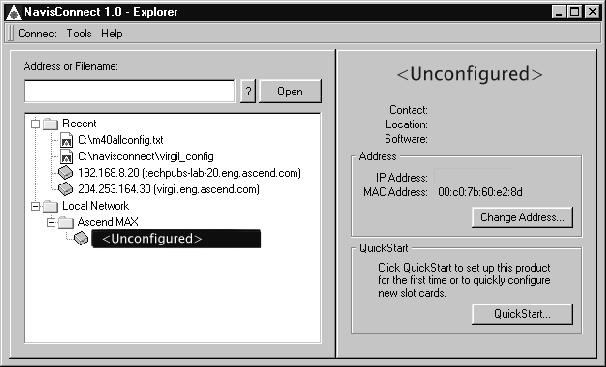
The NavisConnect Explorer's Change Address button enables you to assign or change an IP address and Telnet, SNMP, and administrative passwords.To use it:
- Start NavisConnect (Start > Programs > NavisConnect > Navis-Connect).
- In the Explorer's navigation tree, double-click the icon for the unconfigured MAX 800 (
<Unconfigured>). The Change Address button appears in the device information panel on the right:
- Click the Change Address button.
The Change Name and Address dialog box appears:
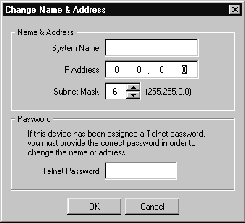
- Type the IP address and select the subnet mask that together form the IP address of the MAX 800. You can also specify a name so that the MAX 800 can be identified without having to remember the IP address. When finished, click Next. The content of the Change Name and Address dialog box changes to prompt you for additional information.
- To use NavisConnect, you must enable SNMP. Click Next to continue.
- Type a read-only and read-write SNMP password. (Although optional, Ascend recommends that you use passwords.) Click Next to continue.
- Press Next to restrict SNMP-management access to trusted hosts only and to add the PC workstation running NavisConnect to the list of trusted hosts. Click Next to continue.
- Type a password to be required for users accessing the MAX 800 through a Telnet connection. Also type a password to be required for administrators using NavisConnect to configure the MAX 800. (Although optional, Ascend recommends that you set these passwords.) Click Next.
- Click the Finish button.
NavisConnect connects to the MAX 800, applies the address and passwords you specified, and downloads its configuration to NavisConnect. After a few moments, the configuration window appears.
Restricting access automatically granted to all callers
The configuration window appears when you finish assigning the MAX 800 an IP address. To restrict access automatically granted to all callers on a new MAX 800, you must use the configuration window to:
- Configure the Default Security profile.
- Change the Full Access Security profile from the factory default,
Ascend, to a secure password.
Limiting configuration access with the Default Security profile
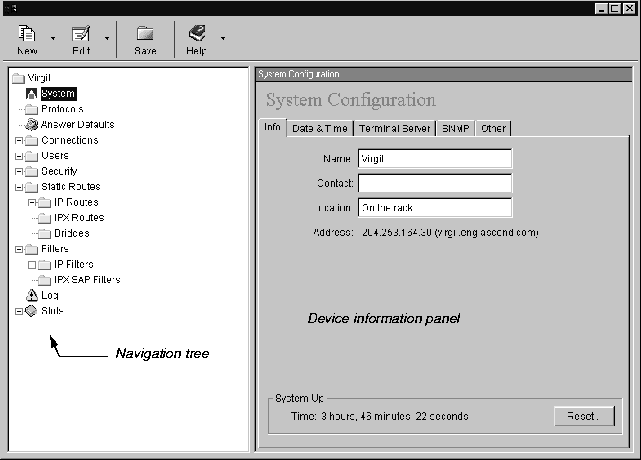
Use the configuration window to access and edit the Security profiles. (See Figure 3-1.)
Figure 3-1. NavisConnect configuration window
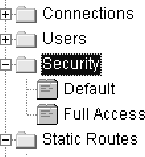
- In the navigation tree, double-click Security. Default and Full Access profiles become accessible:
- Click Default.
The Default Security Profile displays in the device information panel.
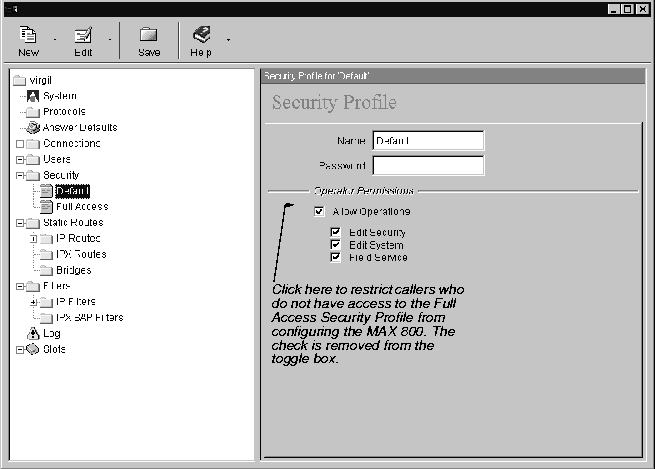
- Clear the Allow Operations check box. The new setting will be saved when you click the Save icon, as described in the next section.
Changing the password in the Full Access Security profile
After changing the Default Security profile as described in the preceding section:
- In the navigation tree, click Full Access.
The Full Access Security Profile displays in the device information panel.
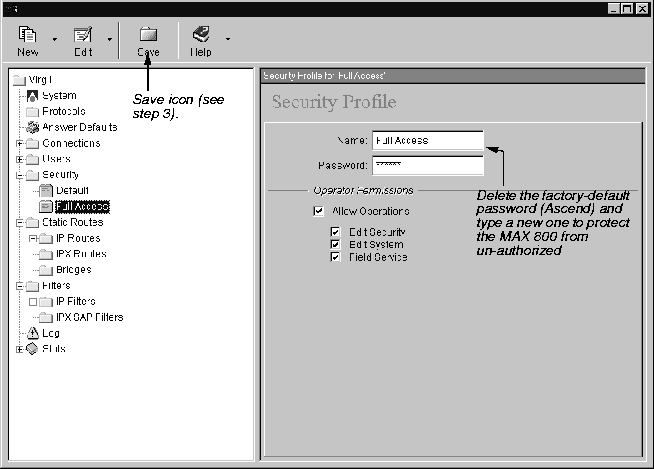
- Delete the existing password, displayed as six asterisks (******) and type a new password of 20 or fewer characters.
 Caution: Do not restrict the configuration access in the Full Access Security profile. Make
sure that Allow Operations remains selected.
Caution: Do not restrict the configuration access in the Full Access Security profile. Make
sure that Allow Operations remains selected.
- Click the Save icon.
The Save Configuration dialog box appears.
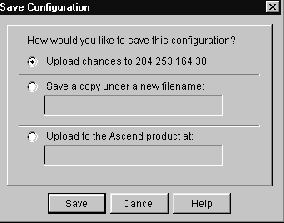
- Click the Save button to upload the changes to the MAX 800. After saving the changes, you can exit from NavisConnect or you can proceed to configure the MAX 800.
When you reset or power-cycle the MAX 800, the new, restrictive Default Security profile will be in effect for VT100 interface access. To configure the MAX 800 using the VT100 interface, you will be required to supply the new password that you assigned in step 2 to activate the Full Access Security profile.
For information about configuring the MAX 800, see the NavisConnect User's Guide and NavisConnect online help. You can also see the Network Configuration Guide for the MAX 800and the following documents on the Ascend Documentation Library CD-ROM: the Administration Guide for the MAX 800, and the MAX Series Reference Guide.
Where to go next?
To use NavisConnect to configure the MAX 800, see the NavisConnect User's Guide and NavisConnect online help.
techpubs@ascend.com
Copyright © 1998, Ascend Communications, Inc. All rights
reserved.