User's Manual
|
| RabbitCore RCM4500W User's Manual |
 |
 |
 |
6. Using the ZigBee Features
6.1 Introduction to the ZigBee Protocol
The ZigBee PRO specification was ratified in April, 2007, and covers high-level communication protocols for small, low-power digital modems based on the IEEE 802.15.4 standard for wireless personal area networks (WPANs). The XBee RF module used by the RCM4510W operates in the 2.4 GHz industrial, scientific, and medical (ISM) radio band in most jurisdictions worldwide.
The ZigBee protocol is ideal for embedded-system applications that are characterized by low data rates and low power consumption. A network of devices using the ZigBee protocol works via a self-organizing mesh network that can be used for industrial control, embedded sensors, data collection, smoke and intruder warning, and building automation. The power consumption of the individual device could be met for a year or longer using the originally installed battery.
A ZigBee device can be set up in one of three ways.
- As a coordinator: The coordinator serves as the root of the network tree. Each network can only have one coordinator. The coordinator stores information about the network and provides the repository for security keys.
- As a router. Routers pass data from other devices.
- As an end device. End devices contain just enough functionality to talk to their parent node (either the coordinator or a router), and cannot relay data from other devices.
An Introduction to ZigBee provides background information on the ZigBee protocol, and is available on the CD and on our Web site.
6.1.1 ZNet vs. ZB Firmware
RCM4510W modules are preconfigured with ZNet 2.5 or ZB router firmware. The firmware preloaded at the factory is indicated with the model number and is reflected in different part numbers (see Table 1). Older RCM4510W modules shipped with ZNet firmware and do not have a sticker on their XBee RF module.

- ZNet 2.5 firmware is supported by Dynamic C v. 10.21 and later versions. (Preview versions of the RCM4510W will work with Dynamic C v. 10.11 and later.)
- ZB firmware is supported by Dynamic C v. 10.46 and later versions.
ZigBee networks developed around the two types of firmware are essentially different networks that are not compatible with each other. It is possible to migrate an application developed with ZNet 2.5 firmware to ZB firmware by installing the ZB firmware on the XBee RF module and recompiling the application using Dynamic C v. 10.46 or later versions.
Some macros prior to Dynamic C v. 10.46 have been deprecated, but will still function with Dynamic C v. 10.46 or later versions. You can expect to see warning messages in this case. The only way to avoid this situation is to disable warning messages (not recommended), or to replace the macros with the new ones. The table below lists some of the commonly used macros.
See Section 6.2.2 for additional information on macros that are specific to the two types of firmware.
6.2 ZigBee Sample Programs
In order to run the sample programs discussed in this chapter and elsewhere in this manual,
- Your module must be plugged into the Prototyping Board as described in Chapter 2, "Getting Started."
- Dynamic C must be installed and running on your PC.
- The programming cable must connect the programming header on the RCM4510W to your PC.
- Power must be applied to the module through the Prototyping Board.
- The Digi® XBee USB used as the ZigBee coordinator must be connected to an available USB port on your PC if you are exercising the ZigBee protocol, or you need a second RCM4510W module if so instructed.
Refer to Chapter 2, "Getting Started," if you need further information on these steps.
To run a sample program, open it with the File menu (if it is not still open), then compile and run it by pressing F9.
Each sample program has comments that describe the purpose and function of the program. Follow the instructions at the beginning of the sample program.
The sample programs in the Dynamic C
SAMPLES\RCM4500W\XBeeandSAMPLES\XBeefolders illustrate the use of the XBee function calls.6.2.1 Setting Up the Digi XBee USB Coordinator
- Connect the Digi® XBee USB acting as a ZigBee coordinator to an available USB port on your PC or workstation. Your PC should recognize the new USB hardware.
- Compile and run the
XBEE_GPIO_SERVER.Csample program in the Dynamic CSAMPLES\RCM4500W\XBeefolder.
- Open the ZigBee Utility by double-clicking
XBEE_GPIO_GUI.exein the Dynamic CUtilities\XBee GPIO GUIfolder — if you have problems launching the ZigBee Utility, install a .Net Framework by double-clickingdotnetfx.exein the Dynamic CUtilities\dotnetfxfolder. You may add a shortcut to the ZigBee Utility on your desktop.
- Confirm the following hardware setup is displayed on the "PC Settings" tab.
Now select the COM port the Digi® XBee USB is connected to, and click the "Open Com Port" button. The message "Radio Found" is displayed to indicate that you selected the correct COM port. The ZigBee parameters (firmware version, operating channel, PAN ID) for the Digi® XBee USB will be displayed in the "Radio Parameters" box. Go to Control Panel > System > Hardware > Device Manager > Ports on your PC if you need help in identifying the USB COM port.
- Any ZigBee devices discovered will be displayed in the "Devices Discovered" window to the right.
If the utility times out and no ZigBee devices are displayed, you will have to reconfigure the Digi® XBee USB and recompile the sample program once you make sure the RCM4510W is powered up. The timeout may occur if you are doing development simultaneously with more than one ZigBee coordinator. Appendix D explains the steps to reconfigure the Digi® XBee USB.
- Select a device with your mouse pointer and click on the selected device to select that device. This device will now be displayed in the "Selected Device" area.
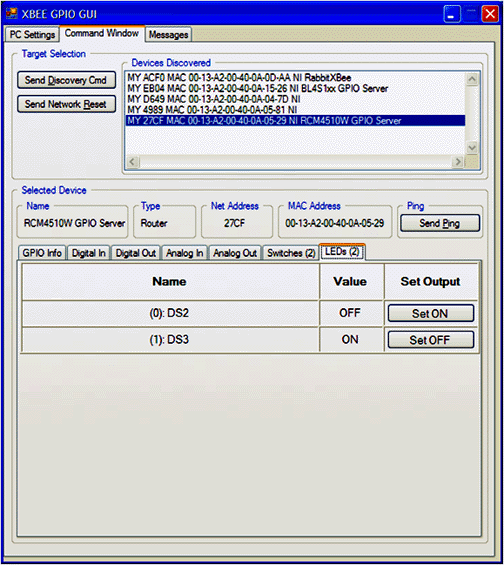
- You are now ready to interface with the RCM4510W via the ZigBee protocol. Try pinging the selected device by clicking the "Send Ping" button.
6.2.2 Setting up Sample Programs
The sample programs are set up so that the RCM4510W module you are using is a ZigBee end device, router, or coordinator. Uncomment the line corresponding to the role the RCM4510W will have once it is running the sample program. The default described in the sample programs is for the RCM4510W module to be either a router (shown below) or an end device.
// Set XBEE_ROLE to NODE_TYPE_COORD, NODE_TYPE_ROUTER or NODE_TYPE_ENDDEV
// to match your XBee's firmware.
#define XBEE_ROLE   NODE_TYPE_ROUTER
NOTE Remember that the firmware loaded to the XBee RF module is different depending on whether the RCM4510 W is an end device/router (default) or a coordinator. See Appendix D, "Additional Configuration Instructions," for information on how to download firmware to the RCM4510W module to set it up as a coordinator or to resume its original configuration as a router (ZigBee PRO) or an end device/router (ZNet 2.5). There are several macros that may be changed to facilitate your setup. The macros can be included as part of the program code, or they may be put into the Program Options "Defines" on the "Defines" tab in the Options > Program Options menu.
Channel mask — defaults to 0x1FFE, i.e., all 12 possible channels via the macro in the Dynamic C
LIB\Rabbit4000\XBee\XBEE_API.LIBlibrary. (Do not use bits 14 and 15 for campatibility with the XBee PRO.)
#define DEFAULT_CHANNELS XBEE_DEFAULT_CHANNELSNode ID — the ID of your particular node via the macro in the Dynamic C
LIB\Rabbit4000\XBee\XBEE_API.LIBlibrary. Each node should have a unique identifier of up to 20 printable characters.· Can be set to a global variable, or to a function that returns a pointer to a static buffer.
#define NODEID_STR "RabbitXBee"The XBee sample programs in the Dynamic C
SAMPLES\XBeefolder illustrate the use of AT commands with the XBee RF module.
AT_INTERACTIVE.C—This sample program shows how to set up and use AT commands with the XBee RF module.The program will print out a list of AT commands in the Dynamic C STDIO window. You may type in either "ATxx" or just the "xx" part of the command.
· Use just the AT command to read any of the values.
· Use [AT]xx yyyy (where the y is an integer up to 32 bits) to set any of the "set or read" values. (Note that this works for NI, the node identifier, where the data will be a Node ID.string in quotes — [AT]NI "Node ID string" where the quotes contain the string data).
Note that you can also use hex notation by prefixing the parameter with 0x and using an even number of hex characters.
· Type "menu" to redisplay the menu of commands.
· Press F4 to exit and close the STDIO window.
AT_RUNONCE.C—This sample program uses many of the most important and useful AT commands. Several commands can either set a parameter or read it. This sample program simply reads the parameters and displays the results.Compile and run this sample program. The program will display the results in the Dynamic C STDIO window.
The XBee sample programs in the Dynamic C
SAMPLES\RCM4500W\XBeefolder exercise the XBee function calls on the XBee RF module on the RCM4510W.
SLEEPMODE.C—This sample program shows how to place the RCM4510W module in the "sleep" mode where most power is removed from the RCM4510W module. Power is restored once a message is received or after a specified time interval. This sample program demonstrates waking after a specified time interval.Sleeping only works on end devices, so the
XBEE_ROLEmacro is set toNODE_TYPE_ENDDEVin this sample program. Because the XBee RF module turns the Rabbit processor off and on, a serial terminal emulator is required once the program has been compiled.1. Compile and run the sample program on the RCM4510W module.
2. Once the sample program is running, choose "Close Connection" from the in Dynamic C Run menu, and unplug the AC adapter supply power to the Prototyping Board.
3. Connect the DIAG connector instead of the PROG connector on the programming cable to the RCM4510 programming header.
4. Open the serial port in your serial terminal emulator such as TeraTerm or Hyperterminal to connect to the serial port at 57600 baud.
5. Plug the AC adapter back in to apply power to the Prototyping Board once again.
Once the XBee RF module on the RCM4510W completes its initialization (it joins the network), you will be prompted to enter a "sleep" time in milliseconds — enter the number followed by the Enter key. There will be a delay of a few seconds before the RCM4510W module powers off. When the RCM4510W module powers back up, it will begin running this program again from the beginning.
NOTE This sample program does not demonstrate the saving state. State information may be saved in battery-backed RAM before the RCM4510W module is placed in the sleep mode.
SLEEPMODE2.C—This sample program shows how to place the RCM4510W module in the "sleep" mode where most power is removed from the RCM4510W module. Power is restored once a message is received or after a specified time interval. This sample program demonstrates waking after a specified time interval.Sleeping only works on end devices, so the
XBEE_ROLEmacro is set toNODE_TYPE_ENDDEVin this sample program. Because the XBee RF module turns the Rabbit processor off and on, a serial terminal emulator is required once the program has been compiled.1. Compile and run the sample program on the RCM4510W module.
2. Once the sample program is running, choose "Close Connection" from the in Dynamic C Run menu, and unplug the AC adapter supply power to the Prototyping Board.
3. Connect the DIAG connector instead of the PROG connector on the programming cable to the RCM4510 programming header.
4. Open the serial port in your serial terminal emulator such as TeraTerm or Hyperterminal to connect to the serial port at 57600 baud.
5. Plug the AC adapter back in to apply power to the Prototyping Board once again.
Once the XBee RF module on the RCM4510W completes its initialization (it joins the network), you will be prompted to enter three values that control the XBee RF module's sleep mode — enter the values followed by the Enter key each time. Once you have entered these values via the serial terminal emulator, press any key to initiate the sleep mode. There will be a delay of a few seconds before the RCM4510W module powers off. When the RCM4510W module powers back up, it will begin running this program again from the beginning.
NOTE This sample program does not demonstrate the saving state. State information may be saved in battery-backed RAM before the RCM4510W module is placed in the sleep mode.
XBEE_GPIO_SERVER.C—This sample program shows how to set up and use endpoints and clusters. It is meant to be run with the Windows GUI client (installed in Dynamic C'sUtilitiesdirectory) and a Digi USB XBee coordinator or with the GPIO client sample program (SAMPLES/XBEE/XBEE_GPIO_CLIENT.C) running on an RCM4510W RabbitCore module or on a single-board computer with a separate XBee RF module.Compile and run this sample program with the RCM4510W RabbitCore module installed on the Prototyping Board. Run the Windows GUI client (
XBEE_GPIO_GUI.exein the Dynamic CUtilities\XBee GPIO GUIfolder) on your PC. Configure the GUI client to connect to the Digi USB XBee coordinator and scan for devices. Make sure the RCM4510W and the Digi USB XBee coordinator are configured with the same PAN ID or extended PAN ID.If you run the
XBEE_GPIO_CLIENT.Csample program on another board with an XBee RF module, set the PAN IDs to match between the client and the server sample programs.Now select the GPIO server and use the GUI interface on the PC, or the command-line client on another XBee-equipped board to view the server's inputs and change its outputs. For example, you can toggle the LEDs on the Prototyping Board on/off.
6.3 Using the Sleep Mode
The RCM4510W RabbitCore module has two components that are involved when the sleep mode is invoked — the XBee RF module and the Rabbit 4000 microprocessor.
End devices, unlike coordinators and routers, can enter a low-power sleep mode. This sleep mode is controlled by the XBee RF module, and fully powers down the Rabbit 4000 microprocessor for significant savings in power use.
The sleep mode can only be initiated while the RCM4510W is in the Run Mode (see Section 4.3.1 for more information on the Program Mode and the Run Mode).
Once the XBee RF module on the RCM4510W is operating in the sleep mode, it will periodically wake up and poll its parent router or coordinator to determine whether there is an incoming message. If one is found, the message will be received and the Rabbit 4000 microprocessor will be restarted. Otherwise the XBee RF module will return to sleep. Depending on how the sleep mode is configured, the XBee RF module may also restart the Rabbit 4000 microprocessor after a timeout has passed even if no message is received.
The sleep mode is controlled by the XBee RF module with a set of user-configurable parameters. Although a parameter can be set with an AT command, the recommended procedure is to only initiate the sleep mode using either the
zb_Rabbit_poweroff()or thexb_sleep()function call.The most important parameters are ST, SP, and SN. Together they control the duration of sleep and wake times.
- ST is measured in milliseconds, and controls the amount of time the XBee RF module, and consequently the Rabbit microprocessor, will stay awake waiting for RF or serial data before going to sleep. If any data are received, the ST counter will be reset. The Rabbit 4000 microprocessor needs approximately two seconds to boot and reinitialize the XBee RF module, so the value of ST must be at least 2000.
- SP is measured in 0.01 second intervals and controls the length of sleep for the XBee RF module. The XBee RF module will operate in a low-power mode for the time specified in SP, and then wake up briefly to poll its parent for a message. Depending on the value of SN, the XBee RF module may then either return to sleep or wake up the Rabbit 4000 microprocessor. There are several important considerations for SP.
- The ZigBee parent (coordinator or router) can buffer a message for only 30 seconds,so SP must be set to no more than 28 seconds.
- While SP is measured in 0.01 second intervals, it only has a 0.25 second resolution, and any value sent to the XBee RF module is rounded automatically.
- The overhead of polling for a message was tested internally and was found to be approximately 20 ms. Thus a hypothetical sleep with SN = 100 and SP = 100 will not wake the Rabbit microprocessor until 102 seconds have elapsed (rather than the expected 100 seconds). The polling time may be sensitive to network conditions and firmware version, so you should perform your own testing if timing is critical.
- SN determines how many multiples of SP the radio will sleep before waking up if no message was otherwise received.
Two additional parameters are described below for completeness.
- WH determines how long the XBee RF module will hold a message for the RCM4510W to receive. Like ST, this parameter must be set carefully to ensure no messages are lost at startup. It is currently set to 3 seconds.
- SO is a conditional flag and determines whether the XBee RF module will wake the Rabbit 4000 microprocessor if SN and SP expire, or whether both parameters are reset to resume the sleep mode immediately.
There are several important ramifications and interactions with the operation of other function calls to consider when using the sleep mode.
- When the Rabbit 4000 microprocessor wakes up from sleep, both the RCM4510W and user application will fully restart. The user program will not resume from the point at which it went to sleep.
- User data should be initialized prior to calling
xbee_init()to ensure that cluster functions or the default message handler process an incoming wake message correctly.
- When sleep is initiated, both the XBee RF module and the Rabbit 4000 microprocessor will remain awake for the time in ST before actually powering down the Rabbit 4000 microprocessor and entering a low-power mode. Any messages received during this time period will cause the counter to reset, and must be processed immediately or be lost.
- An end device is always preparing to sleep. Use
xb_stayawake()to set ST to its maximum value and periodically send data to the XBee RF module to keep it awake. Blocking for long periods of time and failing to callxb_tick()for more than 30 seoconds could result in the RCM4510W going to sleep unexpectedly.The
SLEEPMODE.CandSLEEPMODE2.Csample programs in the Dynamic CSAMPLES\RCM4500W\XBEEfolder and the function documentation forzb_Rabbit_poweroff()andxb_sleep()provide more specific information regarding the implementation and use of the sleep mode.6.4 Dynamic C Function Calls
Function calls for use with the XBee RF modules are in the Dynamic C
LIB\Rabbit4000\XBee\XBEE_API.LIBlibrary. These ZigBee specific function calls are described in An Introduction to ZigBee, which is included in the online documentation set.6.5 Where Do I Go From Here?
NOTE If you purchased your RCM4510W through a distributor or through a Rabbit partner, contact the distributor or partner first for technical support. If there are any problems at this point:
- Use the Dynamic C Help menu to get further assistance with Dynamic C.
- Check the Rabbit Technical Bulletin Board and forums at www.rabbit.com/support/bb/ and at www.rabbitcom/forums/.
- Use the Technical Support e-mail form at www.rabbit.com/support/.
If the sample programs ran fine, you are now ready to go on.
An Introduction to ZigBee provides background information on the ZigBee protocol, and is available on the CD and on our Web site.
Digi's XBee® OEM RF Modules provides complete information for the XBee RF module used on the RCM4510W RabbitCore modules, provides background information on the ZigBee PRO protocol, and is available at ftp1.digi.com/support/documentation/90000976_a.pdf..
| Rabbit—A Digi International Brand www.rabbit.com |
| |
|
|