
![[Top]](../images/home.jpg)
![[Contents]](../images/contents.jpg)
![[Prev]](../images/previous.jpg)
![[Next]](../images/next.jpg)
![[Last]](../images/index.jpg)


Configuring Individual WAN Connections
Most of the parameters for configuring WAN connections are in the Answer profile and Connection profiles or Names/Passwords profiles. Most of the decisions you have to make depend on which protocol you choose for encapsulating data transmitted over the connection. Point to Point Protocol (PPP) supports dial-in connections between the MAX and modems or ISDN devices. Three variants, MP, MP+, and BACP, support multichannel connections. Combinet bridging links two LANs so that they appear to be a single segment. EU is a type of X.75 HDLC encapsulation commonly used in Europe. If your network supports AppleTalk, you can configure AppleTalk Remote Access (ARA) connections to asynchronous modems, or you can enable AppleTalk clients to use PPP for dialing in.
The MAX terminal server provides a command-line interface for administrators, and can provide access to local and remote users through a terminal-server interface.
The MAX provides a number of Dynamic Host Configuration Protocol (DHCP) services, such as responses to DHCP requests from hosts that need to borrow IP addresses.
Introduction to WAN links
This chapter describes configuring various types of links across the WAN. It focuses on the encapsulation issues for the following types of connections:
Connection type
|
Description
|
|---|
|
Point-to-Point Protocol (PPP)
|
PPP and its multilink variants (MP and MP+) enable dial-in connections, from modems or ISDN devices, using one or more channels. The remote devices must have PPP software.
|
|
Combinet
|
Combinet bridges two network segments at the link level, using one or two channels. The remote device is another Combinet bridge.
|
|
EU-UI and EU-RAW
|
UI and RAW are two different types of EU encapsulation. The MAX uses EU-UI when the equipment on the other side of the connection requires the DCE and DTE address fields in the EU header. When the connection does not require these address fields, the MAX uses EU-RAW. EU connections can be dial-in or dial-out.
EU encapsulation does not support an authentication protocol. Use CLID authentication to match incoming calls to the proper Connection profile when, for example, you apply special filters to certain callers, or some callers route IP and others bridge.
|
|
AppleTalk Remote Access (ARA)
|
ARA enables a Macintosh user to access AppleTalk devices or IP hosts via modem. The remote Mac must have ARA client software and (if applicable) TCP/IP software.
|
|
Terminal-server connections
|
The MAX terminal server processes asynchronous calls from modems, ISDN modems (V.120 terminal adapters), or raw TCP. You can log those calls into the terminal-server interface or, if they contain PPP, pass the asynchronous calls to the router.
|
This chapter does not describe RADIUS user profiles that serve the same function as resident Connection profiles. If you are using a RADIUS authentication server, see the MAX RADIUS Configuration Guide. For details about WAN connection security, see the MAX Security Supplement.
The Answer profile
The Answer profile determines whether the MAX answers or drops an incoming call. If the call does not comply with the specifications in the Answer profile, the MAX drops the call without answering it.
Most administrators set up the Answer profile to reject calls that do not match a Connection profile. When a call matches a Connection profile, the MAX uses the connection-specific settings instead of the related encapsulation and session options in the Answer profile. However, if you configure a Names/Passwords profile, the MAX can use the settings in the Answer profile to build the session. Following are the Answer profile parameters:
Ethernet
      Answer
            Use Answer as Default=No
            Force 56=No
            Profile Reqd=Yes
            Id Auth=None
            Assign Adrs=No
            Encaps...
                  MPP=Yes
                  MP=Yes
                  PPP=Yes
                  COMB=Yes
                  FR=Yes
                  X25/PAD=Yes
                  EU-RAW=Yes
                  EU-UI=Yes
                  V.120=Yes
                  X.75=Yes
                  TCP-CLEAR=Yes
                  ARA=Yes
            IP options...
                  Metric=7
            PPP options...
                  Route IP=Yes
                  Route IPX=Yes
                  Bridge=Yes
                  Route AppleTalk=Yes
                  AppleTalk options...
                  Recv Auth=Either
                  MRU=1524
                  LQM=No
                  LQM Min=600
                  LQM Max=600
                  Link Comp=Stac
                  VJ Comp=Yes
                  CBCP Enable=No
                  BACP=No
                  Dyn Alg=Quadratic
                  Sec History=15
                  Add Pers=5
                  Sub Pers=10
                  Min Ch Count=1
                  Max Ch Count=1
                  Target Util=70
                  Idle Pct=0
                  Disc on Auth Timeout=Yes
            COMB options...
                  Password Reqd=Yes
                  Interval=10
                  Compression=Yes
            V.120 options...
                  Frame Length=260
            X.75 options...
                  K Window Size=7
                  N2 Retran Count=10
                  T1 Retran Timer=1000
                  Frame Length=2048
            Session options...
                  RIP=Off
                  Data Filter=5
                  Call Filter=3
                  Filter Persistence=No
                  Idle=120
                  TS Idle Mode=N/A
                  TS Idle=N/A
                  IPX SAP Filter=1
                  Max Call Duration=0
                  Preempt=N/A
                  Framed Only
            DHCP options...
                  Reply Enabled=No
                  Pool Number=N/A
                  Max Leases=N/A
Understanding the Answer profile parameters
This section provides some background information on the Answer profile. For detailed information about each parameter, see the MAX Reference Guide.
Use Answer as Default
The Use Answer as Default parameter specifies whether the Answer Profile should override the factory defaults when the MAX uses RADIUS or TACACS to validate an incoming call.
Force 56
If you set Force 56 to Yes, the MAX uses only 56 Kbps of a channel's bandwidth, even when all 64 Kbps appears to be available. The parameter is useful within North America for answering calls from European or Pacific Rim countries when the complete path cannot distinguish between the Switched-56 and Switched-64 data services. It is not needed for calls within North America.
Note: Because the default bandwidth for data calls across R2 lines is 64 Kbps, set Force 56 to
Yes in any Connection profile that use 56 Kbps over R2 lines.
Profile Reqd
If you do not require a Connection profile for every caller, the MAX builds a temporary profile for an unknown caller. Many sites consider this situation (Profile Reqd=No) a security breach.
Note: Defining the Setting Profile Reqd parameter to Yes disables Guest access for ARA
connections.
ID-Auth
The called number (typically the number dialed by the far end) and CLID (the far-end device's number) can be presented by the phone company as part of the call information and used in a first-level authentication process occurring before the MAX answers a call. See Understanding Connection profile parameters for details. See the MAX Security Supplement for background information about authentication.
Encaps subprofile
The Encaps subprofile contains settings for each type of link encapsulation that the MAX supports. If you set an encapsulation type to No in this menu, the MAX does not accept calls of that type.
IP options
In the Answer profile, the Metric parameter determines the virtual hop count of the IP link when the MAX uses RADIUS or TACACS to validate an incoming call and you set the Use Answer as Default.
Encapsulation-specific options
For the details about PPP, Combinet, and other encapsulation options, see the sections later in this chapter, about configuring specific types of connections. The Answer profile uses these options only when you have not set corresponding options in the caller's configured profile.
X.75 options
The X.75 options enable dial-in access to the terminal server, using the X.75 protocol. See the CCITT Blue Book Recommendation X series 1988 for full technical specifications for X.75.
Session options
In the Answer profile, session options set default filters and timers to build connections that use RADIUS (if you enable Use Answer as Defaults) or Names/Passwords profiles. The Framed Only option limits terminal server access per user.
DHCP options
In the Answer profile, Dynamic Host Configuration Protocol (DHCP) options enable the MAX to act as a DHCP server for a local Pipeline unit for connections that use RADIUS (if you enable Use Answer as Defaults) or Names/Passwords profiles.
Example of Answer profile configuration
When a call first comes in, it is unauthenticated. The Answer profile lets you negotiate the PPP, authentication, and encapsulation methods; in addition whether the call will route or bridge. After the connection authenticates, the MAX uses the appropriate Connection profile or, if RADIUS is configured, the MAX uses the appropriate User profile.
To set up the profile:
- Open the Answer profile and set Profile Reqd to Yes.
- Set up Calling Line ID (CLID) or Called Number authentication, if required.
- Enable dynamic assignment of IP addresses to callers, if appropriate.
Ethernet
      Answer
            Profile Reqd=Yes
            Id Auth=None
            Assign Adrs=No
- Make sure you enable the encapsulation types you intend to support. For example:
            Encaps...
                  MPP=Yes
                  MP=Yes
                  PPP=Yes
                  COMB=Yes
                  FR=Yes
                  X25/PAD=Yes
                  EU-RAW=Yes
                  EU-UI=Yes
                  V.120=Yes
                  X.75=Yes
                  TCP-CLEAR=Yes
                  ARA=Yes
- Enable routing and bridging and specify authentication requirements, as appropriate. For example:
            PPP options...
                  Route IP=Yes
                  Route IPX=Yes
                  Route AppleTalk=Yes
                  Bridge=Yes
                  Recv Auth=Either
- Set AppleTalk PPP dial-in options in the AppleTalk Options menu, if required.
-
COMB options...
Password Reqd=Yes
- Close the Answer profile.
Connection profiles
Connection profiles define individual connections. For a given encapsulation type, the Connection profile contains many of the same options as the Answer profile.
Note: Settings in a Connection profile always override similar settings in the Answer profile.
Following are the Connection profile parameters (shown with sample settings):
Ethernet
      Connections
          any Connection profile
              Station=device-name
              Active=Yes
              PRI # Type=National
              Dial #=555-1212
              Calling #=555-2323
              Called #=555-1212
              Route IP=Yes
              Route IPX=No
              Route AppleTalk=Yes
              Bridge=No
            Dial brdcast=N/A
              Encaps=encapsulation-protocol
              Encaps options...
                  parameters for selected encapsulation-protocol
              IP options...
                  LAN Adrs=0.0.0.0/0
                  WAN Alias=0.0.0.0/0
                  IF Adrs=0.0.0.0/0
                  Metric=7
                  Preference=100
                  Private=No
                  RIP=Off
                  Pool=0
                  Multicast Client=No
                  Multicast Rate Limit=5
                  Client Pri DNS=0.0.0.0
                  Client Sec DNS=0.0.0.0
                  Client Assign DNS=Yes
                  Client Gateway=0.0.0.0
            IPX options...
                  Peer=Router
                  IPX RIP=None
                  IPX SAP=Send
                  Dial Query=No
                  IPX Net#=cfff0003
                  IPX Alias#=00000000
                  Handle IPX=None
                  Netware t/o=30
            AppleTalk options...
                    Peer=Dialin
                    Zone Name=ENGINEERING
                    Net Start=2001
                    Net End=2010
                    Default Zone=
                    Zone Name #1=
                    Zone Name #2=
                    Zone Name #3=
                    Zone Name #4=
            Session options...
                  Data Filter=5
                  Call Filter=3
                  Filter Persistence=No
                  Idle=120
                  TS Idle Mode=N/A
                  TS Idle=N/A
                  Max Call Duration=0
                  Preempt=N/A
                  IPX SAP Filter=0
                  BackUp=
                  IP Direct=0.0.0.0
                  FR Direct=No
                  FR Prof=N/A
                  FR DLCI=N/A
                  Framed Only
            OSPF options
                  RunOSPF=Yes
                  Area=0.0.0.0
                  AreaType=Normal
                  StubAreaDefaultCost=N/A
                  HelloInterval=40
                  DeadInterval=120
                  Priority=5
                  AuthType=Simple
                  AuthKey=ascend0
                  Cost=10
                  ASE-type=N/A
                  ASE-tag=N/A
                  TransitDelay=5
                  RetransmitInterval=20
            Telco options...
                  AnsOrig=Both
                  Callback=Yes
                  Exp Callback=No
                  Call Type=Switched
                  Group=N/A
                  FT1 Caller=N/A
                  Data Svc=56KR
                  Force 56=N/A
                  Bill #=555-1212
                  Call-by-Call=N/A
                  Transit #=222
                  Dialout OK=No
            Accounting...
                  Acct Type=None
                  Acct Host=N/A
                  Acct Port=N/A
                  Acct Timeout=N/A
                  Acct Key=N/A
                  Acct-ID Base=N/A
            DHCP options...
                  Reply Enabled=No
                  Pool Number=N/A
                  Max Leases=N/A
Note: After you select an encapsulation method in the Encaps option, the Encaps Options
subprofile contains settings related to the selected type.
For information on IP, IPX, bridging, OSPF, and AppleTalk configuration, see the appropriate chapter in this guide. For detailed information about each parameter, see the MAX Reference Guide.
Understanding Connection profile parameters
This section provides some background information about Connection profile parameters.
Station
The station name is the name of the remote device. Make sure the name matches the remote device's name exactly, including case changes.
PRI # Type
PRI # Type enables an AT&T switch to use your dial number when you make a call using T1 channels and ISDN signaling. You can specify National (inside the U.S.), Intl (outside the U.S.) or Local (within your Centrex group).
Dial #
Dial # is the phone number the MAX dials when an outbound caller attempts to establish a connection. The number can contain up to 24 characters including a dialing prefix that directs the connection to use a trunk group or dial plan (for example: 6-1-212-555-1212). For more details, see Chapter 3, Configuring WAN Access.
Calling #
Many carriers include the calling number (the phone number of the far-end device placing the call in each call. Calling # is the caller ID number that appears on some phones. The MAX also uses Calling # for Calling Line ID (CLID) authentication.
CLID authentication prevents the MAX from answering a connection unless it originates at the specified phone number. The number you specify can also be used for callback security if you configure callback in the per-connection telco options.
Called #
Called # (typically the number dialed by the far end) appears in an ISDN message as part of the call when Dial Number Information Service (DNIS) is in use. In some cases, the phone company can present a modified called number for DNIS. Authentication uses this number to direct inbound calls to a particular device from a central rotary switch or PBX. For details, see the MAX Security Supplement for details.
Encaps and Encaps Options
An encapsulation protocol must be specified for each connection, and its accompanying options configured in the Encaps options subprofile. These are described in separate sections in this chapter.
Route IP, Route IPX, Route AppleTalk
Each connection can be configured for IP routing, IPX routing, OSPF routing (that requires IP routing), or AppleTalk routing. Each of these routing setups has a separate subprofile within a Connection profile.
Bridge
Link-level bridging forwards packets to and from remote networks on the basis of the hardware-level address, not a logical network address. Bridge and Dial Brdcast are related parameters.
Connection profile Session options
A Connection profile has the following Session Options parameters (shown with sample settings):
Ethernet
      Connections
            Session options...
                  Data Filter=5
                  Call Filter=3
                  Filter Persistence=No
                  Idle=120
                  TS Idle Mode=N/A
                  TS Idle=N/A
                  Max Call Duration=0
                  Preempt=N/A
                  IPX SAP Filter=0
                  BackUp=
                  IP Direct=0.0.0.0
                  FR Direct=No
                  FR Prof=N/A
                  FR DLCI=N/A
                  Block calls after=0
                  Blocked duration
                  Framed Only
This section provides a brief overview. For detailed information about each parameter, see the MAX Reference Guide.
Data Filter, Call Filter
Ascend filters define packet conditions. Data filters drop specific packets, and are often used for security purposes. Call filters monitor inactive sessions and bring them down to avoid unnecessary connection costs. When a filter is in use, the MAX examines every packet in the packet stream and takes action if the defined filter conditions are present. The action the MAX takes depends both on the conditions specified within the filter and how the filter is applied. (For more information, see Chapter 14, Defining Static Filters.)
Idle, TS Idle Mode, TS Idle
The Idle parameter is a timer setting that specifies how long the connection remains idle before the MAX drops it. The TS Idle Mode and TS Idle parameters apply to terminal-server sessions. TS Idle Mode specifies whether the MAX uses the terminal-server idle timer (TS Idle) and, if so, whether it monitors traffic in one or both directions to determine when the session is idle. TS Idle is the timer that specifies how long the terminal-server session can remain idle before the MAX logs out the user and terminates the connection.
Max Call Duration
The MAX Call Duration parameter sets the maximum duration of an incoming call (1-1440 minutes). The default (zero) turns off this function. The MAX checks the connection once a minute, so the actual time of the call can be slightly longer than the number of minutes you set.
Preempt
Preempt specifies the number of idle seconds the MAX waits before it can use one of the channels of an idle link for a new call.
Backup
The Backup parameter specifies the name of a Connection profile to use when a nailed connection goes down. For example, if a nailed connection to corporate net #1 is out of service, you can use a backup switched connection to corporate net #2. You cannot use this parameter to provide alternative lines to a single destination.
IP Direct
An IP direct connection channels all inbound packets to a specified local host as explained in Chapter 7, Configuring IP Routing.
Frame Relay parameters
A Frame Relay redirect connection channels all inbound packets out to a Frame Relay switch as described in Chapter 5, Configuring Frame Relay.
Block Calls After
You can specify the number of unsuccessful attempts to place a call that an Ascend unit can make before blocking further attempts to make that connection. After the specified number of attempts have been made and failed, the blocking timer starts. For detailed information about each parameter, see the MAX Reference Guide.
Connection profile telco options
A Connection profile has the following Telco Options parameters (shown with sample settings):
Ethernet
      Connections
          any Connection profile
            Telco options...
                  AnsOrig=Both
                  Callback=Yes
                  Exp Callback=No
                  Callback Delay=
                  Call Type=Switched
                  Group=N/A
                  FT1 Caller=N/A
                  Data Svc=56KR
                  Force 56=N/A
                  Bill #=555-1212
                  Call-by-Call=N/A
                  Transit #=222
                  Dialout OK=No
For detailed information about each parameter, see the MAX Reference Guide. This section provides a brief overview.
AnsOrig and FTI Caller
The AnsOrig parameter specifies whether the MAX can answer incoming calls, dial out, or both. FT1 Caller specifies whether this MAX initiates calls on fractional T1 to add switched channels to a nailed MP+ connection (only one side of the connection should have this parameter set to Yes).
Callback
With Callback set to Yes, the MAX hangs up on the caller and dials back immediately, using the dial number in this profile. When you set Expect Callback to Yes, the MAX expects the far end to hang up and dial back (recommended when CLID is required on the far end unit and Ping or Telnet is in use).
Callback Delay
Callback is a feature in which Host A calls Host B, Host B disconnects the call, and then dials back to Host A. On switch types in Japan and Germany, the switch holds onto the DISCONNECT message from Host B to Host A. Since the disconnect has not been delivered, the return call is not accepted because Host A still has the connection up. The Callback Delay parameter allows you to specify a time delay until the DISCONNECT message has been delivered and to configure the callback delay on a per connection basis. You can specify a value from 0 to 60, which indicates the number of seconds for the time delay.
Call Type
The Call Type=Switched setting is the default. The other options are for nailed, nailed-MP+, and permanent switched connections.
A nailed connection is a permanent link that is always up as long as the physical connection persists. For a nailed connection, you must specify the group number of the nailed channels. You can even combine groups of nailed channels to create a single high-speed nailed connection. For example:
      Call Type=Nailed
      Group=3, 4
A nailed/MP+ connection combines nailed and switched channels. When you choose this Call Type, you need to set the FT1 Caller parameter to specify which side of the link can add switched channels. (For details about the Nailed/MP+ call type, see Example of MP connection without BACP.)
A permanent switched connection is an outbound switched call that attempts to remain up at all times. If the unit or central switch resets, or if the link terminates, the permanent switched connection attempts to restore the link at 10-second intervals, similar to the way in which the MAX maintains a nailed connection. A permanent switch connection conserves connection attempts but results in a long connection time. The combination can be cost effective for some customers. For details, see the MAX Reference Guide.
Data Svc
The Data Svc parameter specifies the type of data service the link uses, such as 56K or modem.
Bill #
Bill # specifies a billing number for charges incurred on the line. If appropriate, your carrier can provide a billing number that you can use to sort your bill. For example, each department might require its own billing number. The billing number can contain up to 24 characters.
Transit #
The Transit # parameter specifies a string for use in the transit network IE for PRI line calling through an Interexchange Carrier (IEC). The default (null) causes the MAX to use any available IEC for long-distance calls. You can specify one of the following dialing prefixes:
288 (AT&T)
222 (MCI)
333 (Sprint)
This parameter does not apply to nailed connections.
Dialout OK
The Dialout OK parameter specifies whether you can use the Connection profile for dialing out on one of the MAX unit's digital modems. Only if you set Dialout OK to Yes is the local user allowed access to the immediate modem feature.
Connection profile accounting options
A Connection profile includes the following accounting parameters (shown with default or sample settings:)
Ethernet
      Connections
            Accounting...
                  Acct Type=None
                  Acct Host=N/A
                  Acct Port=N/A
                  Acct Timeout=N/A
                  Acct Key=N/A
                  Acct-ID Base=N/A
For detailed information about each parameter, see the MAX Reference Guide. This section provides a brief overview.
Acct Type
You can set Acct Type to specify whether this connection uses the default accounting setup (specified in the Ethernet profile), no accounting at all, or the user-specific setup specified here. The MAX supports both RADIUS and TACACS+ accounting.
Acct Host and Acct Port
If Acct Type specifies use of a connection-specific accounting server, set Acct Host and Acct Port to specify the IP address of the server and the UDP port number to use in accounting requests.
Acct Timeout and Acct Key
The Acct Timeout parameter specifies how long to wait for a response to a RADIUS accounting request. TACACS+ has its own timeout method.The accounting key is a shared secret (a password shared with the accounting server).
Acct-ID Base
The Acct-ID Base parameter applies to RADIUS accounting. It specifies the numeric base (base 10 or base 16) for the session ID.
Connection profile DHCP options
A Connection profile includes the following DHCP parameters (shown sample settings):
Ethernet
      Connections
            DHCP options...
                  Reply Enabled=No
                  Pool Number=N/A
                  Max Leases=N/A
For detailed information about each parameter, see the MAX Reference Guide. This section provides a brief overview.
Reply Enabled
The Reply Enabled parameter is specifies whether the MAX processes DHCP packets and acts as a DHCP server on this connection. If you set the parameter to Yes and the connection is bridged, the MAX responds to all DHCP requests. If you set Reply Enabled to Yes and the connection uses routing, the MAX responds only to Network Address Translation (NAT) DHCP packets from a Pipeline unit. If you set Reply Enabled to No, the MAX does not respond to DHCP requests.
Pool Number
The Pool Number parameter specifies the IP address pool to use to assign addresses to NAT clients. It is not applicable if you set Reply Enabled to No.
Max Leases
The Max Leases parameter restricts the number of dynamic IP addresses to be given out through this connection, thus limiting the number of clients on the remote LAN who can access the Internet. This parameter is not applicable if you set Reply Enabled to No.
Names/Passwords profiles
Names/Passwords profiles provide simple name and password authentication for incoming calls. They are used only if authentication is required in the Answer profile (Recv Auth). In that case, the MAX prompts dial-in users for a name and password, matches the input to a Names/Passwords profile, accepts the call, and uses the settings in the Answer profile or a specified Connection profile to build the connection.
Names/Passwords profiles include the following parameters (shown with sample settings):
Ethernet
      Names / Passwords
            Name=Brian
            Active=Yes
            Recv PW=brianpw
            Template Connection #=0
Understanding the Names/Passwords profile parameters
This section provides some background information about Names/Passwords profiles. (For detailed information, see the MAX Reference Guide.
Name
The name must exactly match the name specified by a dial-in user, including case changes. Ascend does not recommend that you specify a name that is already in use in a Connection profile. The name can be up to 31 characters.
Active
To enable a Names/Passwords profile for use, set Active to Yes. If you are using a template Connection profile to build the session, that profile must also be active. (The Template Connection parameter specifies the template profile.)
Rec PW
Specify a password that exactly matches the one entered by the dial-in user, including case changes. The password can be up to 20 characters.
Template Connection
To use a template Connection profile rather than the Answer profile settings to build the session for this Names/Passwords profile, specify the unique portion of the profile's number here. The default of zero instructs the MAX to use the Answer profile settings. Any other number denotes a Connection profile. The specified Connection profile must be active.
Template connections can be used to enable or disable group logins. For example, you can specify a Connection profile for the Sales group to use when dialing in, then configure a Names/Passwords profile for each individual salesperson. You can prevent a single salesperson from dialing in by setting Active to No in the Names/Passwords profile, or you can prevent the entire group from logging in by setting Active to No in the Connection profile.
Example Names/Passwords profile configuration
To configure a Names/Passwords profile that uses the Answer profile settings:
- Open a Names/Passwords profile.
- Specify the user's name and password, and activate the profile. For example:
Ethernet
      Names / Passwords
            Name=Brian
            Active=Yes
            Recv PW=brianpw
            Template Connection #=0
- Leave the Template Connection # set to 0 (zero) to use Answer profile settings.
- Close the profile.
Note: To set up a dial-in AppleTalk PPP connection using a Names/Passwords profile, you
also need to set the Peer parameter in the AppleTalk Options profile to Dialin.
Configuring PPP connections
A PPP connection can be one of the following types:
- PPP-a single-channel connection to any remote device running PPP software.
- Multilink PPP (MP)-a multilink connection to an MP-compliant device from any vendor.
- MP with Bandwidth Allocation Control Protocol (MP with BACP)-an MP call that uses BACP to increase or decrease bandwidth on demand.
- Multilink Protocol Plus (MP+)-a multilink connection to another Ascend unit, that uses Ascend dynamic bandwidth allocation to increase or decrease bandwidth on demand.
Note: MP+ supersedes MPP.
A multilink connection begins by authenticating a base channel. If the connection allows additional bandwidth, the local or remote unit dials another link. For example, if a dial-in Ascend Pipeline unit has a single-channel session at 56 Kbps or 64 Kbps and multilink PPP is configured, a second call can combine the first B channel with the second for a transmission rate of 112 Kbps or 128 Kbps.
MAX units can be stacked to distribute the bandwidth required for connections across multiple units (as described in Configuring a Combinet connection).
Note: If a connection configured for multilink PPP fails to establish multiple channels, it falls
back to a single-channel PPP session. In either case, you can use the PPP parameters as part of
the connection negotiation. Use the MP, BACP, and MP+ settings in addition to the
single-channel PPP settings.
Configuring single-channel PPP connections
This section describes how to set the parameters used for PPP negotiation for establishing a single-channel PPP call or the base channel of a multilink PPP call. Following are the related parameters (shown with sample settings):
Ethernet
      Answer
            Encaps...
                  PPP=Yes
            PPP options...
                  Route IP=Yes
                  Route IPX=Yes
                  Route AppleTalk=Yes
                  Bridge=Yes
                  Recv Auth=Either
                  MRU=1524
                  LQM=No
                  LQM Min=600
                  LQM Max=600
                  Link Comp=Stac
                  VJ Comp=Yes
                  CBCP Enable=No
                  BACP=
                  Dyn Alg=
                 Sec History=
                  Add Pers=
                  Sub Pers=
Ethernet
      Connections
        any Connection profile
            Encaps=PPP
            Encaps options...
                  Send Auth=None
                  Send Name=N/A
                  Send PW=N/A
                  Recv PW=
                  MRU=1524
                  LQM=No
                  LQM Min=600
                  LQM Max=600
                  Link Comp=Stac
                  VJ Comp=Yes
                  CBCP Mode=N/A
                 CBCP Trunk Group=N/A
                  Split Code.User=N/A--not in params
Understanding the PPP parameters
This section provides some background information about the PPP parameters. For detailed information about each parameter, see the MAX Reference Guide.
.
Routing and bridging parameters
You must enable routing or bridging in the Answer profile for the MAX to pass the data stream from an answered call to its internal bridge/router software.
Revc Auth and Send Auth
The Recv Auth parameter specifies the protocol to use for authenticating the password sent by the far end during PPP negotiation. You can specify None, PAP (Password Authentication Protocol), CHAP (Challenge Handshake Authentication Protocol), MS-CHAP (Microsoft Challenge Handshake Authentication Protocol format supported by Windows NT systems), or Either. The Either setting allows any of the above.The far end must also support the specified protocol. In the Connection profile's Encaps Options subprofile, the Send Auth parameter specifies that protocol to use for the password sent to the far end during PPP negotiation.
Send PW and Recv PW
In the Connection's profile's Encaps Options subprofile, the Send PW parameter is the password sent to the remote device. It must match the password expected from the MAX. The Recv PW is the password sent to the MAX from the remote device. It is used to match up the caller to a profile when IP routing is not in use.
Send Name
The Send Name parameter specifies the name that the MAX sends to the far-end device during PPP authentication. Authentication fails if the name does not match what the far-end device expects. Also, authentication fails if either the password or IP address (for IP-routed connections) for the Connection profile does not match what the far-end device expects. You can specify up to 16 characters. The default is null.
Maximum receive units (MRU)
In the Answer's profiles's PPP Options, the MRU parameter specifies the maximum number of bytes the MAX can receive in a single packet on a PPP link. Usually the default of 1524 is the right setting, unless the far end device requires a lower number.
Link quality monitoring (LQM)
The LQM parameters specify whether the MAX monitors the quality of the link. If LQM is set to Yes, you can specify the minimum and maximum duration between reports, measured in tenths of a second.
LQM counts the number of packets sent across the link and periodically asks the remote end how many packets it has received. Discrepancies are evidence of packet loss and indicate link quality problems.
For a connection that has a Connection profile, that profile's LQM settings take precedence over the LQM settings in the Answer profile.
Link Comp and VJ Comp
In the Answer profile and in Connection profiles, the Link Comp parameter specifies the type of link compression for the connection, and VJ Comp specifies the type of TCP/IP header compression.
For data compression to take effect, both sides of a connection must support it. The MAX supports Stac and MS-Stac compression for PPP-encapsulated calls.
Stac compression refers to the Stacker LZS compression algorithm, developed by STAC Electronics, Inc., that modifies the standard LZS compression algorithm to optimize for speed (as opposed to optimizing for compression). Stac compression is one of the parameters negotiated when setting up a PPP connection.
MS-Stac refers to Microsoft LZS Coherency compression for Windows 95. This is a proprietary compression scheme for Windows 95 only (not for Windows NT).
Note: If the caller requests MS-Stac and the matching profile does not specify MS-Stac
compression, the connection seems to come up correctly but no data is routed. If the profile is
configured with MS-Stac and the caller does not acknowledge that compression scheme, the
MAX attempts to use standard Stac compression, and if that does not work, it uses no
compression.
On a related topic, Novell's NetWare relies on the Data Link layer (also called Layer 2) to validate and guarantee data integrity. STAC link compression, if specified, generates an eight-bit checksum, which is inadequate for NetWare data.
If your MAX supports NetWare (either routed or bridged), and you require link compression, you should configure your MAX in one of the following ways:
- Configure either STAC-9 or MS-STAC link compression, which use a more robust error-checking method, for any connection profile supporting IPX data. Configure link compression in the Ethernet > Answer > PPP Options > Link Comp parameter and Ethernet > Connections > Any Connection profile > Encaps Options > Link Comp parameter.
- Enable IPX-checksums on your NetWare servers and clients. (Both server and client must support IPX-checksums. If you enable checksums on your servers but your clients do not support checksums, they will fail to log in successfully.)
- Disable link compression completely by setting Ethernet > Answer > PPP Options > Link Comp = None and Ethernet > Connections > Any Connection profile > Encaps Options > Link Comp = None. By disabling link compression, the MAX validates and guarantees data integrity by means of PPP.
VJ Comp applies only to packets in TCP applications, such as Telnet. When you turn it on, the MAX applies TCP/IP header compression for both ends of the link.
CBCP Enable
The Answer profile's CBCP Enable parameter specifies how the MAX responds to caller requests to support CBCP (Callback Control Protocol). If CBCP Enable is set to Yes, the MAX positively acknowledges, during LCP negotiations, support for CBCP. If this parameter is set to No, the MAX rejects any request to support CBCP. (For more information about CBCP, see Microsoft's Callback Control Protocol (CBCP)in Chapter 3 of the MAX Security Supplement.)
CBCP Mode
The (Connection profile) CBCP mode parameter specifies what method of callback the MAX offers the incoming caller.
CBCP Trunk Group
The (Connection profile) CBCP Trunk Group parameter assigns the callback to a MAX trunk group. This parameter is used only when the caller is specifying the phone number the MAX uses for the callback. The value in CBCP Trunk Group is prepended to the caller-supplied number when the MAX calls back.
BACP
The BACP parameter enables the Bandwidth Allocation Control Protocol. The MAX encapsulates connections in MP (RFC 1990) and uses BACP to manage dynamic bandwidth on demand. Both sides of the connection must support BACP. BACP uses the same criteria for managing bandwidth dynamically as MP+ connections. Specify either Yes to enable BACP or No to disable BACP. No is the default.
Dyn Alg
The Dyn Alg parameter specifies the algorithm that the MAX uses to calculate average line utilization (ALU). You can specify one of the following values:
- Quadratic-Specifies that the MAX gives preference to recent samples of bandwidth usage than to older samples taken in the number of seconds specified in Sec History. The preference grows at a quadratic rate. The default is Quadratic.
- Linear-Specifies that the MAX gives preference to recent samples of bandwidth usage than to older samples taken in the number of seconds specified in Sec History. The weighting grows at a linear rate.
- Constant-Specifies that the MAX does not give greater preference to recent samples.
Sec History
The Sec History parameter specifies a number of seconds to use as the basis for calculating average line utilization (ALU). The ALU is used in calculating when to add or subtract bandwidth from a multi-channel call that supports dynamic bandwidth management.
Add Pers
The Add Pers parameter specifies the number of seconds that a call must maintain Average Line Utilization (ALU) above the target utilization threshold you specified in Target Util before the MAX adds bandwidth from available channels. When adding bandwidth, the MAX adds the number of channels that you specify in the Inc Ch Count parameter. You can specify a number from 1 to 300. The default for MP+ calls is 5. The default for AIM calls with dynamic call management is 20.
Sub Pers
The Sub Pers parameter specifies a number of seconds that a connection maintains an Average Link Utilization (ALU) equal to (or less than) the Target Util threshold before the MAX subtracts bandwidth.
Split Code.User
The Split Code.User parameter divides the PIN and CODE of a user and their USERNAME by a period. If the CHAP field cannot accommodate the full PIN+CODE.USER, you can enable this feature. The MAX splits the passcode into two pieces with the information following the period becoming the CHAP Name, overriding the name of the router. You can specify Yes, to enable the PIN, CODE and USERNAME to be divided, or you can specify No to disable the feature. No is the default.
Example of a PPP connection
Figure 4-1 shows the MAX with a PPP connection with a remote user who is running Windows 95 with the TCP/IP stack and PPP dialup software. The dial-in user has a modem, so the call is asynchronous and uses only one channel.
Figure 4-1. A PPP connection

To configure this PPP connection:
- Make sure the Answer profile enables PPP encapsulation and has the appropriate routing, bridging, and authentication settings. For example:
Ethernet
      Answer
            Encaps...
                  PPP=Yes
            PPP options...
                  Route IP=Yes
                  Route IPX=Yes
                  Bridge=Yes
                  Recv Auth=Either
- Close the Answer profile.
- Open a Connection profile.
- Specify the name of the remote device and activate the profile. For example:
Ethernet
      Connections
            Station=tommy
            Active=Yes
Note: Make sure that you specify the Station name exactly, including case changes.
- Select PPP encapsulation and set the appropriate PPP options. For example:
            Encaps=PPP
            Encaps options...
                  Send Auth=CHAP
                  Send PW=remotepw/A
                  Recv PW=localpw
The Send Auth parameter should be set to CHAP or PAP. Both sides of the connection must support the selected authentication protocol and the selected compression methods.
- Close the Connection profile.
Enabling PPP dial-out for V.110 modems
The MAX can make outgoing calls to a v.110 terminal-adapter client, using the PPP protocol. This feature also supports the callback feature via V.110 for the MAX Link Client software product.
For information about enabling dial-out that uses the MAX unit's digital modems, see Configuring dial-out options.
To enable PPP dial-out for V.110 modems:
- Open a Connection profile configured for async PPP.
- Open the Telco Options subprofile and specify the following data service:
Ethernet
      Connections
            Telco options...
                  Data Svc=v110 19.2 56K
- Close the Connection profile.
In the Data Svc settings, v110 is the V110, which tells the MAX to communicate with a V.110 terminal-adapter (through the V.100 modems.) The other two settings are the bit rate for the connection and the data service to use, respectively.
v110 19.2 56k
In this case, the connection to the remote terminal adapter (TA) uses a bit rate of 19.2 Kbps over a line using the Switched-56 data service. If the MAX cannot sync up with the remote TA at the specified bit rate, it attempts to use one of the other bit rates. For more detailed information about the Data Svc parameter, see the MAX Reference Guide.
Configuring a nailed MP+ connection
A Nailed/MP+ connection is a nailed connection that can add switched channels for increased bandwidth. The MAX dials switched channels when it receives an outbound packet for the far end and cannot forward it across the nailed connection, either because those channels are down or because they are being fully utilized.
If both the nailed and switched channels in a Nailed/MP+ connection are down, the connection does not reestablish itself until the nailed channels are brought back up or you dial the switched channels.
The maximum number of channels for the Nailed/MP+ connection is either the Max Ch Count setting or the number of nailed channels in the specified group, whichever is greater. If a nailed channel fails, MAX replaces that channel with a switched channel, even if the call is online with more than the minimum number of channels.
Note: If you modify a Nailed/MP+ Connection profile, most changes become active only
after the call is brought down and then back up. However, if you add a group number (for
example, changing Group=1,2 to Group=1,2,5) and save the modified profile, the MAX adds
the additional channels to the connection without having to bring it down and back up.
To configure a Nailed/MP+ connection:
- Configure an MP+ connection, as described in the preceding section.
- Open the Telco Options subprofile of the Connection profile.
- Specify that the MAX is the designated caller for the switched part of the connection.
Ethernet
      Connections
            Telco options...
                  AnsOrig=Call Only
                  FT1 Caller=Yes
Note: On the far end of the connection, set the AnsOrig and FT1 Caller parameters for
answering only. Note that the DO Hangup command only works from the caller end of the
connection.
- Specify the Nailed/MP+ call type, and the group number(s) of its nailed channels. For example:
                  Call Type=Nailed/MPP
                  Group=1,2
- Close the Connection profile.
Configuring multichannel calls across a stack of units
If you configure multiple MAX units to form a stack, the multiple channels of a Multilink PPP (MP) or MP+ call can to span (be distributed across) the units in the stack, as shown in Figure 4-2.
Figure 4-2. A MAX stack for spanning multilink PPP calls (MP) or MP+
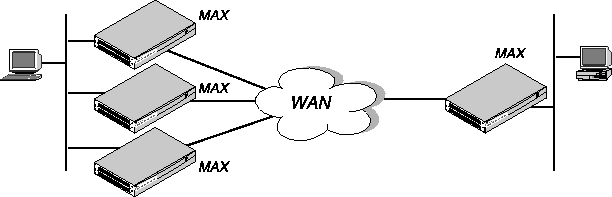
Call spanning with a stack configuration can be effective when:
- A MAX running MP+ asks for another phone number, and has no available lines.
- A rotary hunt group uses the same phone number to access multiple MAX units, making it impossible to assume that the same MAX that answered the original call answers a subsequent call.
MP/MP+ call spanning is protocol independent and works with all protocols supported by the MAX.
Note: Stacking requires any MP caller to use the MP endpoint discriminator. The same is true
of MP+. All Ascend products and most other products that support MP or MP+ use an
endpoint discriminator, but the specification for MP does not require it.
How MP/MP+ call spanning works
A stack is a group of MAX units that have the same stack information and are on the same physical LAN. There is no master MAX. The MAX units in the stack use a directed-broadcast Ethernet packet to locate each other.
Directed-broadcast packets usually cannot cross a router, so the MAX units in a single stack must be on the same physical LAN. MAX units running in a stack can generate fairly high levels of network traffic which is another reason to keep them on the same physical LAN.
Bundle ownership
Although MAX stacks do not have a master MAX, each bundle of channels in a MP/MP+ configuration has a bundle owner. The MAX that answers the first call in the MP/MP+ bundle is the bundle owner. If a bundle spans more than one MAX in a stack, an exchange of information flows between the MAX units in the bundle.
Stacking requires an endpoint discriminator. Every MP/MP+ call that comes to any member of the stack is compared to all existing MP/MP+ calls in the MAX stack to determine whether it is a member of an existing bundle. If the call belongs to an existing bundle, the MAX that answered and the bundle owner exchange information about the bundle. Furthermore, the MAX that answered the call forwards all incoming data packets over the Ethernet to the bundle owner.
Outgoing data
To balance the load among all available WAN channels, outgoing data packets for the WAN are assigned to available channels in a bundle on a rotating basis. If the MAX assigns an outgoing packet to a channel that is not local to the bundle owner, the bundle owner forwards the packet over the Ethernet to the MAX that owns the nonlocal channel.
Real and stacked channels
For the purpose of this description, real channels are those channels that connect directly to the MAX that owns the bundle. Stacked channels connect to a MAX that transfers the data to or from the MAX that owns the bundle.
For example, assume the initial call through an MP/MP+ bundle connects to MAX #1. This connection is a real channel. Next, the second call of the bundle connects to MAX #2. This connection is a stacked channel. MAX #1 is the bundle owner, and it manages the traffic for both channels of the bundle. MAX #2 forwards any traffic from the WAN to MAX #1, for distribution to the destination as shown in Figure 4-3.
Figure 4-3. Packet flow from the slave channel to the Ethernet
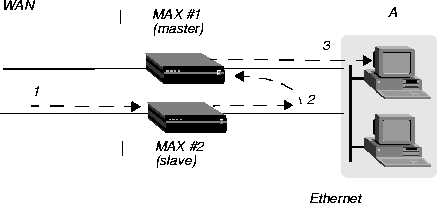
Note: Figure 4-3 does not illustrate traffic from the master MAX. WAN traffic received on
the master channel by MAX #1 is forwarded directly to the destination.
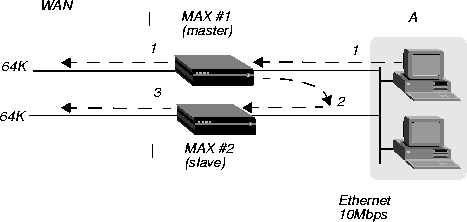
Likewise, MAX#1 receives all Ethernet traffic destined for the bundle, and disperses the packets between itself and MAX #2, as shown in Figure 4-4. MAX #1 forwards some of the packets across the WAN through a real channel. MAX #2 sends the rest of them through a stacked channel.
Figure 4-4. Packet flow from the Ethernet
Connection profiles within a stack
A stack does not support sharing of local Connection profiles between the MAX units in the stack. Every MAX that is set up to use internal authentication must retain all authentication information for every call. You can eliminate this requirement by using a centralized authentication server, such as RADIUS.
Phone numbers for new MP+ and MP-with-BACP channels
When a MAX has to add a channel for an MP+ or MP-with-BACP call, it provides a local phone number for the new channel. However, sometimes the MAX that answers the call cannot provide a local phone number for the additional channel because all the channels that connect directly to it are busy. In that case, the MAX requests other members of the stack to supply a phone number for the additional channel.
An MP call does not pass phone numbers when it adds a channel. The originator of the call must know all of the possible phone numbers to begin with.
If each MAX in the stack is accessed through a different phone number, the originator of the call must know all of the possible phone numbers. An alternative in this instance is to use BACP or MP+ to obtain the phone number of a MAX with a free channel.
Performance considerations for MAX stacking
There is no limit to the number of stacked channels in single call or in a stack of MAX units, other than the limit for each individual MAX. The MAX 6000, MAX 4000, MAX 2000, and MAX 1800 each support up to 40 stacked channels. The MAX 200 Plus supports up to three stacked channels. A MAX that can handle n real channels can handle n/3 stacked channels.
There is no theoretical limit to the number of MAX units in a stack, other than performance considerations. Because all data from stacked channels crosses the LAN, performance could suffer with a large number of MAX units in the stack and many stacked channels in use.
Performance overhead increases when stacked bundles span multiple boxes. In a bundle of 6 channels, 4 of which are real and 2 are stacked, the overhead is the actual bandwidth of the two stacked channels (2 x 64 = 128K). The actual payload data of the 6 channels with a 2:1 data compression is 6 x 2 x 64 = 768K. The overhead is 128 over 768, or 16%. In a two-channel bundle with one real and one stacked channel, with the same compression, the overhead is 25%.
Take into account that you do not know ahead of time how many bundles span the stack, or how many multi- or single-channel calls you are going to get. You can base an estimate on your traffic expectations. But in most situations, the majority of bundles are on a single MAX, for which there is no overhead.
Suggested LAN configurations
Total Ethernet usage is approximately 5116Kbps for a MAX stack handling 82 single-channel calls, 41 two-channel stacked calls, and 41 two-channel nonstacked calls. Because Ethernet capacity generally does not achieve more than 50% utilization, this configuration uses up the available Ethernet bandwidth.
The total number of channels in this configuration is 246. Therefore, a stack of three MAX units, each having three T1 lines with this usage profile, uses all of the Ethernet bandwidth.
The basic limitation from the above examples is the speed of the LAN. One way to increase the speed of your LAN is to attach each MAX to a separate port of a 10/100 Ethernet switch, then use a 100Mbps connection to the backbone LAN. This configuration enables each MAX to utilize up to a full 10Mbps Ethernet bandwidth, and the entire stack combined can generate up to full 100Mbps of Ethernet data. Once again assuming that the 100Mpbs is saturated at 50% usage, you can use up to 51200Kbps of bandwidth, or 10 times more than in the preceding example. The mixed environment of single-channel and two-channel calls now results in a maximum of 2460 channels or 102 T1 lines, or no more than 34 MAX units in a stack. Note that the success of this strategy depends on limiting stacked channels per MAX to the n/3 limit mentioned above.
Suggested hunt group configurations
Whenever you stack MAX units, it is important to limit the number of multichannel calls that are split between the MAX units. The following suggested configurations reduce the overhead for a multichannel call by keeping as many channels as possible on the same MAX.
MP+ (MPP) and MP-with-BACP calls
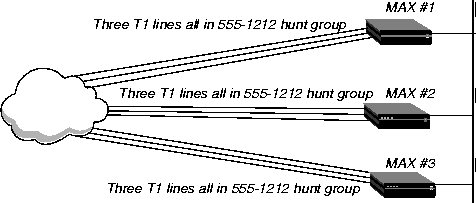
Figure 4-7 shows the suggested hunt group setup for a typical MAX stack that receives only PPP, MP+, or MP-with-BACP calls. Each MAX has three T1 lines. All the T1 lines in a MAX share a common phone number and they are in a hunt group that does not span MAX units. The illustration shows these three local hunt groups with phone numbers 555-1212, 555-1213, 555-1214. In addition, a global hunt group, 555-1215 spans all the T1s of all the MAX units in the stack.
Users that access the MAX dial 555-1215, the global hunt group number. The telephone company sets up the global hunt group to distribute incoming calls equally among the MAX units. Namely, the first call dialing 555-1215 goes to MAX #1, the second call to MAX #2, and so on. If you use this configuration, you must configure each of the MAX unit's Line N profiles with the local hunt group numbers. For example, for MAX #1 in Figure 4-5, you would set the Ch N # parameters to 12 (the last two digits of the 555-1212 hunt group number).
You can achieve the same distribution without a global hunt group by having one third of the users dial 555-1212, one third dial 555-1213, and one third dial 555-1214. You can leave the Ch N # parameters at their default setting (null) if you do not have a global hunt group.
Figure 4-5. Hunt groups for a MAX stack handling both MP and MP+ calls
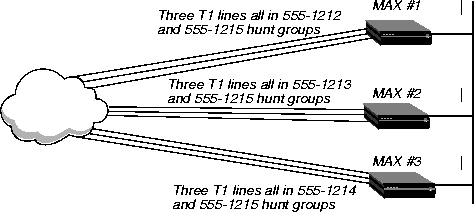
In Figure 4-5, suppose an MP+ call is connected to MAX #1. When that call needs to add a channel, it requests an add-on number from the MAX, and the MAX returns 12 (for 555-1212) as long as a channel in the local T1 lines is available. That is, the bundle does not span multiple MAX units as long as a channel is available in the local hunt group.
The Figure 4-5 configuration tends to break down if MAX units receive MP-without-BACP calls. Spreading the calls across the MAX stack (by dialing the global hunt group) results in the worst possible performance, because MP-without-BACP must know all of the phone numbers before the caller places the first call.
MP-without-BACP calls
Figure 4-6 shows a site that supports only MP-without-BACP calls. For this site, the telephone company has set up a global hunt group that first completely fills MAX #1, then continues to MAX #2, and so on. This arrangement tends to keep the channels of a call from being split across multiple MAX units, keeping overhead low.
Figure 4-6. Hunt groups for a MAX stack handling only MP-without-BACP calls
MP+ calls and MP calls with or without BACP
For a MAX that receives MP+ calls and MP calls with or without BACP, you can use a configuration similar to the one shown in Figure 4-5. In this case, however, you set up the global hunt group differently than explained in "MP+ (MPP) and MP-with-BACP calls." You set up the global hunt group to help prevent MP-without-BACP calls from being split across multiple MAX units in the stack. As in "MP-without-BACP calls," calls dialing 555-1215 first completely fill the channels of MAX #1, then continue to MAX #2, and so on.
Both MP+ and MP callers dial the global hunt group number to connect to the stack. MP-without-BACP calls and MP+ calls and MP calls with or without BACP explain how the MAX adds channels to MP+ and MP bundles. Be sure to set the Ch N # parameters as explained in MP+ calls and MP calls with or without BACP.
MP+ and MP-with-BACP callers do not have to dial the global hunt group numbers to connect. Only the MP-without-BACP callers need to dial the global hunt group. You can achieve an even distribution of MP+ and MP-with-BACP calls by having one third dial 555-1212, one third dial 555-1213, and one third dial 555-1214. You can leave the Ch N # parameters at their default setting (null) in this situation.
Understanding the stack parameters
This section provides some background information about the stack parameters. For complete details, see the MAX Reference Guide.
Stacking Enabled
The Stacking Enabled parameter enables the MAX to communicate with other members of the same stack. A MAX can belong to only one stack. All members of the stack use the same stack name and UDP port.
Stack Name
The Stack Name parameter specifies a stack name. Add a MAX to an existing stack by specifying that name. Create a new stack by specifying a new stack name.
UDP Port
Stacked MAX units communicate with other members of the stack by using a directed-broadcast Ethernet packet on the specified UDP port. Because directed-broadcast packets are unlikely to cross a router, and because of the high traffic demands created by a multilink call that spans MAX units, all members of a stack must reside on the same physical LAN.
For detailed information about each parameter, see the MAX Reference Guide.
Configuring a MAX stack
This section shows how to configure a stack of two MAX units. It does not show the details of configuring hunt groups, which is an important factor for stacked MP connections. For details about hunt groups, see Chapter 3, Configuring WAN Access.
To configure a MAX stack, proceed as follows for each MAX in the stack:
- Open the Ethernet > Mod Config menu and select Stack Options, as shown in the following sample menu:
90-A** Mod Config
  RADIUS Server
  Log
  ATMP
  Modem Ringback=Yes
  AppleTalk
  SNTP Server
  >Stack Options...
  UDP Checksum=No
When you press Enter, the Ethernet \> Mod Config \> Stack Options menu appears. For example:
90-A** Mod Config
>Stack Options...
Stacking Enabled=Yes
Stack Name=maxstack-1
UDP Port=6000
- Set Stacking Enabled to Yes (Stacking Enabled=Yes).
- Set the Stack Name parameter to a unique name for the stack.
A stack name has 16 characters or less. This is the name members of a stack use to identify other members of the same stack. The stack name must be unique among all MAX units that communicate with each other, even if they are not on the same LAN.
If a MAX receives calls from two MAX units on different LANs, and the two units are members of different stacks with the same stack name, the MAX receiving the calls assumes the two MAX units with the same stack name are in the same bundle.
Note: Multiple stacks can exist on the same physical Ethernet LAN if the stacks have
different names.
- Specify the UDP port.
This is a reserved UDP port for intrastack communications. The UDP port must be identical for all members of a stack, but is not required to be unique among all stacks.
Disabling a MAX stack
To disable a stack, specify Stacking Enabled=No for each of the MAX units in the stack.
Adding and removing a MAX
You can add a MAX to an existing stack at any time without rebooting the MAX or affecting stack operation. Because a stack is a collection of peers, none keeps a list of the stack membership. The MAX units in a stack communicate when they need a service from the stack.
Removing a MAX from a stack requires care, because any calls using a channel between the MAX to be removed and another MAX in the stack could be dropped. There is no need to reboot a MAX removed from a stack.
Configuring dial-in PPP for AppleTalk
You can configure an Ascend unit so that individual users can dial into an AppleTalk network using a PPP dialer, such as AppleTalk Remote Access 3.0 and Pacer PPP. The MAX does not need to be set up as an AppleTalk router to support dial-in PPP to AppleTalk.
You can set up a MAX to enable an AppleTalk client to dial in using PPP in two ways:
- With a Connection profile
- With a Names/Passwords profile
Configuring an AppleTalk PPP connection with a Connection profile
To use a Connection profile to configure an AppleTalk PPP connection:
- Open the Ethernet > Mod Config menu.
- Set Appletalk=Yes.
- Open the appropriate Connection profile.
- Set Route Appletalk=Yes.
- Open the AppleTalk Options menu.
90-103 apple
    AppleTalk options...
      Peer=Dialin
      Zone Name=N/A
      Net Start=N/A
      Net End=N/A
- Set the Peer parameter to indicate whether the connection for this profile is a single user PPP connection or a router
Peer=Dialin indicates that the profile is for a single user PPP connection. All other fields in the AppleTalk Options menu are N/A.
- If you select Peer=Dialin, you have completed the configuration. Close the AppleTalk Options menu and save your changes. Peer=Router indicates that the profile is for a connection with a router (such as an Ascend Pipeline unit). If you select Peer=Router, you need to configure the other fields in the AppleTalk options menu.
Note: Peer=Router works the same way that AppleTalk routing worked before this
feature.
If you selected Peer=Router in step 7 of the preceding procedure:
- Configure the AppleTalk zone name for the Ascend unit in the AppleTalk Options submenu of the Ethernet Configuration profile.
If there are other AppleTalk routers on the network, you must configure the zone names and network ranges to coincide with the other routers on the LAN.
The default for the Zone Name field is blank. Enter up to 33 alphanumeric characters to identify the zone name for the unit you are configuring.
Note: These fields display N/A if you have not enabled AppleTalk in the Ethernet Mod
Config menu.
- Set the AppleTalk Router parameter to specify whether the Ascend unit is a seed or nonseed router. The default setting is Off disabling AppleTalk routing.
A seed router must be assigned a network range and zone name configuration. There must be at least one seed router on a routed AppleTalk network. Select AppleTalk Router=Seed for this option.
A nonseed router learns network number and zone information from other routers. Select AppleTalk Router=Non-Seed for this option. If you choose Non Seed or Off, then Net Start, Net End, Default Zone, and Zone Name #n are N/A.
If you are configuring a nonseed router and are using Names/Passwords, go to Configuring an AppleTalk PPP connection with a Names/Passwords profile.
- If you are configuring the Ascend unit as a seed router, specify the network range for the network to which the Ascend unit is attached.
Net Start and Net End define the network range for nodes attached to this network. Valid entries for these fields are in the range from 1 to 65199. If there are other AppleTalk routers on the network, you must configure the network ranges to coincide with the other routers.
- Specify the default zone name for nodes on the Ascend unit's internet.
Enter up to 33 alphanumeric characters for the default zone name. The default for this field is blank.
The default zone is the one used by a node in the network for which you are configuring the Connection profile, until another zone name is explicitly selected by the node.
- Specify the zone names that the platform can seed.
The MAX can seed up to 32 zones, the Pipeline can seed up to 5. Enter up to 33 alphanumeric characters in each Zone Name #n field.
Configuring an AppleTalk PPP connection with a Names/Passwords profile
To use a Names/Passwords profile to configure an AppleTalk PPP connection:
- Open the Ethernet > Mod Config menu.
- Set Appletalk to Yes.
- In the Answer profile, open the PPP Options menu.
- Set Route Appletalk to Yes.
- PPP Options menu's Appletalk options submenu. For example:
90-103 apple
    AppleTalk options...
      Peer=Dialin
- Set the Peer parameter to indicate whether the connection for this profile is a single user PPP, connection, or a router.
Peer=Dialin indicates that the profile is for a single user PPP connection. All other fields in the AppleTalk options menu are N/A. Peer=Router indicates that the profile is for a connection with a router (such as an Ascend Pipeline unit). If you select Peer=Router, you need to configure the other fields in the AppleTalk Options menu. If you select Peer=Dialin, you have completed the configuration.
- Close the AppleTalk Options menu and save your changes.
If you selected Peer=Router in step 7 of the preceding procedure:
- Configure the AppleTalk zone name for the Ascend unit in the AppleTalk Options submenu of the Ethernet Configuration profile.
If there are other AppleTalk routers on the network, you must configure the zone names and network ranges to coincide with the other routers on the LAN.
The default for the Zone Name field is blank. Enter up to 33 alphanumeric characters to identify the zone name for the unit you are configuring.
Note: These fields display N/A if you have not enabled AppleTalk in the Ethernet Mod
Config menu.
- Set the AppleTalk Router parameter to specify the Ascend unit is a seed or nonseed router. The default setting is Off disabling AppleTalk routing.
A seed router must be assigned a network range and zone name configuration. There must be at least one seed router on a routed AppleTalk network. Select AppleTalk Router=Seed for this option.
A nonseed router learns network number and zone information from other routers. Select AppleTalk Router=Non-Seed for this option. If you choose Non Seed or Off, then Net Start, Net End, Default Zone, and Zone Name #n are N/A.
If you are configuring a nonseed router and are using Names/Passwords, go to Configuring an AppleTalk PPP connection with a Names/Passwords profile.
- If you are configuring the Ascend unit as a seed router, specify the network range for the network to which the Ascend unit is attached.
Net Start and Net End define the network range for nodes attached to this network. Valid entries for these fields are in the range from 1 to 65199. If there are other AppleTalk routers on the network, you must configure the network ranges to coincide with the other routers.
- Specify the Default Zone name for nodes on the Ascend unit's internet.
Enter up to 33 alphanumeric characters for the Default Zone name.
The Default Zone is the one used by a node in the network for which you are configuring the Connection profile, until another zone name is explicitly selected by the node.
- Specify the zone names that the platform can seed.
The MAX can seed up to 32 zones, and the Pipeline can seed up to five. Enter up to 33 alphanumeric characters in each Zone Name #n field.
Configuring AppleTalk connections from RADIUS
You can set up an AppleTalk connection in a RADIUS user profile and configure static AppleTalk routes in a RADIUS pseudo-user file. For detailed information, see the MAX RADIUS Configuration Guide.
Configuring terminal-server connections
Terminal-server connections are host-to-host connections that use an analog modem, ISDN modem (such as a V.120 terminal adapter), or raw TCP. If you use one of these methods to initiate a call but the call contains PPP encapsulation, the terminal server forwards the call to the MAX router. These are asynchronous PPP calls, and aside from the initial processing, the MAX handles asynchronous PPP calls like regular PPP sessions as described in Configuring PPP connections.
Figure 4-7 shows a user dialing in via analog modem with dial-up software that does not include PPP. The MAX first routes this type of call to a digital modem, then forwards the call automatically to the terminal server.
Figure 4-7. Terminal-server connection to a local Telnet host

Terminal-server connections can be authenticated via Connection or Names/Passwords profiles, or through a third-party authentication server such as RADIUS.
Note: Like PPP connections, terminal-server connections rely on the Answer profile for
default settings and enabling of the encapsulation type. For information about the telco options
in a Connection profile, see Introduction to WAN links. These telco options apply equally to
PPP or terminal-server calls.
Connection authentication issues
When the terminal server receives a forwarded call, it waits briefly to receive a PPP packet. If the terminal server times out waiting for PPP, it sends its Login prompt. When the terminal server receives a name and password, it authenticates them against the Connection profile.
If the terminal server receives a PPP packet, instead of sending a Login prompt it responds with a PPP packet and LCP negotiation begins, including PAP or CHAP authentication. The terminal server then establishes the connection as a regular PPP session.
Note: If you do not want your users to share profiles, set the Shared Prof parameter to No.
This parameter can be set in Ethernet > Mod Config for all users or in Ethernet > Connections
> any Connection profile for a single user. For more details about the Shared Prof parameter,
see the MAX Reference Guide. To specify shared profiles per user in RADIUS, see the
Ascend-Shared-Profile-Enable attribute in the MAX RADIUS Reference Guide.
Recommended settings for callers with modems and terminal adapters depend on the type of device and whether the connection uses PPP.
Analog modems and async PPP connections
If the Connection profile specifies PAP or CHAP authentication for connection through analog modem, the caller's PPP software should not be configured with any expect-send scripts, because the software must start negotiating PPP when the modems connect.
If the Connection profile does not specify PAP or CHAP authentication, configure the caller's PPP software with an expect-send script (expect > Login: send <$username> expect Password: send <$password:>). When the MAX authenticates the connection, the software starts sending PPP packets.
V.120 terminal adapters and PPP connections
If you configure the V.120 terminal adapter to run the PPP protocol, the V.120 terminal adapter handles PAP or CHAP authentication and whatever other PPP or MP features the terminal adapter supports. Typically, the Connection profile requires PAP or CHAP.
V.120 terminal adapters with PPP turned off
If you configure a V.120 terminal adapter to run without PPP, it does not support PAP or CHAP authentication. If the Connection profile requires PAP or CHAP authentication, the connection fails.
Modem connections
This section shows sample Connection profiles for a terminal server connection established via analog modem. For example, the following profile uses only the required parameters for authenticating a terminal server modem connection:
Ethernet
      Connections
            Station=uttam
            Active=Yes
            Encaps=PPP
            Encaps options...
                  Recv PW=localpw
For detailed information about each parameter, see Understanding the PPP parameters.
The next profile shows optional parameters for bringing down the terminal server connection after a specified amount of idle time:
Ethernet
      Connections
            Station=uttam
            Active=Yes
            Encaps=PPP
            Encaps options...
                  Recv PW=localpw
            Session options...
                  TS Idle Mode=Input/Output
                  TS Idle=60
For information about the parameters, see Connection profile Session options and Configuring single-channel PPP connections.
V.120 terminal adapter connections
V.120 terminal adapters (also known as ISDN modems) are asynchronous devices that use CCITT V.120 encapsulation. The values that seem to work best for V.120 operation are:
- Maximum information field size for send and receive packets = 260 bytes
- Maximum number of retransmissions (N200) = 3
- Logical link ID (LLI) = 256
- Idle timer (T203) = 30 seconds
- Maximum number of outstanding frames = 7
- Modulo = 128
- Retransmission timer (T200) = 1.5 seconds
- Types of frames accepted = UI, I. (I-type frames are recommended.)
- Call placement: The MAX can receive V.120 calls, but cannot place them.
Note: If the connection uses PAP or CHAP authentication, the ISDN terminal adapter should
be configured for async-to-sync conversion. In this case, V.120 encapsulation is not required in
the Connection profile. For more information, see Connection authentication issues.
The V.120 device must be correctly configured to place calls to the MAX. The settings required for compatible operation of a V.120 device and the MAX are listed below. For information about entering these settings, see the V.120 manual.
- V.120 maximum transmit frame size = 260 bytes
- V.120 maximum receive frame size = 260 bytes
- Logical link ID = 256
- Modulo = 128
- Line channel speed = Select 56K if the MAX accepts calls from the V.120 device on a T1 line, or if you are not sure that you have 64 Kbps channel speed end-to-end.
After checking the configuration of the V.120 device, make sure you enable V.120 calls in the Answer profile:
Ethernet
      Answer
            Encaps...
                  V.120=Yes
            V.120 options...
                  Frame Length=260
To configure a connection that uses a V.120 terminal adapter, create a Connection profile such as the following:
Ethernet
      Connections
          Tommy
              Station=tommy
              Active=Yes
              Encaps=PPP
              Encaps options...
                    Recv PW=localpw
              Session options...
                    TS Idle Mode=Input
                    TS Idle=60
For information about the parameter, see Connection profile Session options and Configuring single-channel PPP connections.
TCP-clear connections
Use a TCP-clear connection for surname logins or TCP modem connections.
Username login
In most cases, use TCP-clear to transport custom-encapsulated data understood by the host and the caller. For example, America Online customers who log in from an ISDN device typically use a TCP-clear connection to tunnel their proprietary encapsulation method in raw TCP/IP packets, as shown in Figure 4-8.
Figure 4-8. A TCP-clear connection

Note: A TCP-clear connection is host-to-host. As soon as the MAX authenticates the
connection, the host establishes a TCP connection as specified in the Connection profile.
First, make sure you enable TCP-clear calls in the Answer profile:
Ethernet
      Answer
            Encaps...
                  TCP-CLEAR=Yes
To configure a TCP-clear connection, set the parameters shown in the following example:
Ethernet
      Connections
          Richard
              Station=richard
              Active=Yes
              Encaps=TCP-CLEAR
              Encaps options...
                  Recv PW=localpw
                  Login Host=techpubs
                  Login Port=23
              Session options...
                  TS Idle Mode=Input
                  TS Idle=60
If you configure DNS, you can enter a hostname for the Login host (such as the techpubs example above). Otherwise, specify the host's IP address. The port number is the TCP port, on the host, to use for the connection. A port number of zero means any port.
(F or related information, Connection profile Session options and TCP-modem connections (DNIS Login).)
TCP-modem connections (DNIS Login)
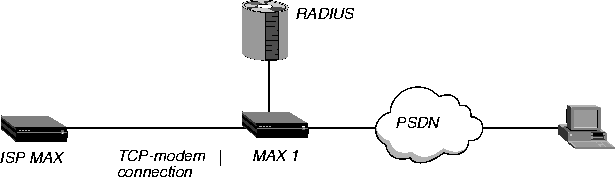
The TCP-modem feature enables the MAX to accept connections through the Ethernet interface although the MAX handles the sessions as if they were modem connections. You can enable or disable TCP-modem access to the MAX, and you can configure the default port for TCP modem access.
TCP-modem refers to the way the MAX treats a TCP-encapsulated call between two MAX units over an asynchronous line as if it were a modem. You can disable TCP-modem connections to the MAX. In addition, you can change the TCP port used for these connections. The default port for TCP-modem is 6150.
Figure 4-9 illustrates an example of a TCP modem-setup. A user dialing into an ISP first connects to the telephone switch and then establishes a connection to MAX 1. The MAX 1 has a TCP-Clear connection configured in RADIUS to a MAX at an ISP. Typically, this connection is over Frame Relay. The remote user appears to be directly connected to the ISP MAX. MAX 1 merely passes the data through. The ISP MAX typically authenticates remote users.
Figure 4-9. Sample TCP-modem connection
For detailed information about TCP-modem connections, see the MAX RADIUS Configuration Guide.
The terminal-server interface
The terminal server can provide a command-line interface (terminal mode) or a menu of Telnet hosts that dial-in users can log into (menu mode). Or, you can configure an immediate mode to automatically present the user with a login prompt to a host, bypassing the terminal-server interface altogether.
Terminal mode
In terminal mode, users have access to the command line and can see information about your network by using administrative terminal-server commands. You can also enable them to initiate their own Telnet, Rlogin, or TCP connections to hosts.
Menu mode
The menu interface lists up to four local hosts. Users select a hostname to initiate a Telnet session to that host. The menu interface with four hosts looks like this:
Up to 16 lines of up to 80 characters each
will be accepted. Long lines will be truncated.
Additional lines will be ignored
1. host1.abc.com
2. host2.abc.com
3. host3.abc.com
4. host4.abc.com
Enter Selection (1-4, q)
Immediate mode
In immediate mode, the terminal server initiates a Telnet, Rlogin, or TCP connection to one specified host without every giving the dial-in user a choice. The host requires login and password entered by the user, not by the terminal server.
Enabling terminal-server calls and setting security
To enable the MAX units terminal servers, open Ethernet > Mod Config > TServ Options and set TS Enabled to Yes.
Also, the terminal-server Security setting can be None, Partial, or Full. The setting determines whether users are prompted for a login name and password before entering the terminal server. Its meaning is partly dependent on whether users log into menu mode or terminal mode, and whether they are allowed to toggle between these two modes.
- With security set to None, no prompt appears for a login name and password.
- With security set to Partial, a prompt appears for a name and password only when entering terminal mode, not for menu mode.
- With security set to Full, a prompt appears for a name and password upon initial login, no matter what interface appears.
Understanding modem parameters
Calls from analog modems are directed first to the MAX digital modems where the connection must be negotiated before being directed to the terminal-server software.
To influence the outcome for modem negotiation and data packetizing, you can set the following parameters:
Ethernet
      Mod Config
            TServ options...
                  V42/MNP=Will
                  Max Baud=33600
                  MDM Trn Level=-13
                  MDM Modulation=K56
                  Cell First=No
                  Cell Level=-18
                  7-Even=No
                  Packet Wait Time=2
                  Packet characters=0
This section provides background information about the modem configuration parameters. For complete information, see the MAX Reference Guide.
V42/MNP
The digital modems negotiate LAPM/MNP error control with the analog modem at the other end of the connection according to how the V42/MNP parameter is set. The modems can request LAPM/MNP and accept the call anyway if it is not provided, request it and drop the call if it is not provided, or not use LAPM/MNP error control at all.
Max Baud
Typically, the digital modems start with the highest possible baud rate (3360) and negotiate down to the rate accepted by the far end modem. You can adjust the maximum rate to bypass some of the negotiation cycles, provided that no inbound calls use a baud rate higher than what you specify here.
MDM Trn Level
The MDM Trn Level parameter specifies the modem transit level, which is the amount of attenuation in decibels the MAX should apply to the line. When a modem calls the MAX, the unit attempts to connect at the transmit attenuate level you specify. Generally, you do not need to change the transmit level. However, if the carrier becomes aware of line problems or irregularities, you might need to alter the modem transmit level.
Users can change the default settings for their specific connections. Increasing the attentuation, level helps certain modems with near-end-echo problems.
MDM Modulation
You can specify the modulation to use when answering calls on the unit's 56K modems. The possible settings are K56, V.34 and V.90.
Cell FIrst and Cell Level
The MAX supports cellular modem call, and the user can set the gain level of the modem for cellular communication.
Cell First determines whether the MAX first attempts cellular modem or conventional modem negotiation when answering incoming calls. If the first negotiation fails, the MAX attempts the other negotiation.
Cell Level determines the gain level of the cellular modem.
7-Even
The MAX does not use 7-bit even parity on outbound data unless you set the 7-Even parameter to Yes. Most applications do not use 7-bit even parity.
Packet Wait and Packet Characters
The Packet Wait and Packet Characters parameters support specialized applications on modem connections. Packet Wait specifies the maximum amount of time, in milliseconds, that any received data can wait before being passed up the protocol stack for encapsulation.
Packet Characters specifies the minimum number of bytes of received data that should accumulate before the data is passed up the protocol stack for encapsulation.
Note: Be sure to take into account modem speeds when calculating these values.
Example of modem configuration
To set the maximum negotiable baud rate for incoming calls from analog modems:
- Open Ethernet > Mod Config > TServ Options.
- Set the maximum negotiable baud rate to 26400:
Ethernet
      Mod Config
            TServ options...
                  Max Baud=26400
- Close the Ethernet profile.
Configuring terminal mode
When a user communicates with the terminal server itself (rather than with a host, in immediate mode), the MAX establishes a session between the remote user's PC and the terminal server. The following parameters (shown with sample settings) affect the session the MAX establishes and what commands are available to the user:
Ethernet
      Mod Config
            TServ options...
                  Silent=No
                  Clr Scrn=Yes
                  Passwd=
                  Banner=** Ascend Terminal Server **
                  Login Prompt=Login:
                  Prompt Format=Yes
                  Passwd Prompt=Password:
                  Prompt = ascend%
                  Term Type= vt100
                  Login Timeout= 60
                  ...
                  Telnet=Yes
                  Rlogin=No
                  Def Telnet=Yes
                  Clear Call=No
                  Telnet mode=ASCII
                  Local Echo=No
                  Buffer Chars=Yes
                  ...
                  3rd Prompt=
                  3rd Prompt Seq=N/A
                  IP Addr Msg=N/A
Understanding the terminal-mode parameters
This section provides background information on the terminal-mode configuration parameters. For complete information, see the MAX Reference Guide.
Silent and Clr Scn
The Silent and Clr Scn parameters specify the appearance of the user's screen during establishment of the connection. Silent determines whether status messages appear while the MAX tries to establish the connection. You can set Clr Scrn to clear the screen when the MAX establishes a connection.
Password
The Passwd parameter specifies a terminal-mode password of up to 15 characters. This is the password terminal-server users will be prompted for when establishing a connection to the terminal server itself.
Banner and prompts for login
When the MAX establishes the terminal-server session, the system displays the banner "**Ascend Terminal Server **" or a different banner you have configured.
Login Prompt and Password Prompt specify what the user sees while logging in. The default prompts are:
Login:
Password:
The Login prompt can be up to 80 characters and consist of more than one line if Prompt Format is set to Yes. To specify a multiline prompt, set Prompt Format to Yes and use \n to represent a carriage return/line feed and \t to represent a tab.
Prompt
The Prompt parameter specifies the command-line prompt, which by default is:
ascend%
Be sure to include a trailing space you want one on the user's screen.
Login timeout
The MAX disconnects users if they have not completed logging in when the number of seconds set in the Login Timeout field has elapsed. A user has the total number of seconds indicated in the Login Timeout field to attempt a successful login. The timer begins when the login prompt appears on the terminal-server screen, and it continues (is not reset) when the user makes unsuccessful login attempts.
Telnet and Rlogin session defaults
You can enable or disable the use of the Rlogin, and Telnet commands at the terminal-server command line. When they are enabled, you can set parameters to affect session defaults. (Users can modify some of these default values on the command line.)
Term Type specifies a default terminal type, such as the VT100.
Def Telnet instructs the terminal server to interpret unknown command strings as the name of a host for a Telnet session.
Clear Call specifies whether the connection terminates when the user terminates a Telnet or Rlogin session.
Telnet Mode specifies whether binary, ASCII, or transparent mode is the default for Telnet sessions.
Local Echo sets a global default for echoing characters locally. The default can be changed for an individual session within Telnet.
Buffer Chars determines whether the terminal server buffers input characters for 100 milliseconds before forwarding them to the host, or sends the characters as they are received.
3rd Prompt and 3rd Prompt Seq
The 3rd Prompt parameter specifies another login prompt, and 3rd Prompt Seq specifies whether the third prompt appears before or after the regular terminal server login prompts.
For RADIUS-authenticated logins, some servers require a third prompt and require that it appear last in the login sequence.
Some ISPs use a terminal server that follows a login sequence that includes a menu selection before to login. Administrators at those sites can configure the third prompt to appear first, to mimic their terminal server and retain compatibility with client software in use by subscribers.
IP Addr Msg
When informing users of their address, the terminal server displays Your IP address is... followed by the assigned address. You can change this default message.
Example of terminal-mode configuration
This example shows how to configure the password and make the Rlogin option available to dial-in users.
- Open Ethernet > Mod Config > TServ Options.
- Set Telnet to Yes.
- Specify the terminal-server password. For example:
                  Passwd=tspasswd
                  Rlogin=Yes
- Configure a multiline login prompt. For example:
Ethernet
      Mod Config
            TServ options...
                  Login Prompt=Welcome to Ascend Remote Server\Enter your                   name:
                  Prompt Format=Yes
- Enable the use of the Rlogin command in terminal mode:
                  Passwd=tspasswd
                  Rlogin=Yes
- Close the Ethernet profile.
Configuring immediate mode
When dial-in calls are directed immediately to a host, the MAX establishes a session between the remote user's PC and that host via Rlogin, Telnet, or TCP. The following parameters (shown with sample values) affect:
Mod Config
      TServ options...
            Immed Service=None
            Immed Host=N/A
            Immed Port=N/A
            Telnet Host Auth=No
Understanding the immediate-mode parameters
This section provides background information about the immediate-mode configuration parameters. For complete information, see the MAX Configuration Guide.
Immediate Service and Telnet Host Auth
The Immed Service parameter enables a particular type of service for establishing an immediate host connection for dial-in users. You can specify Telnet, Raw-TCP, Rlogin, or X25-PAD. For details about X.25, see Chapter 6, Configuring X.25.
For Telnet service, you can set the Telnet Host Auth parameter to bypass the terminal-server authentication and go right to a Telnet login prompt.
Immed Host and Immed Port
Specify the hostname or address to which users will connect in terminal-server immediate mode. You can also specify a TCP port number to use for the connections.
Example of immediate-mode configuration
To configure immediate Telnet service relying on the Telnet host for authentication:
- Open Ethernet > Mod Config > TServ Options.
- Set the Immed Service parameter to Telnet.
- Specify the name or IP address of the Telnet host.
- If appropriate, specify the TCP port to use on the Telnet host.
- Set the Telnet Host Auth parameter to Yes.
- Close the Ethernet profile.
Following is an example of this configuration:
Ethernet
      Mod Config
            TServ options...
                  Immed Service=Telnet
                  Immed Host=host1.abc.com
                  Immed Port=23
                  Telnet Host Auth=Yes
Configuring menu mode
You can set up the terminal server to display a menu of up to four Telnet hosts that dial-in users can select for logging in. You can set up menu mode with the following parameters (shown with sample settings):
Ethernet
      Mod Config
            TServ options...
                  Initial Scrn=Cmd
                  Toggle Scrn=No
                  Remote Conf=No
                  Host #1 Addr=0.0.0.0
                  Host #1 Text=
                  Host #2 Addr=0.0.0.0
                  Host #2 Text=
                  Host #3 Addr=0.0.0.0
                  Host #3 Text=
                  Host #4 Addr=0.0.0.0
                  Host #4 Text=
Understanding the menu-mode parameters
This section provides background information about the menu-mode configuration parameters. For complete information, see the MAX Configuration Guide.
Initial Scrn and Toggle Scrn
The Initial Scrn parameter determines whether the terminal server brings up a menu interface first for interactive users initiating connections. Depending on the Toggle Scrn setting, users can switch to the command-line interface from menu mode by pressing the 0 (zero) key. The Security setting (Ethernet > Mod Config > Tserv Options) determines whether a login and password is required when entering the menu interface.
Remote Conf
The Remote Conf parameter specifies that the terminal-server menu and list of hosts will be obtained from a RADIUS server.
Host addresses and names
The Host #N Addr and Host #N Text parameters expect an IP address and hostname, respectively, for up to four Telnet hosts which will appear in the menu interface.
Example of menu-mode configuration
Configuration of this example enables the menu to appear at login, and specifies four hosts. The user does not have access to the command line. To implement the configuration:
- Open Ethernet > Mod Config > TServ Options.
- Specify that the dial-in users are in menu mode initially:
Ethernet
      Mod Config
            TServ options...
                  Initial Scrn=Menu
- Specify the IP addresses and hostnames of up to four hosts to appear in the menu. For example:
Ethernet
      Mod Config
            TServ options...
                  Host #1 Addr=10.2.3.4
                  Host #1 Text=host1.abc.com
                  Host #2 Addr=10.2.3.57
                  Host #2 Text=host2.abc.com
                  Host #3 Addr=10.2.3.121
                  Host #3 Text=host3.abc.com
                  Host #4 Addr=10.2.3.224
                  Host #4 Text=host4.abc.com
Dial-in users are able to Telnet to these hosts by selecting the hostname or IP address. For an example menu, see Enabling terminal-server calls and setting security.
- Close the Ethernet profile.
Configuring PPP mode
Users who are logged into the terminal server in terminal mode can invoke an async PPP session by using the PPP command, to initiate PPP mode. Or, even if users do not have access to the command line, they can begin an async PPP session from an application such as Netscape Navigator or Microsoft Explorer. For example, if a user initiates a session from Windows 95, which has a resident TCP/IP stack, the async PPP session can begin immediately, without the user entering the terminal-server interface. The following parameters (shown with their sample settings) configure PPP mode:
Ethernet
      Mod Config
            TServ options...
                  PPP=No
                  ...
                  PPP Delay=5
                  PPP Direct=No
                  PPP Info=mode
Understanding the PPP mode parameters
This section provides some background information about the PPP mode configuration parameters. For complete information, see the MAX Configuration Guide.
PPP
Users cannot initiate PPP sessions unless you enable PPP mode by setting PPP to No.
PPP Delay
The PPP Delay parameter specifies the number of seconds the terminal server waits before transitioning to packet-mode processing.
PPP Direct
The PPP Direct parameter specifies whether to start PPP negotiation immediately after a user enters the PPP command in the terminal-server interface, or to wait to receive a PPP packet from an application. (Some applications expect to receive a packet first.)
PPPInfo
You can set the PPP Info parameter to specify one of the three messages to inform users that they are in PPP mode. The selections are None (no message), PPP Mode, and PPP Session.
Example of PPP configuration
The configuration in this example enables PPP direct mode. To implement the configuration:
- Open Ethernet > Mod Config > TServ Options.
- Enable the use of the PPP command in terminal mode.
- Enable PPP direct negotiation:
Ethernet
      Mod Config
            TServ options...
                  PPP=Yes
                  PPP Direct=Yes
- Close the Ethernet profile.
Configuring Serial Line IP (SLIP) mode
If you enable SLIP mode in the terminal server, users can initiate a SLIP session and then run an application such as FTP in that session. SLIP mode configuration uses the following parameters (shown with their default settings):
Ethernet
      Mod Config
            TServ options...
                SLIP=No
                SLIP BOOTP=N/A
                IP Netmask Msg
                IP Gateway Adrs Msg
              Slip Info
Understanding the SLIP mode parameters
This section provides some background information about the SLIP mode configuration parameters. For complete information, see the MAX Configuration Guide.
SLIP
To enable SLIP sessions, set the SLIP parameter to Yes.
SLIP BOOTP
Setting the SLIP BOOTP parameter to Yes enables the terminal server to respond to BOOTP within SLIP sessions. A user who initiates a SLIP session can then get an IP address from the designated IP address pool via BOOTP. If the parameter is set to No, the terminal server does not run BOOTP. Instead, the user is prompted to accept an IP address at the start of the SLIP session
IP Netmask Msg
The IP Netmask Msg parameter enables you to specify a text message the MAX displays before the netmask field in the SLIP session startup message. You can enter up to 64 characters. The default is Netmask: (IP Netmask Msg does not apply unless you set SLIP Info to Advanced.)
IP Gateway Adrs Msg
The IP Gateway Adrs Msg parameter specifies the text the MAX displays before the MAX IP address field in the SLIP session startup message. You can enter up to 64 characters. The default is Netmask: (IP Netmask Msg does not apply unless you set SLIP Info to Advanced.)
SLIP Info
The SLIP Info parameter has the following two settings:
Example of SLIP configuration
The configuration in this example enables SLIP sessions and ensures the terminal server's response to BOOTP in SLIP sessions. To implement the configuration:
- Open Ethernet > Mod Config > TServ Options.
- Enable the use of the SLIP command:
SLIP=Yes
- Enable the use of BOOTP in SLIP sessions:
- Close the Ethernet profile.
Configuring dial-out options
The terminal server has access to the MAX digital modems, and can be configured to enable users on the local network to dial through the digital modems. To enable local dial-out, you set the following parameters (shown with sample settings):
Ethernet
      Mod Config
            TServ options...
                  Modem dialout=No
                  Immediate Modem=N/A
                  Imm. Modem port=N/A
                  Imm. Modem Pwd=N/A
Understanding the Dialout parameters
This section provides some background information about the dialout configuration parameters. For complete information, see the MAX Configuration Guide.
Modem Dialout
If you set the Modem Dialout parameter to Yes, local users can connect to the terminal server via Telnet and then issue AT commands to the modem as if connected locally to the modem's asynchronous port.
Immediate-modem parameters
If you set the Immediate Modem parameter to Yes, users Telnet to a particular port on the MAX and the MAX provides immediate modem dial-out service. The port number configured for immediate-modem dial-out tells the MAX that all telnet sessions initiated with the port number want modem access. Immediate-modem service has its own password (up to 64 characters). If the Imm. Modem Pwd setting is non-null, users will be prompted for a password before being allowed access to a modem.
How to use non-immediate-modem dial-out
If you enable dial-out (not immediate modem), users can access a modem after Telneting to the MAX from a workstation. For example:
Telnet max01
Once the Telnet session is established, the user proceeds as follows:
- Invoke the terminal-server command-line interface (System > Sys Diag > Term Serv).
Users see the terminal-server prompt, for example:
ascend%
- Enter the terminal-server Open command.
ascend% open
Without an argument, the Open command sets up a virtual connection to the first available digital modem. Alternatively, the user can specify a particular modem by including its slot and item number as an argument to the command. For example:
ascend% open 7:1
- Use the standard Rockwell AT commands to dial out on the modem, just as if using a modem connected directly to a workstation. For example:
ATDT 1V1 ^M
- To suspend a virtual connection to a digital modem and return to the terminal-server prompt, press Ctrl-C three times.
- To resume the suspended virtual connection, enter the Resume command:
ascend% resume
- To terminate a virtual connection, enter the Close command:
ascend% close
How to use immediate-modem dial-out
Immediate Modem enables users to access a modem directly by Telneting to the specified port. For example, users can access a modem as follows:
- Telnet to the MAX from a workstation, specifying the immediate-modem port number on the command line. For example:
Telnet max01 5000
Where max01 is the system name of the MAX and 5000 is the immediate-modem port.
- Use the standard Rockwell AT commands to dial out on the modem, just as if using a modem connected directly to a workstation. For example:
ATDT 1V1 ^M
- Press Ctrl-C to terminate the connection.
Example of dial-out configuration
The configuration in this example enables direct access (immediate modem) on port 5000. To implement the configuration:
- Open Ethernet > Mod Config > TServ Options.
- Enable the use of the modem-dial-out and direct-access (immediate-modem) features:
Ethernet
      Mod Config
            TServ options...
                  Modem dialout=Yes
                  Immediate Modem=Yes
- Specify the port on which port the immediate-modem feature functions and specify a password for modem access:
Ethernet
      Mod Config
            TServ options...
                  Imm. Modem port=5000
                  Imm. Modem Pwd=dialoutpwd
- Close the Ethernet profile.
Configuring DHCP services
A MAX performs a number of Dynamic Host Configuration Protocol (DHCP) services, including responding to DHCP requests to borrow IP addresses, managing Plug and Play requests, and DHCP spoofing.
A MAX can respond to DHCP requests for up to 43 clients at any given time. DHCP server responses provide an IP address and subnet mask. You can define two address pools of up to 20 IP addresses each. Additionally, up to three hosts, identified by their MAC (Ethernet) addresses, can each have an IP address reserved for its exclusive use.
The Plug and Play management feature responds to requests for TCP/IP configuration settings from computers using Microsoft Windows 95 or Windows NT.
A DHCP spoofing response supplies a temporary IP address for a single host. The IP address supplied is always one greater than that of the MAX. The IP address is good for only 60 seconds-just long enough to enable a security-card user to acquire the current password from an ACE or SAFEWORD server and bring up an authenticated dial-up session. Once the MAX establishes the dial-up session, an official IP address can be retrieved from a remote DHCP or BOOTP server. The ability to retrieve an IP address, together with network address translation (NAT), enables a single computer to connect to a remote network that assigns IP addresses dynamically.
How the MAX assigns IP addresses
When you configure a MAX to be a DHCP server and it receives a DHCP client request, it assigns an IP address by means of Plug and Play, reserved address, lease renewal, or assignment from a pool.
Plug and Play
When you enable the Plug and Play option (DHCP PNP Enabled=Yes), the MAX takes its own IP address, increments it by one, and returns it in the BOOTP reply message along with IP addresses for the Default Gateway and Domain Name Server. Plug and Play works with Microsoft Windows 95 (and possibly with other IP stacks) to assign an IP address and other wide-area networking settings to a requesting device automatically. With Plug and Play you can use the MAX to respond to distant networks without having to configure an IP address first.
Reserved address
If there is an IP address that is reserved for the host, the MAX assigns the reserved address.
Lease renewal
If the host is renewing the address it currently has, the MAX assigns the host the same address. When a host gets a dynamically assigned IP address from one of the address pools, it periodically renews the lease on the address until it has finished using it, as defined by the DHCP protocol. If the host renews the address before its lease expires, the MAX always provides the same address.
Assignment from a pool
If the host is making a new request and there is no IP address reserved for the host, the MAX assigns the next available address from its address pools. It can draw from up to two 20-address pools of contiguous IP addresses. Addresses are assigned by using the first available address from the first pool or, if there are no available addresses in that pool and there is a second pool, the first available address in the second pool.
Configuring DHCP services
To configure a DHCP service, open Ethernet > Mod Config > DHCP Spoofing. Although the name of this menu is DHCP Spoofing, it contains parameters for all DHCP services, including DHCP Spoofing, DHCP Server, and Plug and Play:
20-A00 Mod Config

  DHCP Spoofing...

    DHCP Spoofing=Yes

    DHCP PNP Enabled=Yes

    Renewal Time=10

    Become Def. Router=No

    Dial If link down=No

   Always Spoof=Yes

    Validate IP=Yes

    Maximum no reply wait=5

    IP group 1=181.100.100.100/16

    Group 1 count=1

    IP group 2=0.0.0.0/0

    Group 2 count=0

    Host 1 IP=181.100.100.120

    Host 1 Enet=0080c75Be95e

    Host 2 IP=0.0.0.0/0

    Host 2 Enet=000000000000

    Host 3 IP=0.0.0.0/0

    Host 3 Enet=000000000000
If you need more information about a particular parameter, see the MAX Reference Guide. Set each parameter according to the function it provides, as follows.
- Set the DHCP Spoofing parameter to Yes to enable any DHCP service. If you set it to No, other settings in this menu are ignored.
- Set the DHCP PNP Enabled parameter to Yes to enable Plug and Play. Setting this parameter to Yes and DHCP Spoofing set to Yes is all that is required to enable Plug and Play support.
- Renewal Time specifies how long a DHCP IP address lives before it needs to be renewed. It applies to both DHCP spoofed addresses and DHCP server replies. If the host renews the address before it expires, the MAX provides the same address. Plug and Play addresses always expire in 60 seconds.
- Become Default Router is an option you can set to advertise the address of your MAX as the default router for all DHCP request packets.
- Dial If Link Down is used with DHCP spoofing in conjunction with BOOTP Relay. This parameter applies when both DHCP spoofing and BOOTP relay are enabled. If no wide area network links are active, the MAX performs DHCP spoofing. If the parameter is set to Yes, as soon as the dialed link is established, the MAX stops DHCP spoofing and acts as a BOOTP relay agent.
- Set Always Spoof to Yes or No, to enable either the DHCP server or DHCP spoofing:
- Yes enables the DHCP server. A DHCP server always supplies an IP address for every request, until all IP addresses are exhausted.
- No enables DHCP spoofing. DHCP spoofing only supplies an IP address for a single host on the network. It does not respond to all requests.
- Set Validate IP to Yes to check on whether a spoofed address that is about to be assigned is already in use, and if it is, automatically assign another address.
- Set Maximum No-Reply Wait only if you are validating IP addresses. To validate the IP address, DHCP sends an ICMP echo (Ping) to determine whether the address is in use. The maximum time it waits for a reply depends on this setting. The default is 10 seconds.
- To assign IP addresses dynamically, set the IP Group 1 parameter to the first address for the IP address pool.
- Set the Group 1 Count parameter to the number of addresses in the pool. The pool can contain up to 20 addresses.
- To define an additional address pool for dynamic address assignment, set the IP Group 2 parameter to the first address for the second IP-address pool.
- Set the Group 2 Count parameter to the number of addresses in the pool. The second pool, which can also contain up to 20 addresses, is used only if there are no addresses available in the first pool.
- To reserve an IP address for a particular host, set the Host 1 IP parameter to the IP address for the host.
- Set the Host 1 Enet parameter to the MAC (Ethernet) address of the host. The MAC address is normally the Ethernet address of the network interface card that the host uses to connect to the local-area network. When the DHCP server receives an IP-address request from the host with this MAC address, it assigns that host the IP address you specified for the Host 1 IP parameter.
- To reserve an IP address for another host, set the Host 2 IP parameter to the IP address for the host and set the Host 2 Enet parameter to the MAC (Ethernet) address of the host.
- To reserve an IP address for another host, set the Host 3 IP parameter to the IP address for the host and set the Host 3 Enet parameter to the MAC (Ethernet) address of the host.
Setting up a DHCP server
To set up a DHCP server, set these required parameters:
DHCP Spoofing...
    DHCP Spoofing=Yes
    Always Spoof=Yes
    IP group 1=nnn.nnn.nnn.nnn/nn
    Group 1 count=n
For detailed information about each parameter, see the MAX Reference Guide.
Additionally, you can set these parameters:
    Renewal Time=nn
    IP group 2=0.0.0.0/0
    Group 2 count=0
    Host 1 IP=nnn.nnn.nnn.nnn/nn
    Host 1 Enet=0080c75Be95e
    Host 2 IP=0.0.0.0/0
    Host 2 Enet=000000000000
    Host 3 IP=0.0.0.0/0
    Host 3 Enet=000000000000
For detailed information about each parameter, see the MAX Reference Guide.
Setting up Plug and Play support
To set up Plug and Play, you must set the following parameters:
DHCP Spoofing...
    DHCP Spoofing=Yes
    DHCP PNP Enabled=Yes
For detailed information about each parameter, see the MAX Reference Guide.
Setting up DHCP spoofing
To set up DHCP spoofing, you must set the following parameters:
DHCP Spoofing...
    DHCP Spoofing=Yes
    Always Spoof=No
Additionally, you can set the following parameters:
    Renewal Time=nn
    Become Def. Router=Yes|No
    Dial If Link Down=Yes|No
    Validate IP=Yes
    Maximum no reply wait=n
For detailed information about each parameter, see the MAX Reference Guide.
Configuring MP and BACP connections
Multilink PPP (MP) uses the encapsulation defined in RFC 1717. It enables the MAX to interact with MP-compliant equipment from other vendors to use multiple channels for a call. MP parameters include the PPP parameters described in Understanding the PPP parameters. MP without Bandwidth Allocation Control Protocol (BACP) requires setting a few additional parameters. If you use MP with BACP, you have to set a number of additional parameters. Following are the additional parameters requires for MP with BACP:
Ethernet
      Answer
            Encaps...
                  MP=Yes
                  PPP=Yes
            PPP options...
                  Min Ch Count=1
                  Max Ch Count=1
Ethernet
      Connections
          any Connection profile
              Encaps=MP
              Encaps options...
                  Base Ch Count=1
If BACP is enabled, MP connections use that protocol to manage dynamic bandwidth on demand. Both sides of the connection must support BACP. In addition to the PPP parameters, MP connections with BACP use the following parameters:
Ethernet
      Answer
            Encaps...
                  MP=Yes
                  PPP=Yes
            PPP options...
                  BACP=Yes
                  Dyn Alg=Quadratic
                  Sec History=15
                  Add Pers=5
                  Sub Pers=10
                  Min Ch Count=1
                  Max Ch Count=1
                  Target Util=70
Ethernet
      Connections
          any Connection profile
              Encaps=MP
              Encaps options...
                  BACP=Yes
                  Base Ch Count=1
                  Min Ch Count=1
                  Max Ch Count=2
                  Inc Ch Count=1
                  Dec Ch Count=1
                  Dyn Alg=Quadratic
                  Sec History=15
                  Add Pers=5
                  Sub Pers=10
                  Target Util=70
Understanding the MP and BACP parameters
This section provides some background information about MP and BACP configuration. For detailed information about each parameter, see the MAX Reference Guide.
MP without BACP
For MP connections without BACP, you can specify the base channel count, which must be greater than or equal to the minimum count and less than or equal to the maximum count specified in the Answer profile. The base channel count specifies the number of channels to use to establish the connection, and this number of channels remains fixed for the whole session. You can ignore the rest of the parameters discussed in this section.
Enabling BACP for MP connections
Enable BACP in the Answer profile and the Connection profile for each connection that should use it. Open the PPP Options subprofile from the Answer profile and set BACP to Yes. Open the Encaps Options subprofile from the Answer profile and set BACP to Yes. Both sides of the connection must support BACP.
Specifying channel counts
In a Connection profile's Encaps Options subprofile, the base channel count specifies the number of channels to use to establish the call. After the base channel or channels have been established, adding another channel requires dealing another link. Inc Ch Count and Dec Ch Count specify the number of channels the connection can add and subtract at one time, respectively. You can also specify a maximum and minimum number of channels that can be allocated to the call. For additional information, see Parallel Dial in the System profile.
Dynamic algorithm for calculating bandwidth requirements
In an Encaps Options subprofile, the Dyn Alg parameter specifies an algorithm for calculating average line utilization (ALU) during the period specified, in seconds, by the Sec History parameter. Figure 4-10 shows how the available algorithms weight usage samples.
Figure 4-10. Algorithms for weighing bandwidth usage samples
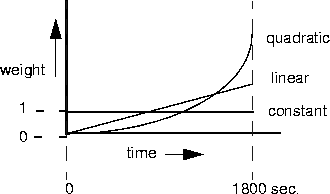
Quadratic (the default) gives more weight to recent samples of bandwidth usage than to older samples taken during the specified period. The weighting grows at a quadratic rate.
Linear gives more weight to recent samples of bandwidth usage than to older samples taken during the specified period. The weighting grows at a linear rate.
Constant gives equal weight to all samples taken during the specified period.
Time period for calculating average line utilization
Sec History specifies a number of seconds to use as the basis for calculating average line utilization (ALU).
Target utilization
Target Util specifies a percentage of line utilization (default 70%) to use as a threshold when determining when to add or subtract bandwidth.
Adding or dropping links (Add Pers)
Add Pers specifies a number of seconds that the ALU must persist beyond the Target Util threshold before the MAX adds bandwidth. Sub Pers specifies a number of seconds that the ALU must persist below the Target Util threshold before the MAX subtracts bandwidth. When adding bandwidth, the MAX adds the number of channels specified in the Inc Ch Count parameter. When subtracting bandwidth, it subtracts the number of channels specified in the Dec Ch Count parameter, dropping the newest channels first.
Guidelines for configuring bandwidth criteria
When configuring dynamic bandwidth allocation, keep the following guidelines in mind:
- The values for the Sec History, Add Pers, and Sub Pers parameters should smooth out spikes in bandwidth utilization that last for a shorter time than it takes to add capacity. Over T1 lines, the MAX can add bandwidth in less than ten seconds. Over ISDN lines, the MAX can add bandwidth in less than five seconds.
- When the MAX adds bandwidth, you typically incur a minimum usage charge. Thereafter, billing is time sensitive. The Sub Pers value should allow the period to which the minimum duration charge applies plus one or two billing time increments. Typically, billing is done to the next multiple of six seconds, with a minimum charge for the first thirty seconds. Your carrier representative can help you understand the billing structure for the switched tariffs.
- You can add channels one at a time or in multiples. (For additional information, see the Parallel Dial parameter).
- Avoid adding or subtracting channels too quickly (less than 10-20 seconds apart) to reduce the number of short duration calls, each of which incurs the carrier's minimum charge. Adding or subtracting channels too quickly can also affect link efficiency, because the devices on either end have to retransmit data when the link speed changes.
Example of MP connection without BACP
To configure an MP connection without BACP:
- Open the Answer profile.
- Enable PPP and MP encapsulation and specify the appropriate routing, bridging, and authentication values. For example:
Ethernet
      Answer
            Encaps...
                  PPP=Yes
                  MP=Yes
            PPP options...
                  Route IP=Yes
                  Route IPX=Yes
                  Bridge=Yes
                  Recv Auth=Either
- Close the Answer profile.
- Open a Connection profile, specify the name of the remote device, and activate the profile. For example:
Ethernet
      Connections
            Station=ted
            Active=Yes
- Select MP encapsulation, and open the Encaps Options subprofile.
- Configure PPP authentication. For example:
            Encaps=MP
            Encaps options...
                  Send Auth=PAP
                  Send PW=remotepw
                  Aux Send PW=N/A
                  Recv PW=localpw
- Set the base channel count. For example, to use two channels for this call:
Base Ch Count=2
Note: Both sides of the connection should specify the same number of channels.
- Close the Connection profile.
Example MP connection with BACP
To configure an MP connection that uses BACP:
- Open the Answer profile.
- Enable PPP and MP encapsulation and specify the appropriate routing, bridging, and authentication values. For example:
Ethernet
      Answer
            Encaps...
                  MP=Yes
                  PPP=Yes
            PPP options...
                  Route IP=Yes
                  Route IPX=Yes
                  Bridge=Yes
                  Recv Auth=Either
- Enable BACP to monitor bandwidth requirements on the basis of received packets:
BACP=Yes
- Close the Answer profile.
- Open a Connection profile, specify the name of the remote device, and activate the profile. For example:
Ethernet
      Connections
            Station=clara
            Active=Yes
- Select MP encapsulation and set the MP authentication options. For example:
            Encaps=MP
            Encaps options...
                  Send Auth=PAP
                  Send PW=remotepw
                  Aux Send PW=N/A
                  Recv PW=localpw
- Enable BACP to monitor bandwidth requirements for packets transmitted on this connection, and configure the Ascend criteria for bandwidth management. For example:
                  BACP=Yes
                  Base Ch Count=1
                  Min Ch Count=1
                  Max Ch Count=2
                  Inc Ch Count=1
                  Dec Ch Count=1
                  Dyn Alg=Quadratic
                  Sec History=15
                  Add Pers=5
                  Sub Pers=10
                  Target Util=70
Note: For optimum performance, both sides of a connection must set the channel count
parameters to the same values.
- Close the Connection profile.
Configuring Ascend MP+ connections
Multilink PPP Plus (MP+) uses PPP encapsulation with Ascend extensions. MP+ enables the MAX to use multiple channels for connecting to another Ascend unit. BACP is not required, because the Ascend criteria for adding or dropping a link are part of the MP+ extensions. In addition to the PPP and MP parameters described earlier use the following parameters for MP+ connections: shown with sample settings):
Ethernet
      Answer
            Encaps...
                  PPP=Yes
                  MP=Yes
                  MPP=Yes
            PPP options...
                  Dyn Alg=Quadratic
                  Sec History=15
                  Add Pers=5
                  Sub Pers=10
                  Min Ch Count=1
                  Max Ch Count=1
                  Target Util=70
                  Idle Pct=0
Ethernet
      Connections
          any Connection profile
              Encaps=MPP
              Encaps options...
                  Aux Send PW=aux-passwd
                  DBA Monitor=Transmit
                  Base Ch Count=1
                  Min Ch Count=1
                  Max Ch Count=2
                  Inc Ch Count=1
                  Dec Ch Count=1
                  Dyn Alg=Quadratic
                  Sec History=15
                  Add Pers=5
                  Sub Pers=10
                  Target Util=70
                  Idle Pct=0
Understanding the MP+ parameters
This section provides some background information about MP+ connections. For detailed information about each parameter, see the MAX Reference Guide.
Channel counts and bandwidth allocation parameters
BACP and MP+ use the same criteria for increasing or decreasing bandwidth for a connection. For details about the bandwidth allocation parameters, see Understanding the MP and BACP parameters and Guidelines for configuring bandwidth criteria.
Auxiliary password for added channels
The Aux Send PW parameter can specify another password for authenticating subsequent links as they are dialed. For details, see the MAX Security Supplement for details.
Bandwidth monitoring
In a Connection profile's Encaps Options subprofile, the DBA Monitor parameter specifies whether bandwidth criteria for adding or dropping links are applied to traffic received across the link, transmitted across the link, or both. If you set DBA Monitor to None on both sides of the link, you disable bandwidth on demand.
Idle percent
Idle Pct specifies a percentage of utilization below which the MAX drops all channels, including the base channel. Bandwidth utilization must fall below this percentage on both sides of the connection before the MAX drops the link. If the device at the remote end of the link enters an Idle Pct setting lower than the value you specify, the MAX does not clear the call until bandwidth utilization falls below the lower percentage. The default value for Idle Pct is 0, causing the MAX to ignore bandwidth utilization when determining whether to clear a call and use the Idle timer instead.
Example of MP+ configuration
Figure 4-11 shows the MAX connected to a remote Pipeline unit with an MP+ connection.
Figure 4-11. An MP+ connection

To configure an MP+ connection with a remote Ascend unit:
- Open the Answer profile.
- Set PPP and MP+ encapsulation to Yes and specify the appropriate routing, bridging, and authentication values. For example:
Ethernet
      Answer
            Encaps...
                  MPP=Yes
                  PPP=Yes
            PPP options...
                  Route IP=Yes
                  Route IPX=Yes
                  Bridge=Yes
                  Recv Auth=Either
- Close the Answer profile.
- Open a Connection profile, specify the name of the remote device, and activate the profile. For example:
Ethernet
      Connections
            Station=richard
            Active=Yes
- Select MP+ encapsulation and set the MP+ authentication options. For example:
            Encaps=MPP
            Encaps options...
                  Send Auth=PAP
                  Send PW=remotepw
                  Aux Send PW=secondpw
                  Recv PW=localpw
- Configure the DBA Monitor and the Ascend criteria for bandwidth management. For example:
            Encaps options...
                  DBA Monitor=Transmit-Recv
                  Base Ch Count=1
                  Min Ch Count=1
                  Max Ch Count=5
                  Inc Ch Count=1
                  Dec Ch Count=1
                  Dyn Alg=Quadratic
                  Sec History=15
                  Add Pers=5
                  Sub Pers=10
                  Target Util=70
                  Idle Pct=0
Note: For optimum performance, both sides of a connection must set the Base Ch Count,
Min Ch Count, and Max Ch Count parameters to the same values.
- Close the Connection profile.
Configuring a nailed MP+ connection
A Nailed/MP+ connection is a nailed connection that can add switched channels for increased bandwidth. The MAX dials switched channels when it receives an outbound packet for the far end and cannot forward it across the nailed connection, either because those channels are down or because they are being fully utilized.
If both the nailed and switched channels in a Nailed/MP+ connection are down, the connection does not reestablish itself until the nailed channels are brought back up or you dial the switched channels.
The maximum number of channels for the Nailed/MP+ connection is either the Max Ch Count setting or the number of nailed channels in the specified group, whichever is greater. If a nailed channel fails, MAX replaces that channel with a switched channel, even if the call is online with more than the minimum number of channels.
Note: If you modify a Nailed/MP+ Connection profile, most changes become active only
after the call is brought down and then back up. However, if you add a group number (for
example, changing Group=1,2 to Group=1,2,5) and save the modified profile, the MAX adds
the additional channels to the connection without having to bring it down and back up.
To configure a Nailed/MP+ connection:
- Configure an MP+ connection, as described in the preceding section.
- Open the Telco Options subprofile of the Connection profile.
- Specify that the MAX is the designated caller for the switched part of the connection.
Ethernet
      Connections
            Telco options...
                  AnsOrig=Call Only
                  FT1 Caller=Yes
Note: On the far end of the connection, set the AnsOrig and FT1 Caller parameters for
answering only. Note that the DO Hangup command only works from the caller end of the
connection.
- Specify the Nailed/MP+ call type, and the group number(s) of its nailed channels. For example:
                  Call Type=Nailed/MPP
                  Group=1,2
- Close the Connection profile.
Configuring a Combinet connection
The MAX supports Combinet bridging to link two LANs as if they were one segment. For a Combinet connection to work, bridging must be enabled at the system level (as described in Chapter 11, Configuring Packet Bridging.) Figure 4-12 shows a Combinet connection.
Figure 4-12. A Combinet connection

Combinet configuration involves the following parameters (shown with sample settings):
Ethernet
      Mod Config
            Bridging=Yes
Ethernet
      Answer
            Encaps...
                  COMB=Yes
            COMB options...
                  Password Reqd=Yes
                  Interval=10
                  Compression=Yes
Ethernet
      Connections
        any Connection profile
            Station=000145CFCF01
            Encaps=COMB
            Bridge=Yes
            Encaps options...
                  Password Reqd=Yes
                  Send PW=remotepw
                  Recv PW=localpw
                  Interval=10
                  Base Ch Count=2
                  Compression=Yes
For detailed information about each parameter, see the MAX Reference Guide.
Understanding Combinet bridging parameters
This section provides some background information about a Combinet configuration.
Specifying the hardware address of the remote Combinet bridge
The (Connection profile) Station parameter must specify the Media Access Control (MAC) address of the remote Combinet bridging device.
Enabling bridging
A Combinet connection is always a bridging connection, so the Bridge parameter in the Connection profile must be set to Yes. If the Bridge parameter is N/A, bridging has not been enabled in the Ethernet profile (as described in Chapter 11, Configuring Packet Bridging).
Requiring a password from the remote bridge
You can specify that an individual Combinet connection does not require a password exchange, even if the Answer profile specifies that Combinet passwords are required.
Specifying passwords to exchange with the remote bridge
The Send PW parameter is the password sent to the remote device. It must match the password expected from the MAX. The Recv PW parameter is the password sent to the MAX from the remote device.
Configuring line-integrity monitoring
The (Answer profile) Interval parameter specifies the number of seconds between transmissions of Combinet line-integrity packets. You can specify a number between 5 and 50. If the MAX does not receive a Combinet line-integrity packet within the specified interval, it disconnects the call.
Base channel count
The (Connection profile) Base Ch Count parameter specifies the base number of channels to use when setting up the call. It can be set to 1 (for 64 Kbps) or 2 (for 128 Kbps).
Compression
The (Connection profile) Compression parameter enables or disables STACKER LZS compression/decompression. Both sides of the link must enable compression or it is not used.
Example of Combinet configuration
To configure a Combinet connection:
- Open a Connection profile.
- Specify the MAC address of the remote device and activate the profile. For example:
Ethernet
      Connections
            Station=000145CFCF01
            Active=Yes
- Configure bridging options as follows:
            Bridge=Yes
            Dial Brdcast=Yes
- Select Combinet encapsulation and then configure COMB options for this connection. (Leave the default values for Compression and Interval.) For example:
      Encaps=COMB
            Encaps options...
                  Password Reqd=Yes
                  Send PW=*SECURE*
                  Recv PW=*SECURE*
                  Interval=10
                  Base Ch Count=2
                  Compression=Yes
- Close the Connection profile.
Configuring EU connections
EU encapsulation is a type of X.75 HDLC encapsulation commonly used in European countries. Like PPP, EU runs over synchronous lines. It has no asynchronous mode for connecting to modems. EU encapsulation differs from a PPP or MP+ connection in that it does not support password authentication, IP/IPX address pools, or dynamic bandwidth allocation (DBA). It does support routing and bridging connections.
EU-RAW and EU-UI do not provide password-authentication of incoming calls, so another mode of authentication is typically used to verify the caller when the call is end-to-end ISDN. For details, see the MAX Security Supplement.
EU configuration involves the following parameters (shown with sample settings):
Ethernet
      Answer
            Id Auth=Called Reqd
            Encaps...
                  EU-UI=Yes
                  EU-RAW=Yes
Ethernet
      Connections
          any Connection profile
            Calling #=555-7878
            Called #=555-1212
            Encaps=EU-RAW
            Encaps options...
                  MRU=1524
Ethernet
      Connections
          any Connection profile
            Calling #=555-7878
            Called #=555-1212
            Encaps=EU-UI
            Encaps options...
                  MRU=1524
                  DCE Addr=1
                  DTE Addr=3
Understanding the EU parameters
This section provides some background information on EU parameters. For detailed information about each parameter, see the MAX Reference Guide.
EU-RAW and EU-UI
EU-RAW is a type of X.75 encapsulation in which IP packets are HDLC encapsulated together with a CRC field. EU-UI uses the same encapsulation, but contains a smaller header that can contain one value for packets from the caller and another value for packets from the called unit. Most EU connections use EU-RAW.
Maximum Receive Units (MRU)
The MRU parameter in a Connection profile's Encaps Options profile, specifies the maximum number of bytes the MAX can receive in a single packet on an EU link. Usually the default 1524 is the right setting, unless the far end device requires a lower number. If the administrator of the remote network specifies that you must change this value, enter a number lower than 1524.
Data communications equipment address (DCE Addr)
The DCE Addr parameter specifies a value for the calling unit in the EU-UI header. The caller needs to obtain the number you specify and configure the calling unit accordingly.
Data terminal equipment address (DTE Addr)
The DTE Addr parameter specifies a value for the called unit in the EU-UI header. The caller must use the same value for the called unit.
Example of an EU configuration
Figure 4-13 shows three connections that use EU encapsulation with ID authentication.
Figure 4-13. EU connection
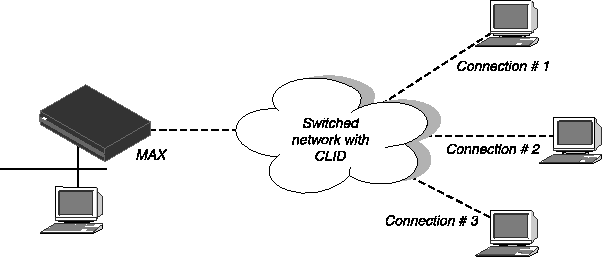
To configure a connection that uses EU-RAW framing:
- Open the Answer profile and make sure that EU-RAW encapsulation is enabled.
- Set Id Auth to Calling Reqd (CLID authentication):
Ethernet
      Answer
            Id Auth=Calling Reqd
            Encaps...
                  EU-RAW=Yes
- Close the Answer profile.
- Open a Connection profile and specify the name of the remote device.
- Activate the profile:
Ethernet
      Connections
            Station=remote-device
            Active=Yes
- Specify the calling line number. For example:
Calling #=555-1212
- Select the EU-RAW encapsulation type and, if necessary, configure the MRU in the Encaps Options subprofile. For example:
            Encaps=EU-RAW
            Encaps options...
                  MRU=1524
- Close the Connection profile.
Example of a EU-UI connection
To configure a connection using EU-UI framing:
- Open the Answer profile and make sure that EU-UI encapsulation is enabled.
- Set Id Auth to Calling Reqd (CLID authentication):
Ethernet
      Answer
            Id Auth=Calling Reqd
            Encaps...
                  EU-UI=Yes
- Close the Answer profile.
- Open a Connection profile, specify the name of the remote device, and activate the profile. For example:
Ethernet
      Connections
            Station=remote-device
            Active=Yes
- Specify the calling line number. For example:
Calling #=555-1212
- Select the EU-UI encapsulation type:
Encaps=EU-UI
- In the Encaps Options subprofile, set the DCE and DTE addresses. For example:
            Encaps options...
                  MRU=1524
                  DCE Addr=1
                  DTE Addr=3
- Close the Connection profile.
Configuring an ARA connection
AppleTalk Remote Access (ARA) uses V42 Alternate Procedure as its data link, so ARA can be used only over asynchronous modem connections.
To configure ARA connections, you set the following parameters (shown with sample settings):
Ethernet
      Mod Config
            Appletalk=Yes
            AppleTalk...
                  Zone Name=*
Ethernet
      Answer
            Profile Reqd=Yes
            Encaps...
                  ARA=Yes
Ethernet
      Connections
            Encaps=ARA
            Encaps options...
                  Password=*SECURE*
                  Max. Time (min)=0
        AppleTalk Options
            Peer=Dialin
            Zone Name=
            AppleTalk Router=Seed
            Net Start=300
            Net End=309
            Default Zone=
            Zone Name #1=
            Zone Name #2=
            Zone Name #3=
            Zone Name #4=
Understanding the ARA parameters
This section provides some background information about ARA parameters. For detailed information about each parameter, see the MAX Reference Guide.
AppleTalk and Zone Name
The AppleTalk parameter in the Ethernet Mod Config profile enables the AppleTalk stack in the MAX. If the local Ethernet supports an AppleTalk router with configured zones, the Zone Name parameter in the Mod Config profile should specify the zone in which the MAX unit's resides.
Profile Reqd
When Profile Reqd=Yes in the Answer profile, ARA Guest access is disabled.
Password
The (Connection profile) Password parameter specifies the password sent to the MAX from the ARA client.
Max. Time
The (Connection Profile) Max. Time parameter specifies the maximum number of minutes an ARA session can remain connected. If it is set to 0 (zero)- (the default), the timer is disabled. The maximum connect time for an ARA connection has nothing to do with the MAX idle timer. If a connection is configured with maximum connect time, the MAX initiates an ARA disconnect when that time is up. The ARA link goes down cleanly, but remote users are not notified. Users find out the ARA link is gone only when they try to access a device.
Example of ARA configuration that enables IP access
This section shows an example of ARA configuration that enables a Macintosh with an internal modem to dial into the MAX by using the ARA Client software to communicate with an IP host on the Ethernet. A connection that does not require IP access would be a subset of this example. Figure 4-14 shows the sample network.
Figure 4-14. An ARA connection enabling IP access

Note: If you do not require IP access, the Connection profile does not need IP routing and the
Macintosh client does not need a TCP/IP configuration. For ARA connections that support IP
access, the MAX receives IP packets encapsulated in AppleTalk's DDP protocol. It removes
the DDP headers and routes the IP packets normally.
Configure the Macintosh ARA Client software as follows:
- Set the appropriate modem parameters in the ARA Client software to enable the user's async modem to establish a connection with the MAX.
- Specify the dial-in number in the ARA Client software.
Configure the Macintosh TCP/IP software as follows:
- Configure Open Transport
The TCP/IP Control Panel has an option to connect by using MacIP. DDP-IP encapsulation requires MacIP. This Control Panel also has an option to configure its IP address manually, via BOOTP, DHCP, or RARP. If you assign the Macintosh a permanent IP address, choose Manually. If the MAX assigns an address to the Macintosh from a pool of allocated addresses, choose BOOTP.
- Configure MacTCP
The MacTCP Control Panel should have an icon for ARA. That icon must be selected for DDP-IP encapsulation. This Control Panel also has an option to configure its IP address Manually or from a Server. If you assign the Macintosh a permanent IP address, choose Manually. If you assign the MAX an address to the Macintosh from a pool of allocated addresses, choose Server. Do not choose Dynamically in the MacTCP Control Panel. The MAX does not support Dynamically.
Note: The MAX must be configured as an IP router. At a minimum, the MAX unit's Ethernet
interface should be configured with an IP address and a DNS server address. If the ARA client
obtains an IP address from the server, you must also configure the MAX for dynamic IP
address assignment. See Chapter 7, Configuring IP Routing.
If you configure the MAX for IP routing (in the Ethernet profile), you can configure an ARA connection that enables IP access as follows:
- Open the Ethernet profile and set AppleTalk to Yes.
- If applicable, specify the AppleTalk zone in which the MAX resides. For example:
Ethernet
      Mod Config
            Appletalk=Yes
            AppleTalk...
                  Zone Name=Engineering
- Close the Ethernet profile.
- Open a Connection profile, specify the dial-in user's name, and activate the profile. For example:
Ethernet
      Connections
            Station=mac
            Active=Yes
- Select ARA encapsulation and configure the ARA options. For example:
            Encaps=ARA
            Encaps options...
                  Password=localpw
                  Max. Time (min)=0
- Configure the connection for IP routing.
For example, if the Macintosh software has a hard-coded IP address (Manual):
            Route IP=Yes
            IP options...
                  LAN Adrs=10.2.3.4/24
Or, if the Macintosh software expects a dynamic IP address assignment:
            Route IP=Yes
            IP options...
                  LAN Adrs=0.0.0.0/0
                  Pool=1
- Close the Connection profile.
techpubs@ascend.com
Copyright © 1998, Ascend Communications, Inc. All rights
reserved.