![[Top]](../images/home.jpg)

![[Contents]](../images/contents.jpg)
![[Prev]](../images/previous.jpg)
![[Next]](../images/next.jpg)
![[Last]](../images/index.jpg)


Using the MAX as an ISP or telecommuting hub
The MAX is a high-performance WAN router that concentrates many incoming connections onto a corporate backbone or another network, such as the Internet or a Frame Relay network. The connections are usually switched, but the MAX also supports leased connections for those users whose connection times justify a permanent virtual connection to the backbone network. Using the MAX as an ISP hub
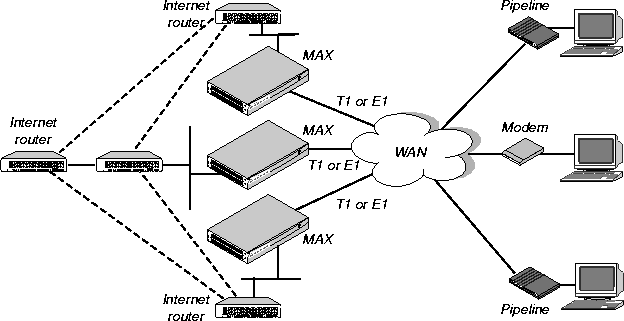
Individuals subscribe to an Internet Service Provider to get a TCP/IP connection to the Internet. Subscribers dial in to a local Point-of-Presence (POP), typically by means of an analog modem, an ISDN V.120 terminal adapter, or an ISDN router such as an Ascend Pipeline. If you use the MAX as an ISP hub, configure it as an IP router, because it establishes the dial-in WAN connection with subscribers and routes their data streams to other Internet routers.
Figure 2-1. Using the MAX as an ISP hub
Using the MAX as a telecommuting hub
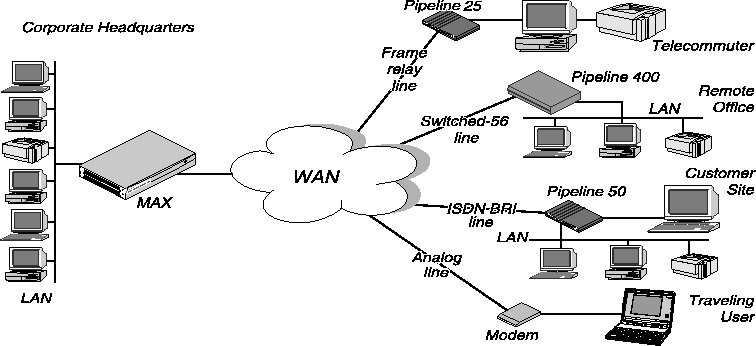
Telecommuters are typically at branch offices, at home, at customer sites, at vendor sites, or on the road. The MAX enables these remote users to access the corporate backbone just as though they were connected locally. The backbone might be a NetWare LAN, an IP network, or a multiprotocol network. Figure 2-2 shows an example in which home users, remote offices, and customer sites can access the backbone network.
Figure 2-2. Using the MAX as a telecommuting hub
Overview of MAX configuration
Before you configure the MAX, you should create a network diagram. Configuration tasks generally consist of:
Use the serial WAN port for a leased high-speed connection to a Frame Relay switch or to another WAN router. The port itself requires little configuration. A Frame Relay or Connection profile specifies most of the required information.
You can add expansion modules to support additional bandwidth (BRI lines), serial host ports modules to support videoconferencing, and digital modems to support analog modem connections over digital lines. The lines and ports on the modules (cards) have their own configuration requirements, including the assignment of phone numbers and information about routing calls.
Once you enable the lines, slots, and ports for WAN access, you need to configure the way in which outbound calls are routed to them (for dial-out access to the WAN) and the way in which inbound calls are routed from them to other destinations (such as the local network).
After a connection's link encapsulation method has been negotiated, the MAX typically uses a password to authenticate the call. For detailed information about authentication and authorization, see the MAX Security Supplement. Following are some of the connection security features the MAX supports:
Concentrating Frame Relay connections
The MAX provides extensive support for Frame Relay. Using a T1 or E1 line or serial WAN port for a nailed connection to a switch, it can function as a network-to-network interface (NNI) switch, a data communications equipment (DCE) unit responding to users, or as a data terminal equipment (DTE) unit requesting services from a switch. Enabling X.25 terminal connections
X.25 is a precursor to Frame Relay and is generally considered less efficient. However, many sites use it to transmit information between users across the WAN. It accommodates both high-volume data transfers and interactive use of host machines. The MAX can have one physical connection to an X.25 DCE at the other end of a T1, E1, or BRI line. To support interactive use, the connection must be nailed. Configuring routing and bridging across the WAN
Routing and bridging configurations enable the MAX to forward packets between the local network and the WAN and also between WAN connections. Enabling protocol-independent packet bridging
The MAX can operate as a link-level bridge, forwarding packets from Ethernet to a WAN connection (and vice versa) on the basis of the destination hardware address in each packet. Unlike a router, a bridge does not examine packets at the network layer. It simply forwards packets to another network segment if the address does not reside on the local segment. Using IPX routing (NetWare 3.11 or newer)
The MAX can operate as an IPX router, linking remote NetWare LANs with the local NetWare LAN on Ethernet. IPX routing has its own set of concerns related to the client-server model and user logins. For example, users should remain logged in for some period even if the connection has been brought down to save connection costs. IP routing
IP routing is the most widespread use of the MAX, and it has a wide variety of configurable options. IP routing is the required protocol for Internet-related services such as IP multicast support, OSPF, and cross-Internet tunneling for virtual private networks. Most sites create static IP routes to enable the MAX to reliably bring up a connection to certain destinations or to change global metrics or preferences settings. Configuring Internet services
All Internet services and routing methods require that the MAX function as an IP router, so an IP routing configuration is a necessary precondition. Multicast
The multicast backbone (MBONE) is a virtual network layered on top of the Internet to support IP multicast routing across point-to-point links. It is often used for transmitting audio and video on the Internet in realtime, because multicasting is a much cheaper and faster way to communicate the same information to multiple hosts. OSPF routing
Open Shortest Path First (OSPF) is the next generation Internet routing protocol. The MAX can be configured to communicate with other OSPF routers within an autonomous system (AS). To enable this routing function, you must configure the OSPF options on the Ethernet interface and for each WAN connection that supports remote OSPF routers. Virtual private networks
Many sites use the Internet to connect corporate sites or to enable mobile nodes to log into a corporate backbone. Such virtual private networks use cross-Internet tunneling to maintain security or to enable the Internet to transport protocols that it would otherwise drop, such as IPX. To implement virtual private networks, the MAX supports both ATMP, which is an Ascend proprietary tunneling mechanism, and Point-to-Point Tunneling Protocol (PPTP).
Management features
The terminal-server command line provides access to management features that are not available through the menus. The VT100 window does, however, provide status information. The MAX supports SNMP, remote management, serial port software upgrades, and Call Detail Reporting (CDR). Using the terminal-server command line
To invoke the terminal server command-line interface, you must have administrative privileges. Once you have activated a Security profile that enables these privileges, you can invoke the command line by selecting Term Serv in the Sys Diag menu. To close the command line, use the Quit command at the command-line prompt. The command-line interface closes and the cursor returns to the VT100 menus. For detailed information on the terminal-server, see Chapter 4, Configuring Individual WAN Connections.
Using status windows to track WAN or Ethernet activity
The VT100 interface displays eight status windows to the right of the configuration menus. The windows provide a great deal of read-only information about what is currently happening in the MAX. If you want to focus on the activity of a particular slot card, you can change the default contents of the windows to show what is currently occurring in that slot. Managing the MAX using SNMP
Many sites use Simple Network Management Protocol (SNMP) applications to obtain information about the MAX and make use of it to enhance security, set alarms for certain conditions, and perform simple configuration tasks. Using remote management to configure far-end Ascend units
When you have an MP+ or AIM connection to another Ascend unit, you can use the management subchannel established by those protocols to control, configure, and obtain statistical and diagnostic information about that Ascend unit. Multi-level password security ensures that unauthorized personnel do not have access to remote management functions. Flash RAM and software updates
Flash RAM technology enables you to perform software upgrades in the field without opening the unit or changing memory chips. You can upgrade the MAX through its serial port by accessing it either locally or through a dial-in modem. You cannot perform remote software upgrades over the WAN interface because of a conflict between running the WAN and reprogramming the software. Call Detail Reporting (CDR)
Call Detail Reporting (CDR) is a feature that provides a database of information about each call, including date, time, duration, called number, calling number, call direction, service type, associated inverse multiplexing session, and port. Because the network carrier bills for bandwidth on an as-used basis, and bills each connection in an inverse multiplexed call separately, you can use the CDR feature to understand and manage bandwidth usage and the cost of each inverse multiplexed session.
MAX profiles
A profile is a group of related settings that appear on the VT100 interface. To navigate the interface, use the arrow keys or Control-key combinations as described in the Hardware Installation Guide for your MAX. When you first telnet to the VT100 interface, the Main Edit Menu typically appears: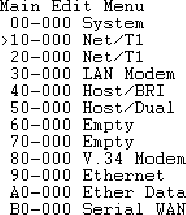
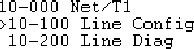
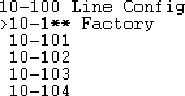
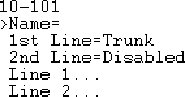
Net/T1

    Line Config

        any slot profile

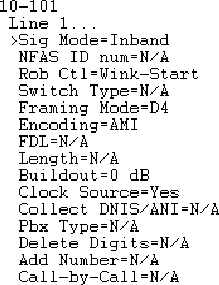
            Line N

                Sig Mode=Inband

                    NFAS ID num=N/A

                    Rob Ctl=Wink-Start

                    Switch Type=N/A

                    Framing Mode=D4

                    Encoding=AMI

                    FDL=N/A

                    Length=N/A

                    Buildout=0dB

                    Clock Source=Yes

                    Collect DNIS/ANI=N/A

                    Pbx Type=N/A

                    Delete Digit=N/A

                    Add Number=N/A

                  Call-by-Call=N/A
The Main Edit Menu's DO menu appears.
The Security Profile menu appears.
A password entry field appears.
If your password is accepted, you have Full Access privileges.
The profile's DO menu appears.
The Load Profile menu appears.
Profile loaded as current profile appears.
Where to go next
When you have planned your network, you are ready to configure the MAX. The flexibility of the MAX and its ever-increasing number of configurations means there is no set order for configuration. You can perform configuration tasks in any order you want. Table 2-1 shows where to look for the information you need.
Copyright © 1998, Ascend Communications, Inc. All rights reserved.